
Xbox EP2-29563
Xbox Wireless Controller Storm Breaker Special Edition
Modelo: EP2-29563
Marca: Xbox
Introdução
The Xbox Wireless Controller Storm Breaker Special Edition is designed to provide an enhanced gaming experience across multiple platforms. This controller features a unique aesthetic with classic grays and blacks, offset with whites, along with textured grips for improved handling. It offers seamless connectivity and customizable controls to optimize your gameplay.
Principais características
- Storm Breaker Special Edition Design: Features a distinctive gray, black, and white pattern.
- Textured Triggers: Provides enhanced grip and control during gameplay.
- Rubberized Grips: Located on the back cases for secure handling.
- Wireless & Bluetooth Connectivity: Easily pairs with Xbox consoles, PCs, and mobile devices.
- Botão Compartilhar: Seamlessly capture and share screenshots and game recordings.
- Mapeamento de botão personalizável: Personalize controls using the Xbox Accessories app.
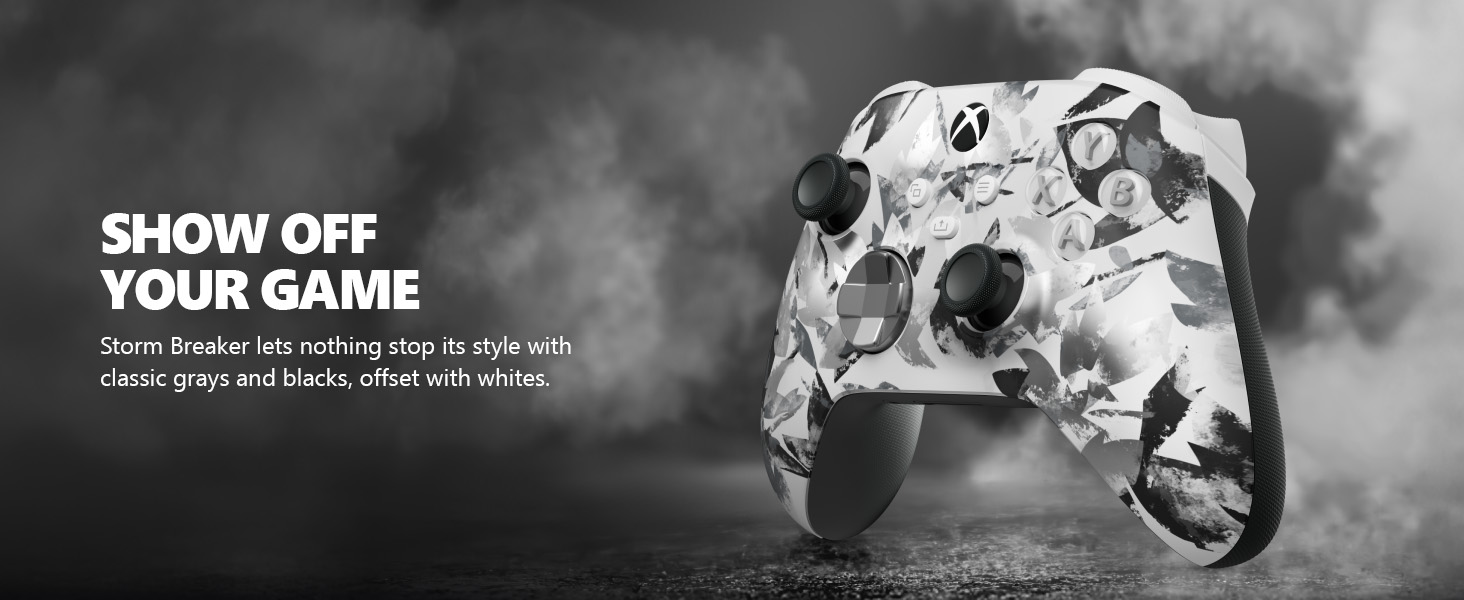
Image: The Xbox Wireless Controller Storm Breaker Special Edition showcasing its distinctive color scheme.
Configurar
1. Instalação da bateria
The controller requires two AA batteries (included). To install:
- Localize o compartimento da bateria na parte traseira do controle.
- Press the small tab and lift the battery cover.
- Insert the two AA batteries, ensuring correct polarity (+ and -).
- Recoloque a tampa da bateria até que ela se encaixe no lugar.
2. Emparelhamento com dispositivos
The controller supports both Xbox Wireless and Bluetooth for versatile connectivity.
- Para console Xbox:
- Ligue seu console Xbox.
- Press the Xbox button on your controller to turn it on.
- Pressione e segure o botão Emparelhar (⏚) on the top of the controller until the Xbox button flashes rapidly.
- Press the Pair button on your Xbox console (usually near the USB port or on the front).
- The Xbox button on the controller will become solid when connected.
- For PC (Windows 10/11) via Bluetooth:
- Certifique-se de que o Bluetooth esteja ativado no seu computador.
- Press the Xbox button on your controller to turn it on.
- Pressione e segure o botão Emparelhar (⏚) on the top of the controller until the Xbox button flashes rapidly.
- No seu PC, acesse Configurações > Dispositivos > Bluetooth e outros dispositivos.
- Select "Add Bluetooth or other device" and then "Bluetooth".
- Choose "Xbox Wireless Controller" from the list and follow on-screen prompts.
- Para dispositivos móveis (Android/iOS):
- Ative o Bluetooth no seu dispositivo móvel.
- Press the Xbox button on your controller to turn it on.
- Pressione e segure o botão Emparelhar (⏚) on the top of the controller until the Xbox button flashes rapidly.
- On your mobile device, search for Bluetooth devices and select "Xbox Wireless Controller" to pair.
Vídeo: Um excessoview of the Xbox Wireless Controller, demonstrating its physical features and ports, useful for understanding setup.
Operando o Controlador
1. Controles Básicos
- Polegares: Utilizado para controle de movimento e câmera.
- D-pad: Ideal for precise directional input in games and menu navigation.
- Botões A, B, X, Y: Primary action buttons for in-game commands.
- Gatilhos (LT/RT) e para-choques (LB/RB): Used for various actions like shooting, accelerating, or menu selection.
2. Botão Compartilhar
The dedicated Share button (⤓) allows you to quickly capture and share your gaming moments:
- Press once to take a screenshot.
- Press and hold to record the last 30 seconds of gameplay.
3. Entrada para fone de ouvido
A 3.5mm audio jack is located at the bottom of the controller, allowing you to connect compatible headsets for in-game audio and chat.
4. Customization with Xbox Accessories App
Download the Xbox Accessories app on your Xbox console or Windows PC to customize button mapping and create personalized controller profiles.
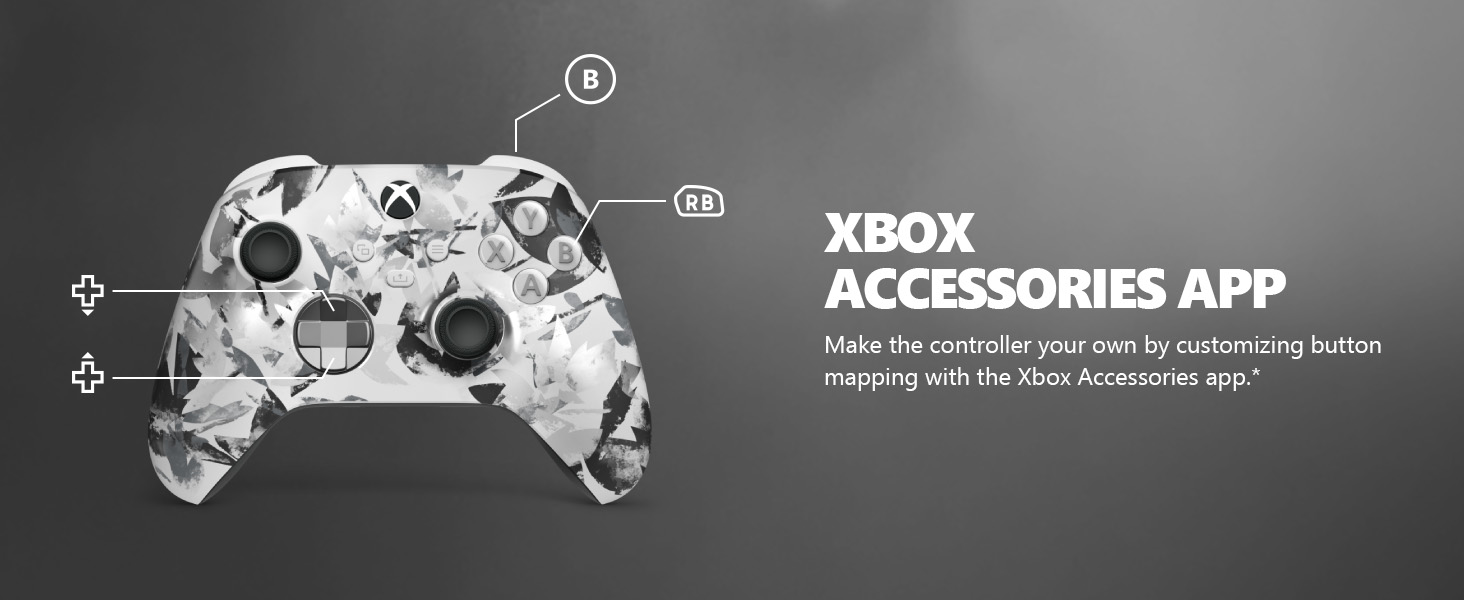
Image: The Share button and an illustration of button mapping customization via the Xbox Accessories app.
Manutenção
- Limpeza: Use um pano macio e seco para limpar o controlador. Evite produtos de limpeza abrasivos ou solventes.
- Cuidados com a bateria: Remova as pilhas se o controle remoto não for usado por um longo período para evitar vazamentos.
- Armazenar: Guarde o controlador em local fresco e seco, longe da luz solar direta e de temperaturas extremas.
Solução de problemas
- Controlador não conectando:
- Certifique-se de que as baterias estejam instaladas e carregadas corretamente.
- Tente novamente o processo de emparelhamento conforme descrito na seção Configuração.
- Verifique se há interferência de outros dispositivos sem fio.
- Update controller firmware via the Xbox Accessories app.
- Botões sem resposta:
- Limpe ao redor dos botões para remover quaisquer resíduos.
- Test the controller with another device or game to isolate the issue.
- Bateria de curta duração:
- Use pilhas AA novas e de alta qualidade.
- Consider using a rechargeable battery pack (sold separately) for extended play.
Especificações
| Recurso | Detalhe |
|---|---|
| Número do modelo | EP2-29563 |
| Conectividade | Xbox sem fio, Bluetooth |
| Compatibilidade | Xbox Series X|S, Xbox One, Windows 10/11, Android, iOS |
| Fonte de energia | 2 pilhas AA (incluídas) |
| Porto de áudio | Conector de fone de ouvido de 3.5 mm |
| Dimensões | 6.91 x 5.61 x 2.76 polegadas |
| Peso | 14.1 onças |
| Fabricante | Microsoft |
Garantia e Suporte
For warranty information and technical support, please refer to the documentation included with your product or visit the official Xbox support website. Guarde o comprovante de compra para solicitações de garantia.
Suporte online: suporte.xbox.com
Ask a question about this manual
Ask about setup, troubleshooting, compatibility, parts, safety, or missing instructions. Manuals+ will review the question and use this page’s manual context to help answer it.