Introdução
This manual provides essential information for the installation, operation, and maintenance of your Smart-Home Smart RCBO 30mA Type A & AC Wi-Fi Residual Current Operated Circuit Breaker. Please read this manual thoroughly before installation and use to ensure safe and efficient operation.
The Smart-Home Smart RCBO is a single-phase residual current operated circuit breaker with overcurrent protection, available in Type A and AC. It provides comprehensive protection against residual currents and electrical overloads. Featuring a compact two-DIN module design, an OLED display for real-time data, and compatibility with Tuya Smart and Smart Life apps. It supports current settings from 1 to 40A (C curve) and a 30mA leakage current. The device includes an automatic reclosing function with up to three attempts after a trip, and manual rearming via the app. Additional protections cover short-circuits, overheating, overvoltage, e subvol.tage. It is compatible with Linux and Home Assistant, and includes a MODBUS RTU RS485 interface. Detailed logs are stored for seven days on the Tuya IoT Platform. The product complies with EN 61009-1, EN 60947-2:2017/A11:2020, EN 60947-1:2021, and RoHS 2 directive.
Informações de segurança
- Installation must be performed by a qualified electrician in accordance with national and local wiring regulations.
- Desligue sempre a alimentação antes de instalar, ligar os fios ou realizar qualquer manutenção no dispositivo.
- Não utilize o aparelho se ele estiver danificado ou apresentar mau funcionamento.
- Garanta um aterramento adequado para evitar choque elétrico.
- The device is designed for indoor use in dry environments. Avoid exposure to moisture or extreme temperatures.
- Não tente modificar ou reparar o dispositivo por conta própria. Contate pessoal qualificado para obter assistência técnica.
Produto acimaview
The Smart RCBO combines residual current and overcurrent protection in a compact 2-DIN module design. It features an OLED display and can be controlled via Wi-Fi through the Tuya Smart or Smart Life applications.
Principais características:
- Design compacto: Occupies only two DIN modules in your electrical panel.
- Proteção abrangente: Detects leakage current (Type A & AC 30mA) and overcurrent (1-40A, C curve).
- Automatic Reclosing: Up to 3 attempts after a trip, with a 30-second interval. Manual rearming is also possible via the app.
- Display OLED: Exibição em tempo real de voltage, current, power, temperature, leakage current, kWh consumption, and MODBUS status.
- Controle inteligente: Remote management via Tuya Smart/Smart Life app, scenario creation, and voice commands (Alexa, Google Home).
- Compatibilidade avançada: Supports Linux and Home Assistant integrations, with a MODBUS RTU RS485 interface.
Identificação do componente:

Imagem: Frente view of the Smart RCBO with labeled components. This image shows the phase input, neutral input, OLED screen, pairing button/function selector, leakage current test button, mechanical condition check, LED status indicator, locking lever, MODBUS interface tab, phase output, and neutral output. The OLED screen displays various electrical parameters.
- Phase Input/Output: Connections for the live wire.
- Neutral Input/Output: Connections for the neutral wire.
- Tela OLED: Displays real-time electrical data.
- Pairing Button/Function Selector: Used for Wi-Fi pairing and navigating OLED display functions.
- Leakage Current Test Button: For manual testing of the residual current function.
- Mechanical Condition Check: Visual indicator of the breaker's state.
- Status do LED: Indicates operational status and Wi-Fi connection.
- Alavanca de travamento: Secures the device to the DIN rail.
- MODBUS Interface Tab: (Factory reserved) For advanced integration.
Especificações
| Parâmetro | Valor |
|---|---|
| Fabricante | Smart-Início |
| Dimensões do produto (C x L x A) | 7 x 3.5 x 10 cm |
| Peso | 240 gramas |
| Referência do modelo | Smart RCBO 30mA type A & AC |
| Estilo | Type A & AC 30mA |
| Volumetage | 230 Volts (CA) |
| O quetage | 9 kW |
| Classificação atual | 1-40 A (C curve) |
| Leakage Current Sensitivity | 30mA (Type A & AC) |
| Breaking Capacity (Icu/Ics) | 6kA |
| Número de postes | 2 |
| Tipo de montagem | DIN rail (2 modules) |
| Sobrevoltage Proteção | Adjustable 250V to 350V (Default: 280V) |
| Undervoltage Proteção | Adjustable 110V to 200V (Default: 165V) |
| Configuração de temperatura máxima | Adjustable 60°C to 125°C (Default: 80°C) |
| Power Max Setting | Adjustable 5W to 9000W (Default: 2000W) |
Conformidade:
- EN 61009-1
- EN 60947-2:2017/A11:2020
- EN 60947-1:2021
- RoHS 2 Directive 2011/65/EU Annex II
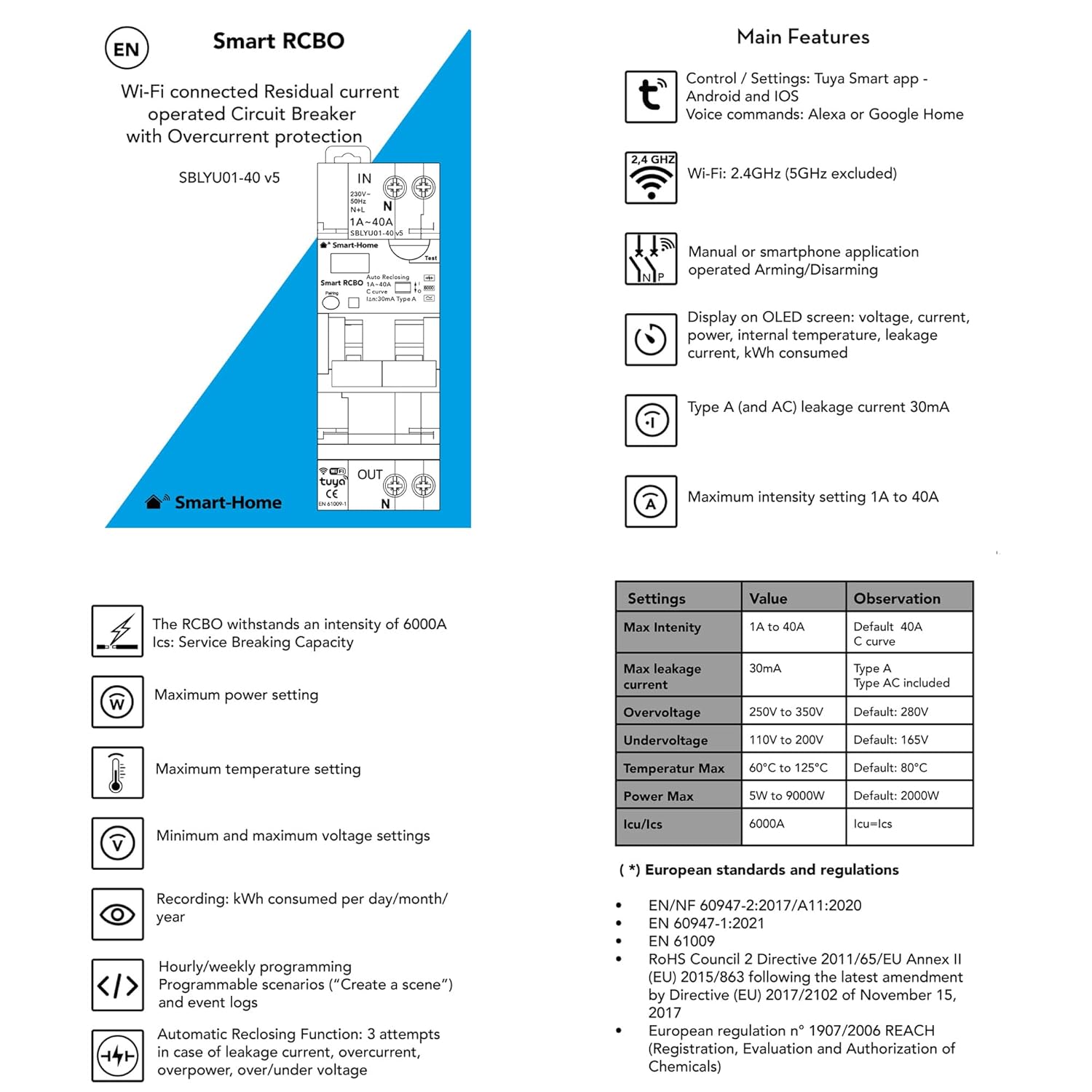
Imagem: This image provides a summary of the Smart RCBO's main features, including Wi-Fi compatibility, manual/smartphone operation, OLED display functions, maximum intensity, and European standards compliance. It also includes a table detailing default and adjustable settings for maximum intensity, leakage current, overvoltage, subvoltage, maximum temperature, and power max.
Configurar
1. Instalação e fiação:
- Install the Smart RCBO at the head of the row of the electrical panel, typically downstream of the main circuit breaker.
- Ensure the installation complies with EN 61009-1 standards and local electrical codes.
- Connect the phase input and neutral input wires to the top terminals of the RCBO.
- Connect the phase output and neutral output wires to the bottom terminals of the RCBO, leading to the circuits to be protected.
- Secure the device firmly onto the DIN rail using the locking lever.
2. App Connection (Tuya Smart / Smart Life):

Imagem: This image illustrates the steps for connecting the Smart RCBO to the Tuya Smart app. It shows the device's front panel, the app download QR code, and a step-by-step guide for pairing the device with a smartphone.
- Download the "Tuya Smart" app from the App Store or Google Play Store, or scan the QR code provided in the product documentation. You can also visit https://smartapp.tuya.com/tuyasmart.
- Press the Pairing button (labeled 'A' in the diagram) on the circuit breaker for 5 seconds. The LED indicator will flash rapidly.
- Open the Tuya Smart app. On the homepage, tap the "+" icon in the top right corner.
- Tap "Add Device".
- Select the "Electrical" menu, then choose the "Breaker (Wi-Fi)" icon.
- Enter the name of your Wi-Fi network (SSID) and the password. Ensure your smartphone is connected to a 2.4 GHz Wi-Fi network. Tap "Next".
- Confirm that the light is blinking rapidly in the app.
- Aguarde o aplicativo adicionar o dispositivo.
- Once the process is complete, the device will be added to your app.
Observação: The device only supports 2.4 GHz Wi-Fi networks. 5 GHz networks are not supported.
Instruções de operação
1. OLED Display Navigation:
The OLED screen displays various real-time electrical parameters. Use the function selector button (same as the pairing button) to cycle through the following displays:
- U: Volumetage
- I: Current (Intensity)
- P: Poder
- T: Temperatura
- Em: Corrente de fuga
- EU IA: ID MODBUS
- Consumo: kWh consumed
- MODBUS Status: Status de comunicação
2. App Control (Tuya Smart / Smart Life):
The Tuya Smart or Smart Life app allows for remote control and monitoring of your Smart RCBO.
- Remoto ON/OFF: Switch the breaker on or off from your smartphone.
- Configurações de parâmetros: Adjust protection thresholds for overvoltage, subvoltage, overcurrent, over-temperature, and overpower. You can also set the leakage current sensitivity.
- Monitoramento do consumo: View daily, monthly, and yearly energy consumption data in kWh.
- Scenario Creation: Set up automated scenarios based on time, device status, or other conditions.
- Controle de voz: Integrate with Alexa or Google Home for voice commands.

Imagem: Screenshot of the Tuya Smart app showing the parameter settings screen. This allows users to configure overvoltage, subvoltage, nominal current, high temperature threshold, overpower value, and leakage current settings.

Imagem: Screenshot of the Tuya Smart app displaying total consumption data. It shows a graph of daily consumption and the current total consumption value, along with real power.
3. Automatic Reclosing Mode:
The Smart RCBO features an automatic reclosing function to restore power after a trip, provided the fault is temporary.
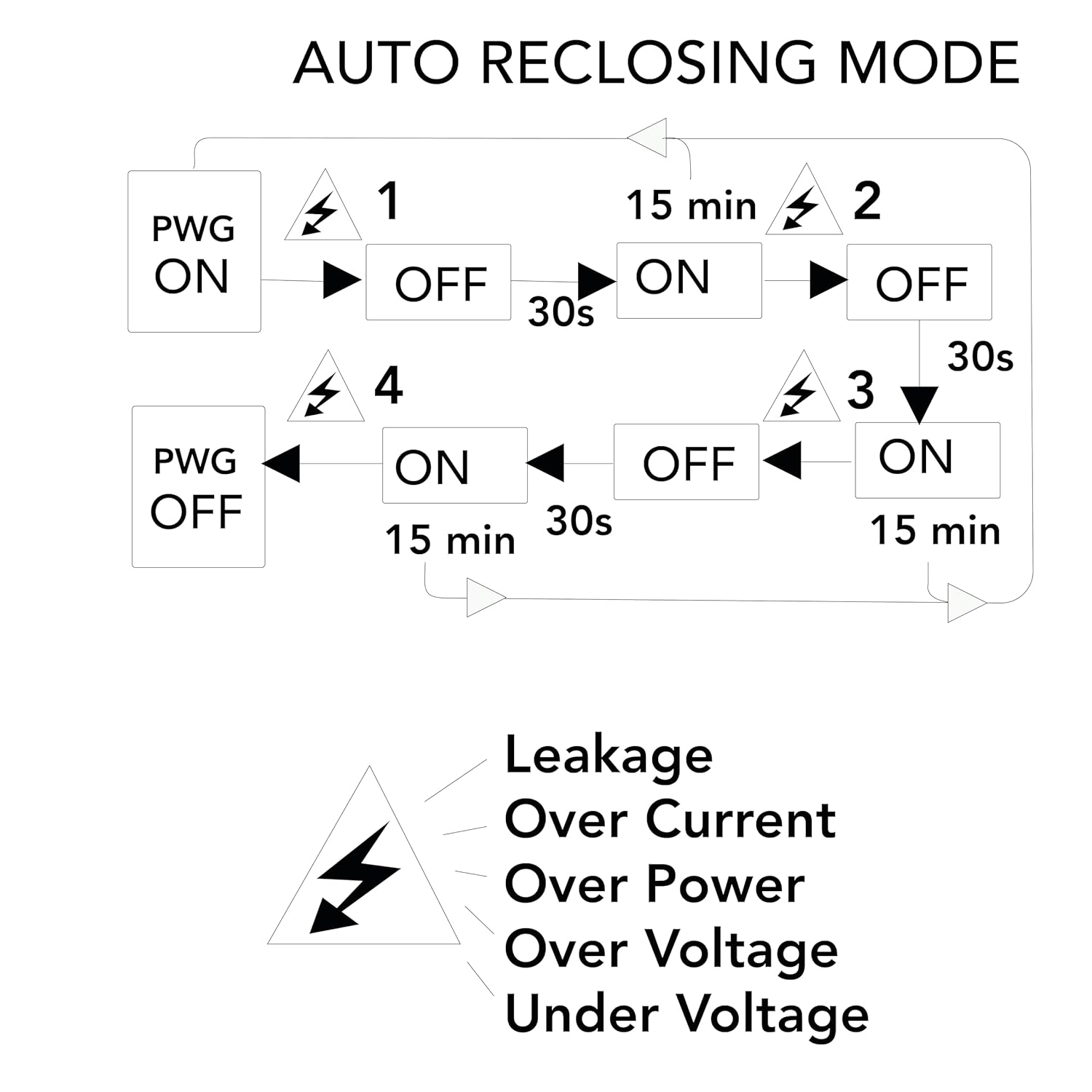
Imagem: Flowchart illustrating the automatic reclosing mode. It details the sequence of attempts (up to 3) with 30-second intervals after a trip, and the conditions for reclosing or remaining off, including leakage, overcurrent, overpower, overvoltage, e subvol.tage.
- After a trip due to leakage, overcurrent, overpower, overvoltage, ou subvol.tage, the device will attempt to reclose up to three times.
- Each reclosing attempt is spaced by 30 seconds.
- If the fault persists after three attempts, the circuit breaker will remain open for 15 minutes before attempting to reclose again. If the fault is still present, the system will reset to OFF.
- Nota de segurança: The device will NOT reclose automatically in case of a short-circuit or excessive temperature to ensure safety.
- You can manually rearm the breaker via the Tuya Smart app if automatic reclosing fails or is disabled.

Imagem: Screenshot of the Tuya Smart app's Advanced Function screen. This screen allows users to restore default settings and activate or deactivate the automatic closing switch (auto reclosing) feature.
Manutenção
- Regularly check the device for any visible damage or signs of wear.
- Mantenha o dispositivo limpo e livre de poeira e detritos. Use um pano seco e macio para a limpeza.
- Test the leakage current function periodically using the test button on the device.
- Ensure all wiring connections remain tight and secure.
- Perform firmware updates via the Tuya Smart app when available to ensure optimal performance and security.
Solução de problemas
| Problema | Possível causa | Solução |
|---|---|---|
| O dispositivo não liga. | Sem fonte de alimentação; fiação incorreta. | Check main circuit breaker; verify wiring connections. |
| Wi-Fi connection fails or is unstable. | Incorrect Wi-Fi password; 5GHz network used; device too far from router; router issues. | Ensure correct 2.4GHz Wi-Fi password; move device closer to router; restart router; re-pair device. |
| Automatic reclosing does not work. | Feature disabled in app; persistent fault (short-circuit, high temperature); incorrect settings. | Enable "Automatic Closing Switch" in the app's Advanced Function settings. Check for persistent faults and resolve them. Manually rearm via app if necessary. |
| OLED display is blank or shows incorrect data. | No power; device malfunction. | Check power supply. If power is present and display is still blank, contact support. |
| App instructions do not match current app interface. | App updates have changed the interface. | Refer to the latest in-app help or online resources for updated instructions. The core functionality remains, but menu paths may differ. For example, auto-reclosing settings might be under "Param set" instead of "Advanced functions". |
Garantia e Suporte
Garantia:
This product comes with a 2-year legal conformity warranty, excluding transport costs. Please retain your proof of purchase for warranty claims.
Peças de reposição:
As peças de reposição estão disponíveis por 2 anos a partir da data da compra.
Suporte ao cliente:
For technical assistance, troubleshooting, or warranty inquiries, please contact the seller or manufacturer directly. Refer to your purchase documentation for contact details.