
WESEARY WG2
WESEARY WG2 Wired Gaming Headset User Manual
Modelo: WG2
1. Introdução
Thank you for choosing the WESEARY WG2 Wired Gaming Headset. This manual provides detailed instructions for setting up, operating, and maintaining your headset to ensure an optimal gaming experience. The WG2 headset is designed for immersive audio and clear communication across multiple gaming platforms.
2. O que está na caixa
- WESEARY WG2 Gaming Headset (1 unit)
- 1 to 2 3.5mm Audio Jack Splitter Cable (1 unit)
- Manual do usuário (este documento)
3. Produto acabadoview
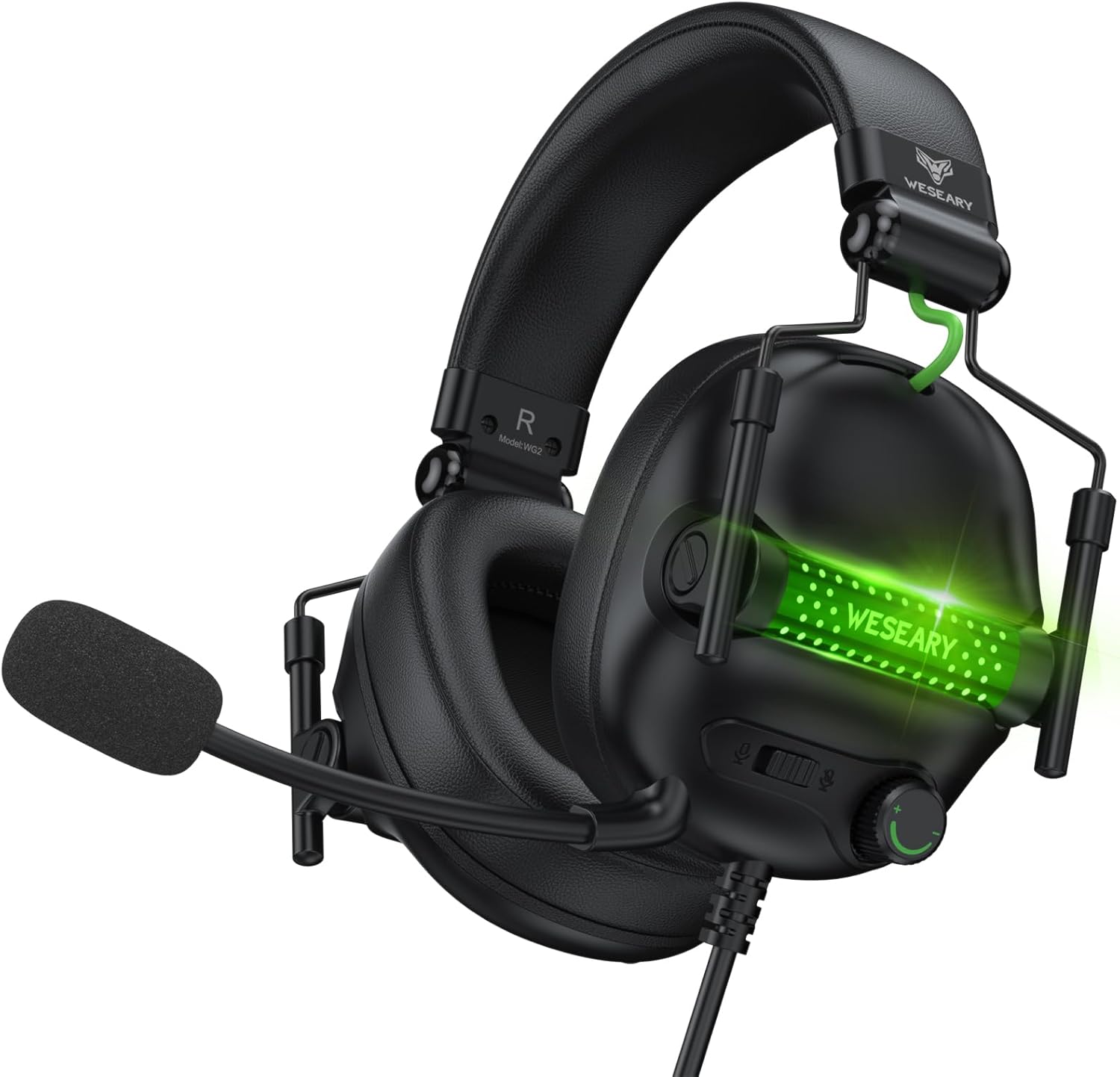
The WESEARY WG2 headset features 50mm drivers for rich stereo sound, an omnidirectional noise-canceling microphone for clear communication, and comfortable memory foam earcups. It is designed for multi-platform compatibility.
3.1 Principais Características
- Som estéreo imersivo: 50mm high-density neodymium drivers deliver detailed 3D stereo audio.
- Microfone com cancelamento de ruído: 360° rotatable omnidirectional microphone with advanced noise cancellation for clear voice pickup.
- Conforto ergonômico: Lightweight design with soft memory foam earcups and an adjustable headband for extended wear.
- Controles sem esforço: In-line rotary volume control and one-button microphone mute.
- Design durável: Features a strong braided cable for longevity.
3.2 Componentes do fone de ouvido


4. Instruções de configuração
The WESEARY WG2 headset connects via a 3.5mm audio jack. Follow these steps to connect your headset to your device.
4.1 Connecting to PC/Laptop/Mac (with separate audio/mic ports)
- Locate the 3.5mm audio output port (headphone icon) and microphone input port (microphone icon) on your computer.
- Connect the 1 to 2 3.5mm Audio Jack Splitter Cable to the headset's 3.5mm jack.
- Plug the green connector of the splitter into your computer's audio output port.
- Plug the pink connector of the splitter into your computer's microphone input port.
- For LED lighting, connect the USB cable to an available USB port on your computer.
4.2 Connecting to PS4/PS5, Nintendo Switch, Xbox Series X|S, Mobile/Tablet (with single 3.5mm port)
- Plug the headset's 3.5mm jack directly into the 3.5mm audio port on your controller (PS4/PS5, Xbox Series X|S), console (Nintendo Switch), or mobile device.
- For LED lighting, connect the USB cable to an available USB port on your console or a USB power adapter.
- Note for Xbox One (older controllers): A Microsoft adapter (not included) is required for older Xbox One controllers that do not have a built-in 3.5mm jack.
- Nota de compatibilidade: This headset is not compatible with PS3 (without a 3.5mm adapter) or Xbox 360.

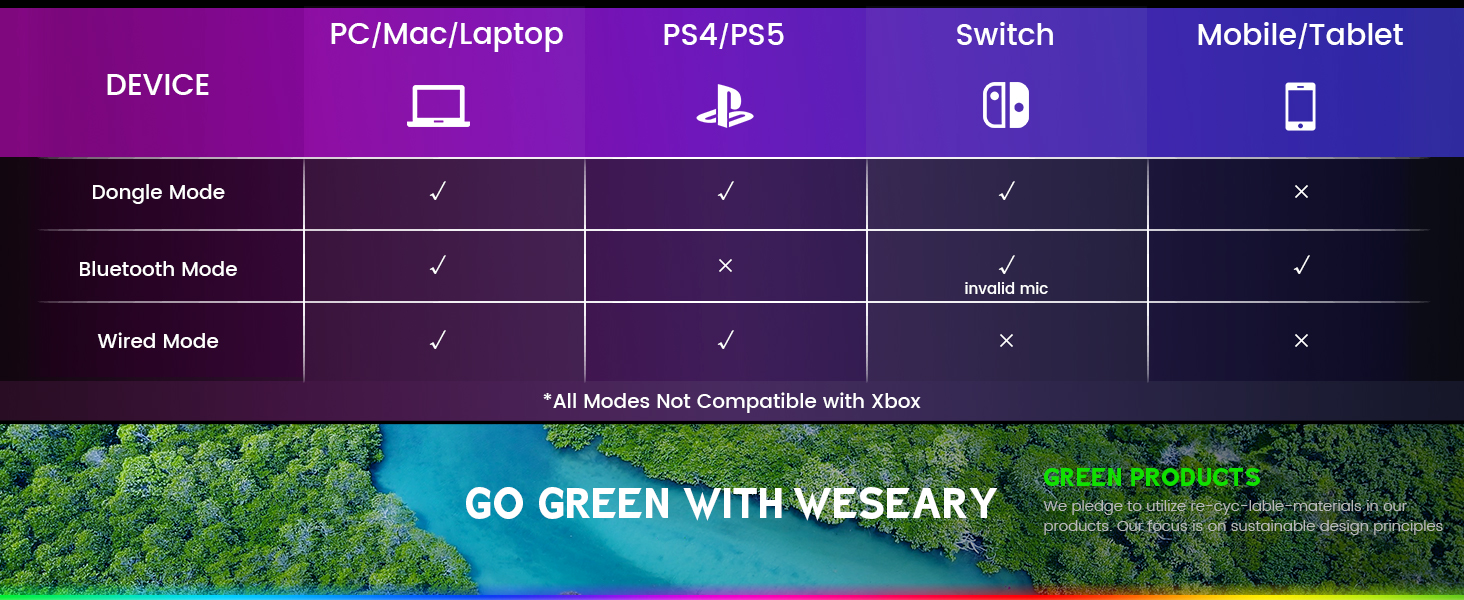
Nota importante: The WESEARY WG2 is a com fio gaming headset. Any references to "Dongle Mode" or "Bluetooth Mode" in external diagrams or marketing materials are not applicable to this specific model (WG2) which connects solely via its 3.5mm audio jack and USB for LED power.
5. Instruções de operação
5.1 Ajustando o Volume
- Locate the rotary volume control wheel on the left earcup or in-line control.
- Gire a roda para cima para aumentar o volume.
- Gire a roda para baixo para diminuir o volume.

5.2 Silenciando o Microfone
- Locate the microphone mute button on the left earcup or in-line control.
- Pressione o botão uma vez para silenciar o microfone.
- Pressione o botão novamente para ativar o microfone.
5.3 Adjusting the Microphone
- The microphone is 360° rotatable. Adjust its position for optimal voice pickup.
- Position the microphone approximately 1-2 inches from your mouth for best clarity.


5.4 Adjusting Headset Fit
- Adjust the headband by sliding the earcups up or down until the headset fits comfortably over your ears.
- Certifique-se de que os fones de ouvido envolvam completamente suas orelhas para um isolamento acústico e conforto ideais.
6. Compatibilidade multiplataforma
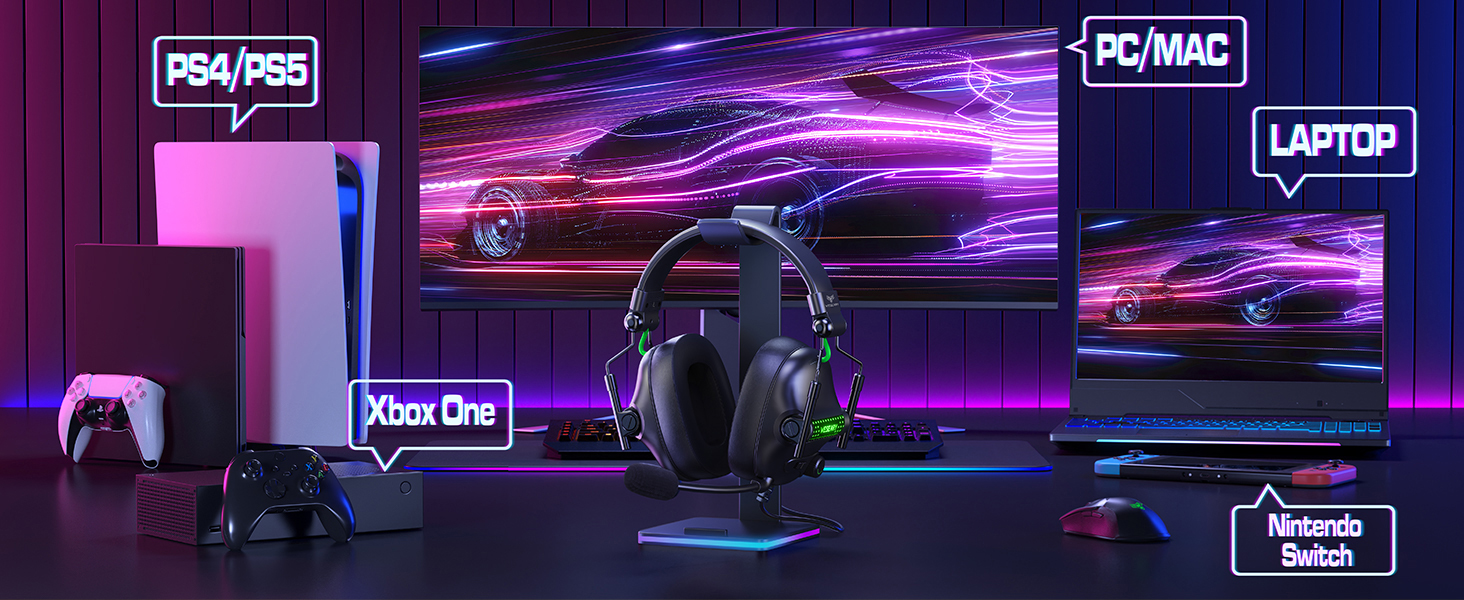
The WESEARY WG2 Wired Gaming Headset is compatible with a wide range of devices:
- Consoles de jogos: PlayStation 5 (PS5), PlayStation 4 (PS4), Xbox Series X|S, Nintendo Switch.
- Computadores: PC, Laptops, Mac.
- Dispositivos móveis: Mobile phones, Tablets.
Notas importantes:
- For older Xbox One controllers without a 3.5mm jack, a Microsoft adapter (not included) is required.
- The headset is not compatible with PS3 or Xbox 360 without additional adapters.
- The USB connection is solely for powering the LED lighting and does not transmit audio.
7. Manutenção
- Limpeza: Use um pano macio e seco para limpar o fone de ouvido. Não use produtos químicos agressivos ou materiais abrasivos.
- Armazenar: Guarde o fone de ouvido em local fresco e seco, longe da luz solar direta e de temperaturas extremas. O design dobrável permite um armazenamento compacto.
- Cuidados com os cabos: Evite curvas acentuadas ou puxões excessivos no cabo para evitar danos.
8. Solução De Problemas
8.1 Sem som nos fones de ouvido
- Certifique-se de que o conector de áudio de 3.5 mm esteja totalmente inserido na porta de áudio do dispositivo.
- Verifique o botão de controle de volume no fone de ouvido e certifique-se de que o volume esteja aumentado.
- Verify the audio output settings on your device (console, PC, etc.) are configured to use the headset.
- If using the splitter cable, ensure both green and pink jacks are correctly connected to their respective ports.
8.2 Microfone não funciona
- Certifique-se de que o botão de silenciar o microfone no fone de ouvido não esteja ativado.
- Check the microphone input settings on your device (console, PC, etc.) to ensure the headset microphone is selected and its volume is not muted.
- Ensure the 3.5mm audio jack (and pink splitter jack if applicable) is fully inserted.
- Ajuste a posição do microfone para mais perto da sua boca.
8.3 As luzes LED não funcionam
- Ensure the USB cable is securely connected to a powered USB port on your device or a USB power adapter.
- Tente conectar o cabo USB a uma porta USB diferente.
9. Especificações
| Nome do modelo | Grupo de Trabalho 2 |
| Tecnologia de Conectividade | Wired (3.5mm Audio Jack, USB for LED) |
| Tipo de driver de áudio | Driver dinâmico (neodímio de 50 mm) |
| Impedância | 32 Ohms |
| Colocação da orelha | Sobre a orelha |
| Controle de Ruído | Sound Isolation, Noise Cancellation (Microphone) |
| Microfone | Omnidirectional, Noise-Canceling, 360° Rotatable |
| Material | Composite, Plastic (with Memory Foam Earcups) |
| Dimensões do produto | 5.5 x 2.98 x 5.5 polegadas |
| Peso do item | 14.8 onças |
| Cor | Rock Black |
| Fabricante | WESEÁRIO |
10. Garantia e Suporte
For warranty information and technical support, please refer to the documentation provided with your purchase or visit the official WESEARY website. Guarde o comprovante de compra para solicitações de garantia.
Suporte online: Visit the WESEARY Store on Amazon
11. Vídeo do produto
1 vídeo: WESEARY Wired Gaming Headset OverviewEste vídeo fornece uma breve visão geral sobreview of the headset's features and design, demonstrating its immersive sound and clear communication capabilities.
Ask a question about this manual
Ask about setup, troubleshooting, compatibility, parts, safety, or missing instructions. Manuals+ will review the question and use this page’s manual context to help answer it.