
Introdução
The ShanWan Wireless Controller is a versatile gaming peripheral designed for use across multiple platforms, including PC, iPhone, Android, Nintendo Switch, and Steam. It offers tri-mode connectivity (Bluetooth, 2.4G wireless, and USB-C wired) to ensure a seamless gaming experience. This manual provides detailed instructions for setup, operation, maintenance, and troubleshooting to help you maximize your controller's performance.
Note: This controller is not compatible with Xbox or PlayStation 4/5 consoles.
Conteúdo da embalagem
- ShanWan Wireless Controller
- Cabo de carregamento USB-C
- Dongle sem fio 2.4G
- Manual do usuário (este documento)
Controlador encerradoview
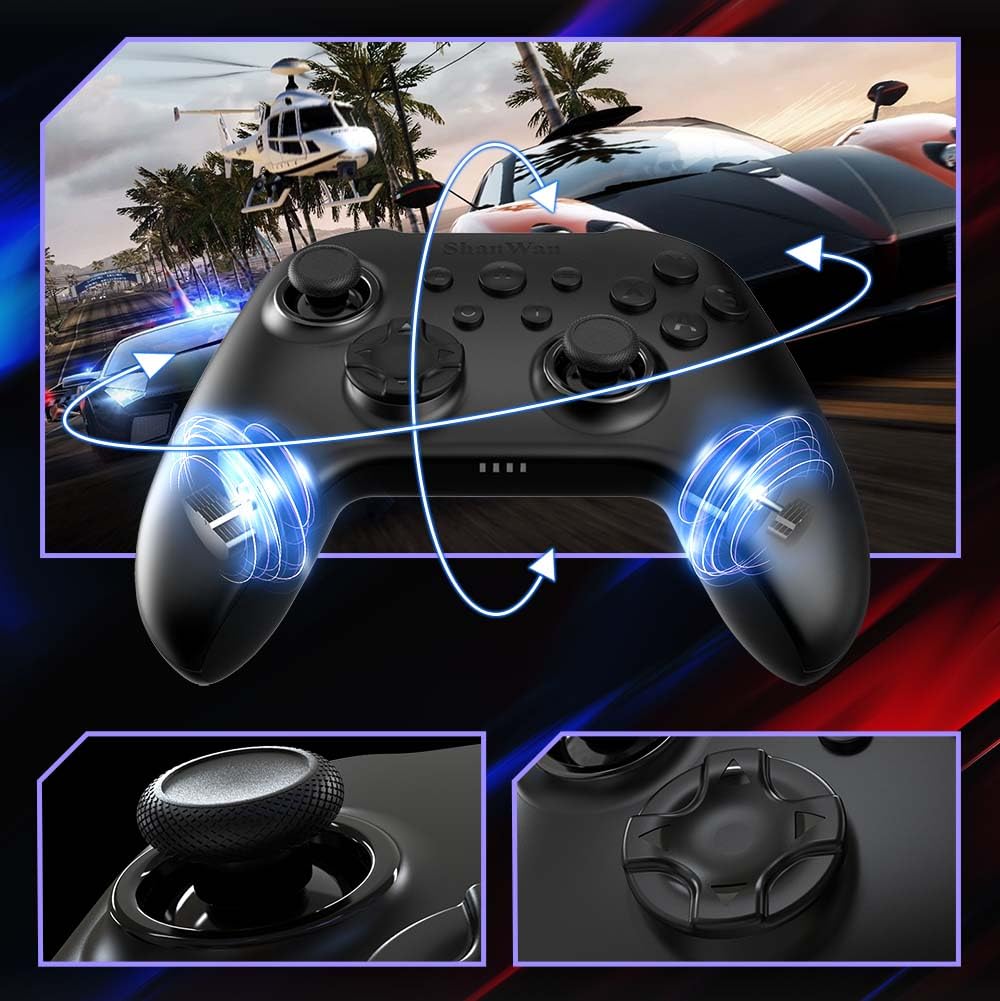
Imagem: Frente view of the ShanWan Wireless Controller, showcasing its ergonomic design, dual joysticks, D-pad, and face buttons (A, B, X, Y).
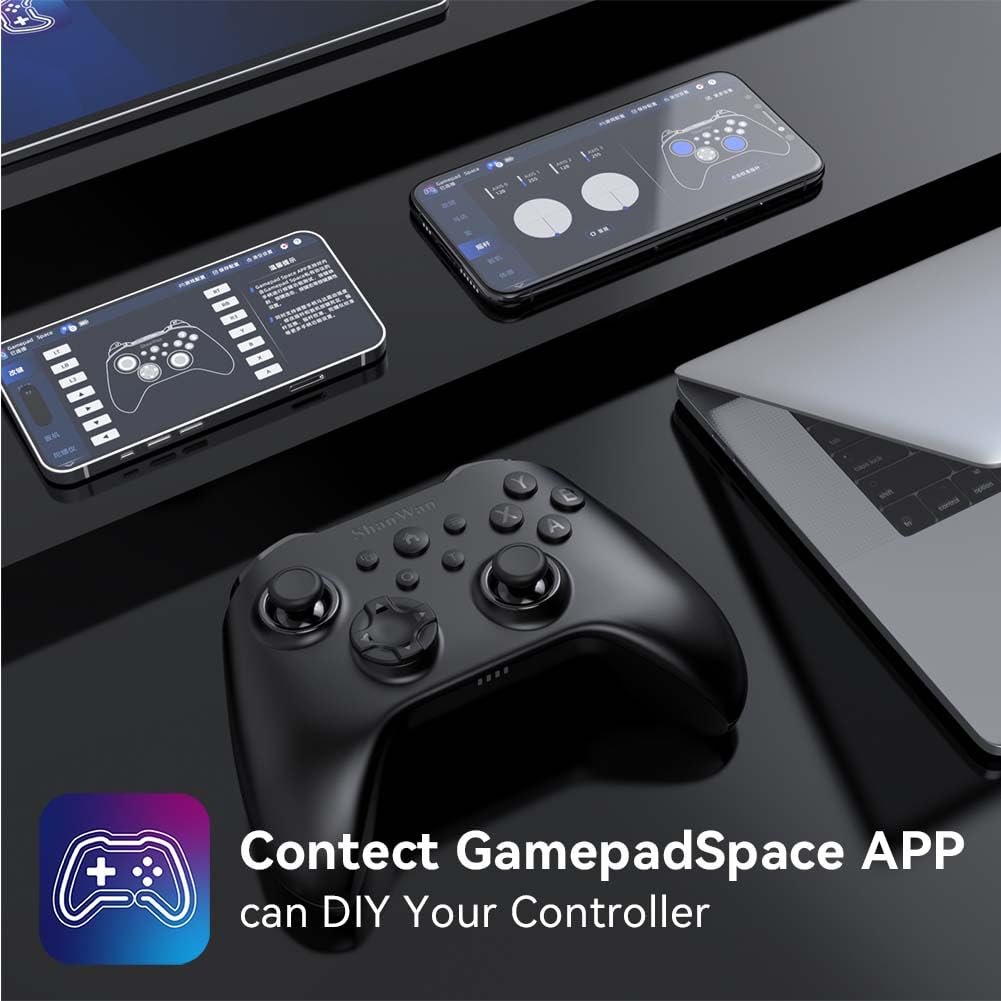
Imagem: Voltar view of the ShanWan Wireless Controller, highlighting the mode switch for different platforms (X, D, S).
Principais características:
- Joysticks de efeito Hall: Designed for precision with no dead zones and anti-drift capabilities.
- Durable Gel Buttons: Conductive gel buttons tested for 1 million clicks for long-lasting performance.
- Giroscópio de 6 eixos: Provides precise motion sensing for immersive gameplay.
- Motores de vibração dupla: Delivers strong and subtle haptic feedback for an enhanced gaming experience.
- Função Turbo: Allows for rapid, repeated button presses.
Configurar
1. Carregando o controlador
Before initial use, fully charge the controller using the provided USB-C cable. Connect the USB-C end to the controller and the USB-A end to a power source (e.g., computer USB port, USB wall adapter). The charging indicator lights will show charging status and turn off when fully charged.
2. Conectando-se aos dispositivos
The ShanWan Wireless Controller supports three connection modes: Bluetooth, 2.4G Wireless, and USB-C Wired. Ensure the mode switch on the back of the controller is set to the appropriate platform before attempting to connect.

Imagem: Visual representation of the controller's tri-mode connectivity, illustrating Bluetooth, 2.4G wireless, and USB-C wired options.
Mode Switch Settings:
- 'S' Mode: Para Nintendo Switch.
- 'X' Mode: For PC (X-input), Android.
- 'D' Mode: For PC (D-input), iOS.
Conexão Bluetooth:
- Set the mode switch on the back of the controller to the desired platform ('S', 'X', or 'D').
- Press and hold the pairing button (usually a small button on the top or back) until the indicator lights flash rapidly.
- On your device (PC, iPhone, Android, Switch), go to Bluetooth settings and search for new devices.
- Select "ShanWan Controller" or a similar name from the list to pair.
- Após o emparelhamento, as luzes indicadoras no controle remoto ficarão acesas continuamente.
2.4G Wireless Connection (for PC/Switch):
- Set the mode switch on the back of the controller to 'X' (for PC) or 'S' (for Switch).
- Insert the 2.4G wireless dongle into a USB port on your PC or Switch dock.
- Press the Home button on the controller to power it on. It should automatically connect to the dongle.
- The indicator lights will become solid once connected.
Conexão USB-C com fio:
- Connect the USB-C cable to the controller and the other end to your PC or Switch dock.
- The controller will automatically be recognized as a wired device.
- No specific mode switch setting is required for wired connection, but setting it to the correct platform mode ('X' for PC, 'S' for Switch) is recommended for optimal compatibility.
Instruções de operação
Ligar/desligar:
- Ligar: Press the Home button once.
- Desligar: Press and hold the Home button for 3-5 seconds, or the controller will automatically power off after a period of inactivity.
Controle de movimento:
The built-in 6-axis gyroscope provides motion control capabilities, particularly useful for games on Nintendo Switch or other compatible platforms. Ensure the game supports motion controls for this feature to function.
Feedback de vibração:
The dual vibration motors provide haptic feedback during gameplay. The intensity of the vibration can often be adjusted through game settings or the Gamepad Space app.
Função Turbo:
To activate the Turbo function for a specific button:
- Press and hold the button you wish to set to Turbo.
- While holding the button, press the Turbo button (refer to controller layout for location).
- The button will now repeatedly register presses as long as it is held down.
To deactivate Turbo for a button, repeat the process.
Software Customization (Gamepad Space App):
Enhance your gaming experience by customizing controller settings using the Gamepad Space mobile application.

Imagem: A ShanWan controller alongside smartphones displaying the Gamepad Space app, illustrating options for calibration and on-the-fly adjustments.
- Download the "Gamepad Space" app from your mobile device's app store.
- Connect your controller to your mobile device via Bluetooth.
- Dentro do aplicativo, você pode:
- Atualizar Firmware.
- Ajuste as zonas mortas do joystick e do gatilho.
- Personalize a intensidade da vibração.
- Botões de teste.
Manutenção
- Limpeza: Use um pano macio e seco para limpar o controle. Evite usar produtos químicos agressivos ou materiais abrasivos.
- Armazenar: Guarde o controlador em local fresco e seco, longe da luz solar direta e de temperaturas extremas.
- Cuidados com a bateria: Para prolongar a vida útil da bateria, evite descarregar completamente o controlador com frequência. Carregue-o regularmente, mesmo que não esteja em uso constante.
Solução de problemas
Controlador não conectando:
- Certifique-se de que o controlador esteja carregado.
- Verify the mode switch on the back of the controller is set correctly for your platform (S, X, or D).
- For Bluetooth, ensure your device's Bluetooth is on and the controller is in pairing mode.
- For 2.4G wireless, ensure the dongle is properly inserted and the controller is in the correct mode.
- Tente reiniciar tanto o controlador quanto o seu dispositivo.
Atraso de entrada ou desconexões:
- Certifique-se de que não haja fortes interferências eletromagnéticas nas proximidades.
- Move closer to your device for a stronger wireless signal.
- Verifique se a bateria do controle remoto não está fraca.
- Consider using a wired USB-C connection for the most stable experience.
Joystick Drift or Unresponsive Buttons:
- Calibrate the joysticks and test buttons using the Gamepad Space app.
- Ensure the controller's firmware is up to date via the Gamepad Space app.
- Limpe ao redor dos botões e joysticks para remover quaisquer detritos.
Especificações
| Modelo | B0FS13DT2B |
| Tecnologia de Conectividade | Bluetooth, conexão sem fio 2.4G, conexão com fio USB-C |
| Dispositivos compatíveis | Android, iOS, Nintendo Switch, Nintendo Switch 2, PC |
| Tipo de controlador | Controle de jogo |
| Quantidade de botões | 12 |
| Características especiais | Hall Effect Joysticks, 6-Axis Gyroscope, Dual Vibration, Turbo Function, Software Customization |
| Fonte de energia | Alimentado por bateria |
| Peso do item | 300 gramas |
| Dimensões do item (P x L x A) | 2.5" x 4" x 6" |
Garantia e Suporte
ShanWan products are designed for reliability and performance. For specific warranty information, please refer to the documentation included with your purchase or visit the official ShanWan support website. If you encounter any issues not covered in this manual, please contact ShanWan customer support for assistance.
Suporte online: Visit the ShanWan Store on Amazon