
1. Introdução
Thank you for choosing the Magcubic HY350MAX Portable Projector. This manual provides essential information for setting up, operating, and maintaining your device. Please read it thoroughly before use to ensure optimal performance and safety.

Figure 1: Magcubic HY350MAX Portable Projector Overview
2. O que está na caixa
Verifique se todos os itens estão presentes na embalagem:
- 1 x Magcubic HY350MAX Portable Projector
- 1 x Air Mouse Remote Control
- 1 x Manual do Usuário
3. Recursos do Produto
The Magcubic HY350MAX projector offers a range of advanced features for an immersive viewexperiência de aprendizagem:
- Alta resolução: Native 1080P Full HD (1920x1080) with support for 4K and 8K content decoding, enhanced by HDR10+.
- Brilho: 600 ANSI Lumens for clear images even in ambient light.
- Automação Inteligente: Automatic focus, 6D keystone correction, screen detection, and intelligent obstacle avoidance for a perfectly aligned and sharp image.
- Sistema Inteligente Integrado: Powered by Allwinner H726 chip, 2GB RAM, and 16GB internal storage, running Android 14 with over 6000 pre-installed apps.
- Conectividade avançada: Dual-band WiFi 6 (2.4 GHz and 5 GHz) for fast and stable wireless screen mirroring, and Bluetooth 5.4 for audio device connections.
- Áudio envolvente: Built-in 12W Hi-Fi stereo speaker.
- Projeção flexível: 180° rotation allows projection onto walls or ceilings. Short throw ratio of 1.0:1, projecting 40 to 140 inches.
- Compatibilidade Universal: HDMI and USB ports for connecting PS5, laptops, TV sticks, USB drives, smartphones, and tablets.
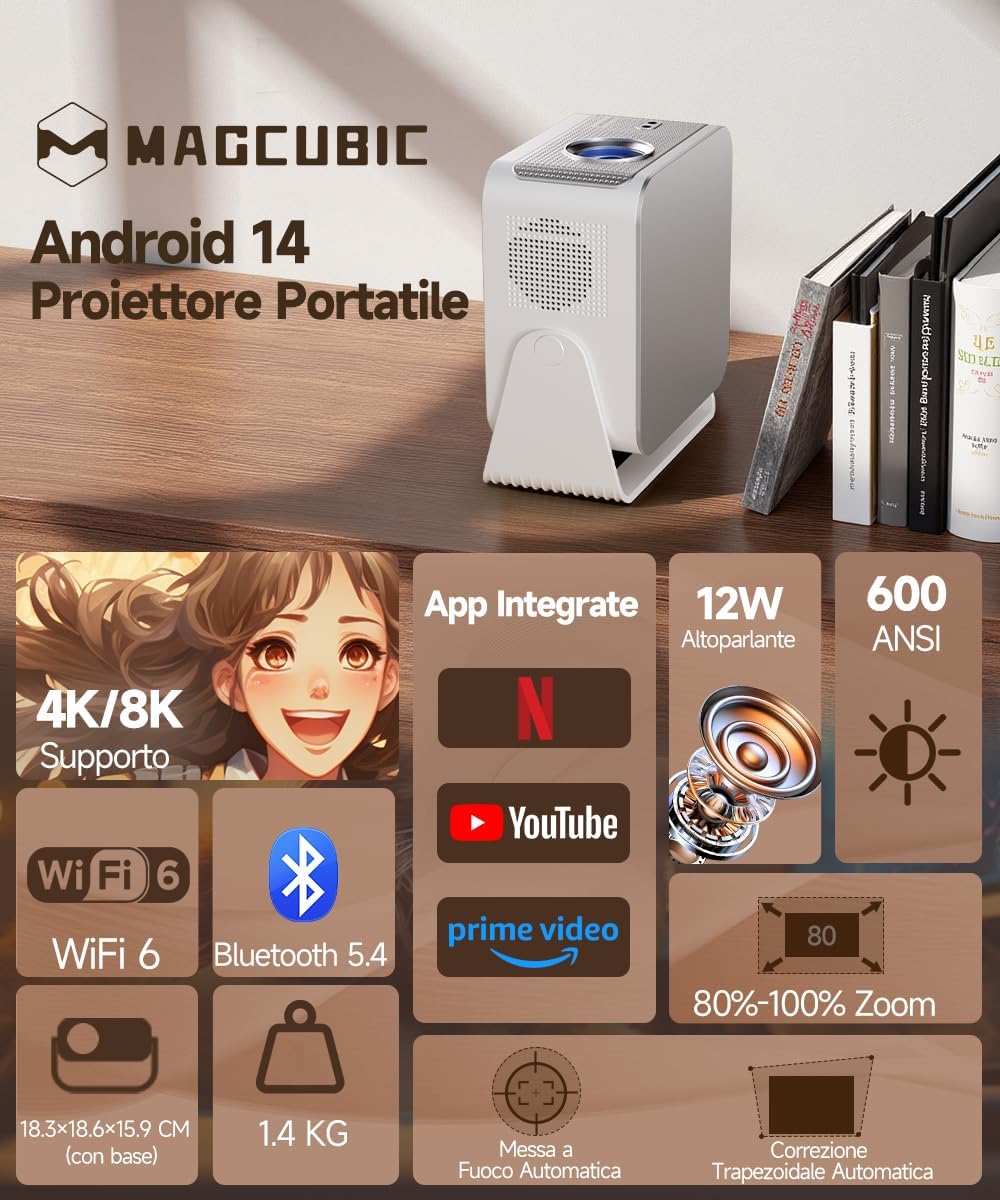
Figure 2: Key Features of the HY350MAX Projector

Figure 3: 1080P Native Resolution Clarity

Figure 4: Android 14 and Integrated Applications
4. Configuração
4.1 Placement and Power
- Place the projector on a stable, flat surface. The 180° rotation feature allows for versatile placement, including ceiling projection.
- Connect the power cable to the projector and then to a power outlet.
- For optimal projection, ensure the room is sufficiently dark.

Figure 5: Flexible 180° Rotation for Placement
4.2 Initial Image Adjustment
The projector features automatic focus and keystone correction. Upon powering on or moving the projector, it will automatically adjust the image for clarity and shape.
- Foco automático: The projector will automatically focus the image. This works best for projection distances under 2.5 meters.
- Correção trapezoidal automática: The projector will automatically correct the image's trapezoidal distortion.
- Foco manual: If the projection distance is greater than 2.5 meters or if automatic focus is not sensitive enough, use the remote control to adjust focus manually.

Figure 6: Automatic Image Correction Features

Figure 7: Auto and Manual Focus Guide
4.3 Conectando Dispositivos
The projector supports various input methods:
- HDMI: Connect gaming consoles (e.g., PS5), laptops, or TV sticks using an HDMI cable.
- USB: Insira dispositivos USB para reprodução de mídia.
- Wi-Fi 6: Connect to your home network for streaming and wireless screen mirroring from smartphones and tablets.
- Bluetooth 5.4: Emparelhe com alto-falantes ou fones de ouvido Bluetooth externos para uma melhor experiência de áudio.
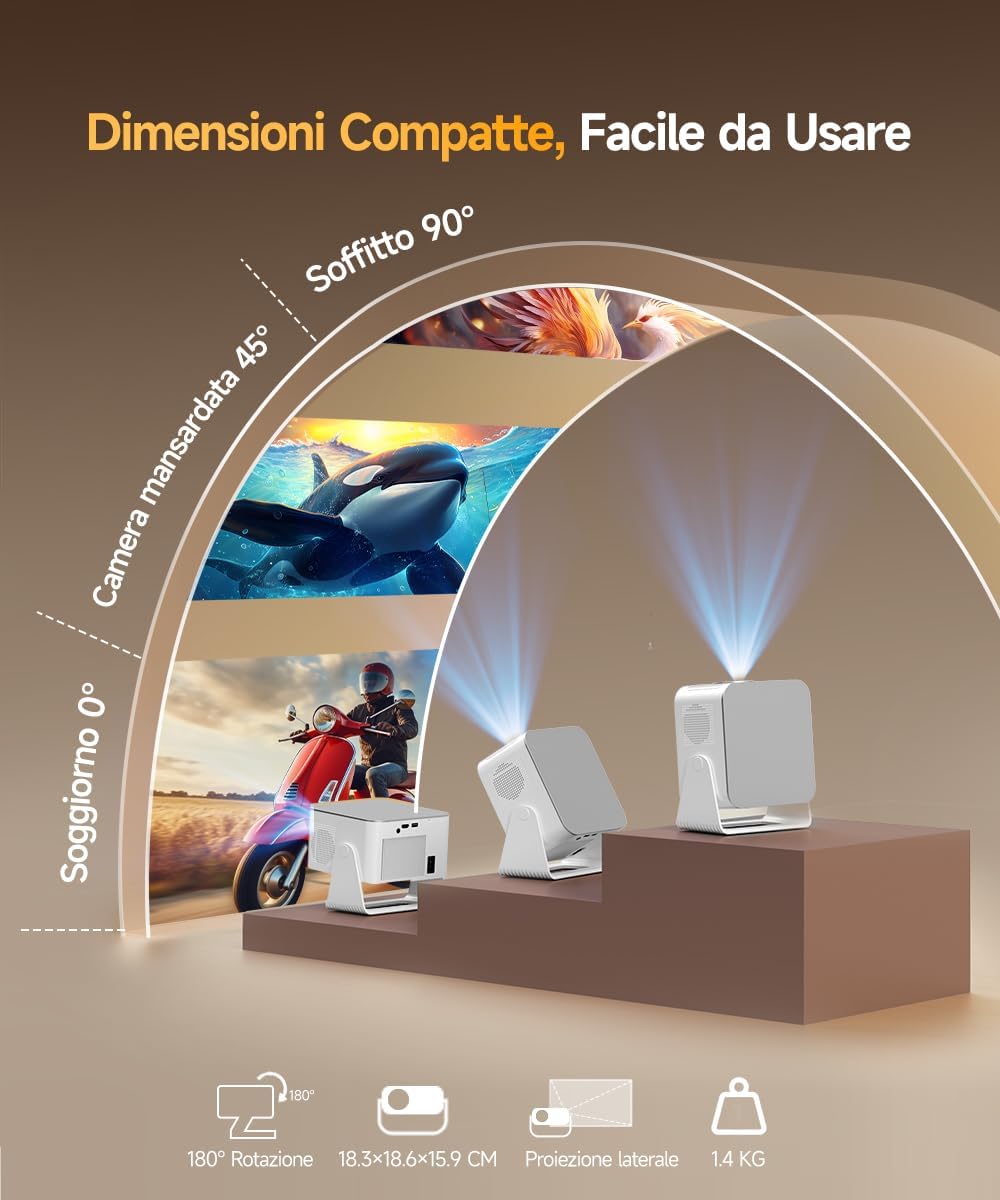
Figure 8: Universal Connectivity Options
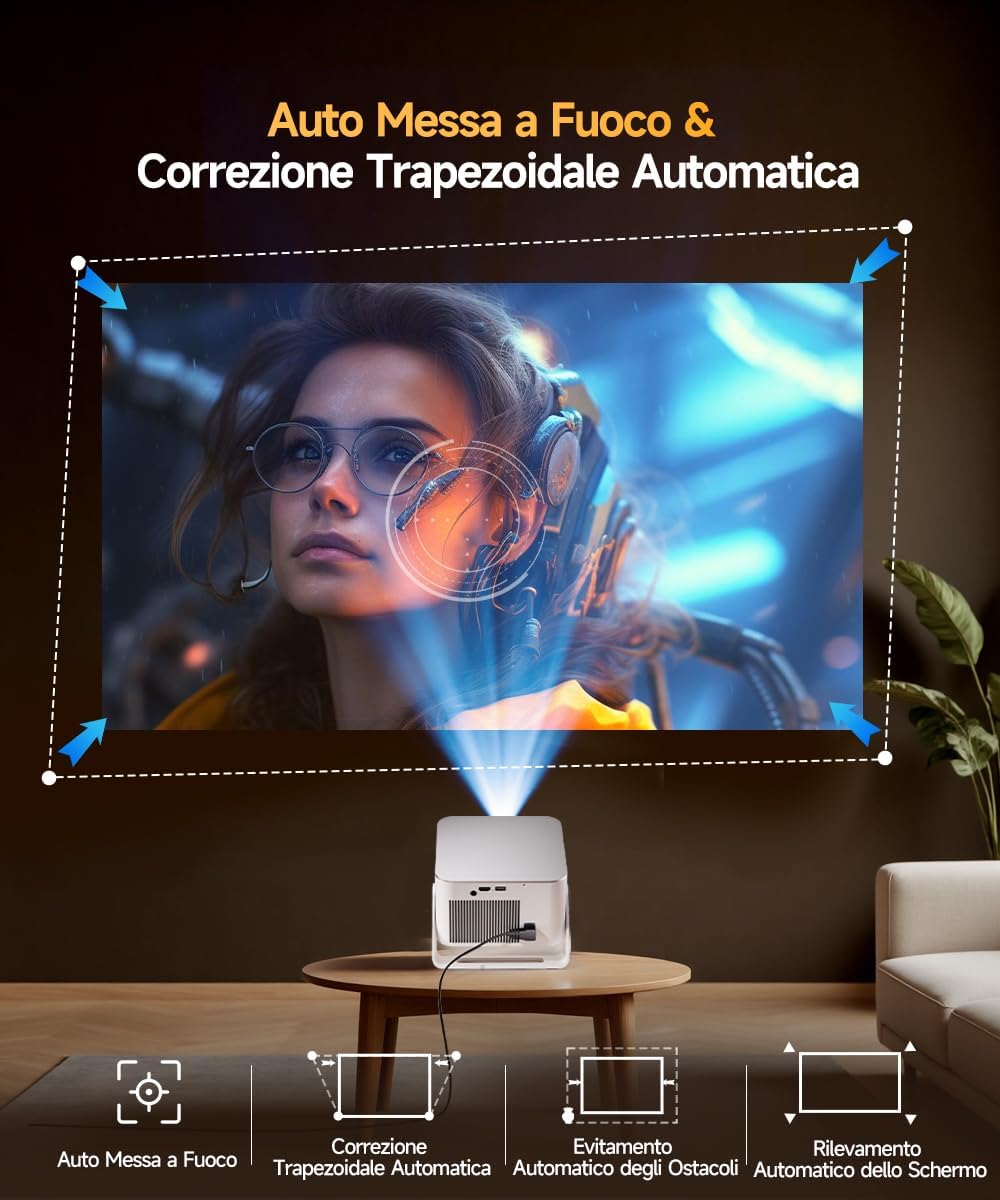
Figure 9: WiFi 6 and Bluetooth 5.4
4.4 Air Mouse Remote Control Setup
To use the Air Mouse function of your remote control, follow these steps:
- Activate Bluetooth on your projector.
- Simultaneously press the left and right directional buttons on the remote control until the projector emits an audible signal.
- Press the button with the 'mouse' symbol on the remote control to activate the Air Mouse function.
- Mova o pulso para controlar o cursor na tela.

Figure 10: Air Mouse Remote Control Usage
Video 1: Demonstrates the steps to pair and use the Air Mouse remote control for navigation.
5. Instruções de operação
5.1 Ligar/Desligar
Pressione o botão liga/desliga no projetor ou no controle remoto para ligar ou desligar o aparelho.
5.2 Navegando na Interface
The projector runs on Android 14, providing a user-friendly interface. Use the remote control (or Air Mouse) to navigate through menus, select apps, and adjust settings.
- Tela inicial: Access integrated apps, input sources (HDMI, USB), and settings.
- Loja de aplicativos: Download additional applications as needed.
- Configurações: Adjust display, sound, network, and system preferences.
5.3 Espelhamento de tela
Utilize the WiFi 6 dual-band connectivity for seamless screen mirroring from compatible devices.
- Ensure both your device (smartphone, tablet, laptop) and the projector are connected to the same WiFi network.
- Select the screen mirroring option on the projector's interface (e.g., Airplay, Miracast).
- Initiate screen mirroring from your device's settings.
5.4 Saída de áudio
The projector features a built-in 12W Hi-Fi stereo speaker. For external audio, use Bluetooth 5.4 to connect to speakers or headphones.
- To connect via Bluetooth, go to the projector's settings, select Bluetooth, and pair with your desired audio device.
Vídeo 2: Acabouview of the projector's features, including automatic adjustments, connectivity, and smart interface.
Video 3: Demonstration of the projector's image quality and clarity with various nature scenes.
6. Manutenção
6.1 Limpeza
- Use um pano macio e seco para limpar a parte externa do projetor.
- Para as lentes, utilize um pano e solução de limpeza específicos para lentes. Evite materiais abrasivos.
- Certifique-se de que as aberturas de ventilação estejam livres de poeira e obstruções.
6.2 Armazenamento
Quando não estiver em uso por longos períodos, guarde o projetor em local fresco e seco, longe da luz solar direta e de temperaturas extremas.
7. Solução De Problemas
Se você tiver problemas com o seu projetor, consulte as seguintes soluções comuns:
- Sem energia: Verifique a conexão do cabo de alimentação e certifique-se de que a tomada esteja funcionando.
- Sem imagem: Verify the input source is correctly selected (HDMI, USB, WiFi). Ensure the lens cap is removed.
- Imagem desfocada: Allow the automatic focus to complete. If still blurry, manually adjust focus using the remote control. Ensure the projection surface is flat.
- Imagem distorcida: The automatic keystone correction should resolve this. If not, check projector placement or manually adjust keystone settings if available.
- Sem som: Check volume settings on both the projector and the connected source device. Ensure Bluetooth audio devices are correctly paired.
- Problemas de conexão Wi-Fi/Bluetooth: Certifique-se de que o projetor esteja dentro do alcance do roteador/dispositivo Bluetooth. Reinicie ambos os dispositivos.
Para obter mais assistência, entre em contato com o suporte ao cliente.
8. Especificações
| Recurso | Especificação |
|---|---|
| Marca | Magcúbico |
| Número do modelo | HY350MAX |
| Resolução Nativa | 1920 x 1080 (1080p Full HD) |
| Resolução máxima de exibição | 7680 x 4320 (Suporte a 8K) |
| Brilho | 600 ANSI Lumens |
| Taxa de contraste | Alto |
| Tecnologia de Conectividade | Bluetooth 5.4, HDMI, USB, WiFi 6 (5 Ghz+2.4 Ghz) |
| Sistema operacional | Androide 14 |
| CPU | Allwinner H726 |
| BATER | 2 GB |
| Armazenamento interno | 16 GB |
| Áudio | 12W Hi-Fi Stereo Speaker |
| Tamanho da projeção | 40 - 140 polegadas |
| Projection Distance (Min/Max) | 0.9 m / 3.1 m |
| Peso | 1.4 quilos |
| Consumo de energia | 100 Watts |
| Características especiais | Integrated Apps, Auto Focus, Auto Keystone Correction, Intelligent Image Adjustment, 180° Rotatable, HDR10+ |
Video 4: Comparison between Magcubic HY350MAX and HY350 models, highlighting system and CPU upgrades.
9. Garantia e Suporte
Magcubic is committed to providing quality products and customer satisfaction.
- Garantia do produto: 1 anos de garantia do fabricante.
- Garantia de reembolso: Garantia de reembolso de 30 dias.
- Suporte ao cliente: 24-hour live customer assistance.
- Suporte técnico: Suporte técnico vitalício.
For any inquiries or support needs, please refer to the contact information provided with your purchase or visit the official Magcubic website.