
1. Introdução
1.1 Produto Acimaview
The DBIT AC1200 Dual Band Gigabit WiFi Router (Model T18-21K) is designed to provide wireless internet connectivity for home and small office environments. It supports dual-band operation (2.4GHz and 5GHz) and offers Gigabit Ethernet ports for wired connections. The router includes features such as MU-MIMO, Beamforming, and multiple operating modes to enhance network performance and coverage.
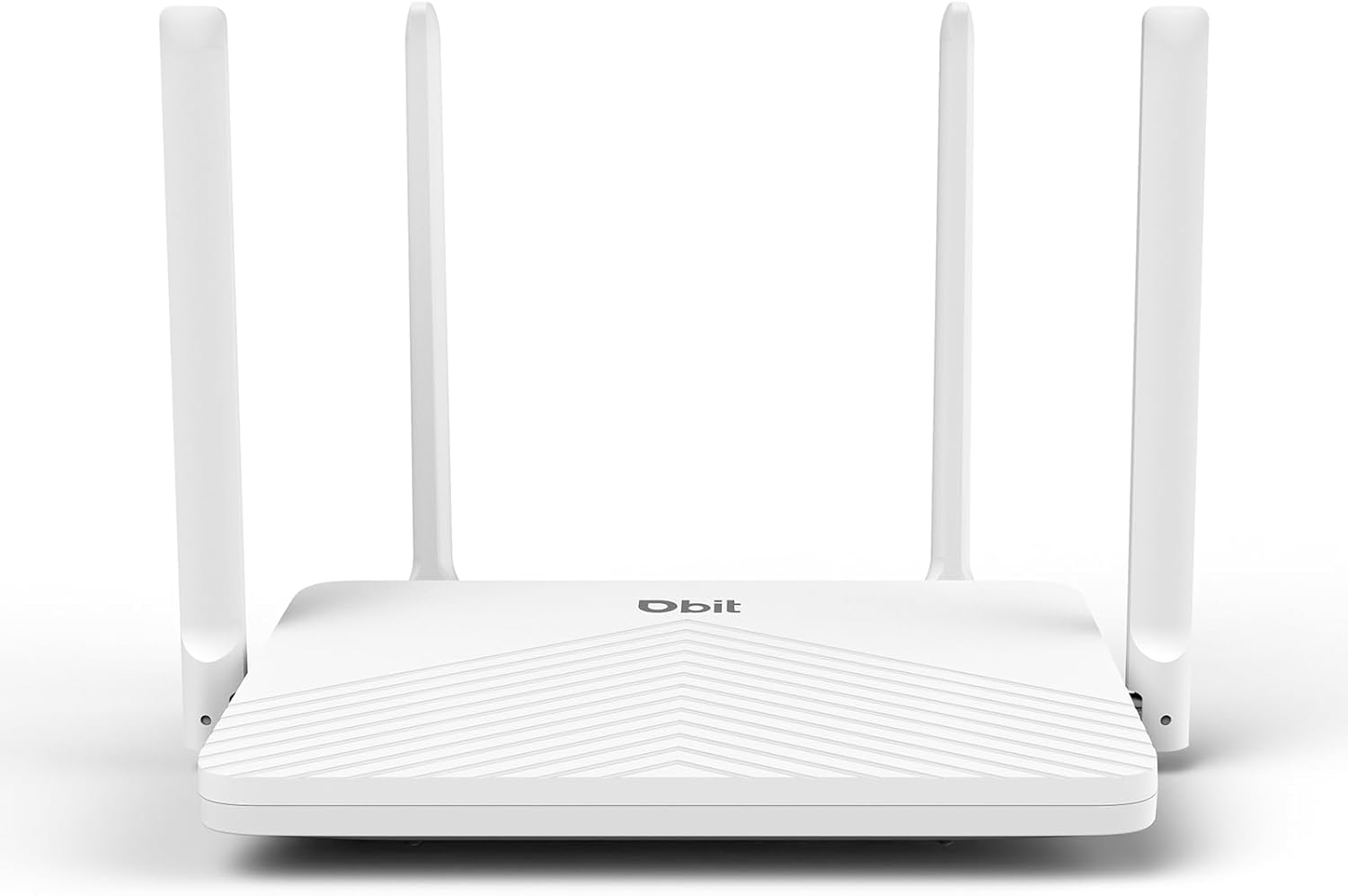
Figure 1: DBIT AC1200 WiFi Router
1.2 Principais Características
- Wi-Fi de banda dupla AC1200: Provides wireless speeds up to 1200Mbps (300 Mbps on 2.4GHz and 867 Mbps on 5GHz). The 2.4GHz band handles general tasks, while the 5GHz band supports bandwidth-intensive activities like gaming or 4K video streaming.
- Portas Gigabit completas: Equipped with one Gigabit WAN port and three Gigabit LAN ports for high-speed internet plans and stable wired connections to devices such as smart TVs, gaming consoles, or PCs.
- Triple-Mode Flexibility: Functions as a Router, Repeater, or Bridge to suit various network requirements.
- Whole-Home Coverage with Beamforming: Four external 5dBi high-gain antennas and Beamforming technology focus Wi-Fi signals towards connected devices, improving coverage.
- Tecnologia MU-MIMO: Enables simultaneous communication with multiple devices, reducing network latency.
- Segurança robusta: Features WPA2-PSK encryption and access control to protect the network and connected devices.
- Fácil configuração: Configuration is managed through an intuitive web user interface. WPS button for quick device connection.
- Compatibilidade Universal: Compatible with major internet service providers (requires a functioning modem).
2. Conteúdo da embalagem
Verifique se todos os itens estão presentes no seu pacote:
- DBIT AC1200 WiFi Router
- Adaptador de energia
- Cabo Ethernet
- Guia de início rápido
3. Produto acabadoview (Hardware)
3.1 Painel Frontal
The front panel of the router typically features LED indicators that display the status of the power, internet connection, and wireless networks (2.4GHz and 5GHz).
3.2 Rear Panel (Ports and Buttons)
The rear panel contains all the physical connection ports and control buttons:
- Botão de reset: Used to restore the router to factory default settings. Press and hold for approximately 5-10 seconds while the router is powered on.
- Botão WPS: For quickly connecting WPS-compatible devices to the wireless network without entering a password.
- Portas LAN (LAN1, LAN2, LAN3): Three Gigabit Ethernet ports for connecting wired devices such as computers, gaming consoles, or smart TVs.
- Porta WAN: One Gigabit Ethernet port for connecting to your modem or primary internet source.
- DC IN: Porta de entrada de energia para conectar o adaptador de energia incluído.

Figure 2: Router Rear Panel with Ports and Buttons
4. Configuração inicial
4.1 Conectando o Hardware
- Desligar: Desligue a alimentação do modem e do roteador (caso esteja substituindo um modelo antigo).
- Conectar à porta WAN: Connect one end of the provided Ethernet cable to the WAN port of the DBIT router and the other end to your modem's Ethernet port.
- Conecte a energia: Connect the power adapter to the router's DC IN port and plug it into a power outlet.
- Ligar: Power on your modem first, wait for it to fully boot up (usually indicated by stable lights), then power on the DBIT router.
- Ajuste da antena: Adjust the four external antennas for optimal signal reception.
4.2 Web Configuração da interface
Após conectar o hardware, configure o roteador através do seu web interface:
- Conecte-se ao Wi-Fi do roteador: On your computer or mobile device, connect to the default Wi-Fi network broadcast by the router. The default SSID and password are usually found on a label on the bottom of the router or in the Quick Start Guide.
- Acesso Web Interface: Abra um web browser and enter the default login URL, typically
192.168.10.1, na barra de endereços. - Siga as instruções do assistente de configuração: do roteador web interface will guide you through the initial setup process, including setting up your internet connection type, Wi-Fi network name (SSID), and password.
- Reconecte: After configuration, reconnect your devices to the new Wi-Fi network using the updated SSID and password.

Figura 3: Web Management Setup Steps
5. Modos de operação
The DBIT AC1200 router supports multiple operating modes to adapt to different network setups.
5.1 Modo Roteador
In Router Mode, the device acts as the primary internet gateway, connecting to your modem and distributing internet access to all connected wired and wireless devices. This is the default mode for most home networks.
5.2 Modo Repetidor
Repeater Mode extends the coverage of an existing wireless network. The router connects wirelessly to your main router and re-broadcasts the signal, eliminating Wi-Fi dead zones.

Figure 4: Repeater Mode Configuration
Modo 5.3 Bridge
Bridge Mode allows the router to convert a wired network connection into a wireless one, or to connect two separate networks. When configured as a bridge, the device can provide wireless access to devices connected to a wired network, or extend a network segment.
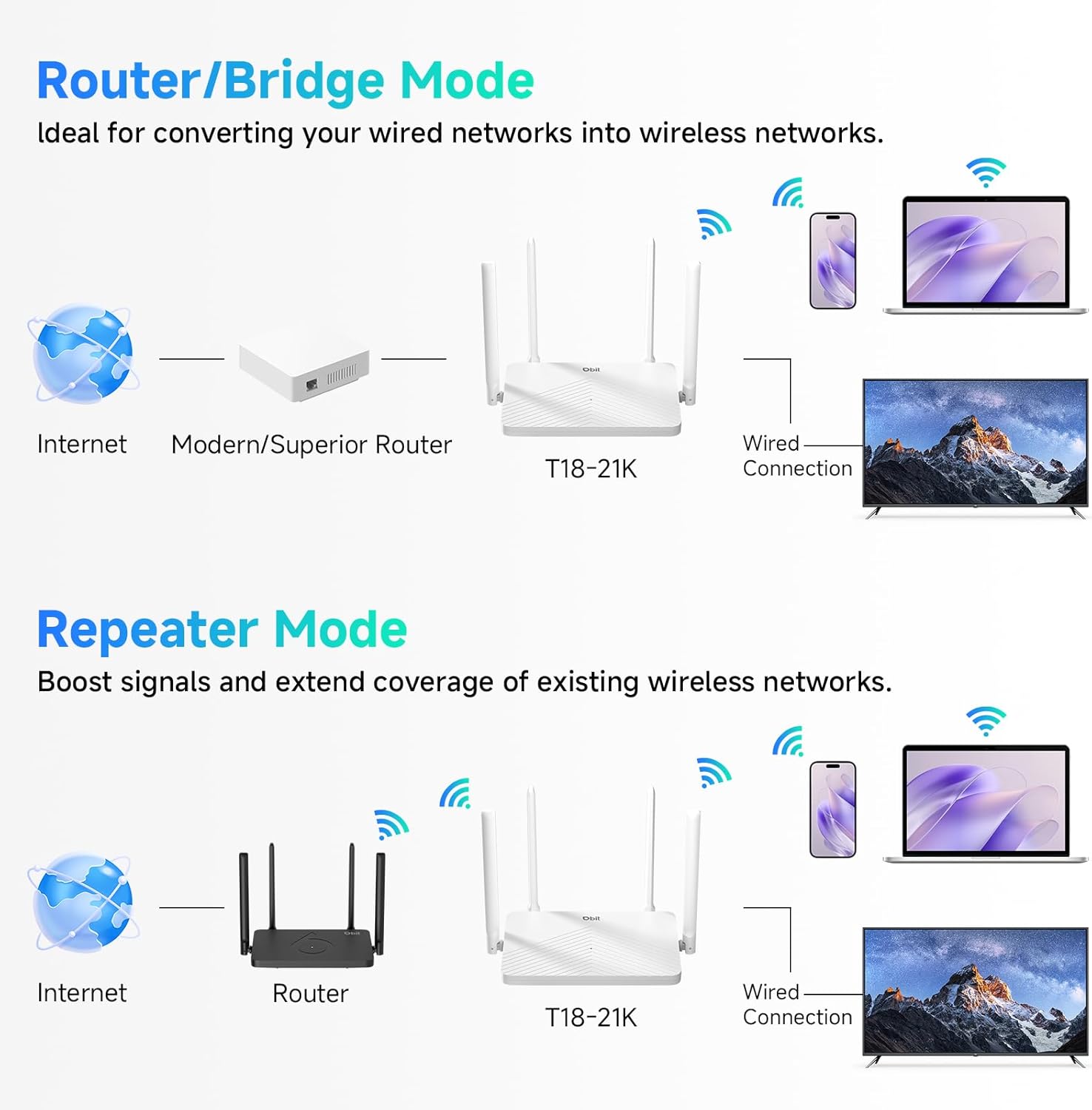
Figure 5: Router/Bridge Mode Setup
6. Recursos avançados
6.1 Dual-Band Wireless
The router operates on two distinct frequency bands: 2.4GHz and 5GHz. The 2.4GHz band offers broader coverage and better penetration through obstacles, suitable for general internet use. The 5GHz band provides higher speeds and lower latency, ideal for online gaming and high-definition video streaming.

Figure 6: Dual-Band Speed Distribution
6.2 Tecnologia MU-MIMO
Multi-User, Multiple-Input, Multiple-Output (MU-MIMO) technology allows the router to transmit data to multiple devices simultaneously, rather than sequentially. This improves network efficiency and reduces buffering when multiple devices are active on the network.

Figure 7: MU-MIMO Operation
6.3 Beamforming and Antennas
The router is equipped with four 5dBi high-gain antennas and utilizes Beamforming technology. Beamforming directs the Wi-Fi signal directly towards connected devices, improving signal strength and coverage, particularly in areas further from the router.

Figure 8: Beamforming Coverage
6.4 EasyMesh Functionality
The EasyMesh function allows for the creation of a seamless whole-home network. When multiple EasyMesh-compatible devices are used, they automatically select the best connection as you move around your home, ensuring consistent Wi-Fi coverage.

Figure 9: EasyMesh Network Coverage
6.5 Segurança de rede
The router supports WPA2-PSK encryption to secure your wireless network. Access control features allow you to manage which devices can connect to your network, enhancing overall security.
6.6 Rede de Convidados
A guest network feature allows you to provide separate Wi-Fi access for visitors, keeping your main network private and secure.
6.7 Controle dos Pais
Parental control features enable you to manage internet access times and block specific websites for connected devices, promoting a safer online environment.
7. Solução De Problemas
- Sem acesso à Internet:
- Ensure your modem is working correctly and its internet indicator light is stable.
- Check that the Ethernet cable is securely connected between the modem's LAN port and the router's WAN port.
- Reinicie o modem e o roteador.
- Verifique as configurações de sua conexão com a internet no roteador. web interface.
- Sinal Wi-Fi fraco ou áreas sem cobertura:
- Adjust the router's antennas for optimal positioning.
- Mude o roteador para um local central da sua casa, longe de obstruções e fontes de interferência (por exemplo, micro-ondas, telefones sem fio).
- Consider using Repeater Mode or adding another EasyMesh compatible device to extend coverage.
- Não consigo acessar o roteador. Web Interface:
- Certifique-se de que seu dispositivo esteja conectado à rede Wi-Fi do roteador ou, por meio de um cabo Ethernet, a uma porta LAN.
- Verify that you are entering the correct IP address (default is
192.168.10.1) no seu navegador. - Limpe o cache do seu navegador ou tente usar um navegador diferente.
- If you have changed the router's IP address, use the new address. If forgotten, a factory reset may be necessary.
- Senha de Wi-Fi ou senha de login esquecida:
- Perform a factory reset by pressing and holding the RESET button for 5-10 seconds while the router is powered on. This will revert all settings, including passwords, to their factory defaults.
8. Especificações
| Recurso | Detalhe |
|---|---|
| Nome do modelo | Roteador AC1200 WiFi |
| Número do modelo do item | T18-21K |
| Dimensões do produto | 8.99 x 5.78 x 6.89 polegadas |
| Peso do item | 1.12 libras |
| Marca | Dbit |
| Fabricante | Equipamento de rede Shenzhen Dbit Co., Ltd. |
| Classe de Banda de Frequência | Banda dupla (2.4 GHz, 5 GHz) |
| Padrão de comunicação sem fio | 802.11a, 802.11ac, 802.11b, 802.11g, 802.11n |
| Tecnologia de Conectividade | Ethernet, Wi-Fi |
| Portas Ethernet | 1 WAN, 3 LAN (Gigabit) |
| Antenas | 4 antenas externas de 5dBi |
| Características especiais | Beamforming, Guest Mode, Internet Security, MU-MIMO, Parental Control |
| Dispositivos compatíveis | Gaming Console, Personal Computer, Tablet, Smart Television, Smartphone, Printer, Security Camera |
| Usos recomendados | Negócios, Residência |
9. Garantia e Suporte
9.1 Informações de garantia
Consulte o cartão de garantia incluído na embalagem do produto para obter os termos e condições detalhados da garantia. A garantia normalmente cobre defeitos de fabricação por um período específico a partir da data da compra.
9.2 Suporte Técnico
For technical assistance, troubleshooting, or further inquiries, please contact DBIT customer support. Contact information can usually be found on the manufacturer's official website ou no Guia de Início Rápido.
Online resources, including FAQs and firmware updates, may also be available on the DBIT support page.