
1. Introdução e maisview
This manual provides essential information for setting up, operating, maintaining, and troubleshooting your HP 17-inch Business Laptop. This device is designed for productivity and features a 13th Generation Intel Core i5 processor, a 17.3-inch HD+ anti-glare display, a backlit keyboard with a numeric keypad, and a fingerprint reader for enhanced security. It comes pre-installed with Windows 11 Home.
Os principais recursos incluem:
- Processador: 13th Gen Intel Core i5-1334U 10-core processor for efficient multitasking.
- Sistema operacional: Windows 11 Home for a modern and secure computing experience.
- Mostrar: 17.3-inch HD+ (1366x768) anti-glare screen with micro-edge design.
- Armazenamento de memória: Up to 64GB DDR4 RAM and up to 2TB NVMe M.2 SSD for fast performance and ample armazenamento.
- Conectividade: USB 3.2 Gen 1 Type-C, USB 3.2 Gen 1 Type-A, HDMI 1.4, and a headphone/microphone combo jack.
- Segurança: Integrated fingerprint reader.
- Conveniência: Full-size backlit keyboard with numeric keypad and HP Fast Charge battery technology.
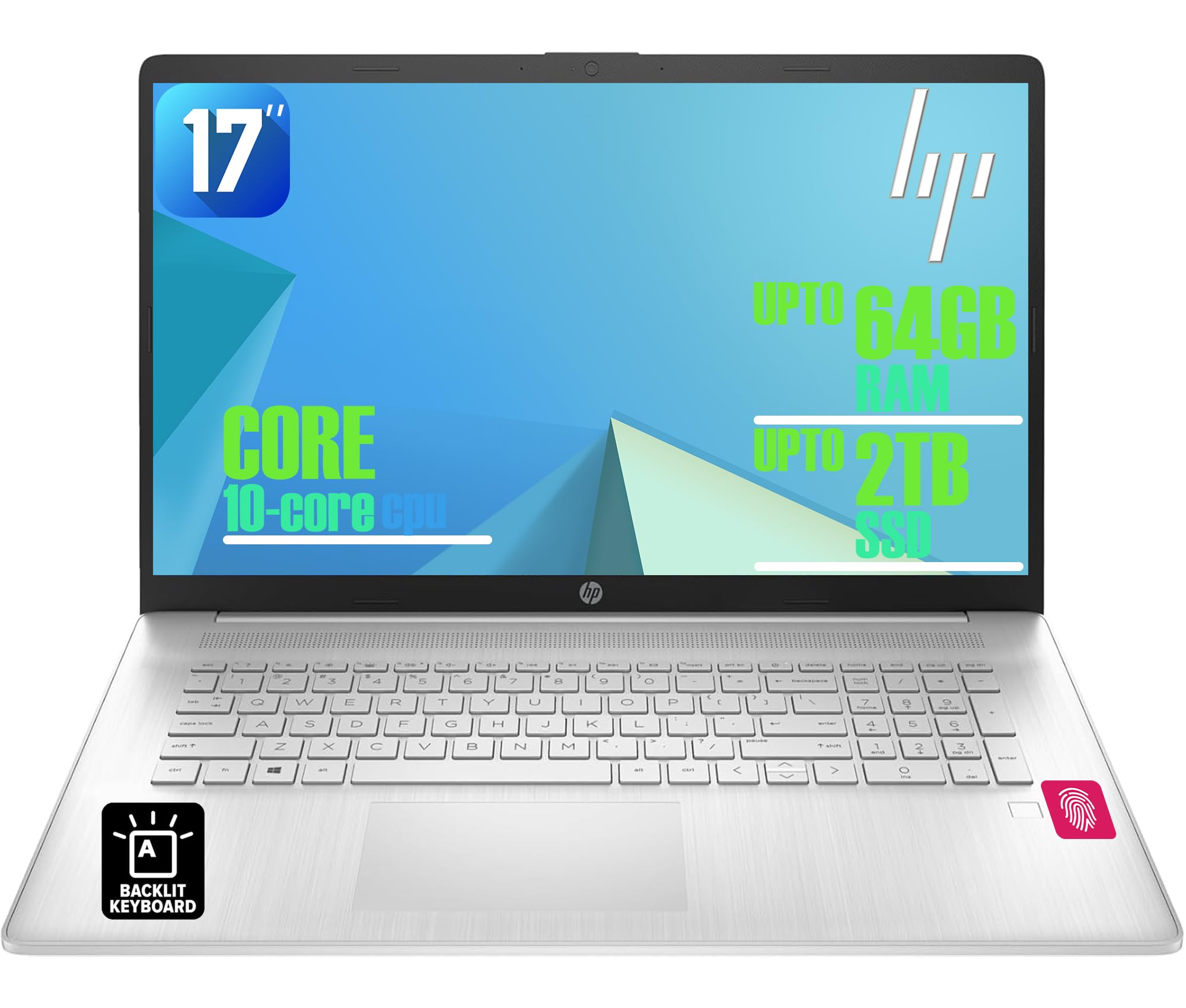
Figure 1: HP 17-inch Business Laptop (Silver)
2. Configuração
2.1 Desembalagem e Inspeção Inicial
Carefully remove the laptop and all accessories from the packaging. Check for any visible damage. The package should include the HP 17-inch laptop, a power adapter, and documentation.
2.2 Conectando à energia
- Connect the power adapter to the AC smart pin port on the side of the laptop.
- Conecte o adaptador de energia a uma tomada de parede.
- Deixe o laptop carregando por pelo menos 30 minutos antes do primeiro uso, ou até que o indicador de bateria mostre carga suficiente.
2.3 Inicialização e Configuração do Windows
- Open the laptop lid and press the power button, typically located on the top right of the keyboard deck.
- Siga as instruções na tela para concluir o processo de configuração do Windows 11 Home. Isso inclui selecionar sua região, idioma, conectar-se a uma rede Wi-Fi e criar uma conta de usuário.
2.4 Conectando Periféricos
Your HP laptop offers various ports for connecting external devices:
- Portas USB: Use the USB 3.2 Gen 1 Type-C port or the two USB 3.2 Gen 1 Type-A ports for connecting external drives, mice, keyboards, or other USB accessories.
- HDMI: Connect an external monitor or projector using the HDMI 1.4 port.
- Áudio: Plug headphones or an external microphone into the 3.5mm headphone/microphone combo jack.

Figura 2: Lateral view illustrating available ports (USB Type-C, USB Type-A, HDMI, Headphone/microphone combo, AC smart pin)
3. Operando seu laptop
3.1 Gerenciamento de energia
- Ligar: Pressione o botão liga/desliga.
- Modo dormir: Feche a tampa ou selecione "Suspender" no menu Iniciar.
- Desligar: Selecione 'Desligar' no menu Iniciar.
- Reiniciar: Selecione 'Reiniciar' no menu Iniciar.
3.2 Teclado e touchpad
The laptop features a full-size backlit keyboard with a numeric keypad. Use the function keys (Fn) in combination with other keys for specific actions like adjusting screen brightness, volume, or toggling the keyboard backlight.
The integrated touchpad supports multi-touch gestures for navigation. Refer to Windows settings for customizing touchpad behavior.

Figure 3: Backlit keyboard with numeric keypad and integrated fingerprint reader
3.3 Leitor de impressão digital
The integrated fingerprint reader allows for secure and quick login using Windows Hello. To set up, navigate to Configurações > Contas > Opções de entrada and follow the instructions to register your fingerprint.
3.4 Conectividade sem fio
- Wi-fi: The laptop supports Realtek Wi-Fi 6 (2x2). To connect to a wireless network, click the Wi-Fi icon in the taskbar, select your desired network, and enter the password if required.
- Bluetooth: Bluetooth 5.3 is integrated for connecting wireless accessories like headphones or mice. Enable Bluetooth from Configurações > Bluetooth e dispositivos and pair your devices.
3.5 Tela e Webcâmera
The 17.3-inch HD+ anti-glare display provides a clear viewing experience. The HP True Vision 720p HD webcam with dual microphones is suitable for video calls and online meetings.
3.6 HP QuickDrop
HP QuickDrop allows for wireless file transfer between your laptop and mobile devices without needing cables. Install the HP QuickDrop app on both your laptop and mobile device and follow the in-app instructions to pair and transfer files.

Figure 4: HP QuickDrop for wireless file transfer between laptop and phone
4. Manutenção
4.1 Limpando seu laptop
- Tela: Use um pano macio e sem fiapos levemente dampLimpe com água ou um produto de limpeza para telas. Não borrife líquido diretamente na tela.
- Teclado e chassi: Use um pano macio e seco. Para sujeira persistente, um pano levemente umedecidoamp cloth can be used, ensuring no liquid enters the device. Compressed air can help remove debris from between keys.
4.2 Cuidados com a bateria
The laptop is equipped with a 41Wh Lithium-Ion Battery. To maximize battery lifespan:
- Evite temperaturas extremas.
- Não descarregue completamente a bateria regularmente.
- Utilize HP Fast Charge, which can charge the battery from 0 to 50% in approximately 45 minutes.

Figure 5: Battery life indicator (Up to 8 hours wireless streaming)
4.3 Atualizações de Software
Verifique e instale regularmente as atualizações do Windows para garantir que seu sistema tenha os patches de segurança e melhorias de desempenho mais recentes. Acesse Configurações > Windows Update para gerenciar atualizações.
5. Solução De Problemas
Esta seção aborda problemas comuns que você pode encontrar com seu notebook HP.
5.1 Problemas de energia
- Meu laptop não liga: Ensure the power adapter is securely connected to both the laptop and a working power outlet. Check if the power adapter's indicator light is on. Try a different outlet.
- A bateria não carrega: Verify the power adapter connection. Check battery health in Windows settings.
5.2 Problemas de exibição
- Nenhuma imagem na tela: Certifique-se de que o laptop esteja ligado. Se um monitor externo estiver conectado, tente desconectá-lo ou pressioná-lo. Tecla Fn + F4 (or the corresponding display toggle key) to switch display output.
- Tela escura: Adjust brightness using the function keys (e.g., Fn + F2 / F3) or through Windows settings.
5.3 Problemas de conectividade
- A conexão Wi-Fi não está funcionando: Ensure Wi-Fi is enabled in Windows settings. Restart your router and the laptop. Check for updated network drivers.
- Dispositivo Bluetooth não está emparelhando: Ensure Bluetooth is enabled on both the laptop and the device. Make sure the device is in pairing mode.
5.4 Problemas Gerais de Desempenho
- Desempenho lento: Feche aplicativos desnecessários. Verifique se há malware. Certifique-se de ter espaço livre suficiente no SSD.
- O sistema congela: Imprensa Ctrl + Alt + Del to open Task Manager and end unresponsive tasks. If unresponsive, perform a hard shutdown by holding the power button for several seconds.
6. Especificações
The following table outlines the key technical specifications for the HP 17-inch Business Laptop (Model: HP laptop).
| Recurso | Especificação |
|---|---|
| Marca | HP |
| Nome do modelo | HP laptop |
| Processador | 13th Gen Intel Core i5-1334U (10 Cores, up to 4.6 GHz) |
| Sistema operacional | Windows 11 Início |
| Mostrar | 17.3-inch HD+ (1366x768) Anti-glare, 250 nits |
| Gráficos | Gráficos Intel Iris Xe (Integrados) |
| Memória RAM | Up to 64GB DDR4 SDRAM 3200 MHz |
| Armazenar | Up to 2TB NVMe M.2 SSD |
| Conectividade sem fio | Realtek Wi-Fi 6 (2x2), Bluetooth 5.3 |
| Portos | 1x USB 3.2 Gen 1 Type-C, 2x USB 3.2 Gen 1 Type-A, 1x HDMI 1.4, 1x Headphone/microphone combo jack |
| Teclado | Teclado retroiluminado de tamanho normal com teclado numérico |
| Segurança | Leitor de impressão digital |
| Câmera | Câmera HD 720p com obturador de privacidade |
| Bateria | 41Wh Lithium-Ion (HP Fast Charge) |
| Dimensões (C x L x A) | 15.78" x 10.15" x 0.81" (aprox.) |
| Peso | 4.6 libras (aprox.) |
| Cor | Prata natural |

Figure 6: Laptop dimensions (15.78" W x 10.15" D x 0.78" H) and weight (4.60 lbs)
7. Garantia e Suporte
7.1 Garantia do Fabricante
Your HP laptop is covered by a manufacturer's warranty. Please refer to the warranty documentation included with your product for specific terms, conditions, and duration. Keep your proof of purchase for warranty claims.
7.2 Suporte Técnico
For technical assistance, driver downloads, or further support, please visit the official HP support website. You will typically need your product's serial number or model number to access specific support resources.
Suporte online: https://support.hp.com