
Informações importantes de segurança
Please read all instructions carefully before using this monitor. Keep this manual for future reference.
- Do not place the monitor near water or in humid environments.
- Garanta ventilação adequada ao redor do monitor para evitar superaquecimento.
- Utilize apenas o adaptador de energia fornecido com o monitor.
- Evite expor o monitor à luz solar direta ou a temperaturas extremas.
- Não tente consertar o monitor por conta própria. Encaminhe todos os serviços de manutenção a pessoal qualificado.
- Limpe a tela com um pano macio e sem fiapos. Evite usar produtos químicos agressivos.
Conteúdo da embalagem
Por favor, verifique se todos os seguintes itens estão incluídos em seu pacote:
- 31.5-inch 2K 120Hz Monitor (x1)
- Suporte para monitor (x1)
- Guia de Início Rápido (QSG) (x1)
- Cabo HDMI (x1)
- Adaptador de energia (x1)
- Cabo de alimentação (x1)

An image showing the monitor's dimensions and a list of included accessories: monitor, QSG, HDMI cable, adapter, power cord, and monitor stand.
Configurar
Montagem do monitor
Siga estes passos para montar o suporte do monitor e fixá-lo ao painel de exibição:
- Retire cuidadosamente o monitor e o suporte da embalagem.
- Attach the base to the stand column, securing it with the provided screw.
- Align the assembled stand with the mounting points on the back of the monitor panel.
- Gently push the stand into place until it clicks securely.
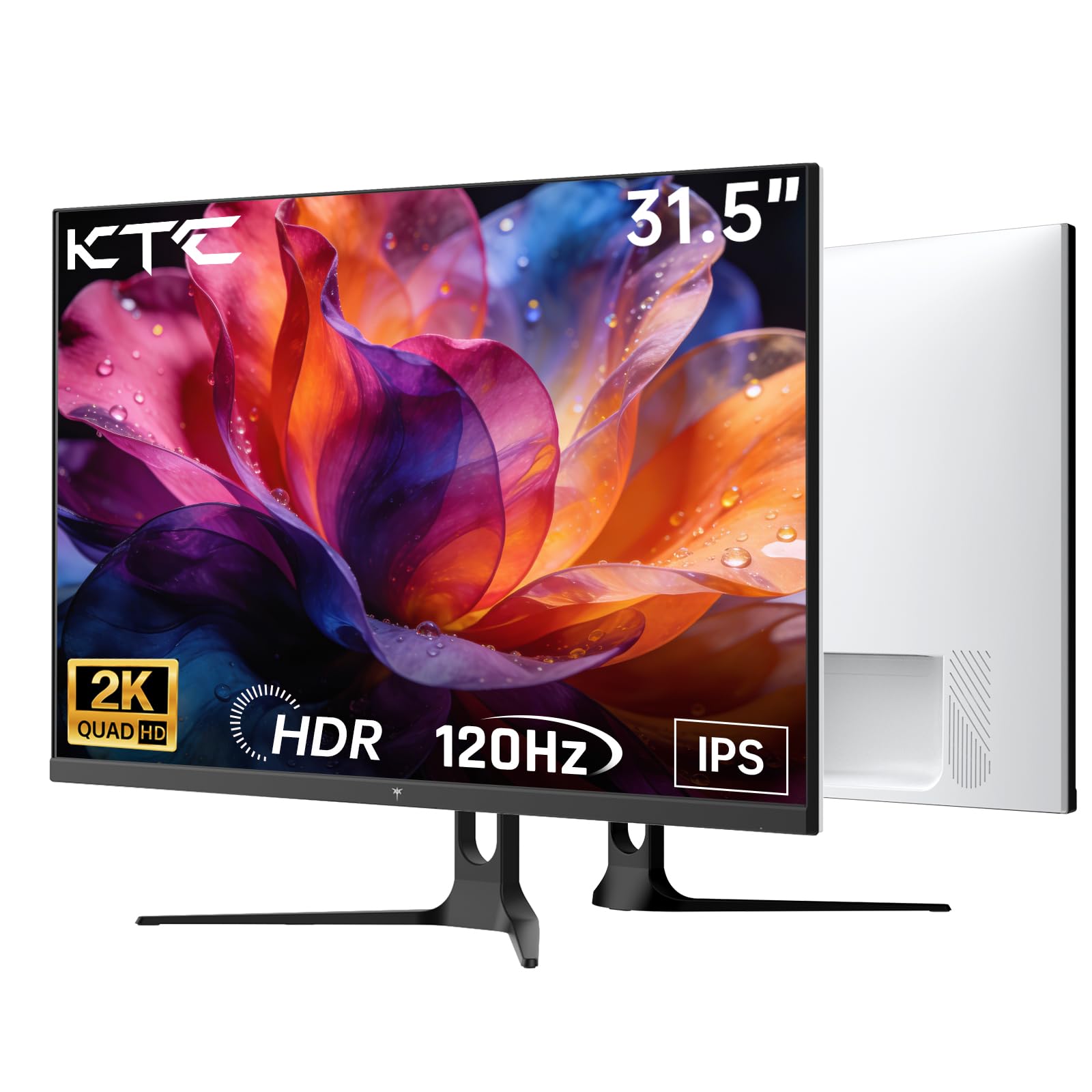
Frente view of the KTC H32D6 31.5-inch monitor on its stand.
Conectividade
Connect your monitor to a power source and your computer using the appropriate cables:
- Connect the power adapter to the monitor's DC input port, then plug the power cord into an electrical outlet.
- For video input, connect one end of the HDMI or DisplayPort cable to your computer's graphics card and the other end to the corresponding port on the monitor.
- Se desejar, conecte fones de ouvido ou alto-falantes externos à entrada para fones de ouvido.

Close-up of the monitor's rear panel, highlighting the HDMI 2.0 ports (x2), DisplayPort 1.4 (x1), and earphone jack.
Este vídeo fornece um overview of the KTC 32 Inch 2K 120Hz Computer Monitor, showcasing its features and benefits in a dynamic presentation.
Instruções de operação
Ligar/Desligar
Pressione o botão liga/desliga (geralmente localizado na parte traseira ou inferior direita do monitor) para ligá-lo ou desligá-lo. A luz indicadora de energia acenderá quando o monitor estiver ligado.
Navegação no menu de exibição na tela (OSD)
The monitor features an intuitive OSD menu for adjusting various settings. Use the joystick or buttons (depending on your model) on the back of the monitor to navigate the menu:
- Pressione o joystick/botão para abrir o menu OSD.
- Move the joystick up/down or left/right to select menu options.
- Press the joystick/button again to confirm a selection or enter a sub-menu.
- To exit the OSD menu, navigate to the 'Exit' option or hold the joystick/button for a few seconds.
Ajustando as configurações de exibição
No menu OSD, você pode ajustar configurações como:
- Resolução: Set to QHD (2560x1440) for optimal clarity.
- Taxa de atualização: Adjust to 120Hz for ultra-smooth visuals.
- Brilho contraste: Fine-tune for your preferred viewexperiência.
- Configurações de cores: Ajuste a temperatura da cor, o gama e outros parâmetros de cor.

An image demonstrating the superior clarity of QHD (2560x1440) resolution compared to FHD (1920x1080) on the monitor screen.

A visual representation of smooth motion on the monitor, illustrating the benefit of a 120Hz refresh rate for seamless visuals.
Sincronização adaptável
This monitor supports Adaptive Sync technology (FreeSync, G-Sync Compatible) to eliminate screen tearing and stuttering during gaming or fast-paced video. Ensure Adaptive Sync is enabled in both your monitor's OSD settings and your graphics card control panel for optimal performance.

A side-by-side comparison showing the visual difference with Adaptive Sync ON (smooth image) and OFF (screen tearing) during fast-paced action.
Suporte HDR10
The monitor supports HDR10, providing a wider range of colors and contrast for a more immersive viewing experience. To utilize HDR10, ensure your content and graphics card support HDR, and enable it in your operating system display settings.

An image highlighting the enhanced color and contrast provided by HDR10 technology.
Recursos de cuidados com os olhos
The KTC H32D6 monitor includes Low Blue Light and Flicker-Free technologies to reduce eye fatigue during prolonged use. These features are designed to provide a more comfortable viewexperiência.

An image illustrating the eye care features, including low blue light and flicker-free technology, designed to reduce eye strain.
Ajuste de inclinação
The monitor stand allows for tilt adjustment from -5° to 20°. Gently adjust the monitor panel to your desired viewângulo de inclinação para conforto ergonômico.

An image demonstrating the wide 178-degree viewing angle provided by the IPS panel, ensuring consistent image quality from various positions.
Manutenção
A manutenção adequada garante a longevidade e o desempenho ideal do seu monitor.
- Limpando a tela: Limpe suavemente a tela com um pano macio, seco e sem fiapos. Para manchas persistentes, esfregue levemente.ampen the cloth with water or a screen-cleaning solution specifically designed for monitors. Never spray liquid directly onto the screen.
- Limpando o Casing: Use um pano macio e seco para limpar a tela do monitor.asing. Evite produtos de limpeza ou solventes abrasivos.
- Desligue quando não estiver em uso: Turn off the monitor when not in use to save energy and extend its lifespan.
- Evite Obstruções: Ensure that the ventilation openings on the monitor are not blocked to prevent overheating.
Solução de problemas
Se você encontrar problemas com seu monitor, consulte os problemas e soluções comuns a seguir:
| Problema | Solução possível |
|---|---|
| Sem imagem na tela | Ensure the power cable is securely connected and the monitor is turned on. Check that the video cable (HDMI/DP) is firmly connected to both the monitor and your computer. Select the correct input source via the OSD menu. |
| A imagem está piscando ou instável. | Check the video cable connection. Ensure your graphics card drivers are up to date. Verify that the refresh rate is set correctly in your computer's display settings. Enable Adaptive Sync if supported by your graphics card. |
| As cores parecem incorretas | Adjust color settings (brightness, contrast, color temperature) in the OSD menu. Ensure HDR is correctly configured in your operating system if you are using HDR content. |
| Monitor not recognized by computer | Restart your computer. Try a different video port or cable. Update your graphics card drivers. |
Especificações
Key technical specifications for the KTC H32D6 monitor:
| Recurso | Especificação |
|---|---|
| Marca | KTC |
| Número do modelo | H32D6 |
| Tamanho da tela | 31.5 polegadas |
| Resolução | QHD Wide 1440p (2560 x 1440 pixels) |
| Taxa de atualização | 100 Hz (up to 120Hz overclocked) |
| Tipo de exibição | IPS |
| Tempo de resposta | 7 milissegundos |
| Proporção da tela | 16:9 |
| Brilho | 350 candelas (cd/m²) |
| Taxa de contraste | 1000:1 |
| Viewângulo de engate | 178 graus |
| Gama de cores | 109% sRGB |
| Picture Quality Enhancement | HDR10 |
| Conectividade | 2 x HDMI 2.0, 1 x DisplayPort 1.4, Earphone Jack |
| Sincronização adaptável | FreeSync, G-Sync Compatible |
| Características adicionais | Eye Care, Flicker-Free, Tilt Adjustment, VESA 100x100mm Compatible |
| Consumo de energia | 48 Watts |
| Dimensões do item (P x L x A) | 7.09"P x 28.23"L x 20.08"A |
Garantia e Suporte
Informações de garantia
This KTC H32D6 monitor comes with a Garantia do fabricante de 3 anosEsta garantia cobre defeitos de materiais e de fabricação sob uso normal. Guarde seu comprovante de compra para eventuais solicitações de garantia.
The warranty does not cover damage caused by misuse, accidents, unauthorized modifications, or external factors such as power surges.
Suporte ao cliente
For technical assistance, warranty claims, or any other inquiries, please contact KTC customer support through the official website or the contact information provided with your purchase. You may also refer to the Quick Start Guide for additional support resources.