
1. Informações importantes de segurança
Please read all instructions carefully before using this monitor. Keep this manual for future reference.
- Não exponha o monitor à chuva, umidade ou temperaturas extremas.
- Garanta ventilação adequada ao redor do monitor para evitar superaquecimento.
- Utilize apenas o adaptador de energia fornecido com o monitor.
- Evite colocar objetos pesados sobre o cabo de alimentação ou o monitor.
- Desconecte o cabo de alimentação da tomada se o monitor não for utilizado por um longo período.
- Não tente consertar o monitor por conta própria. Encaminhe todos os serviços de manutenção a pessoal qualificado.
2. Conteúdo da embalagem
Verifique se todos os itens estão presentes no seu pacote:
- 27-inch QHD 210Hz Monitor (1 unit)
- Monitor Stand (1 unit)
- Guia de Início Rápido (QSG) (1 unidade)
- DP Cable (1 unit)
- Power Adaptor (1 unit)
- Cabo de alimentação (1 unidade)
- Shielding Hood (2 units)

Video: KTC 27M1 27 Inch 210Hz Gaming Monitor. This video provides a visual overview of the monitor and its features.
3. Instruções de configuração
3.1 Montagem do suporte do monitor
- Retire cuidadosamente o monitor e o suporte da embalagem.
- Attach the stand base to the stand arm using the provided screw.
- Align the stand arm with the mounting slot on the back of the monitor and push until it clicks into place.
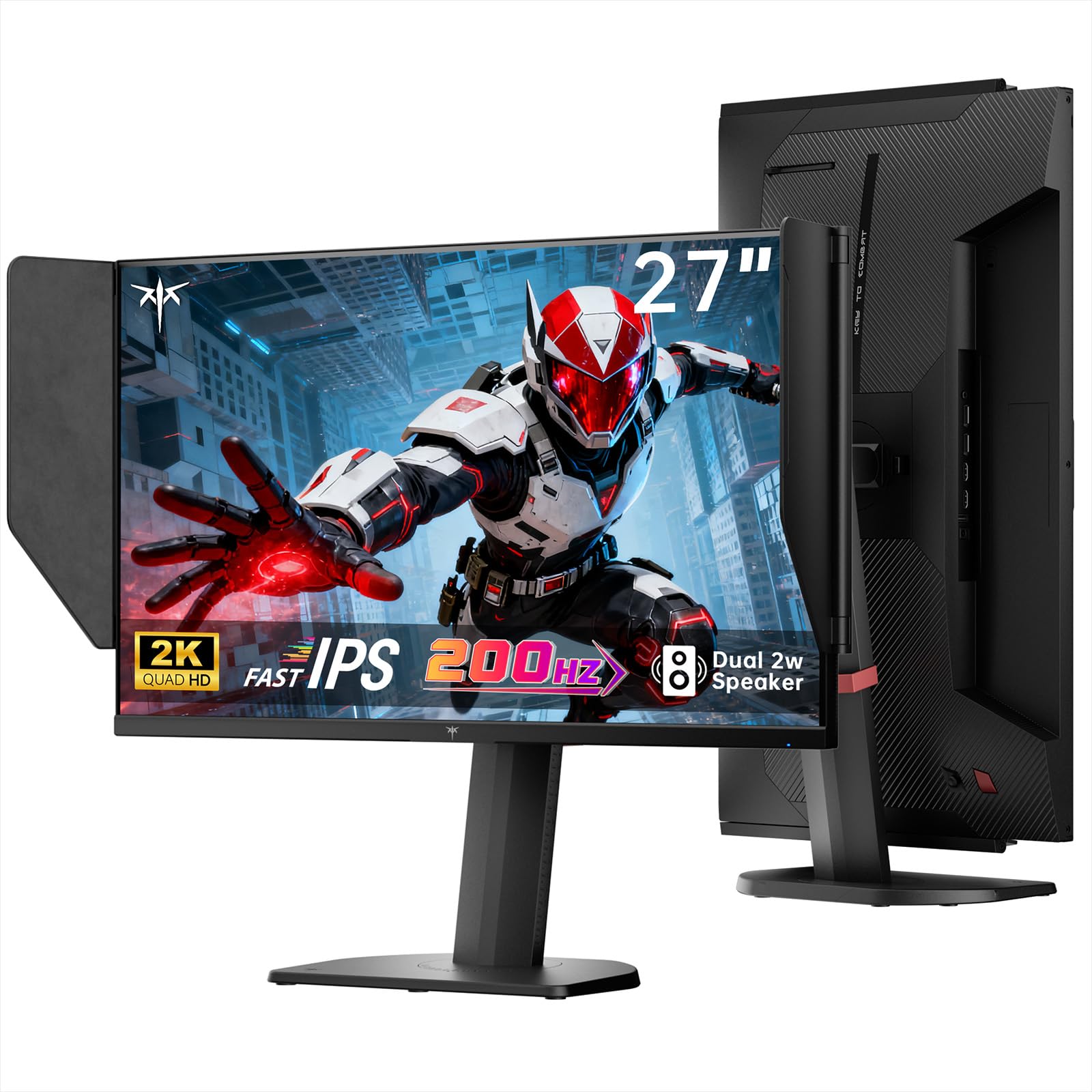
Image: The KTC 27M1 monitor with its stand fully assembled, ready for use.
3.2 Attaching the Shielding Hood
The shielding hood helps reduce glare and reflections for an optimal viewexperiência.
- Locate the two shielding hood pieces.
- Align each piece with the designated slots on the sides of the monitor and gently slide them into place until secure.

Image: The KTC 27M1 monitor shown with the shielding hood attached, designed to block reflected light.
3.3 cabos de conexão
Conecte o monitor ao seu computador ou outros dispositivos usando os cabos apropriados:
- Porta de exibição (DP): For 200Hz (overclockable to 210Hz) refresh rates, connect the DP cable from your graphics card to the monitor's DP 1.4 port.
- HDMI: For 144Hz refresh rates, connect an HDMI 2.0 cable from your device to one of the monitor's HDMI ports.
- Poder: Connect the power adapter to the DC input on the monitor, then plug the power cord into a wall outlet.
- Áudio: Connect headphones or external speakers to the 3.5mm earphone jack if desired.

Imagem: Close-up view of the KTC 27M1 monitor's rear ports, including HDMI, DisplayPort, USB, and earphone jack.
4. Instruções de operação
4.1 Ligar/Desligar
Press the 5-way navigation joystick located on the back of the monitor to power it on or off.
4.2 Navegação no menu OSD
The 5-way navigation joystick is used to access and navigate the On-Screen Display (OSD) menu:
- Pressione o joystick para abrir o menu OSD.
- Move the joystick Up/Down/Left/Right to navigate through menu options.
- Pressione o joystick novamente para selecionar uma opção ou confirmar uma configuração.
- Move the joystick Left to go back to the previous menu or exit the OSD.
4.3 Ajustando as configurações de exibição
No menu OSD, você pode ajustar várias configurações de exibição:
- Brilho contraste: Ajuste os níveis gerais de luminância e contraste.
- Configurações de cores: Modify color temperature (Warm, Cool, User), gamma, hue, and saturation. The monitor offers 130% sRGB color gamut and ΔE<2 for accurate color reproduction.
- Configuração do jogo: Enable/disable Adaptive Sync (FreeSync/G-Sync Compatible), adjust Overdrive (Ultra Fast recommended for gaming), and activate Game Assist features.
- Configurações avançadas: Toggle HDR (Auto/Off) and OverClock (to achieve 210Hz refresh rate).
- Entrada: Manually select the input source (DP, HDMI1, HDMI2).
- Conjunto de sistemas: Change OSD language, LED indicator, audio volume, and other system preferences.
4.4 Ajustes Ergonômicos
The monitor stand supports multiple ergonomic adjustments for comfortable viewing:
- Ajuste de altura: Adjust the monitor height by 150±5mm.
- Inclinar: Tilt the screen from -5° to 35°.
- Giratório: Swivel the monitor ±60°.
- Pivô: Pivot the screen from -5° to 90° for vertical orientation.

Image: Visual representation of the KTC 27M1 monitor's tilt, swivel, elevate, and pivot adjustments.
5. Características
- Mostrar: 27-inch QHD (2560x1440) Fast IPS panel.
- Taxa de atualização: 200Hz, overclockable to 210Hz.
- Tempo de resposta: 1ms (MPRT) for sharp visuals.
- Precisão de cor: 130% sRGB color gamut, 99% DCI-P3 coverage, ΔE<2, 450 cd/m² brightness, 1.07 Billion Colors, 1000:1 Contrast Ratio.
- Sincronização adaptável: FreeSync and G-Sync Compatible to eliminate screen tearing.
- Cuidados com os olhos: Flicker-free and low blue light modes for extended comfortable viewindo.
- Áudio: Built-in dual 2W speakers.
- Conectividade: 2x HDMI 2.0 ports, 1x DisplayPort 1.4 port, 1x USB 2.0 port, 1x Earphone jack.
- Montagem: 100x100mm VESA mount compatible.
- Projeto: Includes a detachable shielding hood to block reflected light.

Image: The KTC 27M1 monitor displaying vibrant colors, highlighting its color accuracy and brightness features.
6. Especificações
| Recurso | Especificação |
|---|---|
| Marca | KTC |
| Número do modelo | H27T8 (Marketed as 27M1) |
| Tamanho da tela | 27 polegadas |
| Resolução Nativa | 2560x1440 (QHD) |
| Tecnologia de exibição | IPS rápido |
| Taxa de atualização | 200 Hz (Overclockable to 210 Hz) |
| Tempo de resposta | 1 Millisecond (MPRT) |
| Brilho | 450 candelas (cd/m²) |
| Taxa de contraste | 1000:1 |
| Gama de cores | 130% sRGB, 99% DCI-P3 |
| Viewângulo de engate | 178 graus |
| Suporte HDR | Sim |
| Sincronização adaptável | FreeSync, G-Sync Compatible |
| Alto-falantes embutidos | 2 alto-falantes de 2 W |
| Conectividade | 2x HDMI 2.0, 1x DisplayPort 1.4, 1x USB 2.0, 1x Earphone |
| Montagem VESA | 100x100mm |
| Ergonomia | Height, Tilt, Swivel, Pivot Adjustment |
| Consumo de energia | 48 Watts |
7. Manutenção e Cuidados
- Limpando a tela: Limpe suavemente a tela com um pano macio e sem fiapos. Para manchas persistentes, dampen the cloth with a mild, non-abrasive screen cleaner.
- Limpando o Casing: Use um pano macio e seco para limpar o monitor.asing. Evite usar detergentes fortes ou produtos de limpeza abrasivos.
- Ventilação: Ensure the ventilation openings on the monitor are clear and unobstructed to prevent overheating.
- Armazenar: Se for guardar o monitor por um longo período, desligue-o da tomada e guarde-o em local fresco e seco.
8. Solução De Problemas
8.1 Sem energia
- Verifique se o cabo de alimentação está firmemente conectado ao monitor e à tomada.
- Verifique se a tomada está funcionando corretamente conectando outro aparelho.
- Certifique-se de que o adaptador de energia esteja conectado corretamente.
8.2 No Signal/Blank Screen
- Confirm that the video cable (DP or HDMI) is securely connected to both the monitor and your computer/device.
- Press the OSD joystick to open the menu and manually select the correct input source.
- Ensure your computer/device is powered on and not in sleep mode.
- Try using a different video cable or port to rule out cable/port issues.
8.3 Flickering/Distorted Image
- Verifique se há danos ou conexões soltas no cabo de vídeo.
- Adjust the refresh rate in your computer's display settings to match the monitor's native refresh rate (200Hz or 210Hz if overclocked).
- Enable Adaptive Sync (FreeSync/G-Sync Compatible) in the monitor's OSD menu and your graphics card settings.
- Certifique-se de que os drivers da sua placa gráfica estejam atualizados.
8.4 No Sound from Built-in Speakers/Earphone Jack
- Check the volume settings in the monitor's OSD menu and your computer's operating system.
- Certifique-se de que o dispositivo de saída de áudio correto esteja selecionado nas configurações de som do seu computador.
- Verifique se o cabo de áudio (caso esteja usando alto-falantes externos) ou os fones de ouvido estão conectados corretamente.
9. Garantia e Suporte
KTC is committed to providing quality service and support for your monitor.
- Garantia: This product comes with a 3-year quality guarantee.
- Suporte técnico: Lifetime technical support is available for all KTC products.
- Contate-nos: If you have any questions or encounter issues, please contact KTC customer support. Solutions will be provided within 24 hours.