
1. Introdução
This manual provides detailed instructions for the Donner DEK-630 61-Key Electronic Keyboard. Please read this manual thoroughly before using the instrument to ensure proper operation and to maximize your musical experience. The DEK-630 is designed for beginners and music enthusiasts, featuring lighted keys, various tones and rhythms, and learning modes to support your musical journey.

Image 1.1: The Donner DEK-630 61-Key Electronic Keyboard Set, including the keyboard, Z-stand, and bench.
2. O que está na caixa
Verifique se todos os componentes estão presentes na embalagem:
- Donner DEK-630 Electric Keyboard
- Z-shaped Stand
- Piano Bench
- Estante de música
- Note Stickers
- Adaptador de energia
- Manual de Instruções (este documento)
3. Configuração
3.1 Assembling the Z-shaped Stand
- Unfold the main frame of the Z-stand.
- Attach the horizontal support bars to the vertical frames using the provided screws and knobs. Ensure they are securely tightened.
- Adjust the height of the stand to your preferred playing position using the adjustment knobs.
Video 3.1: Official Donner Music video demonstrating the assembly of the DEK-630 keyboard stand.
3.2 Assembling the Piano Bench
- Unfold the legs of the piano bench.
- Ensure all locking mechanisms are engaged for stability.
3.3 Placing the Keyboard and Music Rest
- Carefully place the DEK-630 keyboard onto the assembled Z-stand. Ensure it is stable and centered.
- Insert the music rest into the designated slots on the top panel of the keyboard.

Image 3.1: The Donner DEK-630 keyboard fully set up with the Z-stand and piano bench.
3.4 Conexão de Energia
- Connect the provided power adapter to the DC 12V input jack (8) on the rear panel of the keyboard.
- Conecte o adaptador de alimentação a uma tomada elétrica padrão.

Image 3.2: Close-up of the DEK-630's rear panel, highlighting the power adapter input and other connectivity options.
4. Instruções de operação
4.1 Ligar/Desligar
Pressione o PODER button located on the control panel to turn the keyboard on or off. The LCD display will illuminate upon power-on.
4.2 Exibição LCD Sobreview
The LCD display provides visual feedback on the current tone, rhythm, tempo, and learning mode status. Use the navigation buttons to browse through options.

Image 4.1: The DEK-630's LCD display, showing active settings for tones, rhythms, and learning modes.
4.3 Tone Selection (300 Tones)
To select a tone:
- Pressione o TOM botão.
- Use the number pad or the +/- buttons to select from 300 available tones. The selected tone number and name will appear on the LCD.
4.4 Rhythm Selection (256 Rhythms)
To select a rhythm:
- Pressione o RITMO botão.
- Use the number pad or the +/- buttons to select from 256 available rhythms.
- Imprensa INICIAR/PARAR Para iniciar ou encerrar a reprodução do ritmo.
4.5 Demo Songs (40 Songs)
The keyboard includes 40 demo songs for listening and practice.
- Pressione o MÚSICA DE DEMONSTRAÇÃO botão.
- Use o +/- buttons to cycle through the demo songs.
- Imprensa JOGAR to start the selected demo song.
4.6 Learning Modes
The DEK-630 offers built-in learning modes to assist beginners, including lighted keys, auto-chord, and metronome functions.
- Teclas iluminadas: Keys illuminate to guide you during learning exercises.
- Auto-Chord: Automatically plays chords based on single key presses, simplifying accompaniment.
- Metrônomo: Provides a steady beat to help develop rhythm and timing. Activate by pressing the METRÔNOMO botão.

Image 4.2: A user's hands playing the DEK-630, demonstrating the lighted key feature for learning.
4.7 Gravação e Reprodução
Para gravar sua apresentação:
- Pressione o REC button. The REC indicator will light up.
- Toque a melodia que desejar.
- Imprensa JOGAR to stop recording and listen to your recorded performance.
4.8 Dual Keyboard / Split Functions
- Dual Keyboard: Allows two different voices to be layered and played simultaneously.
- Função Dividir: Divides the keyboard into two sections, each with its own tone, allowing two different instruments to be played at once. Refer to the full manual for detailed activation steps.
4.9 Controle de volume
Ajuste o volume principal usando o VOLUME PRINCIPAL knob or buttons on the control panel.
4.10 Opções de conectividade
The DEK-630 offers various ports for expanded functionality:
- Sustain Pedal Jack (1): Connect an optional sustain pedal for expressive playing.
- MIDI Port (2): Connect to computers or other MIDI devices for music production and learning software.
- Porta USB (3): For USB MIDI connectivity.
- Audio Input Line (4): Connect external audio sources (e.g., MP3 player) to play along.
- Output (L/R) (5): Conecte-se a um externo ampAmplificadores ou mesas de mixagem.
- Mic Jack (6): Conecte um microfone para acompanhamento vocal.
- Headphone Jack (7): Connect headphones for private practice. Headphones need to be purchased separately.
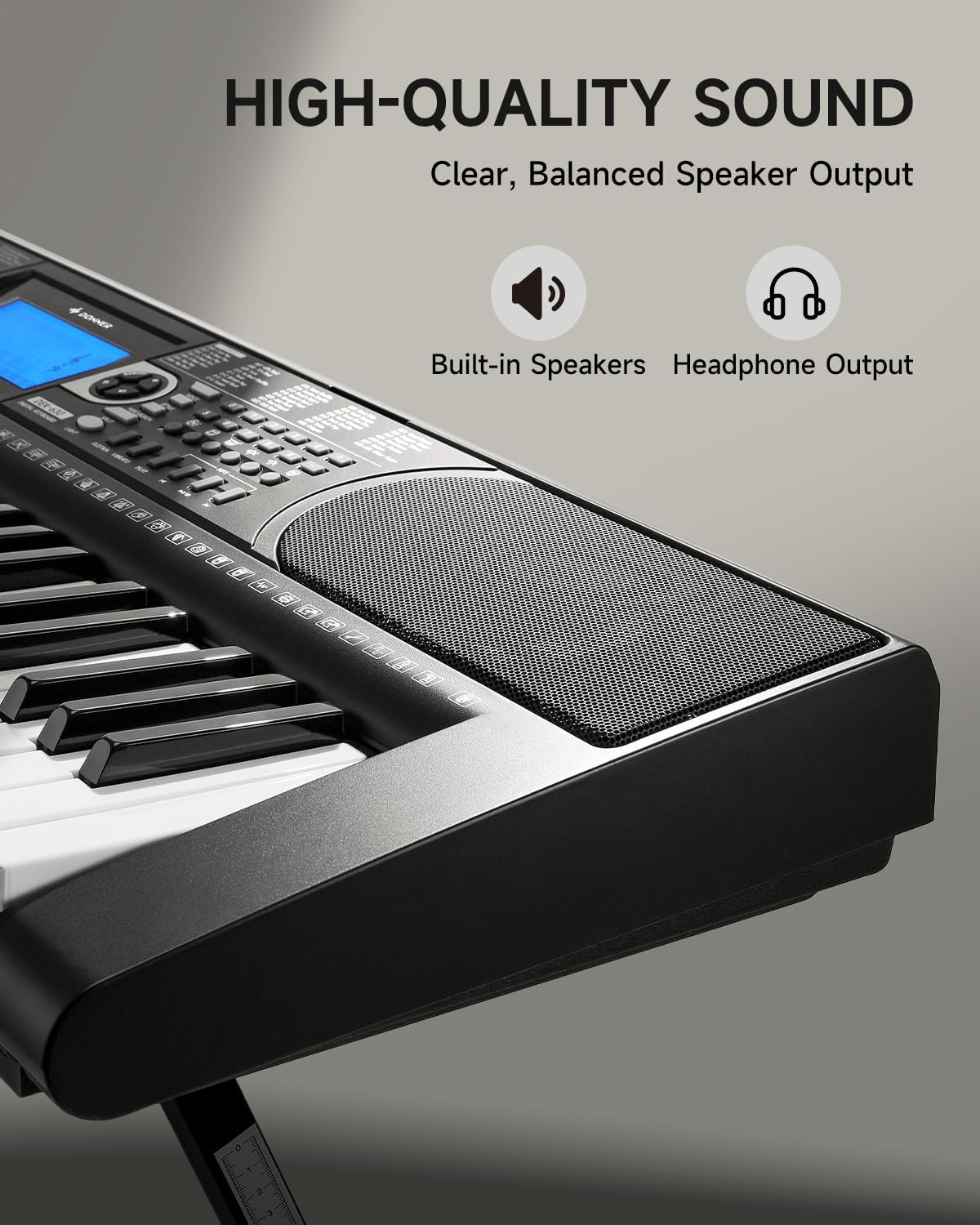
Image 4.3: The DEK-630's built-in speaker and headphone output for versatile sound options.
5. Manutenção
5.1 Limpeza
- Wipe the keyboard and stand with a soft, dry cloth.
- Para sujeira teimosa, use um pano levemente damp pano e depois seque bem.
- Evite usar produtos de limpeza abrasivos, solventes ou ceras, pois estes podem danificar o acabamento.
5.2 Armazenamento
- Guarde o teclado em local fresco e seco, longe da luz solar direta e de temperaturas extremas.
- Se for armazenar o produto por um período prolongado, desconecte o adaptador de energia.
6. Solução De Problemas
| Problema | Possível causa | Solução |
|---|---|---|
| Sem som |
|
|
| Teclas não respondem |
|
|
| O display LCD está em branco |
|
|
7. Especificações
- Modelo: DEK-630
- Número de chaves: 61
- Tons: 300
- Ritmos: 256
- Músicas de demonstração: 40
- Características especiais: Built-In Speaker, Lighted Keys, Portable, LCD Display, Learning Modes (Auto-Chord, Metronome)
- Conectividade: USB MIDI, Audio Input, Output (L/R), Mic Jack, Headphone Jack, Sustain Pedal Jack
- Poder: Adaptador de alimentação DC 12V
- Dimensions (Keyboard without stand): 37.80 x 11.81 x 3.54 polegadas (96 x 30 x 9 cm)
- Componentes incluídos: Electric Keyboard, Z-shaped Stand, Piano Bench, Music Rest, Note Stickers
8. Garantia e Suporte
8.1 Informações de garantia
The Donner DEK-630 Electronic Keyboard comes with a Garantia de 2 ano A garantia é válida a partir da data da compra. Esta garantia cobre defeitos de fabricação e mau funcionamento em condições normais de uso. Guarde o comprovante de compra para eventuais solicitações de garantia. A garantia não cobre danos causados por uso indevido, acidentes, modificações não autorizadas ou desgaste normal.
8.2 Suporte ao cliente
For technical assistance, troubleshooting, or warranty inquiries, please contact Donner customer support. Visit the official Donner webSite com informações de contato e recursos adicionais.
Donner Official Website: www.donnerdeal.com