
1. Introdução
The TP-Link UB600 is a compact Bluetooth 6.0 USB adapter designed for PCs. It enhances connection security and stability compared to previous Bluetooth generations, providing reliable wireless connectivity for various Bluetooth-enabled devices. Its ultra-small nano design allows it to remain discreetly plugged into a USB port, making it ideal for mobile use or permanent connection.
This adapter supports Windows 11, 10, 8.1, and 7. For Windows 11, 10, and 8.1, it offers Plug & Play functionality. For Windows 7, driver installation is required.
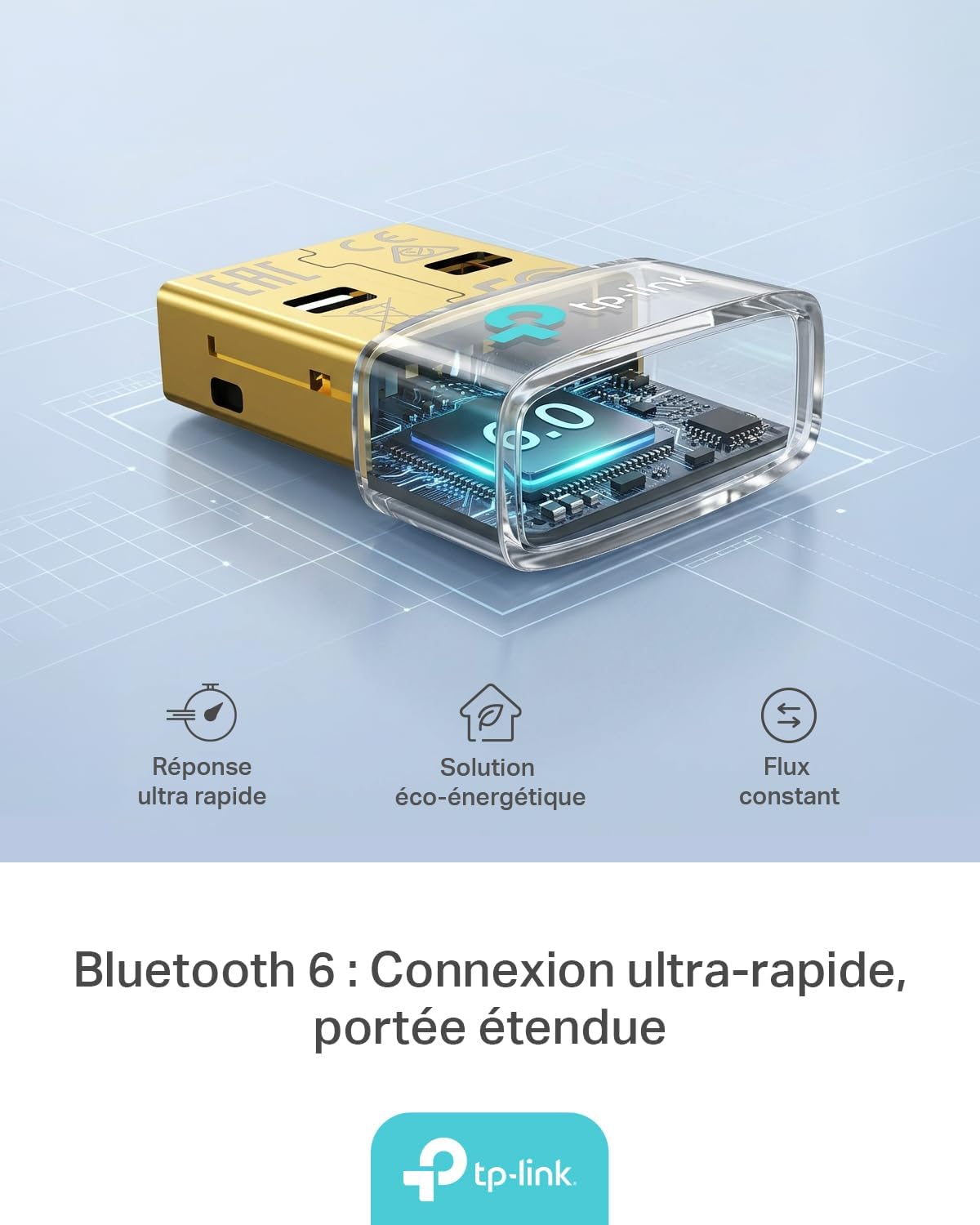
Figure 1: TP-Link UB600 Bluetooth 6.0 USB Adapter showcasing its key features: ultra-fast response, energy-saving solution, and constant data flow.
2. Instruções de configuração
2.1 Requisitos do sistema
- Operating System: Windows 11, Windows 10, Windows 8.1, Windows 7.
- Porta USB disponível.
2.2 Instalação
- Insira o adaptador: Plug the TP-Link UB600 Bluetooth USB adapter into an available USB port on your computer.

Figure 2: The UB600 adapter discreetly plugged into a laptop's USB port, demonstrating its compact design.
- Instalação do driver:
- For Windows 11, 10, 8.1: The adapter is Plug & Play. Your operating system should automatically detect and install the necessary drivers. No manual installation is typically required.
- Para Windows 7: Driver installation is required. Please visit the official TP-Link weblocal (www.tp-link.com) to download the latest drivers for the UB600 model. Follow the on-screen instructions to complete the installation.

Figure 3: Visual representation of the UB600's compatibility with different Windows versions and various Bluetooth peripherals like smartphones, headphones, controllers, and keyboards.
- Verificação: After installation, check your computer's Device Manager to ensure the Bluetooth adapter is recognized and functioning correctly.
3. Instruções de operação
3.1 Emparelhamento de dispositivos Bluetooth
Once the UB600 adapter is installed, you can pair it with your Bluetooth-enabled devices:
- Ativar Bluetooth: Ensure Bluetooth is enabled on your computer. You can usually find this in the Windows Settings (Settings > Devices > Bluetooth & other devices).
- Coloque o dispositivo em modo de emparelhamento: Place your Bluetooth device (e.g., headphones, mouse, keyboard) into pairing mode. Refer to your device's manual for specific instructions.
- Adicionar dispositivo: On your computer, click "Add Bluetooth or other device" and select "Bluetooth".
- Selecionar dispositivo: Seu computador irá procurar dispositivos Bluetooth próximos. Selecione seu dispositivo na lista e siga as instruções na tela para concluir o processo de emparelhamento.
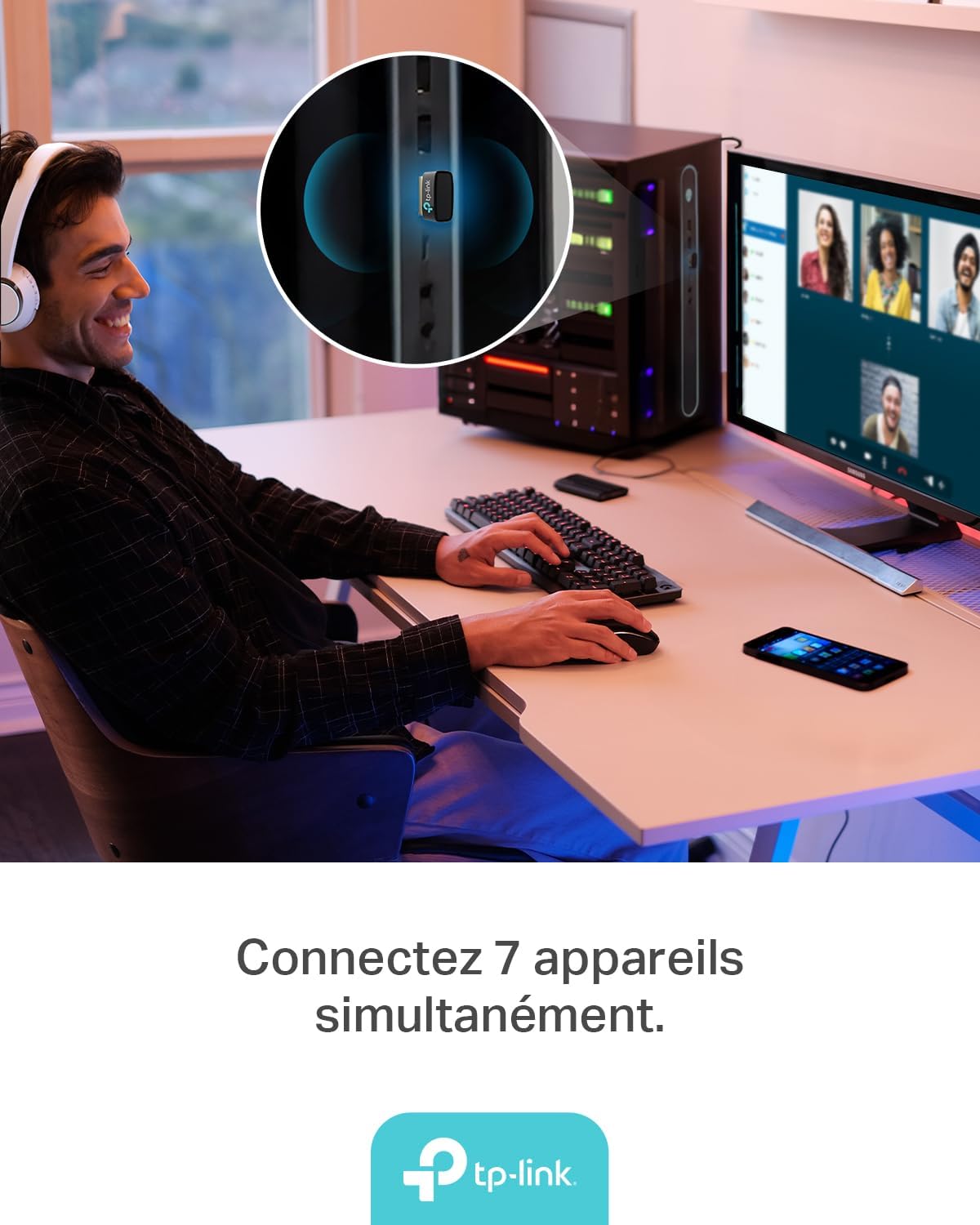
Figure 4: The UB600 adapter allows simultaneous connection of up to 7 Bluetooth devices, enhancing productivity and convenience.
3.2 Bluetooth 6.0 Advantages
The UB600 utilizes Bluetooth 6.0 technology, offering several improvements:
- Segurança aprimorada: Provides improved security features for your wireless connections.
- Maior estabilidade: Offers a more stable and reliable connection compared to older Bluetooth versions.
- Faster Speeds (EDR): Supports Enhanced Data Rate (EDR) for quicker data transfer.
- Reduced Power Consumption (BLE): Utilizes Bluetooth Low Energy (BLE) for energy-efficient operation, especially beneficial for battery-powered devices.

Figure 5: The UB600 adapter contributes to daily efficiency with faster speeds (EDR) and reduced power consumption (BLE).
4. Manutenção
The TP-Link UB600 is designed for durability and requires minimal maintenance. To ensure optimal performance and longevity:
- Mantenha limpo: Limpe periodicamente a parte externa do adaptador com um pano macio e seco. Evite usar produtos de limpeza líquidos ou solventes.
- Proteja contra danos: While compact, avoid subjecting the adapter to physical shocks, extreme temperatures, or moisture.
- Conexão firme: Ensure the adapter is securely plugged into the USB port to prevent intermittent connections.
5. Solução De Problemas
If you encounter issues with your TP-Link UB600 adapter, consider the following steps:
- Adaptador não detectado:
- Tente conectar o adaptador a uma porta USB diferente.
- Reinicie o seu computador.
- For Windows 7, ensure drivers are correctly installed from the TP-Link website.
- Não foi possível emparelhar os dispositivos:
- Ensure Bluetooth is enabled on your computer and the device you are trying to pair.
- Make sure your device is in pairing mode.
- Check if the device is already paired with another computer or adapter.
- Move the device closer to the computer to rule out range issues.
- Conexão intermitente:
- Ensure there are no major obstructions between the adapter and the Bluetooth device.
- Avoid placing the adapter near sources of strong electromagnetic interference (e.g., Wi-Fi routers, microwaves).
- Update your computer's operating system and Bluetooth drivers to the latest versions.
Para obter mais assistência, visite o site oficial de suporte da TP-Link. website.
6. Especificações
| Recurso | Detalhe |
|---|---|
| Número do modelo | UB600 |
| Interface | USB |
| Versão Bluetooth | Bluetooth 6.0 |
| Taxa de transferência de dados | 2 Mbps |
| Sistemas operacionais compatíveis | Windows 11, Windows 10, Windows 8.1, Windows 7 |
| Dispositivos compatíveis | Computer, Laptop (for connecting mouse, keyboard, headset, smartphone, controller, etc.) |
| Dimensões (C x L x A) | 0.68 x 1.89 x 1.48 cm |
| Peso | 10 gramas |
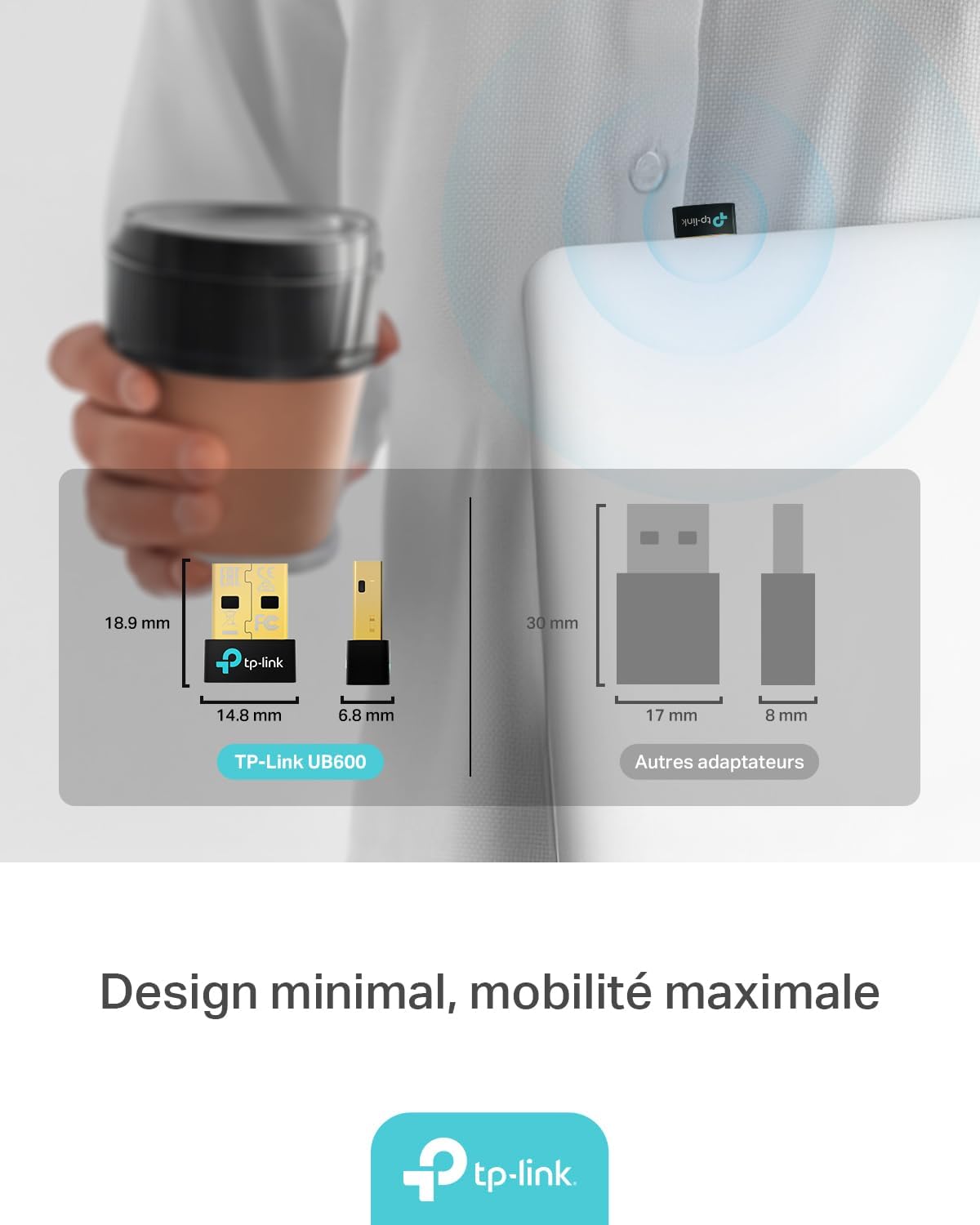
Figure 6: The UB600's minimal design ensures maximum mobility and discreet integration with your device.
7. Informações de garantia
Para informações detalhadas sobre a garantia, consulte o cartão de garantia incluído com o produto ou visite o site oficial da TP-Link. webOs termos e condições da garantia podem variar conforme a região.
8. Suporte Técnico
If you require technical assistance or have questions regarding your TP-Link UB600 Bluetooth USB Adapter, please visit the TP-Link support website:
You can find FAQs, driver downloads, and contact information for customer service on their website.