
1. Introdução
The PHYSEN Smart WiFi Door Sensor Chime Window Sensor Alarm system provides real-time monitoring and alerts for your home or business. This system offers instant notifications via the Tuya/Smart Life App, ensuring you are always aware of activity at your doors or windows. Designed for ease of use, it features a loud chime, customizable settings, and simple wire-free installation.
This manual provides detailed instructions for setting up, operating, and maintaining your PHYSEN Smart WiFi Door Sensor Chime system to ensure optimal performance and security.
2. Produto acabadoview
2.1 Componentes
- 1 x WiFi Receiver (Chime Unit)
- 2 x WiFi Sensors (Door/Window Contact Sensors)
- Mounting Accessories (Adhesive pads)
2.2 Principais Características
- Real-Time App Alerts: Receive instant push notifications on your smartphone when a door or window is opened.
- Loud Chime: Adjustable volume up to 110dB with 5 levels, suitable for various environments.
- Toques personalizáveis: Assign unique ringtones to different sensors for easy identification.
- Instalação sem fio: Simple plug-and-play setup with included adhesive.
- Sistema Expansível: Supports up to 20 sensors for comprehensive coverage.
- Compartilhamento familiar: Share device access with multiple family members via the app.
- Auto-Memória: Retains melody and volume settings after power outage.
- Sem taxas mensais: Free app push notifications.
- Ampla aplicação: Suitable for doors, windows, safes, refrigerators, and more.

Image: The PHYSEN Smart WiFi Door Sensor Chime system, showing the plug-in receiver and two contact sensors.
3. Instruções de configuração
3.1 Baixe o aplicativo
- Plug the WiFi Receiver (Gateway) into an electrical outlet.
- Download the "Smart Life" or "Tuya Smart" app from your device's app store.
- For iPhone: Download "Smart-Life Living" from the App Store.
- For Android: Download "SmartLife-Smart Living" from Google Play.
- Open the Smart Life/Tuya Smart app and log in. If you do not have an account, create one.

Image: Visual guide for downloading the Smart Life app and logging in.
3.2 Add Gateway to the App
- In the app, hold the Ringtone button on the Gateway for about 5 seconds until the indicator light flashes rapidly.
- Tap the "+" button in the top right corner of the app. It will discover nearby devices. Select "Add" for the Wireless Gateway.
- Digite sua senha de rede Wi-Fi. Nota: Apenas redes de 2.4 GHz são suportadas.
- After successful addition, you will receive notifications on your phone. You can rename the gateway for easier identification.

Image: Steps for connecting the gateway to your home Wi-Fi network.
3.3 Instalar Sensores
The sensors are designed for wire-free installation using the included adhesive. Ensure the two parts of the sensor are aligned and placed within 1 cm of each other when the door/window is closed.
- Clean the surface where you intend to install the sensor.
- Peel off the protective backing from the adhesive pads on the back of each sensor part.
- Attach the larger sensor unit to the fixed frame of the door/window.
- Attach the smaller magnetic unit to the moving part of the door/window, ensuring it aligns with the larger unit when closed. The gap between the two parts should be less than 1 cm.
- Test the sensor by opening and closing the door/window to confirm it triggers an alert.

Image: A contact sensor installed on a door, showing the two parts aligned.

Image: Various installation scenarios for the contact sensors, including doors, windows, safes, and refrigerators.
4. Instruções de operação
4.1 Notificações de aplicativos
Once the gateway and sensors are set up, you will receive instant notifications on your smartphone whenever a sensor is triggered. You can name each transmitter in the app to clearly identify which one has been activated.

Image: A smartphone displaying real-time alerts from sensors in different rooms (Kitchen, Living Room, Bedroom).
4.2 Configurações personalizadas
The app allows you to customize various settings for your chime and sensors.
- Seleção de toque: Choose from 32 available ringtones. You can assign a different ringtone to each sensor to distinguish between triggered locations.
- Ajuste de volume: Adjust the chime volume from 0 to 110dB across 5 levels.
- Seleção de modo: Choose between three modes:
- Luz e som: The gateway flashes its indicator light and sounds the ringtone.
- Somente som: The gateway only sounds the ringtone.
- Somente luz: The gateway only flashes its indicator light.

Image: App interface for customizing ringtones, volume, and alert modes (Light & Sound, Sound, Light).

Image: Step-by-step app guide for configuring ringtones, alert modes, and volume levels for each transmitter.
4.3 Do Not Disturb Schedule
You can set a "Do Not Disturb" schedule within the app to prevent the chime from sounding during specific times or days. During these periods, the gateway will not flash or emit sounds, but app notifications will still be sent to your phone.

Image: App interface for managing notifications, setting a Do Not Disturb schedule, and viewing notification history.
4.4 Histórico de Notificação
The app maintains a history of all triggered sensor events. By assigning distinct names to each transmitter, you can easily identify which sensor was triggered and when.
4.5 Partilha Familiar
Share device access with family members or trusted individuals. This allows multiple users to receive alerts simultaneously and manage the device settings from their own smartphones.
- Enter the transmitter page in the app and click the circled top-right icon.
- Find the "Share Device" button and tap to open the sharing page.
- Share via any available channel (e.g., email, messaging apps). Up to 20 people can be shared per gateway.

Image: Guide on how to share the device with family members through the app.
5. Manutenção
5.1 Limpeza
Wipe the WiFi Receiver and sensors with a soft, dry cloth. Do not use abrasive cleaners or solvents, as these can damage the device surfaces.
5.2 Battery Replacement (Sensors)
The contact sensors are battery-powered. When the battery is low, the sensor's indicator light may flash differently, or you may receive a low battery notification in the app. To replace the battery:
- Abra cuidadosamente o sensor casing.
- Remova a bateria antiga.
- Insert a new battery of the same type (typically CR2032, refer to sensor markings for confirmation), ensuring correct polarity.
- Feche o sensor casing com segurança.
- Test the sensor to ensure it is functioning correctly.
6. Solução De Problemas
- Sem notificações do aplicativo:
- Certifique-se de que seu smartphone tenha uma conexão de internet estável.
- Check if app notifications are enabled in your phone's settings and within the Smart Life/Tuya Smart app.
- Verify the gateway is connected to your 2.4GHz Wi-Fi network.
- Check if the "Do Not Disturb" schedule is active.
- Sinal sonoro não está funcionando:
- Ensure the WiFi Receiver is plugged into a working outlet.
- Check the volume setting in the app; increase if necessary.
- Verify the mode setting in the app is not set to "Light Only".
- Confirm the sensor is properly paired with the gateway.
- Sensor não está sendo acionado:
- Ensure the two parts of the sensor are correctly aligned and within 1 cm when the door/window is closed.
- Check the sensor battery and replace if necessary.
- Verify the sensor is within range of the WiFi Receiver (up to 500 feet in open area, 100 feet within router signal range).
- Connectivity Issues (Gateway):
- Ensure your Wi-Fi router is operating on a 2.4GHz frequency. This device does not support 5GHz Wi-Fi.
- Restart your Wi-Fi router and the WiFi Receiver.
- If issues persist, try re-pairing the gateway with the app.
7. Especificações
| Recurso | Especificação |
|---|---|
| Marca | FÍSICA |
| Número do modelo | Wifi Sensor |
| Cor | Branco |
| Tecnologia de Conectividade | Sem fio (Wi-Fi de 2.4 GHz) |
| Dispositivos compatíveis | Smartphone (Tuya/Smart Life App) |
| Tipo de alerta | Entry (Door/Window Open) |
| Método de controle | Aplicativo |
| Alcance máximo | 500 pés (área aberta) |
| Item Dimensions (Receiver) | 3.2 x 3.2 polegadas (aprox.) |
| Item Dimensions (Sensor) | 2.9 x 0.9 inches (main unit), 1.3 x 0.5 inches (magnetic unit) (approx.) |
| Método de instalação | Autoadesivo |
| Mídia Integrada | Wifi Receiver*1, Wifi Sensor*2 |
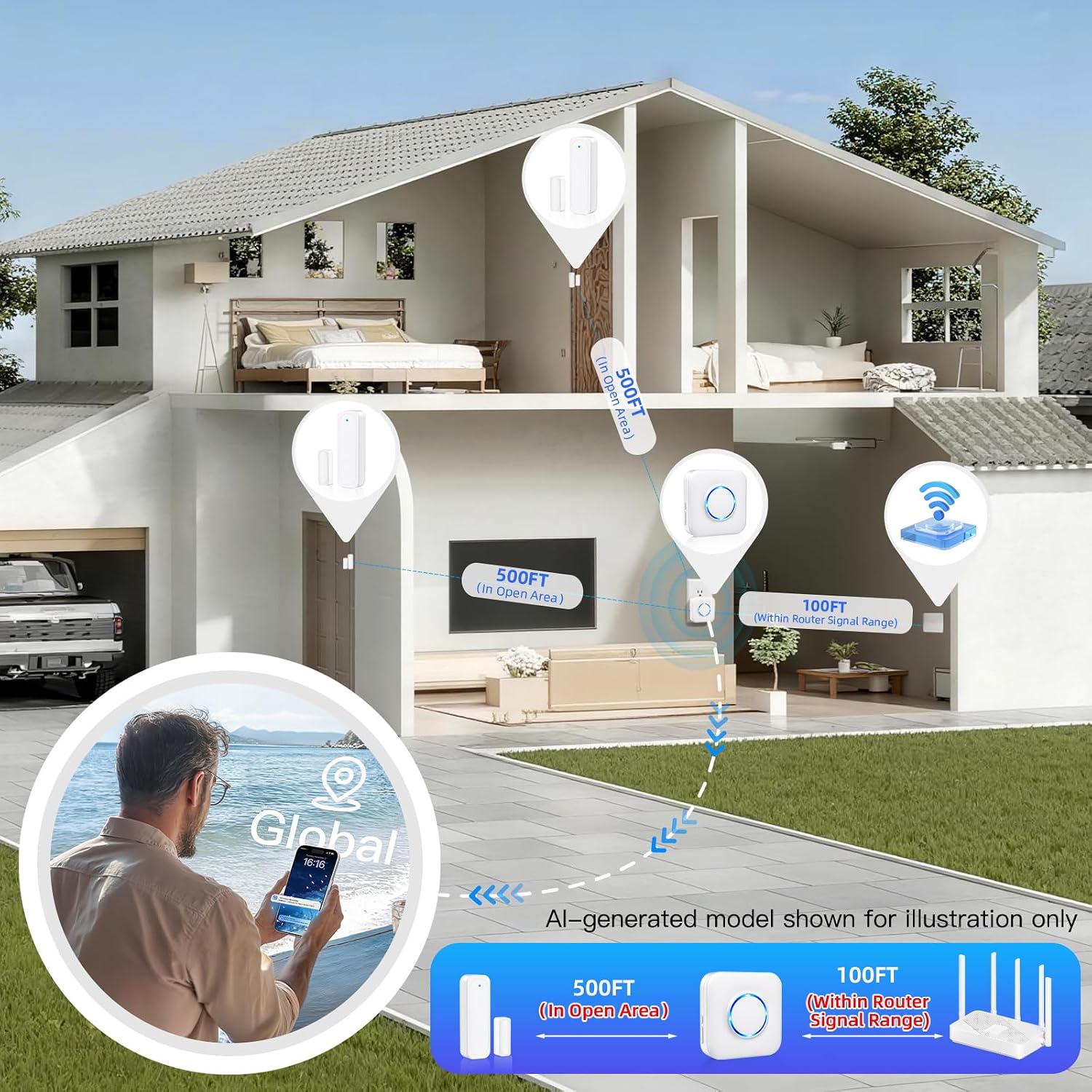
Imagem: Detalhada view of the WiFi Receiver and contact sensor with their approximate dimensions and labeled components.
8. Garantia e Suporte
For warranty information, technical support, or any inquiries regarding your PHYSEN Smart WiFi Door Sensor Chime Window Sensor Alarm, please refer to the product packaging or contact PHYSEN customer service directly. Contact details are typically available on the manufacturer's official website ou através do revendedor onde o produto foi adquirido.
Guarde o comprovante de compra para reclamações de garantia.