
1. Introdução
The Next Cine800S GoogleTV Projector is designed to provide a versatile and immersive home entertainment experience. This manual offers essential information for the safe and efficient setup, operation, and maintenance of your projector. Please read this manual thoroughly before using the device.
2. Informações de segurança
- Fonte de energia: Use only the specified power adapter. Ensure the power cord is not damaged or pinched.
- Ventilação: Do not block ventilation openings. Maintain adequate space around the projector for proper airflow to prevent overheating.
- Colocação: Coloque o projetor em uma superfície estável e nivelada. Evite colocá-lo sob luz solar direta, perto de fontes de calor ou em ambientes com alta umidade ou poeira.
- Limpeza: Desligue a energia antes de limpar. Use um pano macio e seco. Não use produtos de limpeza líquidos ou em aerossol.
- Cuidados com as Lentes: Avoid touching the projector lens directly. Use a soft, lint-free cloth specifically designed for optical lenses if cleaning is necessary.
- Manutenção: Não tente consertar o projetor por conta própria. Encaminhe todos os serviços de manutenção a pessoal qualificado.
3. Produto acabadoview
The Next Cine800S is a Full HD LED projector featuring Google TV. Below are key components and features.

Figura 3.1: Frente view of the Next Cine800S GoogleTV Projector, highlighting its design and key features like 800 ANSI Lumens and Google TV integration.
3.1. Principais características
- Resolução da tela: Full HD 1920x1080, supporting screen sizes from 40 to 200 inches.
- Brilho: 800 ANSI Lumens.
- Processamento de vídeo: Supports 4Kx2K @ 60fps encode/decode.
- Focus & Keystone: Automatic or Manual Focus, Automatic Keystone Correction.
- Sistema operacional: Google TV with Android 14.
- Serviços de streaming: Netflix L1, Prime Video, YouTube, Disney+ with L1 DRM Certification.
- Conectividade sem fio: Wi-Fi 802.11 a/b/g/n/ac (2.4G & 5G) and Bluetooth 5.0.
- Memória: 2GB LPDDR4 RAM / 8GB eMMC Storage.
- Áudio: Integrated 12W (4W) Speaker.
- Sistema Óptico: Dust-Sealed Optical Mechanism.
- O espelhamento de tela: Air Screen and Google Cast for iOS & Android devices.
3.2. Portas e Conexões
Identify the various input and output ports on your projector.
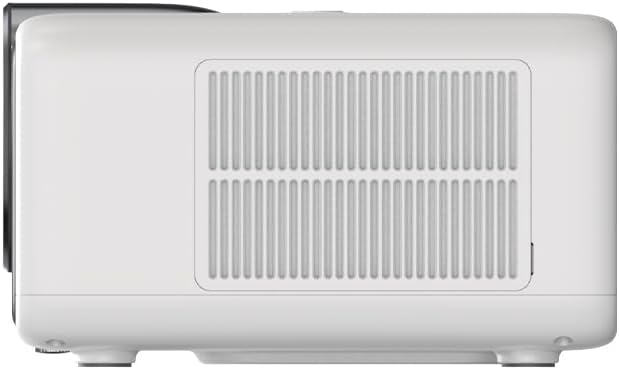
Figure 3.2: Rear panel of the projector, displaying available ports. Note: Actual ports may vary slightly by region or production batch. This model typically includes HDMI, USB, and a 2.5mm Audio Jack.
- HDMI: Connect to external video sources such as Blu-ray players, gaming consoles, or computers.
- USB: Para conectar dispositivos de armazenamento USB para reproduzir mídia. files.
- Conector de áudio de 2.5 mm: Para conectar dispositivos de áudio externos, como fones de ouvido ou alto-falantes.
4. Configuração
4.1. Desembalagem e inspeção inicial
- Remova cuidadosamente o projetor e todos os acessórios da embalagem.
- Check for any signs of damage during transit. If damage is found, contact your retailer immediately.
- Verifique se todos os acessórios listados estão presentes.
4.2. Posicionamento do projetor
O posicionamento ideal é crucial para obter os melhores resultados. viewexperiência.

Figura 4.1: Example of projector placement and adjustable screen sizes (40" to 200").
- Distância: Position the projector at a suitable distance from the screen or wall to achieve your desired screen size (40 to 200 inches).
- Altura: Place the projector on a stable surface or mount it to project the image at the desired height.
- Montagem: The projector includes a mounting point on its base. Ensure any tripod or mount used is compatible with the projector's screw size and weight. Note that some standard tripod screws may not fit.
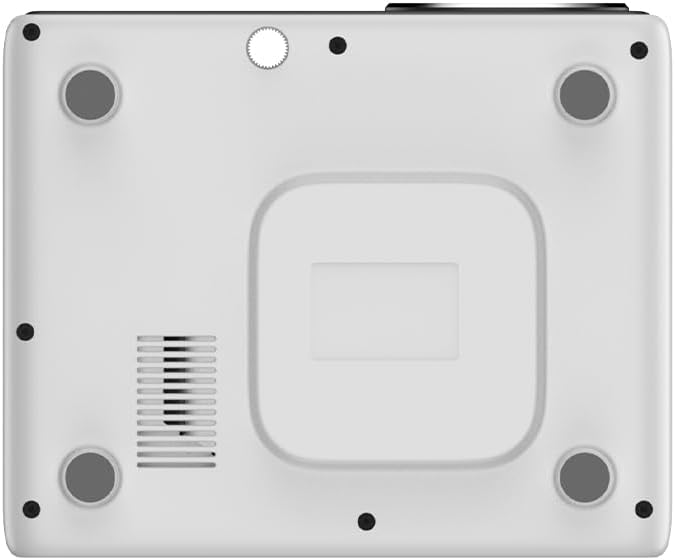
Figura 4.2: parte inferior view of the projector, indicating the mounting point and ventilation grilles.
4.3. Conexão de energia
- Conecte o adaptador de energia à porta de entrada de energia do projetor.
- Conecte o adaptador de alimentação a uma tomada elétrica adequada.
- Pressione o botão liga/desliga no projetor ou no controle remoto para ligá-lo.
4.4. Configuração inicial e conexão de rede
- Upon first power-on, the projector will guide you through the initial Google TV setup process.
- Follow the on-screen instructions to select your language, connect to a Wi-Fi network (2.4G or 5G), and log in with your Google account.
- The projector features automatic focus and keystone correction. If the image is not perfectly clear or rectangular, you can access manual adjustment options in the settings menu.
5. Instruções de operação
5.1. Navegando no Google TV
The projector runs on Google TV, providing a user-friendly interface for accessing content.

Figure 5.1: The Google TV interface on the Next Cine800S Projector, showing recommended content and installed applications.
- Use the remote control to navigate through menus, select apps, and control playback.
- The home screen provides personalized recommendations and quick access to your favorite streaming services.
5.2. Aplicações de Streaming
Access popular streaming platforms directly from your projector.

Figure 5.2: Supported streaming applications and Google Play Store access.
- Pre-installed apps include Netflix, Prime Video, YouTube, and Disney+.
- Baixe aplicativos adicionais da Google Play Store.
- Ensure you are logged into your respective service accounts to access content.
5.3. Conectando dispositivos externos
- HDMI: Connect your device to an HDMI port. The projector will automatically detect the input or you can manually select it from the input source menu.
- USB: Insert a USB drive into the USB port. The media player application will typically launch automatically, allowing you to browse and play supported media files (JPG, PNG, BMP, JPEG, MP3, M4A, MP2, WAV, FLAC, MP4, MOV, TS, DAT, F4V, 3GP).
5.4. Espelhamento de tela
The projector supports Air Screen and Google Cast for mirroring content from your iOS or Android devices.
- Certifique-se de que seu dispositivo móvel e o projetor estejam conectados à mesma rede Wi-Fi.
- On your mobile device, open the screen mirroring function (e.g., 'Screen Cast', 'Smart View', 'AirPlay').
- Selecione o projetor na lista de dispositivos disponíveis.
6. Manutenção
A manutenção regular garante o desempenho ideal e prolonga a vida útil do seu projetor.
6.1. Limpando a lente

Figure 6.1: Close-up of the projector lens, which requires careful cleaning.
- Use a soft, lint-free cloth or a lens cleaning brush to gently remove dust from the lens surface.
- For stubborn smudges, use a specialized lens cleaning solution applied to a microfiber cloth, not directly to the lens.
- Avoid abrasive materials or excessive force, which can scratch the lens.
6.2. Cleaning Ventilation Ports
- Periodically check the ventilation grilles for dust accumulation.
- Use a soft brush or a vacuum cleaner with a brush attachment to gently clean the grilles.
- Não insira nenhum objeto nas aberturas de ventilação.
6.3. Atualizações de software
- Ensure your projector is connected to the internet.
- Navigate to the system settings to check for and install available software updates. Updates can improve performance and add new features.
7. Solução De Problemas
Esta seção aborda problemas comuns que você pode encontrar com seu projetor.
| Problema | Possível causa | Solução |
|---|---|---|
| Sem energia | Cabo de alimentação desconectado, problema na tomada | Verifique a conexão do cabo de alimentação. Tente usar outra tomada. |
| Nenhuma imagem | Input source not selected, device not connected, lens cap on | Ensure input source is correctly selected. Check HDMI/USB connections. Remove lens cap. |
| A imagem está borrada | Foco não ajustado | Adjust focus manually using the projector's focus ring or through the settings menu if automatic focus is not sufficient. |
| Image is distorted/trapezoidal | Keystone not adjusted, projector not perpendicular to screen | The projector has automatic keystone correction. If the image is still distorted, access the manual keystone correction settings to fine-tune the image. |
| Sem som ou baixa qualidade de som | Volume too low, external audio device not connected, speaker issue | Increase volume. Check external audio connections if used. If internal speaker sound is distorted at low volumes, consider connecting external speakers via the 2.5mm audio jack or Bluetooth. |
| Problemas de conexão Wi-Fi | Incorrect password, router issues, signal interference | Verify Wi-Fi password. Restart router. Ensure projector is within Wi-Fi range. |
| Controle remoto não funciona | Batteries low/dead, IR sensor blocked | Replace batteries. Ensure no obstructions between remote and projector's IR sensor. |
8. Especificações
Detailed technical specifications for the Next Cine800S GoogleTV Projector.
| Recurso | Especificação |
|---|---|
| Modelo | Cine800S |
| Tecnologia de exibição | Projetor LED |
| Resolução Nativa | Full HD 1920x1080 |
| Brilho | 800 ANSI Lumens |
| Tamanho da projeção | 40" — 200" |
| Decodificação de vídeo | 4Kx2K @ 60fps |
| Foco | Automático ou Manual |
| Correção trapezóide | Automático |
| Sistema operacional | Google TV, Android 14 |
| DRM Certification | Netflix L1, Prime Video, YouTube, Disney+ L1 |
| Wi-fi | 802.11 a/b/g/n/ac (2.4G & 5G) |
| Bluetooth | 5.0 |
| BATER | 2 GB LPDDR4 |
| Armazenamento interno | 8 GB eMMC |
| Saída do alto-falante | 12 W (4 W) |
| Portos | HDMI, 2.5mm Audio Jack, USB |
| Formatos de mídia suportados | JPG, PNG, BMP, JPEG, MP3, M4A, MP2, WAV, FLAC, MP4, MOV, TS, DAT, F4V, 3GP, FAT, NTFS |
| Mecanismo Óptico | Dust-Sealed System |
| Espelhamento de tela | Air Screen, Google Cast (iOS & Android) |
9. Garantia e Suporte
For warranty information, please refer to the documentation provided with your purchase or visit the official Next website. For technical support, product inquiries, or service requests, please contact Next customer service through their official channels.
Tenha em mãos o comprovante de compra e o número de série do produto ao entrar em contato com o suporte.