Introdução
This manual provides instructions for the setup, operation, maintenance, and troubleshooting of your Microsoft Wireless Optical Mouse Blue, Model K80-00004. Please read this manual thoroughly before using your device.
O que está na caixa
Verifique se todos os itens estão presentes na embalagem:
- Microsoft Wireless Optical Mouse
- Receptor sem fio
- 2 pilhas AA (pré-instaladas ou incluídas separadamente)
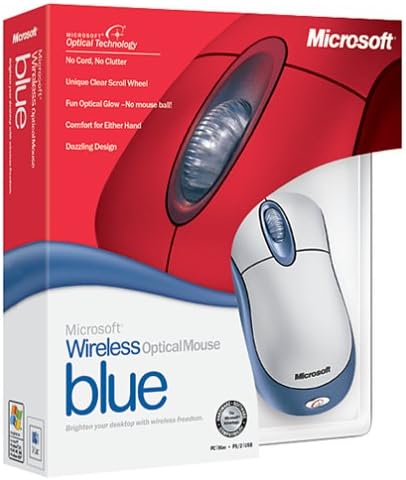
Image: Retail packaging of the Microsoft Wireless Optical Mouse Blue, showing the mouse and receiver.
Configurar
1. Instale as baterias
- Localize o compartimento da bateria na parte inferior do mouse.
- Abra a tampa do compartimento da bateria.
- Insira as duas pilhas AA, certificando-se da polaridade correta (+/-).
- Feche a tampa do compartimento da bateria.

Imagem: Frente view of the Microsoft Wireless Optical Mouse Blue, showing the top buttons and scroll wheel. The battery compartment is on the underside.
2. Connect the Wireless Receiver
- Conecte o receptor sem fio USB a uma porta USB disponível no seu computador.
- Allow your operating system to detect and install the necessary drivers. This process is usually automatic.
- For optimal performance, ensure the receiver is placed at least 12 inches away from other wireless devices or large metal objects.
3. Optional Software Installation (IntelliPoint)
- While not required for basic functionality, installing Microsoft IntelliPoint software provides advanced customization options for your mouse buttons and scroll wheel.
- Refer to the Microsoft support website for the latest IntelliPoint software compatible with your operating system.
4. Set Orientation (Calibration)
- After initial setup, it is recommended to perform an "Orientation Set" or calibration if available through the IntelliPoint software or your operating system's mouse settings. This helps optimize tracking performance.
Instruções de operação
The Microsoft Wireless Optical Mouse Blue is designed for comfortable and precise navigation.
Funções básicas
- Clique esquerdo: Botão principal para selecionar itens e abrir filee interagindo com software.
- Clique com o botão direito: Botão secundário para acessar menus de contexto e opções adicionais.
- Rodinha do mouse: Gire a roda para cima ou para baixo para percorrer os documentos e web pages. The scroll wheel may also function as a clickable button for additional commands, depending on software configuration.
Operação sem fio
- The mouse operates wirelessly up to 6 feet (approximately 1.8 meters) from its receiver.
- Optical technology scans the desktop surface for precise cursor movement without the need for a mouse pad on most surfaces.
- The mouse is designed for comfortable use with either the right or left hand.

Imagem: Angulada view of the Microsoft Wireless Optical Mouse Blue, highlighting its ergonomic shape and blue/silver design.
Manutenção
Substituição da bateria
- The mouse requires two AA batteries.
- When battery power is low, your computer may display a notification (if IntelliPoint software is installed) or mouse performance may degrade.
- Replace batteries as described in the "Install Batteries" section under Setup.
- Utilize sempre pilhas novas e de alta qualidade para obter o melhor desempenho.
Limpeza
- To clean the mouse, gently wipe the surface with a soft, damp pano.
- Evite usar produtos químicos agressivos ou produtos de limpeza abrasivos, pois estes podem danificar o acabamento.
- Certifique-se de que nenhum líquido entre nos componentes internos do mouse.
Travel Considerations
- The Microsoft Wireless Optical Mouse is a transmitting device. When traveling by air, it is recommended to remove the batteries from the mouse before boarding to comply with airline regulations regarding electronic devices.
Solução de problemas
Mouse Not Responding or Lagging
- Verifique as baterias: Verifique se as baterias estão instaladas corretamente e têm carga suficiente. Substitua-as, se necessário.
- Verificar a conexão do receptor: Ensure the wireless receiver is securely plugged into a functioning USB port. Try a different USB port.
- Proximidade: Ensure the mouse is within 6 feet of the receiver. Reduce obstacles between the mouse and receiver.
- Interferência: Other wireless devices (e.g., Wi-Fi routers, cordless phones) can cause interference. Move the receiver away from such devices.
- Superfície: Ensure the mouse is used on a suitable surface. Highly reflective or transparent surfaces may affect optical tracking.
- Re-sync: Some wireless mice have a re-sync button on both the mouse and receiver. Consult the full product manual or Microsoft support for specific re-sync procedures for this model if issues persist.
Clicking Issues
- If clicks are not registering or require multiple presses, check for physical obstructions or debris around the buttons.
- Certifique-se de que o mouse esteja ligado e conectado.
Compatibilidade de software
- The IntelliPoint software may have specific operating system requirements. For example, older versions may not be compatible with newer operating systems like Windows Vista or later.
- Always download the latest software from the official Microsoft support website para o seu sistema operacional específico.
Especificações
| Recurso | Detalhe |
|---|---|
| Número do modelo | K80-00004 |
| Marca | Microsoft |
| Tecnologia de Conectividade | Sem fio |
| Detecção de Movimento | Óptico |
| Cor | Blue / Silver |
| Baterias | 2 pilhas AA (incluídas) |
| Peso do item | 13.6 onças (aproximadamente 385.5 gramas) |
| Dimensões do produto | 9.3 x 8.9 x 2.1 polegadas (aproximadamente 23.6 x 22.6 x 5.3 cm) |
| Primeira data disponível | 1 de agosto de 2002 |
Informações de garantia
According to the legal disclaimer, this product is sold without a warranty. Please refer to your point of purchase for any return or exchange policies.
Apoiar
For further assistance, driver downloads, or updated information regarding your Microsoft Wireless Optical Mouse Blue, please visit the official Microsoft support website.
You can typically find support resources by searching for "Microsoft support" and your product model number (K80-00004).


