1. Introdução
The TomTom VIA 1535TM is a 5-inch portable Bluetooth GPS navigator designed to provide reliable and easy-to-use navigation. It includes lifetime traffic and map updates, ensuring you always have the most current road information. Key features include Bluetooth hands-free calling and voice recognition for a safer driving experience.
This manual provides detailed instructions for setting up, operating, and maintaining your TomTom VIA 1535TM device.

Image 1: The TomTom VIA 1535TM GPS Navigator, showcasing its 5-inch screen and sleek design.
2. Primeiros passos: Configuração
2.1. Desembalagem e componentes
Antes de começar, certifique-se de que todos os componentes estejam presentes:
- TomTom VIA 1535TM device
- Montagem integrada
- Cabo USB
- Carregador de carro
2.2. Montagem do dispositivo
- Clean the windshield or dashboard surface where you intend to mount the device.
- Attach the integrated mount to the back of your TomTom device.
- Press the suction cup firmly against the chosen surface and flip the lever to secure it.
- Adjust the device angle for optimal viewing sem obstruir o seu view da estrada.
2.3. Ligando e carregando
- Connect the USB cable to the TomTom device and the car charger.
- Plug the car charger into your vehicle's 12V power socket.
- The device will automatically power on or can be turned on by pressing the power button.
- Allow the device to charge fully before its first use for optimal battery life.
2.4. Configuração inicial
Upon first power-on, the device will guide you through initial setup steps:
- Selecione seu idioma preferido.
- Set the time zone and date.
- Review and accept the safety warnings.
3. Operação básica
3.1. Entering a Destination
- From the main menu, tap 'Navigate to' or 'Search'.
- You can enter an address, select a Point of Interest (POI), choose from recent destinations, or use your saved favorites.
- Follow the on-screen prompts to input the destination details.
- Once entered, the device will calculate the route and display it on the map.

Image 2: The navigation screen displaying a calculated route with estimated travel time and distance, including traffic delay information.
3.2. Reconhecimento de voz
The TomTom VIA 1535TM features one-shot address voice recognition. To use it:
- Tap the microphone icon on the screen or say the designated voice command.
- Speak the full address (e.g., "123 Main Street, Anytown") or a Point of Interest name clearly.
- The device will confirm your input and begin navigation.
3.3. Chamadas em modo mãos-livres via Bluetooth
Connect your mobile phone via Bluetooth for hands-free calling:
- Ensure Bluetooth is enabled and discoverable on your phone.
- On your TomTom device, go to the Bluetooth settings and search for devices.
- Select your phone from the list and follow the pairing instructions, which may include entering a passcode (often '0000').
- Once paired, you can make and receive calls directly through your TomTom device.
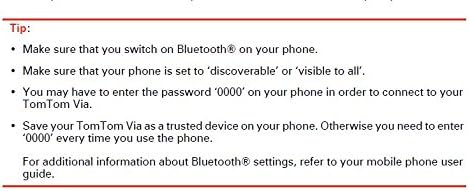
Image 3: On-screen tips for connecting a phone via Bluetooth, including ensuring discoverability and entering a passcode.
4. Principais características
4.1. Lifetime Traffic Updates
The TomTom VIA 1535TM provides free lifetime traffic updates, helping you avoid delays and find the fastest routes. The device receives real-time traffic information and automatically adjusts your route if a faster alternative is available.

Image 4: The navigation screen highlighting traffic congestion in red and yellow, indicating potential delays.
4.2. Lifetime Map Updates
Receive free lifetime map updates to ensure your device always has the latest road network, Points of Interest, and address information for the US, Canada, and Mexico.
4.3. IQ Routes
TomTom's IQ Routes technology uses actual travel times collected from millions of drivers to calculate the fastest route at any time of day, taking into account rush hour, traffic lights, and even shopping crowds.
Video 1: An official TomTom video demonstrating the IQ Routes feature, showing how it calculates the fastest route based on real-time and historical traffic data.
4.4. Advanced Lane Guidance
Advanced Lane Guidance clearly shows which lane to take at junctions and exits, ensuring you never miss a turn.
Video 2: An official TomTom video illustrating the Advanced Lane Guidance feature, providing clear visual cues for navigating complex intersections.
4.5. Help Me! Emergency Menu
The 'Help Me!' menu provides quick access to emergency services, local help, and navigation to nearby hospitals or police stations.
Video 3: An official TomTom video demonstrating the 'Help Me!' emergency feature, showing how to quickly find assistance or essential services.
5. Manutenção
5.1. Limpeza do dispositivo
- Use a soft, lint-free cloth to clean the screen and exterior of the device.
- Do not use abrasive cleaners or solvents, as these can damage the screen or casing.
5.2. Atualizações de Software e Mapas
Regularly connect your device to a computer with internet access and use the TomTom HOME software to check for and install the latest software and map updates. This ensures optimal performance and up-to-date navigation data.
6. Solução De Problemas
6.1. Sem sinal de GPS
- Certifique-se de que o dispositivo tenha uma clara view of the sky. Obstructions like tall buildings or tunnels can interfere with the signal.
- Move the device to a different location on your dashboard or windshield.
- Para efetuar uma reinicialização simples, mantenha pressionado o botão liga/desliga até que o dispositivo reinicie.
6.2. Voice Recognition Issues
- Fale de forma clara e em um volume normal.
- Ensure there is minimal background noise in the vehicle.
- Check the device's microphone for any obstructions.
6.3. Dispositivo não responde
- Perform a soft reset by holding the power button for at least 15 seconds until the device restarts.
- Certifique-se de que o dispositivo esteja devidamente carregado.
7. Especificações
| Recurso | Detalhe |
|---|---|
| Dimensões do produto | 1.3 x 5.3 x 3.7 polegadas |
| Peso do item | 7.7 onças |
| Tamanho da tela | 5 polegadas |
| Resolução | 480 x 272 |
| Tecnologia de Conectividade | Bluetooth |
| Tipo de mapa | Road (US, Canada & Mexico) |
| Modo de saída de áudio | Stereo, Spoken Instructions |
| Duração da bateria | 3 horas |
| Tipo de montagem | Portátil |

Image 5: A list of available user interface and spoken instruction languages for the TomTom device.
8. Garantia e Suporte
Information regarding specific warranty terms and customer support contacts is typically provided with your product packaging or on the manufacturer's official website. Please refer to these resources for the most accurate and up-to-date details.


