Introdução
The Microsoft LifeCam HD-3000 is a high-definition webcam designed for clear video conferencing and communication. It features true 720p HD video capabilities, a 16:9 widescreen aspect ratio, and a built-in noise-cancelling microphone to ensure clear audio. Its universal attachment base allows for flexible placement on various devices and surfaces.
This manual provides essential information for setting up, operating, maintaining, and troubleshooting your LifeCam HD-3000.

Figure 1: Microsoft LifeCam HD-3000, showcasing its compact design and universal attachment base.
Configurar
The Microsoft LifeCam HD-3000 is designed for simple plug-and-play installation on compatible operating systems.
- Desembale o Webcâmera: Carefully remove the LifeCam HD-3000 from its packaging.
- Conectar ao computador: Plug the USB cable of the LifeCam HD-3000 into an available USB 2.0 port on your desktop, laptop, or notebook computer.
- Instalação automática de drivers: For Windows 7 and newer operating systems, the necessary drivers will typically install automatically upon connection. Allow a few moments for the system to recognize the device and complete the installation.
- Posicione o Webcâmera: Utilize the universal attachment base to securely position the webcam. It can be placed on top of a monitor, on a flat surface like a desk, or adjusted for various angles. The flexible rubberized foot provides stability.
- Verificar instalação: Once installed, you can verify the webcam's functionality through your computer's camera application or a video conferencing software.

Figura 2: Frente view of the LifeCam HD-3000, showing the lens and microphone placement.
Instruções de operação
The LifeCam HD-3000 is designed for ease of use with various video communication platforms.
- Videoconferência: O webcam is compatible with popular video calling applications such as Microsoft Teams, Zoom, Skype, and Google Hangouts. Select "Microsoft LifeCam HD-3000" as your video input device within the settings of your chosen application.
- Vídeo de alta definição: The camera captures true 720p HD video, providing clear and detailed images for your calls and recordings. The 16:9 widescreen format is ideal for cinematic video recording and broader field of view.
- Microfone com cancelamento de ruído: The built-in unidirectional microphone features acoustic noise cancellation, ensuring your voice is captured clearly with reduced background noise. Select "Microsoft LifeCam HD-3000" as your audio input device in your application settings.
- Correção de luz: The LifeCam HD-3000 includes light correction features to optimize video quality in various lighting conditions.
- Configurações de resolução: Depending on your internet speed and application, you may be able to adjust the video resolution. Lower resolutions can be beneficial for slower internet connections to maintain smooth video. Refer to your video conferencing software's settings for these options.
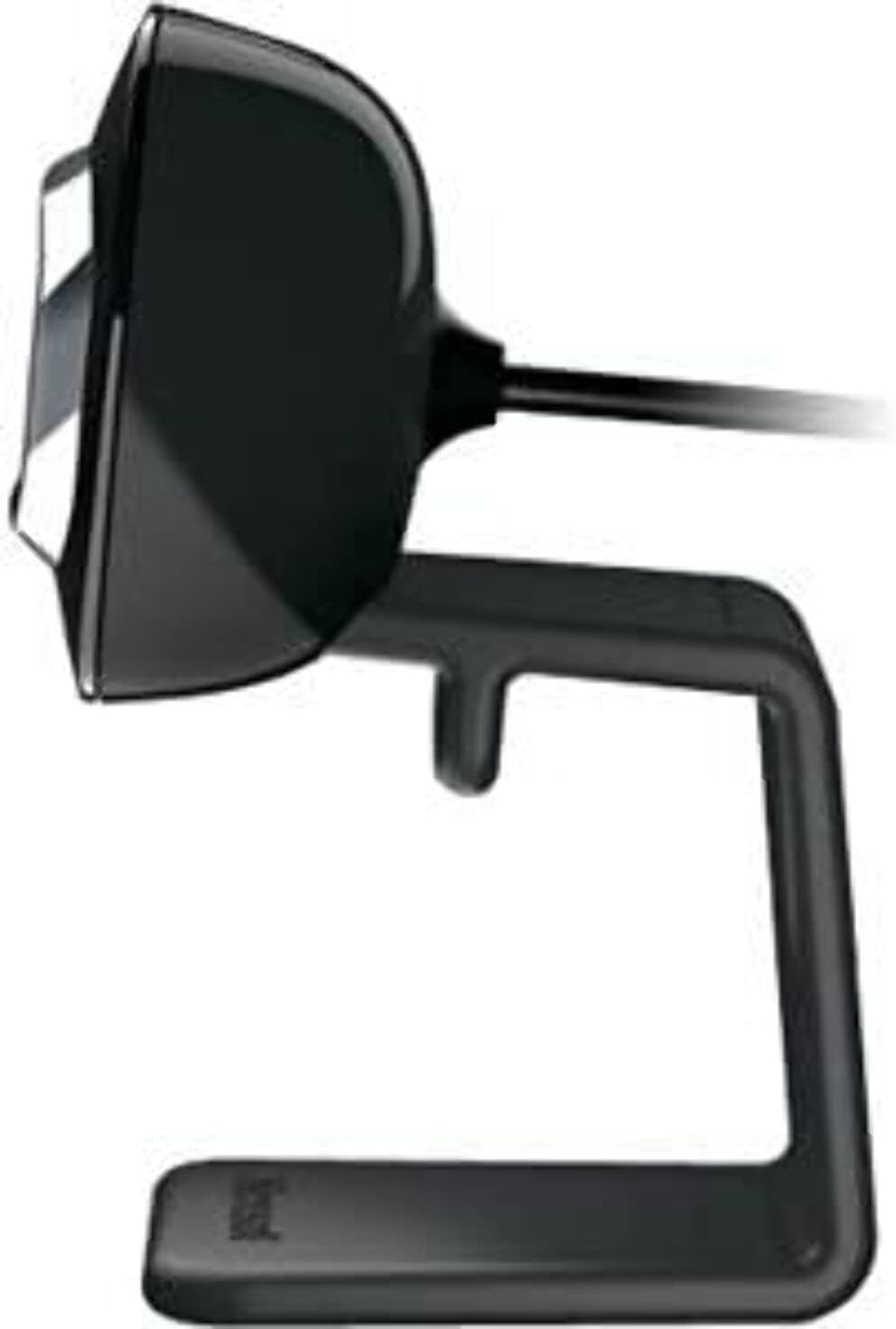
Figura 3: Lateral view of the LifeCam HD-3000, illustrating its slim profile.
Manutenção
Proper care and maintenance will help prolong the life of your Microsoft LifeCam HD-3000.
- Limpeza da lente: Use a soft, lint-free cloth specifically designed for optics to gently wipe the camera lens. Avoid abrasive materials or harsh cleaning chemicals, which can scratch or damage the lens.
- Limpando o Corpo: Limpe o corpo do webcam with a soft, slightly damp cloth. Ensure no moisture enters the USB port or microphone opening.
- Armazenar: Quando não estiver em uso, armazene o webArmazene a câmera em um ambiente limpo e seco, longe de temperaturas extremas e da luz solar direta.
- Cuidados com os cabos: Evite dobrar ou torcer o cabo USB em excesso. Não puxe o cabo para desconectá-lo. webcam; always grasp the USB connector.
Solução de problemas
If you encounter issues with your LifeCam HD-3000, try the following troubleshooting steps:
- WebCâmera não detectada:
- Ensure the USB cable is securely plugged into a functioning USB port. Try a different USB port.
- Reinicie o seu computador.
- Verifique o Gerenciador de Dispositivos (Windows) ou as Informações do Sistema (macOS) do seu computador para ver se o webcam is listed and recognized.
- Sem vídeo ou tela preta:
- Garantir o webcam is selected as the primary video device in your video conferencing application's settings.
- Check privacy settings on your operating system that might be blocking camera access for certain applications.
- Ensure no physical obstruction is covering the lens.
- Poor Video Quality (Blurry, Grainy):
- Ensure the lens is clean (refer to Maintenance section).
- Check lighting conditions. The webcam has light correction, but sufficient ambient light is beneficial.
- Verify your internet connection stability if streaming video.
- Adjust resolution settings within your application if available.
- No Audio or Muffled Sound:
- Ensure the LifeCam HD-3000 microphone is selected as the audio input device in your application settings and operating system sound settings.
- Check microphone volume levels in your system settings.
- Ensure there are no obstructions to the microphone opening.
- Problemas de software:
- If using specific Microsoft LifeCam software, ensure it is up to date.
- For Windows 10, the built-in camera software is often sufficient and may work better than older dedicated software.
Especificações
| Recurso | Detalhe |
|---|---|
| Número do modelo | T4H-00002 |
| Marca | Microsoft |
| Resolução de captura de vídeo | 720p HD |
| Proporção da tela | 16: 9 widescreen |
| Microfone | Built-in, Noise-Cancelling, Unidirectional |
| Tecnologia de Conectividade | USB 2.0 |
| Plataforma de Hardware | computador, notebook |
| Cor | Preto |
| Peso do item | 3.17 onças |
| Dimensões do produto (CxLxA) | 11.13 x 5.75 x 5.88 polegadas |
| Recurso especial | Correção de luz fraca |
| Tecnologia de sensor fotográfico | CMOS |
Planos de garantia e proteção
Microsoft offers various options for product protection and support.
- Política de Devolução Padrão: Typically, products purchased from Amazon.com are eligible for a return within 30 days of receipt for a refund or replacement. Please refer to Amazon's current return policy for specific details.
- Planos de proteção opcionais: Extended protection plans may be available for purchase to cover your device beyond the standard manufacturer's warranty. These plans are offered by third-party providers and can include:
- Plano de proteção de 2 anos
- Plano de proteção de 3 anos
- Complete Protect (a monthly plan covering eligible past and future purchases)
Apoiar
For further assistance, technical support, or driver updates, please refer to the official Microsoft support channels.
- Suporte da Microsoft Website: Visit the official Microsoft support website for your region. This is the primary resource for troubleshooting guides, FAQs, and driver downloads.
- Loja Microsoft: For general product information or to explore other Microsoft products, you can visit the Microsoft Store na Amazon.
- Entrando em contato com o suporte: If you require direct assistance, contact Microsoft customer support through their official channels, which typically include phone, chat, or email options.


