1. Introdução
This manual provides comprehensive instructions for the Turtle Beach Call of Duty: MW3 Ear Force Foxtrot Limited Edition Universal Amplified Stereo Gaming Headset. This headset is designed to enhance your gaming audio experience across multiple platforms, including Xbox 360, PlayStation 3, PC, and Mac. It features amplified stereo sound, an in-line amplifier for audio control, and a microphone for clear communication.

Image 1.1: The Turtle Beach Ear Force Foxtrot MW3 Gaming Headset, showing the over-ear design and flexible microphone.
2. Instruções de configuração
Follow these steps to connect your Ear Force Foxtrot headset to your gaming system.
2.1 Componentes
Certifique-se de ter os seguintes componentes:
- Turtle Beach Ear Force Foxtrot Headset with attached in-line amplifier and cables.
- USB port for power (available on consoles and PCs).
- Audio output (RCA stereo or 3.5mm headphone jack, depending on platform).
2.2 Connecting to Xbox 360
- Connect the green 3.5mm plug from the headset to the green audio output on your TV or audio receiver. If your TV does not have a 3.5mm output, use the included RCA splitter cable to connect to the red and white RCA audio outputs.
- Connect the USB plug from the headset to an available USB port on your Xbox 360 console for power.
- Connect the 2.5mm chat cable from the in-line amplifier to the controller's chat port.
- Power on your Xbox 360 and adjust audio settings as needed.
2.3 Connecting to PlayStation 3
- Connect the green 3.5mm plug from the headset to the green audio output on your TV or audio receiver. If your TV does not have a 3.5mm output, use the included RCA splitter cable to connect to the red and white RCA audio outputs.
- Connect the USB plug from the headset to an available USB port on your PlayStation 3 console for power and chat audio.
- On your PS3, navigate to Configurações > Configurações de acessórios > Configurações do dispositivo de áudio.
- Selecione "USB Headset" or similar for both Input and Output Devices.
- Adjust the microphone level as necessary.
2.4 Conectando ao PC/Mac
- Connect the USB plug from the headset to an available USB port on your PC or Mac for power and microphone functionality.
- Connect the green 3.5mm plug from the headset to your computer's headphone output jack.
- Adjust your computer's sound settings to select the headset as the default playback and recording device.
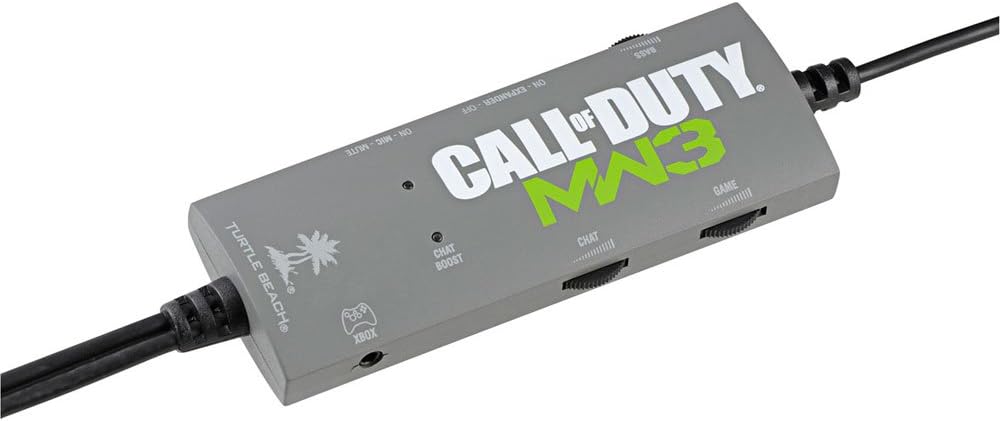
Image 2.1: The in-line amplifier for the Ear Force Foxtrot headset, featuring controls for game volume, chat volume, bass boost, and stereo expander.
3. Instruções de operação
The Ear Force Foxtrot headset features an in-line amplifier for convenient control over your audio experience.
3.1 In-line Ampmais controles
- Game Volume Dial: Adjusts the overall game audio level.
- Chat Volume Dial: Controls the volume of incoming chat audio.
- Bass Boost Switch: Activates or deactivates the variable bass boost feature, adding depth to game audio.
- Stereo Expander Switch: Widens the sound field for enhanced directional perception.
- Interruptor de Mudo do Microfone: Ativa ou desativa o microfone.
- Microphone Monitor: Allows you to hear your own voice in the headset, preventing shouting. This feature is always active when the microphone is unmuted.
- Chat Boost: Automatically increases chat volume when game audio becomes louder, ensuring clear communication during intense gameplay.
3.2 Adjusting for Optimal Sound
Experiment with the Bass Boost and Stereo Expander settings to find your preferred audio profile for different games. Adjust game and chat volumes to balance them for clear communication without overpowering game sounds.
4. Manutenção
Os cuidados adequados prolongarão a vida útil do seu fone de ouvido.
- Limpeza: Use a soft, dry cloth to clean the headset and in-line ampAmplificador. Não utilize produtos de limpeza líquidos ou materiais abrasivos.
- Armazenar: Store the headset in a cool, dry place away from direct sunlight and extreme temperatures. Avoid wrapping the cable tightly to prevent damage.
- Cuidados com os cabos: The headset features a long, wired cable. Handle it carefully to prevent tangling, kinking, or fraying, which can lead to internal wire damage.
- Earcup Pads: Periodically check earcup pads for wear and tear. Replacement pads may be available from the manufacturer.

Imagem 4.1: Close-up view of the headset's headband and earcups, highlighting the cushioning and construction.
5. Solução De Problemas
Se você encontrar problemas com seu fone de ouvido, consulte os problemas e soluções comuns a seguir.
5.1 No Game Audio
- Ensure all audio connections (3.5mm or RCA) are securely plugged into the correct ports on your TV/receiver/PC.
- Verify the USB cable is connected to a powered USB port.
- Check the Game Volume dial on the in-line amplifier and ensure it is not set to minimum.
- Confirm your console/PC audio output settings are correctly configured to send game audio to the headset.
5.2 Microphone Not Working / Others Cannot Hear Me
- Ensure the Microphone Mute switch on the in-line amplifier is in the "unmuted" position.
- For Xbox 360, ensure the 2.5mm chat cable is securely connected to your controller.
- For PS3/PC/Mac, verify that the headset is selected as the default recording/input device in your system's audio settings.
- Adjust microphone levels in your console/PC settings.
- Check for any physical damage to the microphone boom.
5.3 Low Volume Hum or Static
- Certifique-se de que todas as conexões estejam seguras e livres de interferências.
- Try connecting the USB power cable to a different USB port.
- If using the Stereo Expander, note that a slight hum may be more noticeable in quiet environments. This is normal for some amplified headsets.
- Reduce the overall game volume if the hum is only present at very high volumes.
5.4 Headset Discomfort
- Ajuste a faixa de cabeça para um ajuste confortável.
- Take breaks during extended gaming sessions.
- Certifique-se de que os fones de ouvido estejam posicionados corretamente sobre suas orelhas.
6. Especificações
| Nome do modelo | Ear Force Foxtrot (TBS-4130-04) |
| Tecnologia de Conectividade | Com fio |
| Dispositivos compatíveis | Xbox 360, PlayStation 3, PC, Mac |
| Tipo de controle | Volume Control (In-line ampmais vivo) |
| Características especiais | Microphone Included, Amplified Audio, Variable Bass Boost, Stereo Expander, Microphone Monitor, Chat Boost |
| Colocação da orelha | Sobre a orelha |
| Entrada para fones de ouvido | USB (for power/chat) and 3.5mm (for game audio) |
| Dimensões do produto | 8.46 x 8.66 x 3.86 polegadas |
| Peso do item | 0.01 onças (aproximadamente 0.28 gramas) |
| Fabricante | Praia da Tartaruga |
| UPC | 731855041305 |
7. Garantia e Suporte
For detailed warranty information and technical support, please visit the official Turtle Beach webou entre em contato diretamente com o serviço de atendimento ao cliente. Guarde o comprovante de compra para eventuais solicitações de garantia.
Official Turtle Beach Website: www.turtlebeach.com


