1. Introdução
Obrigado pela compra.asing the ELECOM M-XGM10DBBK Wireless 5-Button BlueLED Mouse. This mouse is designed for comfort and precision, featuring an ergonomic shape that fits naturally in your hand and BlueLED technology for reliable tracking on various surfaces. This manual provides essential information for proper setup, operation, and maintenance of your device.
2. Produto acabadoview
The M-XGM10DBBK mouse is part of the "EX-G" series, known for its ergonomic design and comfortable grip. It features five buttons, including dedicated back and forward buttons, to enhance productivity.
Principais características:
- Design ergonômico: Shaped to fit the hand for ultimate grip comfort.
- Sensor LED azul: Provides precise tracking on a wide range of surfaces, including glass and fabric.
- Funcionalidade de 5 botões: Includes left, right, scroll wheel, and dedicated back/forward buttons.
- Conexão sem fio de 2.4 GHz: Offers a stable connection with a range of approximately 10 meters (3 meters on steel desks).
- Botões personalizáveis: Button functions can be re-assigned using the free "ELECOM Mouse Assistant" software (Windows/Mac only).
- Indicador de bateria: Um euamp indicates remaining battery life.
Componentes:
Familiarize-se com os componentes do mouse:

Figura 2.1: parte superior view of the mouse, highlighting the main buttons.
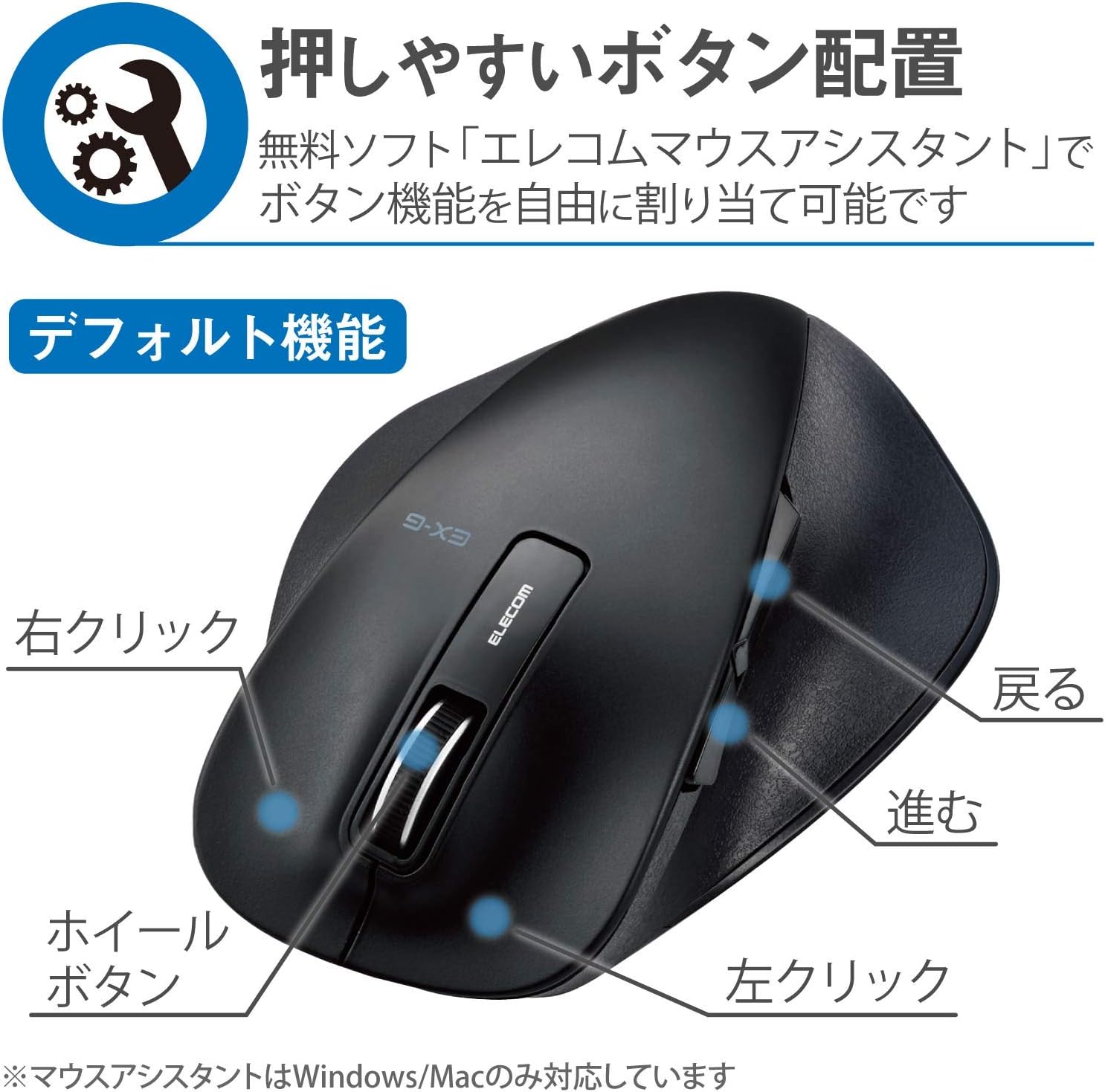
Figura 2.2: Lateral view of the mouse, showing the back and forward buttons.
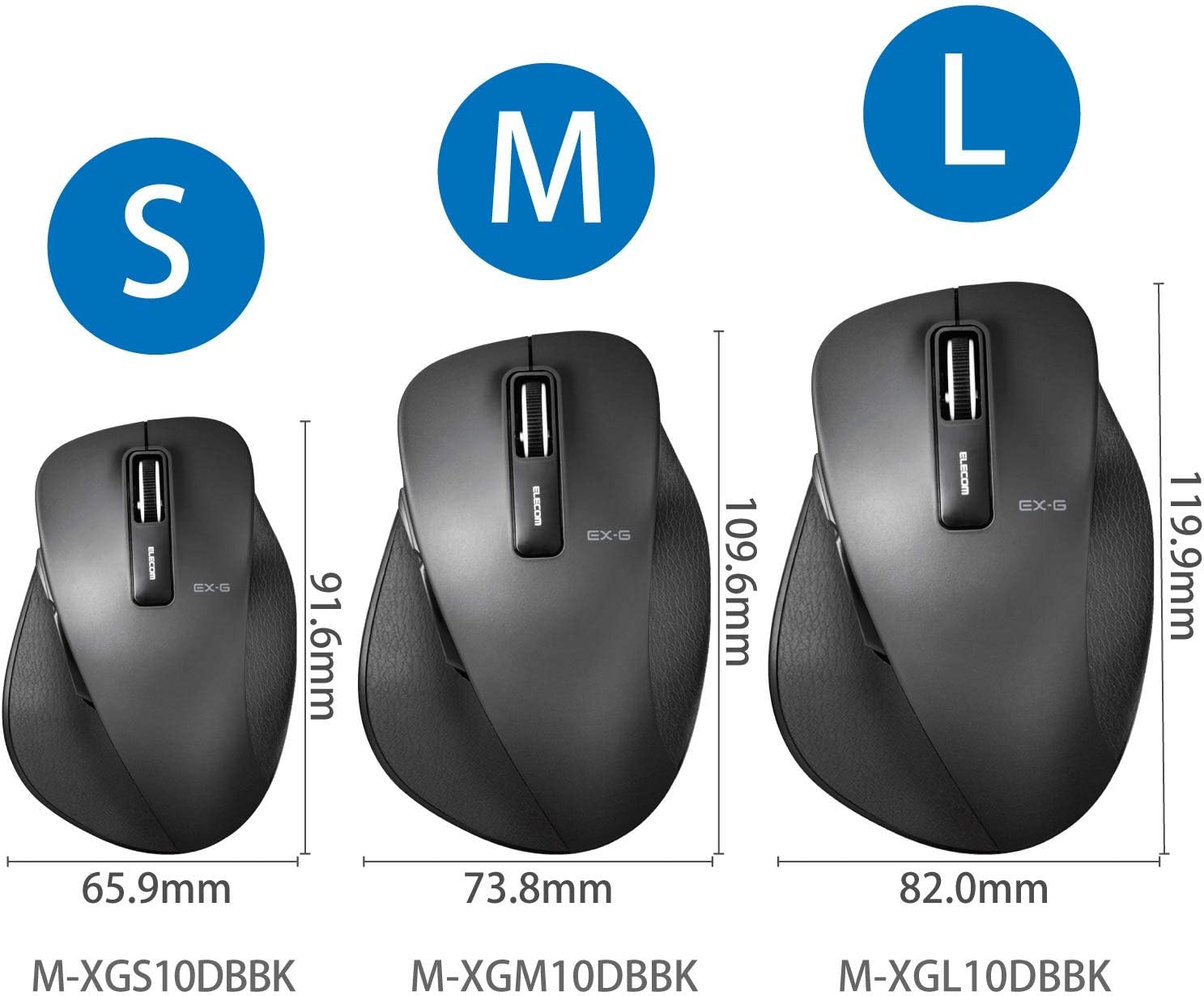
Figure 2.3: Size comparison of EX-G mice (S, M, L). The M-XGM10DBBK is the M size.

Figura 2.4: parte inferior view of the mouse, indicating the optical sensor, power switch, and receiver storage compartment.

Figure 2.5: Illustration of the durable Omron switches used for the left and right click buttons.
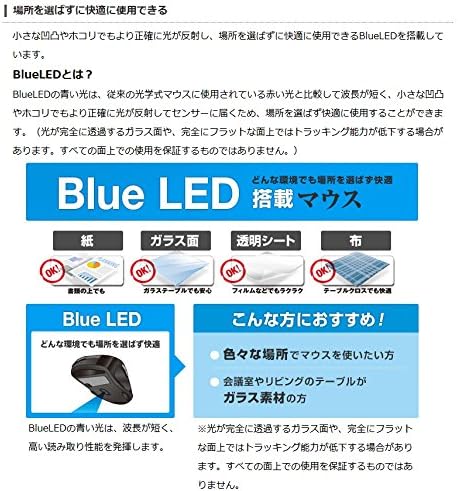
Figure 2.6: Explanation of BlueLED technology, demonstrating its versatility on different surfaces. Note: Tracking performance may decrease on completely transparent or perfectly flat surfaces.

Figure 2.7: Details on 2.4GHz wireless, battery indicator, and 2000 DPI resolution for smooth operation.

Figure 2.8: The ELECOM M-XGM10DBBK mouse is certified to work with Chromebooks.
3. Configuração
3.1 Instalação da bateria
- Locate the battery cover on the bottom of the mouse.
- Deslize a tampa aberta.
- Insert one AA alkaline, manganese, or nickel-metal hydride battery, ensuring correct polarity (+/-).
- Feche a tampa da bateria com segurança.
3.2 Conexão do Receptor
- Retire o receptor USB do compartimento de armazenamento na parte inferior do mouse.
- Conecte o receptor USB a uma porta USB-A disponível no seu computador.
- Seu computador deverá detectar e instalar automaticamente os drivers necessários. Isso pode levar alguns instantes.
3.3 Ligando
- Slide the power switch on the bottom of the mouse to the "ON" position.
- O mouse está pronto para uso.
4. Instruções de operação
4.1 Funções Básicas
- Clique esquerdo: Seleção e ativação primárias.
- Clique com o botão direito: Abre os menus de contexto.
- Rodinha do mouse: Pergaminhos e documentos web pages vertically. Can also be clicked for middle-click functionality.
4.2 Back/Forward Buttons
The dedicated back and forward buttons located on the side of the mouse allow for quick navigation in web navegadores e file exploradores.
- Pressione o Voltar button to go to the previous page or folder.
- Pressione o Avançar button to go to the next page or folder.
4.3 Customizing Buttons (ELECOM Mouse Assistant)
For advanced customization, download the free "ELECOM Mouse Assistant" software from the official ELECOM website. This software allows you to re-assign functions to the mouse buttons according to your preferences. Please note that this software is compatible with Windows and macOS only.
5. Manutenção
5.1 Limpeza
Para manter o desempenho e a higiene ideais, limpe o seu rato regularmente:
- Turn off the mouse using the power switch.
- Use um pano macio e seco para limpar a superfície do mouse.
- Para sujeira persistente, levementeampMolhe o pano com água ou uma solução de limpeza suave e, em seguida, seque-o imediatamente.
- Evite usar produtos químicos agressivos, abrasivos ou solventes.
- Gently clean the optical sensor area on the bottom of the mouse with a cotton swab if tracking issues occur.
5.2 Substituição da bateria
When the battery indicator lamp flashes or the mouse performance degrades, replace the battery:
- Desligue o mouse.
- Abra a tampa da bateria.
- Remova a bateria velha e descarte-a de acordo com os regulamentos locais.
- Insira uma pilha AA nova, certificando-se da polaridade correta.
- Close the battery cover and turn the mouse back on.
6. Solução De Problemas
Se você tiver problemas com o seu mouse, consulte os problemas e soluções comuns a seguir:
| Problema | Possível causa | Solução |
|---|---|---|
| Rato não responde | Low battery; Power switch off; Receiver not connected; Receiver interference. | Replace battery; Turn power switch ON; Ensure receiver is firmly plugged in; Try a different USB port; Move closer to the receiver. |
| Movimento errático do cursor | Sensor óptico sujo; Superfície inadequada; Interferência. | Clean optical sensor; Use on a suitable mouse pad or surface; Reduce interference from other wireless devices. |
| Botões não funcionam | Software conflict; Driver issue. | Restart computer; Reinstall mouse drivers; Check for conflicting software. |
| Problemas de conexão sem fio | Distance too far; Obstructions; Interference. | Ensure mouse is within range (10m); Remove obstructions between mouse and receiver; Avoid using near other 2.4GHz devices. |
7. Especificações
| Recurso | Detalhe |
|---|---|
| Número do modelo | M-XGM10DBBK |
| Método de conexão | Sem fio de 2.4 GHz (receptor USB-A) |
| Tipo de sensor | BlueLED Optical |
| Botões | 5 buttons (Left, Right, Scroll Wheel, Back, Forward) |
| Resolução | 2000 DPI |
| Dimensões (L x P x A) | 73.8 x 109.6 x 40.8 mm (M Size) |
| Peso | Aprox. 151.95 g (incluindo bateria) |
| Fonte de energia | 1 x AA battery (Alkaline, Manganese, or Ni-MH) |
| Vida estimada da bateria | Approx. 722 days (based on typical usage) |
| SO compatível | Windows 11, 10, RT8.1, 8.1, 7, Vista; macOS High Sierra 10.13, OS X 10.10; Chrome OS |
| Cor | Preto |
8. Garantia e Suporte
8.1 Informações de garantia
Este produto vem com um Garantia de 6 meses A garantia é válida a partir da data da compra. Guarde o comprovante de compra para eventuais solicitações de garantia. A garantia cobre defeitos de fabricação em condições normais de uso. Ela não cobre danos causados por uso indevido, acidentes, modificações não autorizadas ou desgaste normal.
8.2 Suporte ao cliente
For technical assistance, troubleshooting, or warranty inquiries, please visit the official ELECOM website or contact ELECOM customer support. Contact details can typically be found on the ELECOM website na seção 'Suporte' ou 'Fale Conosco'.


