1. Introdução
This manual provides essential information for the setup, operation, maintenance, and troubleshooting of your Digilent Arty A7-35T Artix-7 FPGA Development Board. The Arty A7-35T is designed for makers and hobbyists, offering a versatile platform for digital design and embedded systems development using Xilinx Artix-7 Field-Programmable Gate Arrays (FPGAs).
2. Produto acabadoview
The Arty A7-35T board integrates a Xilinx Artix-7 FPGA with various peripherals and expansion options, making it suitable for a wide range of projects. Key features include:
- Xilinx Artix-7 FPGA (XC7A35T-1CSG324C)
- Multiple Pmod connectors for peripheral expansion
- Arduino/chipKIT shield connector
- Porta Ethernet
- USB-JTAG programming port
- User LEDs, switches, and buttons
- Memória RAM DDR3

Figura 2.1: Careca view of the Digilent Arty A7-35T Artix-7 FPGA Development Board. This image displays the overall layout of the board, including the central Artix-7 FPGA chip, various connectors, buttons, and LEDs.

Figura 2.2: Topo detalhado view of the Arty A7-35T FPGA board. This image highlights the placement of the Artix-7 FPGA, Pmod headers, Arduino shield connectors, Ethernet port, and user interface components like switches and buttons.
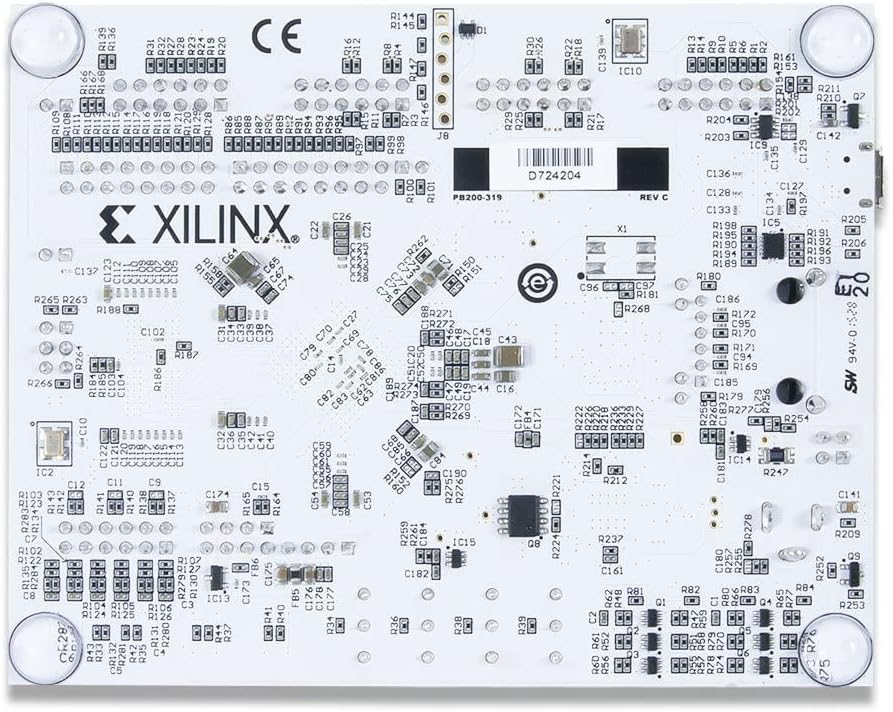
Figura 2.3: Fundo view of the Arty A7-35T FPGA board. This perspective shows the underside of the circuit board, revealing additional components and traces.
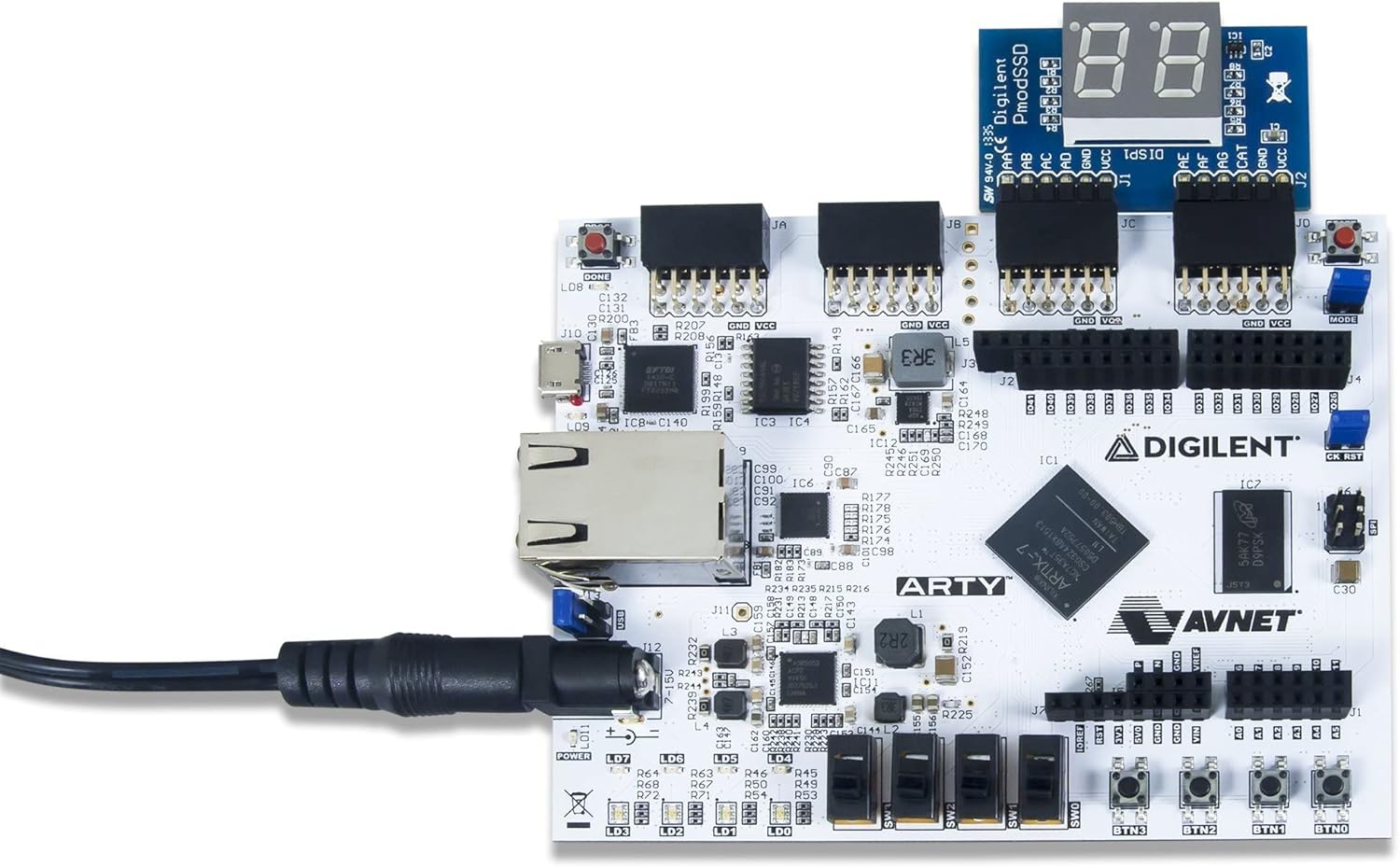
Figura 2.4: Arty A7-35T board demonstrating connectivity with a Digilent Pmod accessory. This image illustrates how external modules can be interfaced with the board via the Pmod headers.

Figura 2.5: The Arty A7-35T board in an operational state, indicated by illuminated power and user LEDs. This shows the board receiving power and potentially running a basic demonstration program.

Figura 2.6: Lado profissionalfile of the Arty A7-35T board, showcasing the various connectors such as the power input, USB port, and Ethernet port.

Figura 2.7: A different side view of the Arty A7-35T board, providing a perspective on the board's height and the arrangement of its components from the side.
3. Configuração
3.1. Desembalagem e Inspeção
Carefully remove the Arty A7-35T board from its packaging. Inspect the board for any visible damage. Ensure all components are securely attached.
3.2. Conexão de energia
The Arty A7-35T can be powered via the USB port or an external 7V-15V power supply connected to the barrel jack. For stable operation, especially when using power-hungry peripherals, an external power supply is recommended.
- Connect the USB cable to the micro-USB port (J10) on the board and to your computer.
- Alternatively, connect a compatible external power supply to the barrel jack (J12).
- Ensure the power select jumper (J11) is set to the appropriate source (USB or EXT).
3.3. Instalação de software
To develop and program the Arty A7-35T, you will need the Xilinx Vivado Design Suite. Follow the instructions provided by Xilinx for installation. Digilent also provides board support files e example projects for Vivado.
- Download and install Xilinx Vivado Design Suite from the Xilinx website.
- Install the Digilent board files for Arty A7, typically found on the Digilent website's resource center.
- Ensure USB drivers for the JTAG programmer are correctly installed.
4. Instruções de operação
4.1. Ligando
Once connected to a power source, the power LED (LD11) should illuminate, indicating the board is receiving power. If using USB power, your computer should detect the device.
4.2. Programming the FPGA
The FPGA can be programmed using the Xilinx Vivado Design Suite via the onboard USB-JTAG programador.
- Open Xilinx Vivado and create or open an FPGA project targeting the Artix-7 XC7A35T-1CSG324C.
- Generate a bitstream (.bit file) for your design.
- Use the Hardware Manager in Vivado to connect to the Arty A7 board.
- Program the device with your generated bitstream.
The FPGA can also be configured from a Quad-SPI flash memory. Refer to Digilent documentation for details on programming the flash memory.
4.3. Using Onboard Peripherals
The Arty A7-35T includes several user-configurable peripherals:
- LEDs (LD0-LD3, LD4-LD7): Eight user LEDs for visual feedback.
- Switches (SW0-SW3): Four slide switches for digital input.
- Buttons (BTN0-BTN3): Four push buttons for momentary input.
- Reset Button (CK_RST): Resets the FPGA configuration.
These peripherals are connected to specific FPGA pins and can be controlled or read from your FPGA design.
4.4. Expansion Connectors
The board features Pmod connectors and an Arduino/chipKIT shield connector for expanding functionality with various modules. Ensure proper voltage levels and pin assignments when connecting external hardware.
5. Manutenção
5.1. Cuidados Gerais
Handle the Arty A7-35T board with care to prevent damage from electrostatic discharge (ESD). Always hold the board by its edges. Store the board in an anti-static bag when not in use.
5.2. Limpeza
Se necessário, limpe a placa delicadamente com uma escova macia e seca ou com ar comprimido para remover a poeira. Evite usar líquidos ou materiais abrasivos.
5.3. Atualizações de firmware
Periodically check the Digilent website for any firmware updates for the onboard USB-JTAG programmer or other components. Follow the provided instructions carefully for any update procedures.
6. Solução De Problemas
6.1. Problemas de energia
- No Power LED (LD11): Check power source connection (USB or external adapter) and ensure the power select jumper (J11) is correctly set. Verify the external power supply provides 7V-15V.
6.2. USB Connectivity Problems
- Board not detected by computer: Ensure USB cable is securely connected. Try a different USB port or cable. Verify that the necessary USB drivers for the Digilent JTAG programmer are installed on your computer.
6.3. FPGA Programming Errors
- Vivado Hardware Manager cannot find device: Confirm USB connection and driver installation. Ensure the board is powered on. Check that the correct device (Artix-7 XC7A35T) is selected in your Vivado project.
- Programming fails: Verify your bitstream is correctly generated and compatible with the Artix-7 FPGA. Ensure no other software is interfering with the JTAG conexão.
6.4. Comportamento Inesperado
- Design not functioning as expected: Review your HDL code and constraints. Use Vivado's debugging tools (e.g., ILA, VIO) to inspect internal signals.
- Board becomes unresponsive: Press the CK_RST button to reset the FPGA configuration. If issues persist, power cycle the board.
7. Especificações
| Recurso | Valor |
|---|---|
| Marca | Digilente |
| Nome do modelo | 410-319-1 |
| FPGA | Xilinx Artix-7 (XC7A35T-1CSG324C) |
| BATER | LPDDR |
| Velocidade da memória | 667 MHz |
| Tamanho da memória Ram instalada | 256 MB |
| Capacidade de armazenamento de memória | 256 MB |
| Tecnologia de Conectividade | Ethernet |
| Compatibilidade do sistema operacional | Linux (and Windows/macOS with Vivado) |
| Peso do item | 0.705 onças |
| Dimensões do produto (CxLxA) | 4 x 3 x 1 polegadas |
| Fabricante | Digilente |
| Data da primeira disponibilidade | 29 de outubro de 2015 |
7.1. O que está na caixa
- Digilent Arty A7-35T Artix-7 FPGA Development Board
- Access to 2 free eBooks: IDD VHDL Edition and Real Digital book
8. Informações de garantia
For detailed warranty information regarding your Digilent Arty A7-35T Artix-7 FPGA Development Board, please refer to the official Digilent website or contact Digilent customer support directly. Warranty terms and conditions may vary by region and purchase location.
9. Suporte
For further assistance, technical documentation, tutorials, and community forums, please visit the official Digilent website:
- Digilente Website: https://digilent.com/
- Product Resource Center: Look for the Arty A7-35T on the Digilent website for specific documentation, schematics, and example projetos.
- Fóruns da comunidade: Engage with other users and Digilent engineers for support and project ideas.
Você também pode visitar o Digilent Store on Amazon for product information and related items.


