1. Introdução
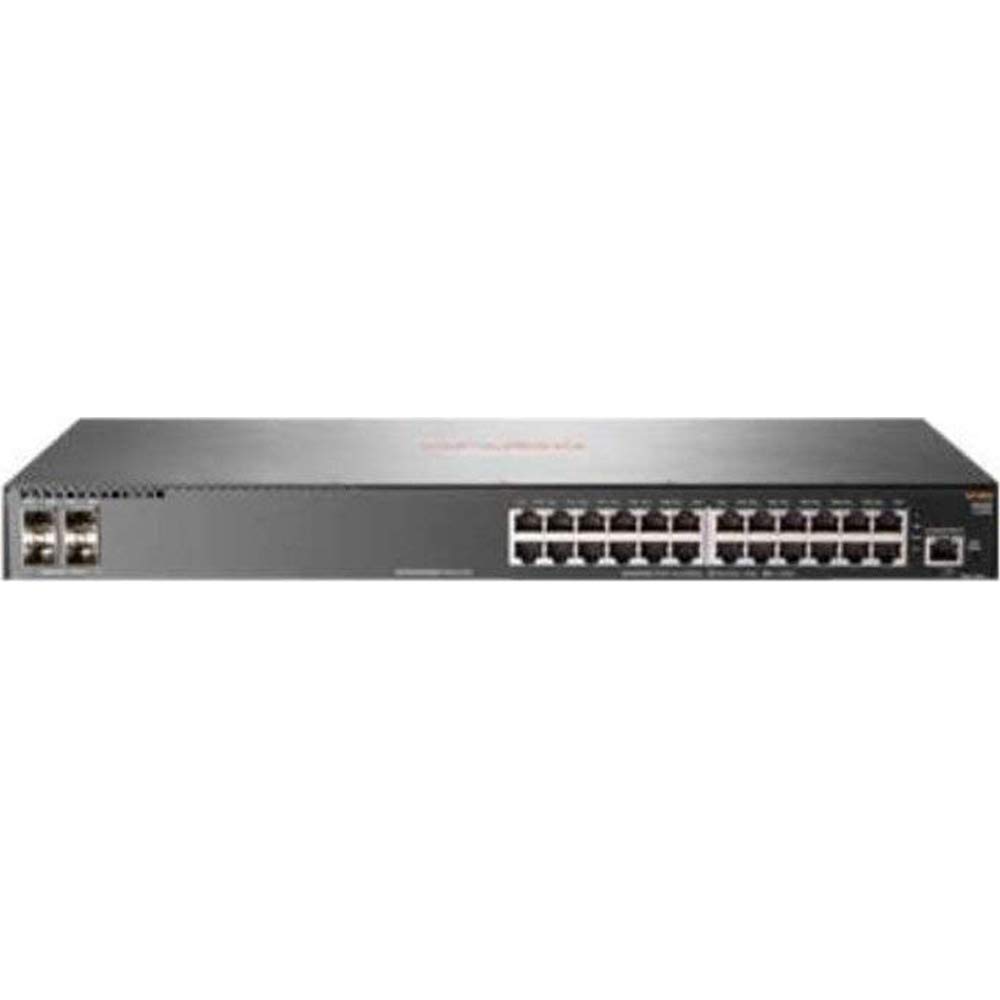
This manual provides comprehensive instructions for the installation, configuration, and operation of the HP 2930F-24G 4SFP Switch. This device is a high-performance network switch designed for reliable and secure network connectivity. It features 24 Gigabit Ethernet ports and 4 SFP uplink ports, supporting Layer 3 functionality for advanced network management.
2. Conteúdo da embalagem
Carefully unpack the box and verify that all items are present and undamaged. If any items are missing or damaged, contact your vendor immediately.
- 1 x HP 2930F-24G 4SFP Switch
- 1 x Cabo de alimentação
- 1 x Kit de parafusos
- 4 x orelhas de montagem
- 4 x Bumper Feet
- 1 x cabo gravata
3. Configuração
3.1. Preparação do Local
Ensure the installation site is clean, dry, and has adequate ventilation. Maintain proper temperature and humidity levels as specified in the environmental requirements. Ensure a stable power source is available.
3.2. Montagem do interruptor
The HP 2930F-24G 4SFP Switch supports both rack-mountable and desktop installations.
- Instalação na área de trabalho: Attach the four bumper feet to the bottom of the switch. Place the switch on a flat, stable surface.
- Instalação em rack: Attach the mounting ears to the sides of the switch using the provided screws. Secure the switch into a standard 1U rack using appropriate rack screws (not included).
3.3. Conectando energia
- Connect the provided power cord to the power inlet on the rear panel of the switch.
- Conecte a outra extremidade do cabo de alimentação a uma tomada elétrica aterrada.
- Verify that the power LED on the front panel illuminates, indicating the switch is receiving power.
3.4. Conectando cabos de rede
- Portas Ethernet: Connect standard RJ-45 Ethernet cables from your network devices (computers, servers, other switches) to the 24 Gigabit Ethernet ports on the front panel.
- SFP Uplink Ports: Insert compatible SFP transceivers (not included) into the 4 SFP slots. Connect fiber optic or copper SFP cables to these transceivers for uplink connections to other network devices or the core network.
4. Instruções de operação
4.1. Ligação inicial
Once power is connected, the switch will automatically begin its boot sequence. This process may take a few minutes. Observe the system status LEDs for indications of successful startup.
4.2. Indicadores LED
Os LEDs do painel frontal fornecem informações sobre o status do switch e de suas portas:
- LED de energia: Indicates power status (On: Power OK, Off: No power).
- LED do sistema: Indicates overall system health (Green: Normal, Amber: Warning, Red: Error).
- LEDs indicadores de conexão/atividade da porta: Located next to each Ethernet and SFP port. (Green: Link established, Blinking Green: Activity, Off: No link).
4.3. Gerenciamento de Rede
The HP 2930F-24G 4SFP Switch can be managed via a Command Line Interface (CLI) through a console port (if available) or Telnet/SSH, and typically through a web-based graphical user interface (GUI). Refer to the comprehensive HP ArubaOS-Switch Management and Configuration Guide for detailed instructions on initial configuration, VLAN setup, Layer 3 routing, and other advanced features.
5. Manutenção
5.1. Limpeza
Regularly clean the exterior of the switch with a soft, dry cloth. Do not use liquid or aerosol cleaners. Ensure ventilation openings are free from dust and obstructions to prevent overheating.
5.2. Atualizações de firmware
Periodically check the official HP support website for firmware updates. Keeping the switch firmware up-to-date ensures optimal performance, security, and access to new features. Follow the instructions provided with the firmware update package carefully.
5.3. Considerações ambientais
Certifique-se de que o interruptor opere dentro das faixas de temperatura e umidade especificadas. Evite expor o dispositivo à luz solar direta, calor excessivo ou umidade.
6. Solução De Problemas
Esta seção fornece soluções para problemas comuns que você pode encontrar.
- Sem energia:
- Check if the power cord is securely connected to both the switch and the power outlet.
- Verifique se a tomada elétrica está funcionando.
- Ensure the power supply unit (internal) is not faulty.
- Sem link na porta:
- Ensure the Ethernet or SFP cable is properly connected at both ends.
- Verifique se o dispositivo conectado está ligado e funcionando corretamente.
- Check the cable for damage. Try a different cable.
- Confirm that the SFP transceiver is compatible and correctly seated (for SFP ports).
- Problemas de conectividade de rede:
- Verify IP address configuration on connected devices and the switch.
- Verifique as configurações de VLAN, se aplicável.
- Ensure no IP address conflicts exist on the network.
- Reinicie o switch e os dispositivos conectados.
If problems persist, consult the detailed troubleshooting guides available on the official HP support website or contact HP technical support.
7. Especificações
| Recurso | Especificação |
|---|---|
| Número do modelo | JL259A#ABA |
| Total Network Ports | 24 x Gigabit Ethernet |
| Portas de Uplink | 4 x SFP |
| Tecnologia Ethernet | Gigabit Ethernet (10/100/1000Base-TX) |
| Technology Network | 1000Base-X |
| Suporte de camadas | Camada 3 |
| Fonte de energia | Fonte de energia |
| Fator de forma | Rack-mountable, Desktop (1U) |
| Dimensões (A x D) | 1.7 polegadas x 7.9 polegadas |
| Peso | 5.31 lb (Approximate) |
| BATER | 1024 MB |
| Material da caixa | Metal |
| UPC | 190017006000 |
8. Garantia e Suporte
For detailed warranty information, product registration, and technical support, please visit the official HP support website. You can find resources such as knowledge bases, FAQs, driver downloads, and contact information for customer service.
Suporte HP Website: www.hp.com/support