1. Introdução
This manual provides essential information for the setup, operation, and maintenance of your TomTom GO 620 GPS navigation device. Please read these instructions carefully to ensure proper use and to maximize the device's features.
2. Configuração
2.1. O que está na caixa
- TomTom GO 620 device
- Active magnetic mount
- Cabo USB
- Carregador de carro
- Documentação
2.2. Montagem do dispositivo
The TomTom GO 620 comes with an active magnetic mount for easy attachment to your vehicle's windshield or dashboard.
- Clean the chosen area on your windshield or dashboard.
- Attach the suction cup of the mount firmly to the surface. Ensure it is securely fixed.
- Connect the TomTom GO 620 device to the magnetic mount. The device will click into place.
- Ajuste o ângulo do dispositivo para obter o melhor resultado. viewing sem obstruir o seu view da estrada.

Imagem 1: Traseira view of the TomTom GO 620 device showing the magnetic mount connection point. This illustrates how the device attaches to its active mount.

Imagem 2: Lado profissionalfile of the TomTom GO 620 with the magnetic mount. This view highlights the compact design and the secure attachment mechanism.
2.3. Ligando e configuração inicial
- Conecte o cabo USB ao dispositivo e ao carregador veicular e, em seguida, ligue o carregador à tomada de 12V do seu veículo.
- The device will power on automatically or by pressing the power button located on the back.
- Siga as instruções na tela para selecionar seu idioma, região e concordar com os termos e condições.
- Connect to a Wi-Fi network to download the latest map updates and software. This is crucial for optimal performance.
3. Operating Your TomTom GO 620
3.1. Navegação Básica
To plan a route, tap the screen and select 'Search'. You can enter an address, point of interest, or coordinates. The device will calculate the fastest route and provide clear voice-guided instructions.

Imagem 3: The TomTom GO 620 display showing an active navigation route, current speed, estimated arrival time, and a hands-free message notification. This illustrates the primary user interface during navigation.
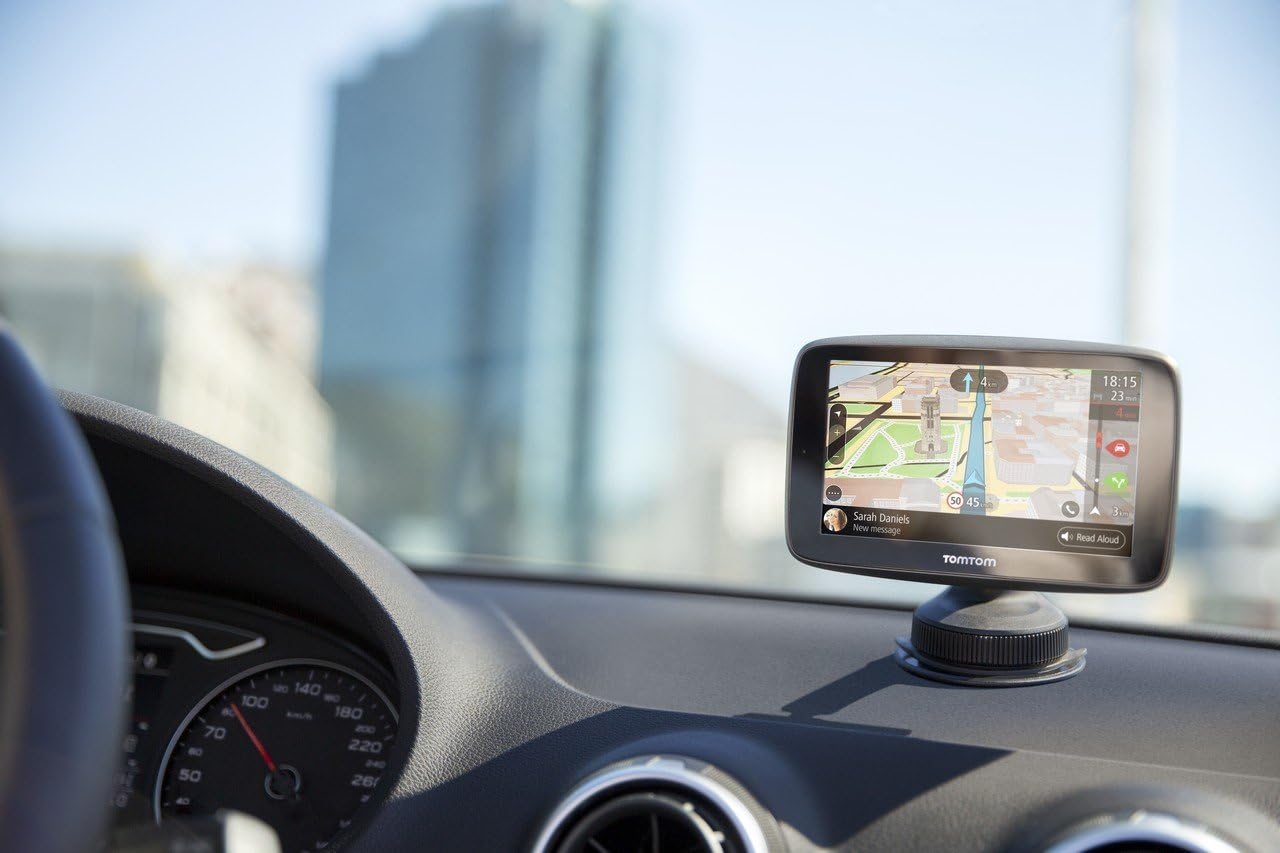
Imagem 4: Um close-up view of the TomTom GO 620 mounted on a car dashboard, displaying navigation. This image emphasizes the device's integration into a vehicle's interior.
3.2. TomTom Traffic
The TomTom GO 620 provides real-time traffic information via a smartphone connection. This feature helps you avoid delays by suggesting alternative routes.
- Ensure your smartphone is paired with the GO 620 via Bluetooth.
- Open the TomTom MyDrive app on your smartphone to enable traffic data sharing.
- Traffic incidents and delays will be displayed on your device's map, and the device will automatically reroute if a faster alternative is available.

Imagem 5: A smartphone screen showing notifications from the TomTom Traffic Checker app, indicating traffic conditions and estimated travel times to common destinations. This illustrates the smartphone integration for traffic services.
3.3. Danger Zones and Speed Camera Alerts
Your device includes regular updates for fixed and mobile danger zones (speed cameras). These alerts help you maintain awareness of your surroundings and adhere to speed limits.
- Alerts are automatically provided as you approach a known danger zone.
- Ensure your device software and danger zone database are up to date via Wi-Fi.
3.4. Chamadas com viva-voz
Connect your smartphone to the TomTom GO 620 via Bluetooth to make and receive calls safely while driving.
- On your TomTom device, go to the main menu and select 'Phone'.
- Ative o Bluetooth no seu smartphone e torne-o detectável.
- Select your phone from the list of available devices on the TomTom screen and follow the pairing instructions.
- Once paired, you can manage calls directly from your GO 620 screen.

Imagem 6: The TomTom GO 620 mounted on a car dashboard, viewed from the driver's seat. This perspective shows the device's placement for easy access and visibility during driving.

Imagem 7: The TomTom GO 620 mounted on a car dashboard, viewed from the passenger's seat. This image demonstrates the device's visibility for both driver and passenger.
4. Manutenção
4.1. Atualizações de Software e Mapas
Regularly update your device's software and maps via Wi-Fi to ensure you have the most accurate navigation data and the latest features.
- Conecte seu dispositivo a uma rede Wi-Fi estável.
- Go to the main menu, select 'Settings', then 'Updates & New Items'.
- Siga as instruções na tela para baixar e instalar as atualizações disponíveis.
4.2. Limpeza do dispositivo
Use um pano macio e macioamp cloth to clean the screen and exterior of your TomTom GO 620. Avoid abrasive cleaners or solvents.
5. Solução De Problemas
5.1. O dispositivo não liga
- Ensure the device is properly connected to a power source using the provided car charger and USB cable.
- Check if the vehicle's 12V power outlet is functioning.
- Press and hold the power button for at least 10 seconds to perform a soft reset.
5.2. Sem sinal de GPS
- Certifique-se de que o dispositivo tenha uma clara view of the sky. Obstructions like tall buildings or tunnels can interfere with the GPS signal.
- Move to an open area and allow the device a few minutes to acquire a signal.
- Verify that the device's software is up to date.
5.3. Map or Software Update Issues
- Ensure a strong and stable Wi-Fi connection during updates.
- Free up storage space on the device if necessary by deleting old maps you no longer use.
- Try restarting the device and attempting the update again.
5.4. Bluetooth Connectivity Problems
- Ensure Bluetooth is enabled on both your TomTom device and your smartphone.
- Make sure your smartphone is discoverable.
- Delete previous pairings on both devices and attempt to pair again.
- Reinicie os dois dispositivos.
6. Especificações
| Recurso | Detalhe |
|---|---|
| Marca | TomTom |
| Nome do modelo | VAI 620 |
| Tipo de serviço do veículo | Truck, Motorcycle, Car |
| Tamanho da tela | 6 polegadas |
| Características especiais | Voice Control, Voice Guidance, Pedestrian Mode |
| Tecnologia de Conectividade | USB |
| Tipo de mapa | Mundo |
| Componentes incluídos | Baterias |
| Modo de saída de áudio | Mãos livres |
| Duração da bateria | 1 horas |
7. Garantia e Suporte
Your TomTom GO 620 device is covered by a manufacturer's warranty. For detailed warranty information, please refer to the documentation included with your product or visit the official TomTom support website.
For technical assistance, software updates, or further inquiries, please visit the TomTom support portal at www.tomtom.com/support.


