1. Introdução
The Bittium Tough Mobile is a high-security, robust 4G/LTE smartphone designed for demanding professional use. It integrates advanced security features with the Android operating system, making it suitable for government agencies, public safety, and other professionals requiring secure and reliable communication.
This manual provides comprehensive instructions for setting up, operating, maintaining, and troubleshooting your Bittium Tough Mobile device.
2. O que está na caixa
Upon unboxing your Bittium Tough Mobile, verify that all components are present:
- 1 x Bittium Tough Mobile Smartphone
- 1 x Bateria
- 1 x Battery Door Cover
- 1 x Wired Stereo Head Set
- 1 x PC Connecting Cable
- 2 x Mains / Wall / Travel Chargers
- 1 x Documentation (User Manual, Quick Start Guide)
- 1 x Interior Retail Packing
- 1 x Retail Box with IMEI Numbers

Figura 2.1: Contents of the Bittium Tough Mobile retail box, including the phone, battery, chargers, cables, headset, and documentation.
3. Produto acabadoview
3.1 Frente e Verso Views

Figura 3.1: Frente view of the Bittium Tough Mobile smartphone, showing the display with Google services and standard Android icons.
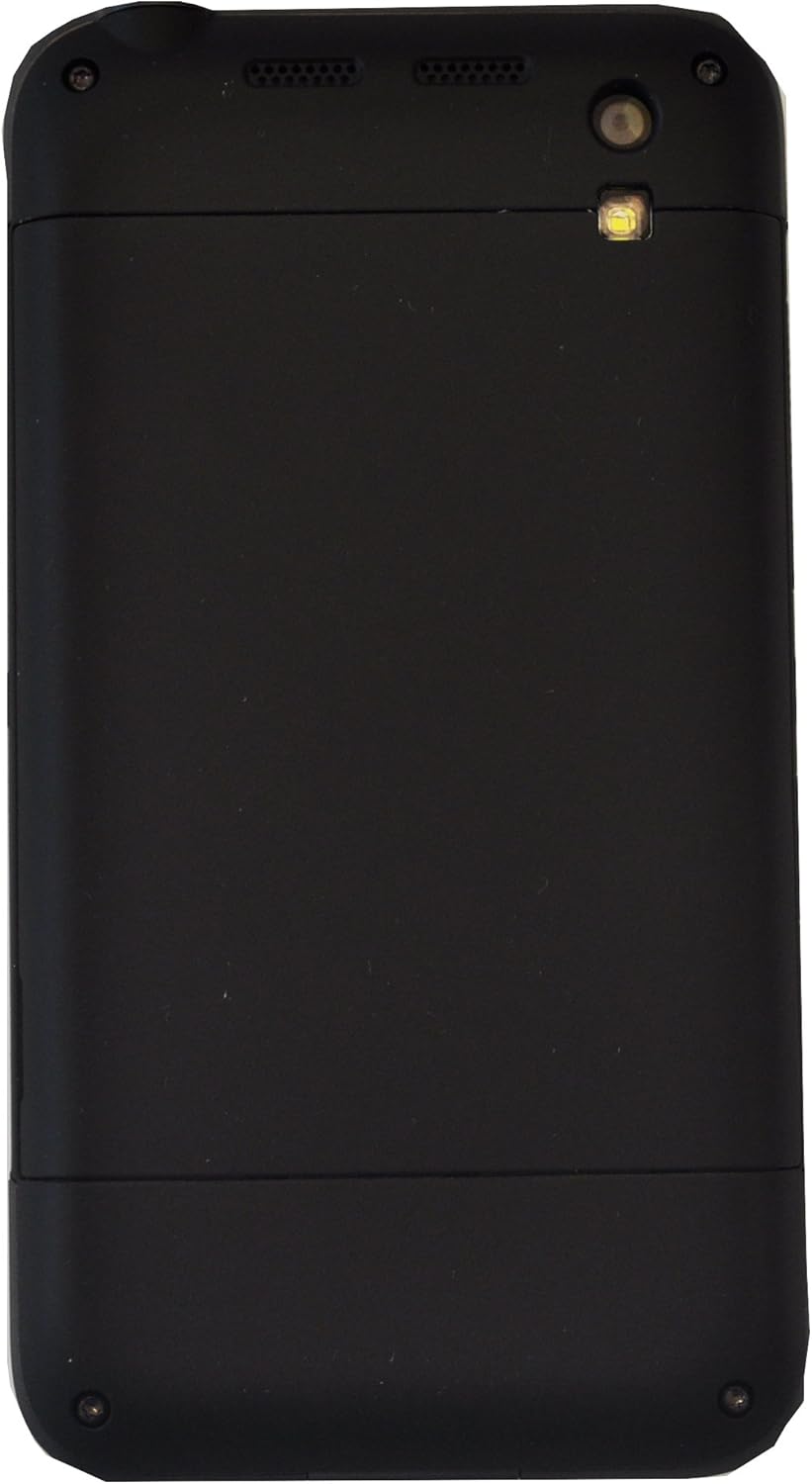
Figura 3.2: Voltar view of the Bittium Tough Mobile smartphone, featuring a plain black design with the camera lens and LED flash visible at the top.
3.2 Device Components and Ports

Figura 3.3: Lado view of the Bittium Tough Mobile, highlighting key components such as the earpiece, front camera, speakers, rear camera, LED flash, volume keys, and a programmable button.

Figura 3.4: Superior e inferior views of the Bittium Tough Mobile, indicating the locations of microphones, the USB3 connector, charging pins, the power key, and the headset connector.
4. Configuração
4.1 Inserindo o cartão SIM e a bateria
- Carefully remove the battery door cover from the back of the device.
- Insert your Micro-SIM card(s) into the designated slot(s). Ensure the SIM card is oriented correctly as indicated on the device. The Bittium Tough Mobile supports Dual-SIM functionality.
- Insert the battery into its compartment, aligning the gold contacts.
- Replace the battery door cover, ensuring it clicks securely into place.
4.2 Assistente de Inicialização e Configuração
- Press and hold the Power Key (refer to Figure 3.4) until the Bittium logo appears on the screen.
- Follow the on-screen instructions to complete the initial setup wizard. This includes selecting your language, connecting to a Wi-Fi network, and setting up your Google account.
- For optimal security, ensure you set up a strong screen lock (PIN, pattern, or password) during this process.
5. Operando seu dispositivo
5.1 Compatibilidade de Rede
The Bittium Tough Mobile is a factory unlocked GSM-only device. It is compatible with the following network frequencies:
- 2G GSM: 850 / 900 / 1800 / 1900 MHz
- 3G: 850(B5) / 900(B8) / 1700(B4) / 1900(B2) / 2100(B1) MHz
- 4G LTE: 700(B13) / 700(B14) / 700(B17) / 800(B20) / 850(B5) / 1700(B4) / 1800(B3) / 1900(B2) / 2600(B7) MHz
Important: This phone WILL NOT WORK with any CDMA Networks such as VERIZON, SPRINT, US CELLULAR. Please verify compatibility with your network provider before use.
5.2 Funções Básicas
- Ligar/desligar: Press and hold the Power Key. Select "Power off" from the options.
- Controle de volume: Use the Volume Keys (refer to Figure 3.3) to adjust media, call, and alarm volumes.
- Bloqueio/desbloqueio de tela: Briefly press the Power Key to turn the screen on or off. Swipe up or enter your security credentials to unlock.
- Fazendo chamadas: Abra o aplicativo Telefone, disque o número e pressione o ícone de chamada.
- Enviando mensagens: Open the Messages app, start a new conversation, enter recipient and message, then send.
- Conectando ao Wi-Fi: Go to Settings > Network & internet > Wi-Fi. Select your desired network and enter the password if required.
- Emparelhamento Bluetooth: Go to Settings > Connected devices > Bluetooth. Turn on Bluetooth and select the device you wish to pair with.
6. Manutenção
6.1 Limpando seu dispositivo
To clean your Bittium Tough Mobile, use a soft, lint-free cloth. For stubborn marks, slightly dampen the cloth with water. Avoid using harsh chemicals, abrasive cleaners, or aerosol sprays, as these can damage the device's finish and internal components.
The device has an IP67 rating, meaning it is dust tight and can withstand immersion in 1 meter of water for up to 30 minutes. However, it is not recommended for intentional submersion or use in extreme water conditions. Ensure all ports are dry before charging.
6.2 Cuidados com a bateria
- Use only the original Bittium charger and battery provided with your device.
- Evite expor a bateria a temperaturas extremas (quentes ou frias).
- Não perfure, desmonte ou provoque curto-circuito na bateria.
- If the battery appears damaged or swollen, discontinue use immediately and dispose of it properly according to local regulations.
6.3 Atualizações de Software
Regularly check for and install software updates to ensure your device has the latest security patches and features. Go to Settings > System > System update to check for available updates.
7. Solução De Problemas
| Problema | Possível causa | Solução |
|---|---|---|
| O dispositivo não liga. | A bateria está descarregada ou não está inserida corretamente. | Charge the device for at least 30 minutes. Ensure the battery is correctly seated. |
| Não foi possível conectar à rede. | Incorrect SIM card insertion, out of network coverage, or incompatible network. | Re-insert SIM card. Move to an area with better signal. Verify network compatibility (GSM only). |
| A tela não responde. | Falha temporária de software. | Perform a forced restart by holding the Power Key for approximately 10-15 seconds. |
| A bateria descarrega rapidamente. | Too many apps running in background, high screen brightness, or poor signal. | Feche os aplicativos que não estiver usando. Diminua o brilho da tela. Desative o Wi-Fi/Bluetooth quando não estiver em uso. |
If you encounter issues not listed here or if the suggested solutions do not resolve your problem, please contact Bittium customer support.
8. Especificações
| Recurso | Detalhe |
|---|---|
| Nome do modelo | Bittium Tough Mobile |
| Sistema operacional | Google Android |
| Mostrar | 5 Inches Full HD LCD (1920 x 1080 resolution) |
| Memória (RAM) | 2 GB LPDDR3 PoP |
| Armazenamento (interno) | 32 GB eMMC |
| Dimensões (AxLxP) | 141 mm x 75.5 mm x 13.5 mm |
| Peso | 180 gramas (6.3 onças) |
| Tecnologias sem fio | Wi-Fi 802.11 a/b/g/n/ac, Bluetooth 4.0, NFC |
| Tecnologia Celular | LTE (GSM Only, Dual-SIM) |
| Classificação de durabilidade | IP67, MIL-STD-810G |
| Conector de áudio | Sem entrada para fones de ouvido |
| Cor | Preto |
9. Garantia e Suporte
For warranty information, please refer to the documentation included in your product packaging or visit the official Bittium website. Bittium provides support for its products to ensure optimal performance and user satisfaction.
If you require technical assistance, have questions about your device, or need to report an issue, please contact Bittium customer support through their official channels. Details for support can typically be found on the Bittium website ou na documentação incluída.


