Introdução
This manual provides detailed instructions for the ZIDOO V5 Wireless Keyboard Air Mouse. It covers setup, operation, maintenance, and troubleshooting to ensure optimal performance and user experience. The ZIDOO V5 combines a wireless keyboard, air mouse, and voice input functionality, designed for use with various devices including Google Android TV/Box, IPTV, HTPC, Windows, Mac OS, and Xbox.
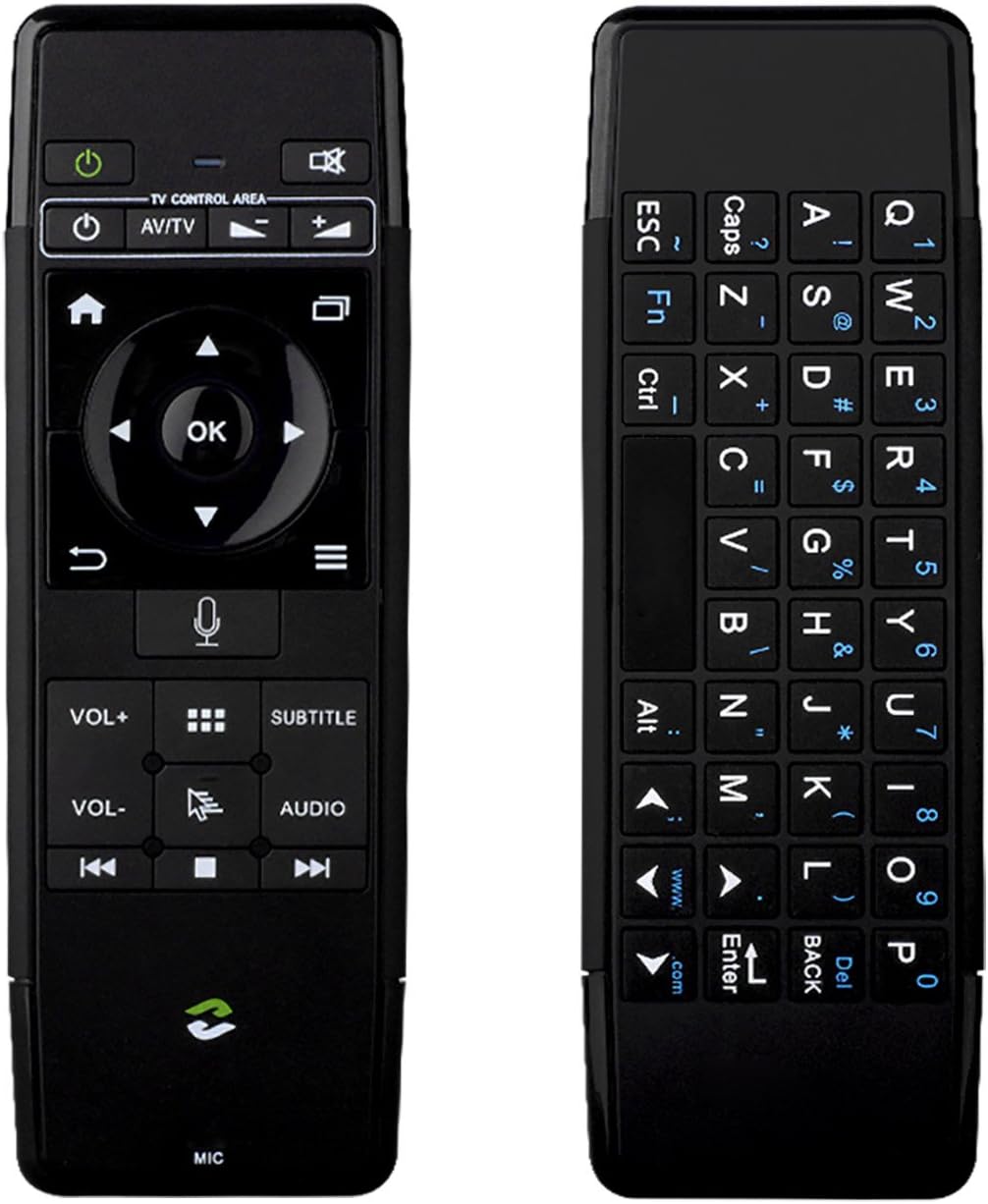
Imagem: Frente e verso view of the ZIDOO V5 Wireless Keyboard Air Mouse, showcasing its dual-sided design with a remote control layout on one side and a QWERTY keyboard on the other.
1. Configuração
1.1 Conteúdo da embalagem
- ZIDOO V5 Wireless Keyboard Air Mouse
- Receptor USB
- Cabo de carregamento USB
- Manual do usuário (este documento)
1.2 Carregando o dispositivo
The ZIDOO V5 has a built-in rechargeable battery. Before first use, fully charge the device.
- Connect the small end of the USB charging cable to the micro-USB port on the ZIDOO V5.
- Connect the standard USB end of the cable to a USB power adapter (not included) or a powered USB port on your computer or device.
- A luz indicadora do dispositivo acenderá durante o carregamento e apagará quando a carga estiver completa.

Imagem: Lado view of the ZIDOO V5 Wireless Keyboard Air Mouse, highlighting the micro-USB charging port located on the top edge.
1.3 Conectando o receptor USB
The ZIDOO V5 connects wirelessly via a 2.4G USB receiver.
- Localize o receptor USB, geralmente armazenado dentro do compartimento da bateria ou em um slot específico no dispositivo.
- Plug the USB receiver into an available USB port on your target device (e.g., Android TV box, HTPC, computer).
- The device should automatically recognize the receiver and install necessary drivers. No manual pairing is usually required.
2. Instruções de operação
2.1 Ligar/Desligar
Pressione o Interruptor de energia button (usually located at the top left of the remote side) to turn the device on or off.
2.2 Remote Control Side Functions

Imagem: Detalhada view of the ZIDOO V5 remote control side, with labels for each button's function, including Power Switch, Muting, TV Control Area, Home, APP Switch, Direction Key, OK, Enter, Return, Menu, Voice Input, Volume Up/Down, APP Management, Subtitle, Cursor Switch, Audio Track, Previous, Stop, and Next.
- Interruptor de alimentação: Liga ou desliga o dispositivo.
- Silenciar: Silencia ou ativa o som.
- TV Control Area: Dedicated buttons for basic TV functions (e.g., input, power for TV).
- Lar: Returns to the main screen or home interface.
- APP Switch: Switches between applications.
- Direction Key (Up, Down, Left, Right): Navega pelos menus e opções.
- OK: Confirma seleções.
- Digitar: Confirms input or selection.
- Retornar: Retorna à tela ou menu anterior.
- Menu: Abre menus contextuais.
- Entrada de voz: Activates voice command or search (requires compatible software/device).
- VOL+ / VOL-: Ajusta o volume para cima ou para baixo.
- APP Management: Accesses application management settings.
- Subtítulo: Toggles or selects subtitle options.
- Cursor Switch: Toggles between air mouse mode and D-pad navigation.
- Faixa de áudio: Selects different audio tracks.
- Previous / Stop / Next: Controles de reprodução de mídia.
2.3 Air Mouse Function
The ZIDOO V5 features a 3-Gyro + 3-Gsensor for precise air mouse control.
- To activate the air mouse, ensure the cursor switch is enabled.
- Hold the device in your hand and move your wrist to control the on-screen cursor.
- Pressione o OK botão para clicar.
- To recalibrate the air mouse, place the device on a flat surface for a few seconds until the cursor stabilizes.
2.4 Keyboard Side Functions
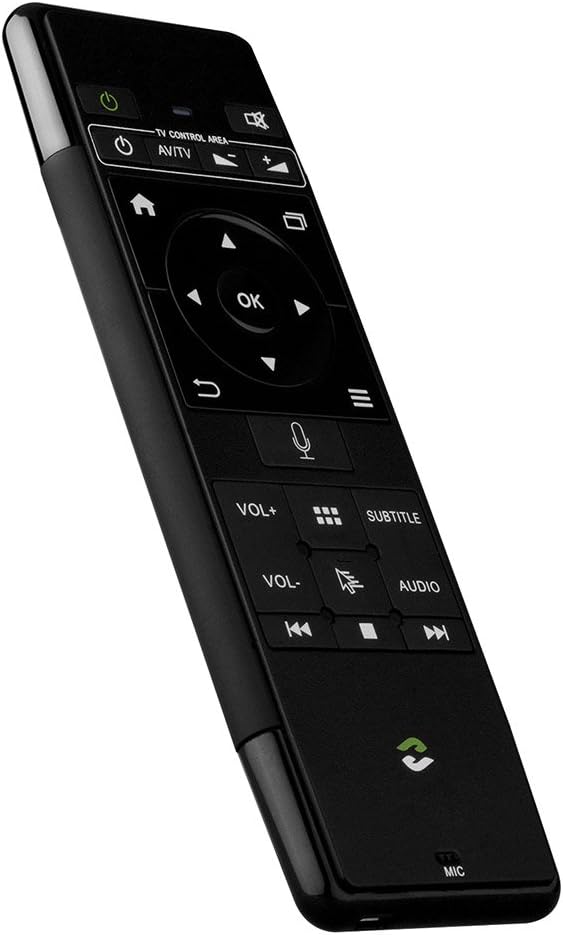
Imagem: Close-up view of the ZIDOO V5 keyboard side, displaying a full QWERTY layout with alphanumeric keys, function keys (Fn, Ctrl, Alt), and special characters.
The reverse side of the ZIDOO V5 features a full QWERTY keyboard for easy text input.
- Digitando: Utilize as teclas como faria com um teclado padrão.
- Tecla de função (Fn): Pressione e segure o Fn key to access secondary functions printed in blue on certain keys (e.g., numbers, symbols).
- Caps Lock: Toggles uppercase and lowercase letters.
- Voltar: Acts as a backspace key.
- Digitar: Confirms text input.
2.5 Voice Input
The ZIDOO V5 supports voice input functionality.
- Ensure your connected device supports voice input and has the necessary applications installed (e.g., Google Assistant, voice search).
- Pressione o Entrada de voz button (microphone icon) on the remote control side.
- Speak clearly into the microphone located at the bottom of the device.
- Solte o botão quando terminar de falar.
3. Manutenção
3.1 Limpeza
- Use um pano macio e seco para limpar a superfície do dispositivo.
- Do not use liquid cleaners, aerosols, or abrasive materials, as these may damage the device.
3.2 Armazenamento
- Guarde o dispositivo em local fresco e seco, longe da luz solar direta e de temperaturas extremas.
- Se for armazenar a bateria por um período prolongado, certifique-se de que ela esteja parcialmente carregada (em torno de 50%) para prolongar sua vida útil.
3.3 Cuidados com a bateria
- Evite descarregar completamente a bateria com frequência.
- Charge the device regularly, even if not in constant use, to maintain battery health.
4. Solução De Problemas
| Problema | Possível causa | Solução |
|---|---|---|
| O dispositivo não está respondendo | Low battery; USB receiver not connected; Device turned off; Out of range. | Charge the device; Ensure USB receiver is securely plugged in; Turn on the device; Move closer to the receiver (within 10 meters). |
| O cursor do mouse aéreo está se movendo de forma errática ou não se move. | Needs calibration; Interference; Air mouse mode disabled. | Place the device on a flat surface for a few seconds to recalibrate; Ensure no strong electromagnetic interference; Press the Cursor Switch button to enable air mouse mode. |
| Voice input not working | Device/application does not support voice input; Microphone blocked; Software issue. | Verify host device/application compatibility; Ensure microphone is clear; Restart the host device. |
| Entrada de teclado incorreta | Caps Lock enabled; Fn key usage; Language settings. | Check Caps Lock status; Ensure correct use of Fn key for secondary characters; Verify language settings on the host device. |
5. Especificações
- Marca: Zidoo
- Modelo: V5 (zidooV517420)
- Conectividade: 2.4G Sem fio (Radiofrequência)
- Sensores: 3-Gyro + 3-Gsensor
- Características: Wireless Keyboard, Air Mouse, Voice Input, Rechargeable Battery
- Sistemas operacionais compatíveis: Android, Mac OS, Windows
- Dispositivos compatíveis: Google Android TV/Box, IPTV, HTPC, Windows PCs, Mac OS devices, Xbox
- Fonte de energia: Bateria recarregável embutida
- Dimensões: Aproximadamente 21.2 x 11.4 x 1.8 cm
- Peso: Aproximadamente 200 g
6. Informações de garantia
Specific warranty details for the ZIDOO V5 Wireless Keyboard Air Mouse may vary by region and retailer. Please refer to the warranty card included with your purchase or contact your point of sale for detailed information regarding warranty coverage and terms.
7. Suporte
For technical support or further assistance, please visit the official Zidoo website or contact their customer service department. Contact information can typically be found on the product packaging or the Zidoo official website.
Nota: As especificações e características do produto estão sujeitas a alterações sem aviso prévio.