1. Introdução
This manual provides instructions for the proper setup, operation, and maintenance of your ELECOM HUGE Wireless Trackball Mouse (Model: M-HT1DRBK). Please read this manual thoroughly before using the product to ensure optimal performance and longevity.
2. O que está na caixa
- ELECOM HUGE Wireless Trackball Mouse
- Receptor USB
- Bateria AA (x2)
- Manual do usuário (este documento)
3. Configuração
3.1. Instalação da bateria
- Locate the battery compartment on the underside of the trackball mouse.
- Abra a tampa do compartimento da bateria.
- Insira as duas pilhas AA, certificando-se da polaridade correta (+/-).
- Feche bem a tampa do compartimento da bateria.
3.2. Conexão do receptor USB
The USB receiver is stored within the trackball mouse for convenience during transport.
- Remove the USB receiver from its storage slot on the underside of the trackball mouse.
- Plug the USB receiver into an available USB port on your computer (PC or Mac).
- Turn on the trackball mouse using the power switch located on the underside. The mouse should be automatically recognized by your operating system.

Figura 1: Inserting the USB receiver into the storage slot on the underside of the trackball mouse.
3.3. Software Installation (Mouse Assistant)
For full customization of the 8 programmable buttons and advanced features, it is recommended to install the ELECOM Mouse Assistant software.
- Visit the official ELECOM website.
- Navigate to the 'Support' or 'Downloads' section and locate 'Mouse Assistant'.
- Baixe a versão apropriada para o seu sistema operacional (Windows ou macOS).
- Siga as instruções na tela para concluir a instalação.

Figura 2: Example of the ELECOM Mouse Assistant software interface for button customization.
4. Instruções de operação
4.1. Basic Cursor Control
The ELECOM HUGE trackball is designed for index finger control, providing precise cursor movement. Use your index finger to roll the 52mm trackball to move the cursor on the screen.
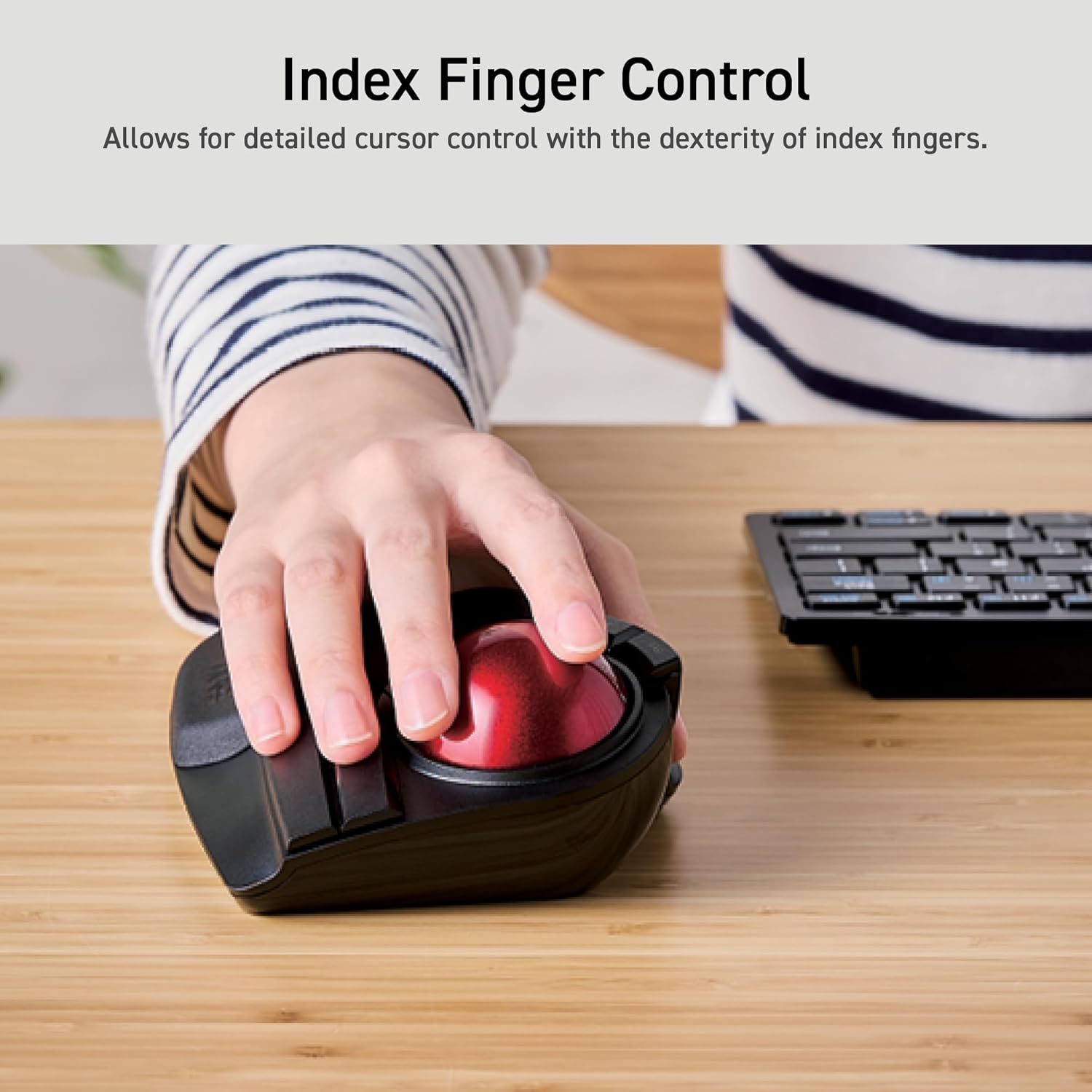
Figura 3: Demonstrating index finger control for precise cursor movement.
4.2. Ajuste de DPI
The trackball features a DPI button to adjust cursor speed. You can switch between three DPI settings: 500 (LOW), 1000 (MID), and 1500 (HIGH) DPI. Press the DPI button to cycle through these settings and find your preferred cursor speed.
4.3. Botões programáveis
The trackball is equipped with 8 physical buttons, including the scroll wheel with tilt functionality. These buttons can be customized using the ELECOM Mouse Assistant software to perform various functions, such as application shortcuts, media controls, or custom macros.

Figura 4: Sobreview of the 8 programmable buttons and their locations.
4.4. Ergonomic Design and Palm Rest
The trackball features an ergonomic angled design and a large, soft palm rest to support your hand and wrist in a natural position, promoting comfort during extended use.
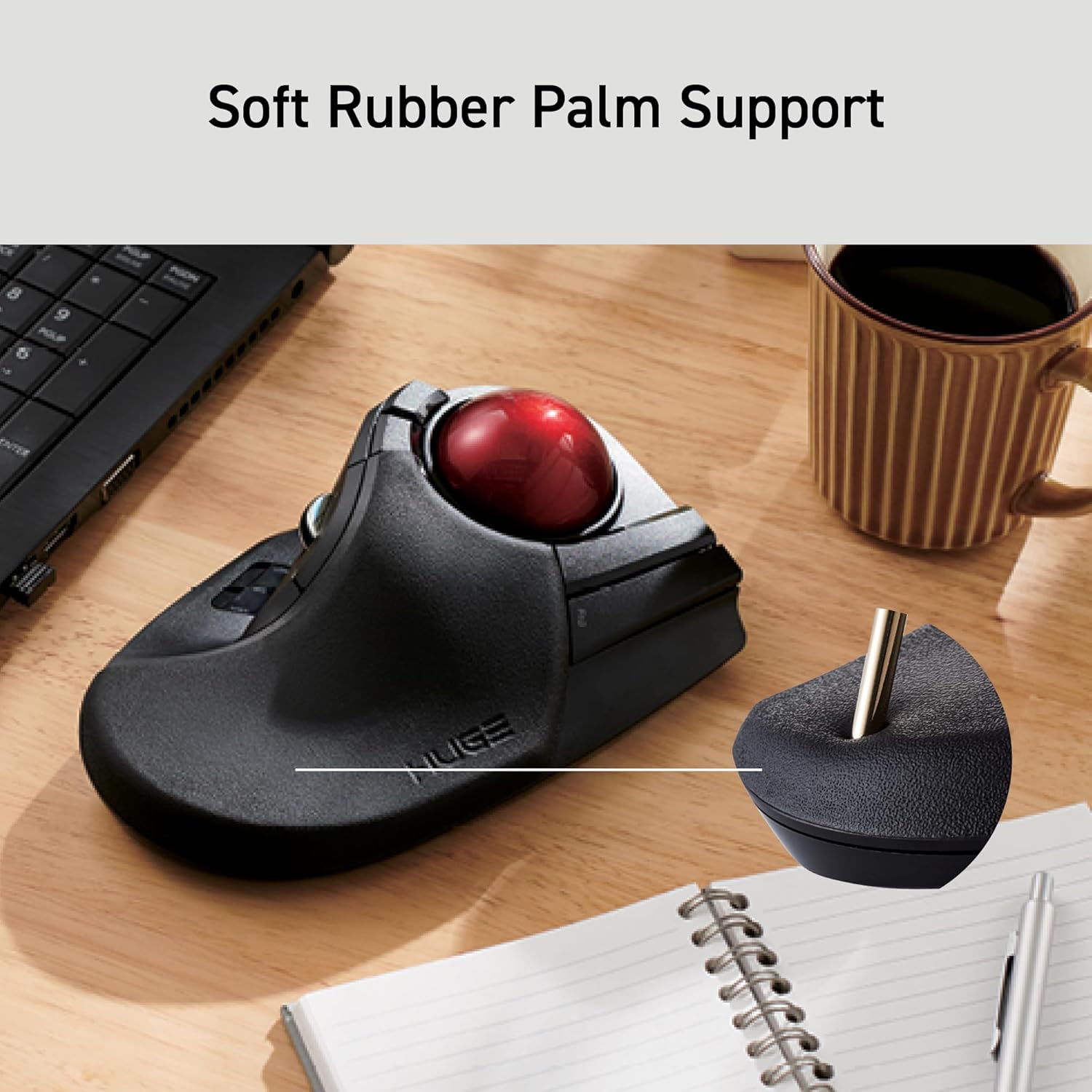
Figura 5: The soft rubber palm support integrated into the trackball design.
5. Manutenção
5.1. Trackball Cleaning
To maintain smooth operation, periodically clean the 52mm trackball and its ruby bearings. Dust and debris can accumulate and affect performance.
- Turn off the trackball mouse.
- Locate the ball removal hole on the underside of the device.
- Gently push the trackball out through this hole.
- Wipe the trackball with a soft, lint-free cloth.
- Clean the three ruby ball bearings and the inside of the trackball housing with a cotton swab or a soft brush to remove any dust or debris.
- Reinsert the trackball into the housing until it clicks into place.
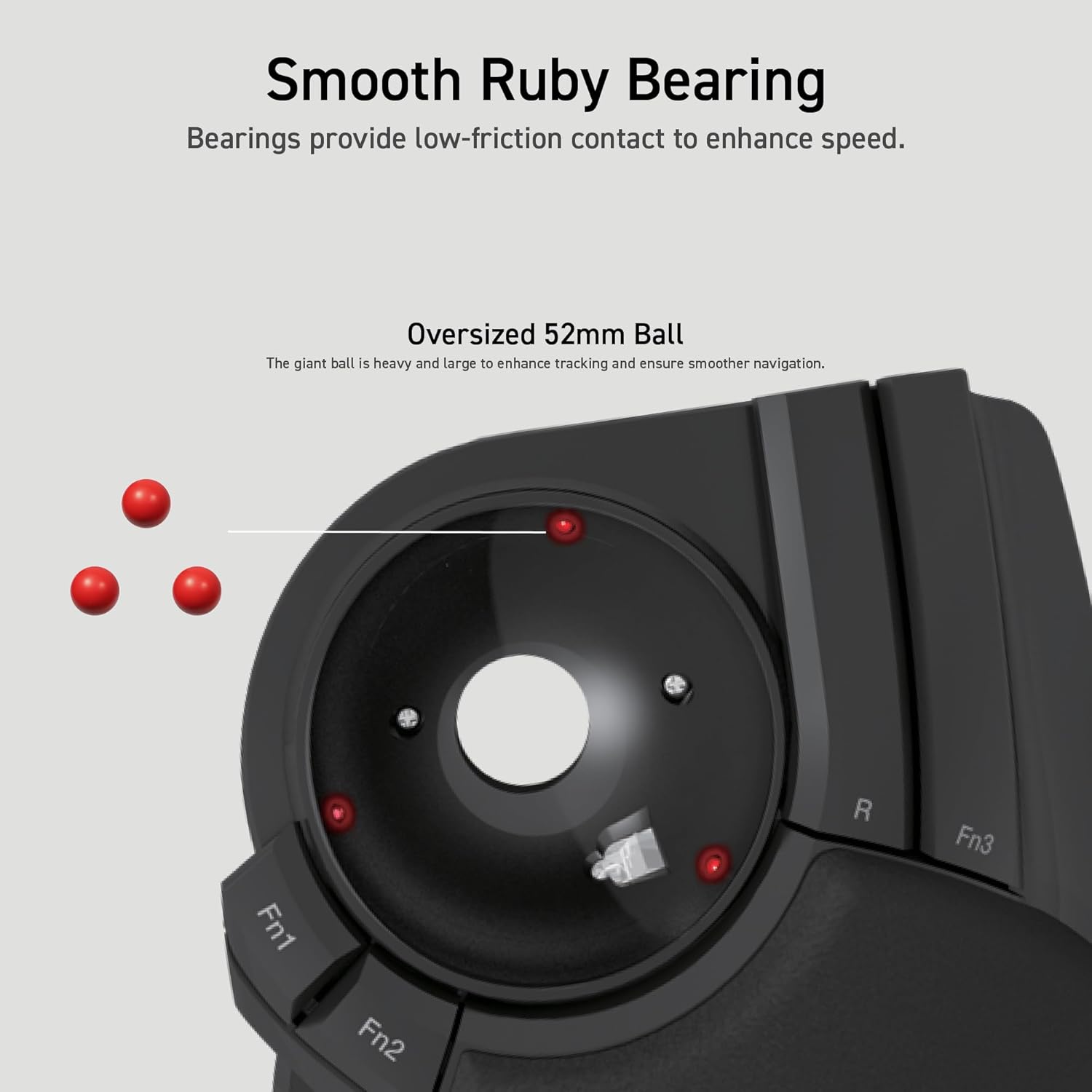
Figura 6: Illustration of the smooth ruby bearings and the trackball removal process.
6. Solução De Problemas
6.1. Cursor Not Moving or Erratic
- Verifique as baterias: Ensure batteries are correctly installed and have sufficient charge. Replace if necessary. The trackball has a battery remaining light lamp.
- Verifique o receptor USB: Certifique-se de que o receptor USB esteja conectado firmemente a uma porta USB funcional. Tente uma porta USB diferente.
- Clean Trackball: Refer to Section 5.1 for instructions on cleaning the trackball and bearings.
- Interferência: Move the trackball closer to the USB receiver or away from other wireless devices that might cause interference.
6.2. Botões não respondem
- Verificação de software: If using custom button assignments, ensure the ELECOM Mouse Assistant software is running and configured correctly.
- Reemparelhar dispositivo: In rare cases, re-pairing the device with the USB receiver might resolve the issue. Consult the ELECOM support website para obter instruções específicas.
7. Especificações
| Número do modelo | M-HT1DRBK |
| Conectividade | USB sem fio de 2.4 GHz |
| Configurações de DPI | 500 / 1000 / 1500 DPI (switchable) |
| Botões | 8 (Programmable) + Scroll Wheel with Tilt |
| Tamanho do Trackball | 52 mm |
| Fonte de energia | 2 pilhas AA (incluídas) |
| Compatibilidade do sistema operacional | Windows 7, 8, 10 or later; macOS 10.13 or later |
| Dimensões (CxLxA) | 7.16 x 4.52 x 2.25 polegadas (181.9 x 114.7 x 57.2 mm) |
| Peso (sem bateria) | 9.2 onça (260 g) |
8. Garantia e Suporte
ELECOM products are designed for reliability and performance. For warranty information, technical support, or to download the latest software and drivers, please visit the official ELECOM website or contact ELECOM customer service.
ELECOM oficial Website: https://www.elecom.co.jp/global/