1. Introdução
This manual provides detailed instructions for the installation, operation, and maintenance of your DIGOO DG-M1Z 1080P Home Security Camera. Please read this manual thoroughly before using the product to ensure proper functionality and safety.
2. Produto acabadoview
2.1 Principais Características
- True 1080P HD Video Quality (2.0MP Image Sensor)
- 130° Wide Angle Lens (2.8mm)
- 11 Pcs IR LED for Night Vision (up to 10m)
- Comunicação de áudio bidirecional
- Motion Detection with E-mail Alerts
- Funcionalidade Pan & Tilt
- Support for Micro TF Card Slot (up to 64GB) for Local Storage
- Compressão de vídeo H.264
- Suporte ONVIF
- Compatible with iOS, Android, and Windows PC via "Digoo Eye" App
2.2 Componentes da câmera
The DIGOO DG-M1Z camera features a compact design with essential components for surveillance. Refer to the image below for a visual representation.

Imagem 1: Frente view of the DIGOO DG-M1Z camera, showing the lens, IR LEDs, and base with the DIGOO logo.
Os principais componentes incluem:
- Lente da câmera: Captura vídeo footage.
- LEDs infravermelhos (IV): Fornecer iluminação para visão noturna.
- Microfone: Para entrada de áudio durante a comunicação bidirecional.
- Palestrante: Para saída de áudio durante comunicação bidirecional e alarmes.
- Slot para cartão Micro TF: For local video storage (up to 64GB).
- Porta de alimentação: DC 5V/2A+ input.
- Conexão de Rede: Para conexão de rede com fio.
3. Guia de configuração
3.1 Ligando a câmera
- Connect the provided Micro USB power cable (3 meters long) to the camera's power port.
- Plug the other end of the cable into a DC 5V/2A+ power adapter (ensure the adapter provides sufficient current).
- A câmera será ligada e iniciará sua sequência de inicialização.
3.2 Installing the "Digoo Eye" App
The "Digoo Eye" application is required to configure and operate your camera. It is available for iOS, Android, and Windows PC.
- For mobile devices, search for "Digoo Eye" in your device's app store (Google Play Store for Android, Apple App Store for iOS).
- Baixe e instale o aplicativo.
- For Windows PC, download the client software from the official DIGOO website (se disponível).

Image 2: A smartphone displaying the "Digoo Eye" application interface, showing a live camera feed and control options.
3.3 Configuração de Rede
The camera supports both wireless (Wi-Fi) and wired network connections. Note: The camera only supports 2.4GHz Wi-Fi networks, not 5GHz.
3.3.1 Wireless Connection (Acoustic Smart Link)
- Certifique-se de que seu dispositivo móvel esteja conectado a uma rede Wi-Fi de 2.4 GHz.
- Open the "Digoo Eye" app and follow the on-screen instructions to add a new device.
- Select the "Acoustic smart link configuration" option.
- The app will guide you through entering your Wi-Fi password and using sound to pair the camera.
3.3.2 conexão com fio
- Conecte um cabo Ethernet do seu roteador à porta Ethernet da câmera.
- The camera will automatically connect to the network.
- Open the "Digoo Eye" app and follow the instructions to add a new device, selecting the wired connection option.
4. Instruções de operação
4.1 Ao vivo View e controle de pan/tilt
Once connected, you can access the live video feed through the "Digoo Eye" app. Use the on-screen controls to pan (horizontal movement) and tilt (vertical movement) the camera lens to adjust the viewângulo de engate.

Image 3: Illustration of key camera functionalities including Pan & Tilt, Two-Way Talking, Inframe Light (IR), and Screeching Alarm.
Áudio bidirecional 4.2
The camera supports two-way audio communication. In the app's live view, tap the microphone icon to speak through the camera's speaker, and listen through your device's speaker to audio captured by the camera's microphone.

Image 4: Depiction of multi-account video sharing and two-way audio communication feature.
4.3 Detecção de Movimento e Alertas
Configure motion detection settings within the "Digoo Eye" app. When motion is detected, the camera can trigger an alarm, send real-time message pushes, and E-mail alerts to your configured accounts.

Image 5: Visual explanation of motion detection functionality, showing alerts and diverse applications.
4.4 Gravação e Reprodução
Insert a Micro TF card (up to 64GB) into the camera's slot for local video storage. The camera supports continuous recording or event-triggered recording based on your settings. You can review foo gravadotage directly from the "Digoo Eye" app.
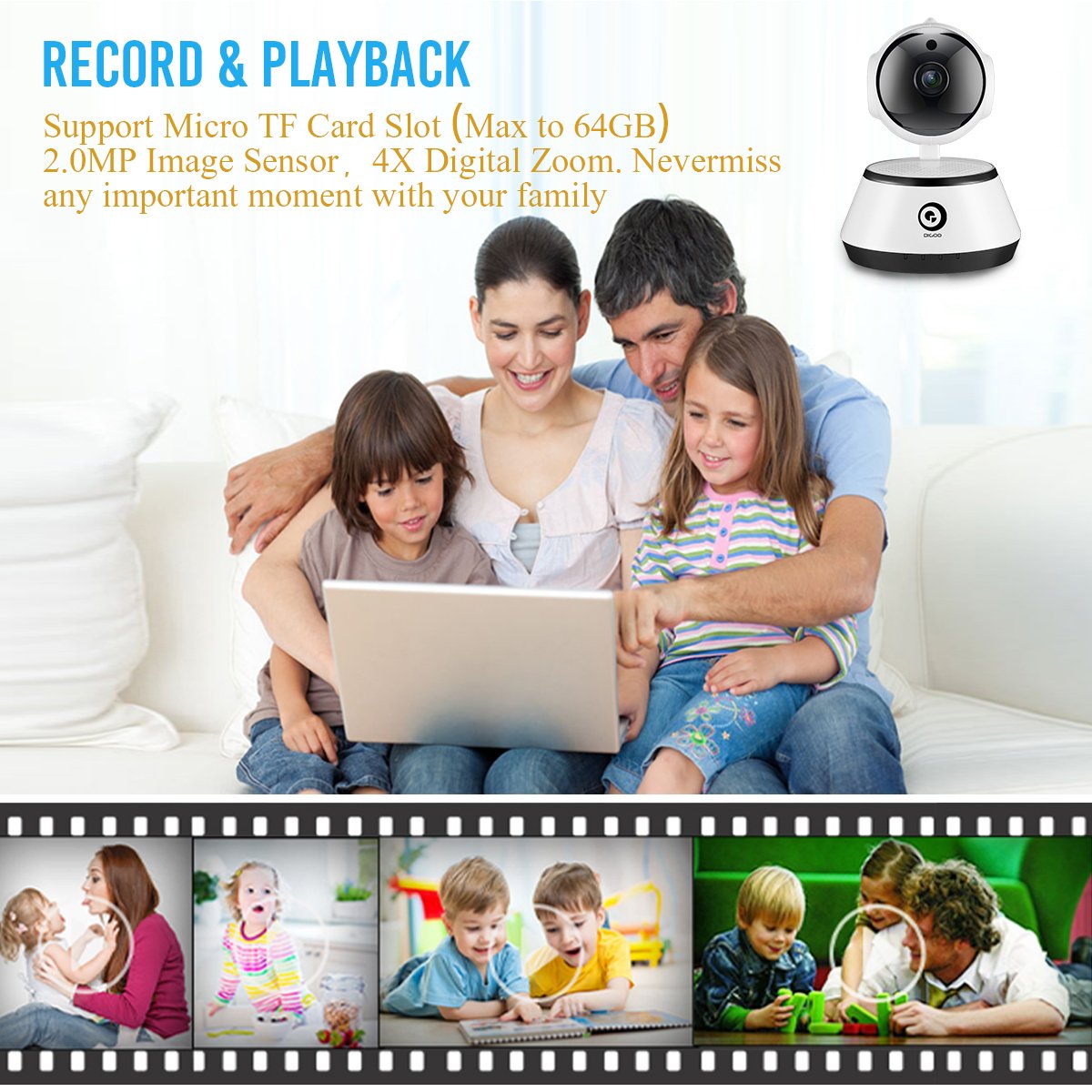
Image 6: A family viewing recorded video, highlighting the record and playback feature with a timeline of events.
4.5 Visão noturna
The camera automatically switches to night vision mode in low-light conditions, utilizing its 11 IR LEDs to provide clear black-and-white video up to 10 meters.

Image 7: Visual comparison demonstrating the clarity of 1080P HD video quality compared to lower resolutions.
5. Manutenção
- Limpeza: Limpe delicadamente a lente e o corpo da câmera com um pano macio e seco. Evite usar produtos químicos agressivos ou materiais abrasivos.
- Atualizações de firmware: Periodically check the "Digoo Eye" app for available firmware updates to ensure optimal performance and security.
- Fonte de energia: Ensure the camera is always connected to a stable DC 5V/2A+ power source.
- Condições ambientais: Operate the camera within the specified temperature range (-10°C to +60°C) and humidity (RH95% Max). While it can be used indoors or outdoors, ensure it is protected from direct weather exposure if used outdoors.
6. Solução De Problemas
- A câmera não liga:
- Ensure the power adapter is correctly connected and providing sufficient power (DC 5V/2A+). Try a different power outlet or adapter.
- Não foi possível conectar-se ao Wi-Fi:
- Verify your Wi-Fi network is 2.4GHz. The camera does not support 5GHz networks.
- Verifique se a sua senha de Wi-Fi está correta.
- Certifique-se de que a câmera esteja dentro do alcance do seu roteador Wi-Fi.
- Reinicie o roteador e a câmera.
- If using acoustic smart link, ensure there is no excessive background noise.
- Sem transmissão de vídeo no aplicativo:
- Confirm the camera is powered on and connected to the network.
- Verifique sua conexão com a internet.
- Reinicie o aplicativo e a câmera.
- Micro TF card not recording:
- Certifique-se de que o cartão TF esteja inserido corretamente.
- Check if the TF card is formatted correctly (usually FAT32).
- Verify that recording settings are enabled in the "Digoo Eye" app.
- The card might be full; consider backing up data and formatting or replacing it.
7. Especificações
| Recurso | Detalhe |
|---|---|
| Modelo | DG-M1Z SHARK |
| Sensor de imagem | Sensor CMOS progressivo de 1/2.7 |
| Lente | 2.8mm, 130° Wide Angle Lens, 5.0MP Lens |
| BATER | 1 GB |
| Resolução | FHD 1080P (2.0MP) |
| Taxa de quadros | 25fps± (internet adaptively adjustment) |
| Zoom Digital | Zoom digital de 4x |
| Compressão de vídeo | H.264 |
| Compressão de áudio | G.711 |
| Armazenar | Micro TF Card Slot (Max 64GB) |
| Conectividade | Wireless (2.4G Wi-Fi), Wired (Ethernet), ONVIF |
| Função de alarme | Motion Detection, One Button Guard/Dis-Guard, E-mail alert |
| Luz infravermelha | 11 Pcs IR LED |
| Distância IR | Night Visibility 10m+ |
| Temperatura de operação | -10°C ~ +60°C UR 95% Máx. |
| Fonte de energia | DC 5V/2A+ |
| Consumo de energia | 3 W-5 W |
| Dimensões | 15.01 x 11.99 x 10.01 cm |
| Peso | 381 g |
| Compatibilidade de aplicativos | iOS, Android, Windows PC ("Digoo Eye") |
8. Garantia e Suporte
For warranty information and technical support, please refer to the documentation provided with your purchase or visit the official DIGOO website. Guarde o recibo de compra como comprovante para solicitações de garantia.
For further assistance, you may contact DIGOO customer support through their official channels.


