1. Introdução
This manual provides detailed instructions for the setup, operation, maintenance, and troubleshooting of your MUNBYN P068 Direct Thermal Receipt Printer. The P068 is a high-speed POS printer designed for efficient receipt printing, featuring an auto-cutter and multiple connectivity options.

Figure 1.1: MUNBYN P068 Direct Thermal Receipt Printer
Principais características:
- High-speed printing up to 300mm/sec.
- Automatic paper cutter for neat receipt separation.
- Incoming order reminder with sound and light indicator (can be disabled).
- DIP switches for direct configuration of print functions.
- Multiple interface connections: USB, Serial, and Ethernet.
- Wall-hanging design for flexible placement.
2. Configuração e instalação
2.1 Desembalagem e Inspeção Inicial
Carefully remove the printer from its packaging. Verify that all components are present: the printer unit, power adapter, USB cable, and any included documentation. Inspect the printer for any signs of physical damage.
2.2 Conectando a Impressora
The MUNBYN P068 supports USB, Serial, and Ethernet connections. Choose the appropriate connection method for your POS system.

Figure 2.1: Three Interfaces Connection
- Conexão USB: Connect the square end of the USB cable to the printer's USB port and the rectangular end to an available USB port on your computer or POS system.
- Conexão serial: Connect the serial cable to the printer's serial port and to the serial port on your computer or POS system.
- Conexão Ethernet (LAN): Connect an Ethernet cable from the printer's LAN port to your network router or switch. This method requires network configuration.
- Conexão de energia: Connect the power adapter to the printer's power input and then plug it into a suitable power outlet.
2.3 Instalação do driver
For proper functionality, especially with Windows-based systems, you will need to install the printer driver. The driver can typically be found on the manufacturer's website or on an included CD/USB drive. Follow the on-screen instructions during installation.
2.4 Carregando papel térmico
The printer uses 80mm wide thermal paper rolls. To load paper:
- Open the paper cover by pressing the release latch.
- Insert the thermal paper roll with the paper feeding from the bottom, ensuring the leading edge is straight.
- Puxe uma pequena quantidade de papel para fora da lâmina de corte.
- Feche bem a tampa de papel até ouvir um clique.
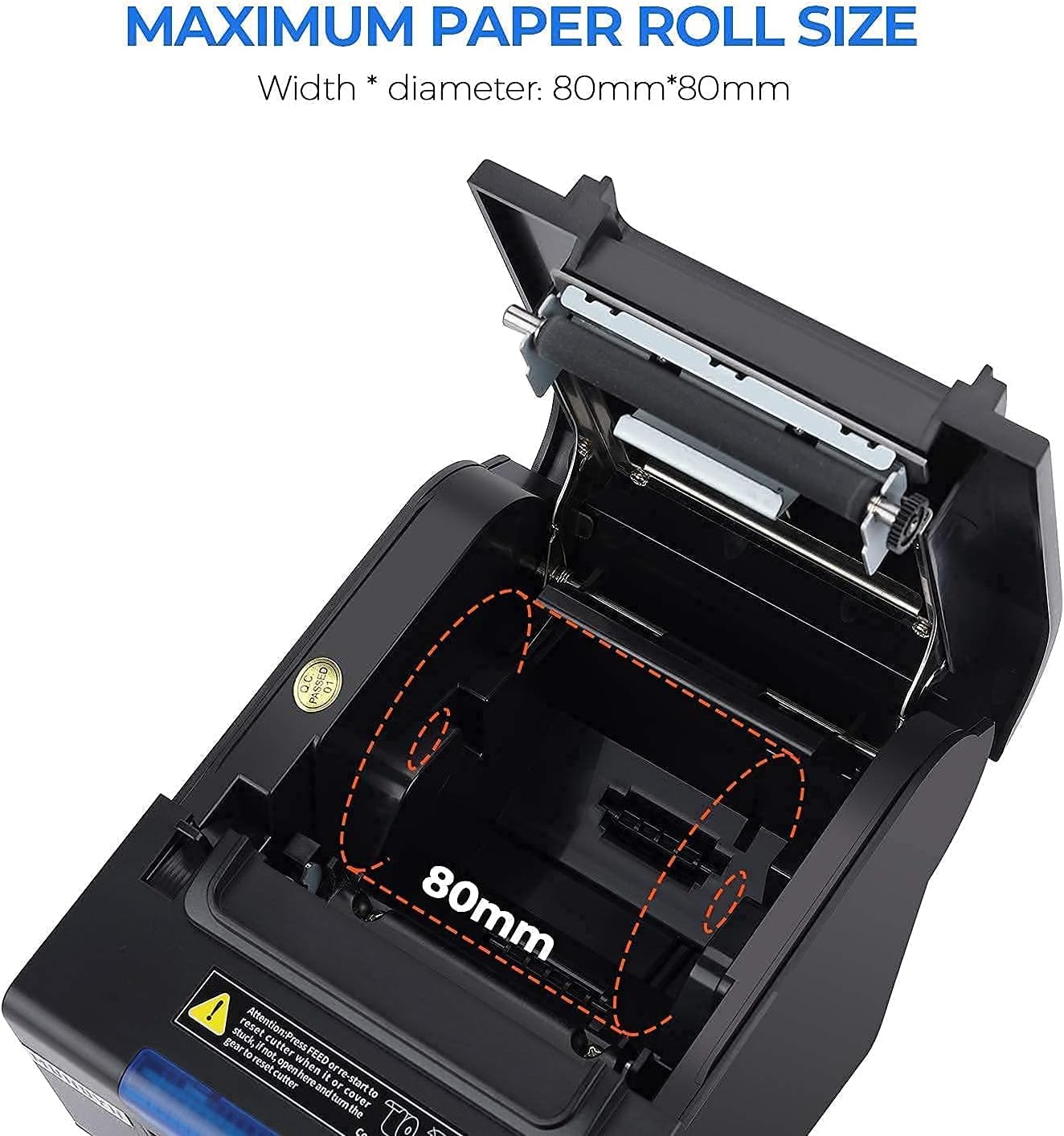
Figure 2.2: Maximum Paper Roll Size and Loading
2.5 Configurações do interruptor DIP
The printer features DIP switches on the bottom for direct configuration of various functions without requiring software adjustments. These include settings for the auto-cutter, beeper, print density, and character codes.

Figure 2.3: DIP Switch Functions
Refer to the table in Figure 2.3 for specific switch functions and their corresponding ON/OFF positions. Use a small tool to adjust the switches.
2.6 Wall Hanging Design
The MUNBYN P068 printer supports wall mounting. Two hanging holes are located on the bottom of the printer for this purpose, allowing for space-saving installation in various environments such as kitchens or retail counters.

Figure 2.4: Wall Mount Design
3. Operando a impressora
3.1 Ligar/Desligar
To power on the printer, press the power switch located on the front or side of the unit. The indicator lights will illuminate. To power off, press the switch again.
3.2 Printing Receipts
Once connected and drivers are installed, the printer will receive print commands from your POS software or application. Ensure the paper roll is correctly loaded before initiating print jobs.

Figure 3.1: High-Speed Printing Mechanism
3.3 Automatic Paper Cutter
The integrated auto-cutter will automatically cut receipts after each print job, ensuring clean and organized output. This feature can be enabled or disabled via the DIP switches.
3.4 Incoming Order Reminder
The printer is equipped with an incoming order reminder system, which includes a sound and light indicator. This feature alerts staff to new orders, helping to prevent missed transactions. The reminder system can be configured or closed using the DIP switches.
4. Manutenção
4.1 Limpando a Impressora
A limpeza regular ajuda a manter a qualidade de impressão e prolonga a vida útil da sua impressora.
- Cabeça de impressão: Use um cotonete levementeampLimpe suavemente a cabeça de impressão térmica com álcool isopropílico. Deixe secar completamente antes de usar. Limpe a cabeça de impressão regularmente, principalmente se a qualidade de impressão piorar.
- Caminho do papel: Remova qualquer pó ou resíduo de papel do caminho do papel usando uma escova macia ou ar comprimido.
- Exterior: Limpe a parte externa da impressora com um pano macio e seco.amp pano. Evite usar produtos químicos agressivos ou produtos de limpeza abrasivos.
4.2 Replacing the Paper Roll
When the paper roll is nearing its end, a red line may appear on the receipt, or the printer may stop feeding paper. Follow the instructions in Section 2.4 to replace the paper roll.
5. Solução De Problemas
This section addresses common issues you might encounter with your MUNBYN P068 printer.
| Problema | Possível causa | Solução |
|---|---|---|
| A impressora não liga | Power cable loose; power outlet faulty; printer switch off. | Check power connections; try a different outlet; ensure power switch is ON. |
| No printing / Blank receipts | Paper loaded incorrectly (upside down); out of paper; driver not installed; incorrect port selected. | Reload paper correctly (thermal side facing print head); replace paper roll; install/reinstall driver; verify port settings in software. |
| Receipts cut off / Incorrect margins | Incorrect paper size setting in driver; DIP switch settings. | Verify paper size (80mm) in printer driver settings. Check DIP switch settings for character per line or other print density options. |
| Impressora não reconhecida pelo computador | USB/Serial/Ethernet cable loose or faulty; driver not installed or corrupted. | Check cable connections; try a different cable or port; reinstall printer driver. |
| Auto-cutter not working | DIP switch for cutter is OFF; paper jam. | Check DIP switch settings (SW-1) to ensure auto-cutter is ON. Clear any paper jams. |
| Problemas de compatibilidade | Printer not compatible with specific POS systems or operating systems. | Note: This printer is generally not compatible with iOS devices (iPad, iPhone), DoorDash, Square, or Ubereats. Always verify compatibility with your POS system before purchase. |
5.1 POS System Compatibility
It is important to note that the MUNBYN P068 printer has specific compatibility limitations. It is generally não compatível with iOS devices (such as iPad and iPhone), DoorDash, Square, or Ubereats. For other POS systems, please refer to the compatibility chart below or contact MUNBYN support for verification.

Figure 5.1: POS System Compatibility Chart
6. Especificações
| Recurso | Especificação |
|---|---|
| Nome do modelo | ITPP068 |
| Tecnologia de impressão | Térmico |
| Velocidade máxima de impressão (monocromática) | 300 mm/seg |
| Resolução máxima de impressão em preto e branco | 203 dpi |
| Tecnologia de Conectividade | USB, Ethernet, Serial |
| Recurso especial | Auto-cutter |
| Tamanho máximo da mídia | 7.62cm x 22.86cm (3 1/8" x 230' Inches) |
| Dimensões do produto | 7.8 x 5.8 x 5.4 polegadas (5.8"D x 7.8"L x 5.4"A) |
| Peso do item | 5.15 libras |
| Cor | Preto |
| Dispositivos compatíveis | Laptops (Windows OS) |
| Tipo de tinta da impressora | No Ink (Thermal) |
| UPC | 653334974457 |
7. Garantia e Suporte
7.1 Informações de garantia
The MUNBYN P068 Receipt Printer comes with a Full Warranty, typically covering the product for 2 years from the date of purchase. Please refer to your purchase documentation or the official MUNBYN webConsulte o site para obter os termos e condições específicos da garantia.
7.2 Suporte ao cliente
MUNBYN offers comprehensive customer support to assist with any inquiries or issues you may encounter.

Figure 7.1: MUNBYN Support Services
- Serviço 24/7: A assistência está disponível 24 horas por dia.
- Configuração remota: Support for setting up your printer remotely.
- Local Tech Support: Access to local technical assistance.
- Vídeos de instruções: Instructional videos are available to guide you through various processes.
For support, please visit the official MUNBYN website or contact their customer service directly using the contact information provided with your product or on their website.


