1. Introdução
The HP Ultra-Slim Z4000 Wireless Optical Mouse is designed for portability and comfort, offering reliable 2.4 GHz wireless connectivity. Its sleek, low-profile design and ergonomic shape provide a natural fit for your hand, making it an ideal accessory for notebooks and tablets. This manual provides detailed instructions for the setup, operation, and maintenance of your mouse.

Figure 1: HP Z4000 Wireless Mouse, demonstrating its slim and stylish design alongside a keyboard.
2. Configuração
2.1 Conteúdo da embalagem
Antes de começar, verifique se todos os itens estão presentes na embalagem:
- HP Z4000 Wireless Mouse
- 2.4GHz Micro Receiver (USB dongle)
- 1 pilha AA
- Pôster de início rápido
- Avisos sobre produtos
- Cartão de garantia
2.2 Instalação da bateria
- Localize o compartimento da bateria na parte inferior do mouse.
- Deslize a tampa da bateria aberta.
- Insira a pilha AA fornecida, certificando-se da polaridade correta (+/-).
- Feche a tampa da bateria com segurança.

Figure 2: Underside of the mouse, showing the battery compartment (under the main cover), CONNECT button, and ON/OFF switch.
2.3 Conectando o Receptor
- Locate the 2.4GHz Micro Receiver (USB dongle). This may be stored inside the mouse's battery compartment or included separately.
- Insert the USB receiver into an available USB port on your computer or tablet.
- Ligue o mouse usando o interruptor ON/OFF localizado na parte inferior.
- Seu computador deverá detectar e instalar automaticamente os drivers necessários. O mouse está pronto para uso.
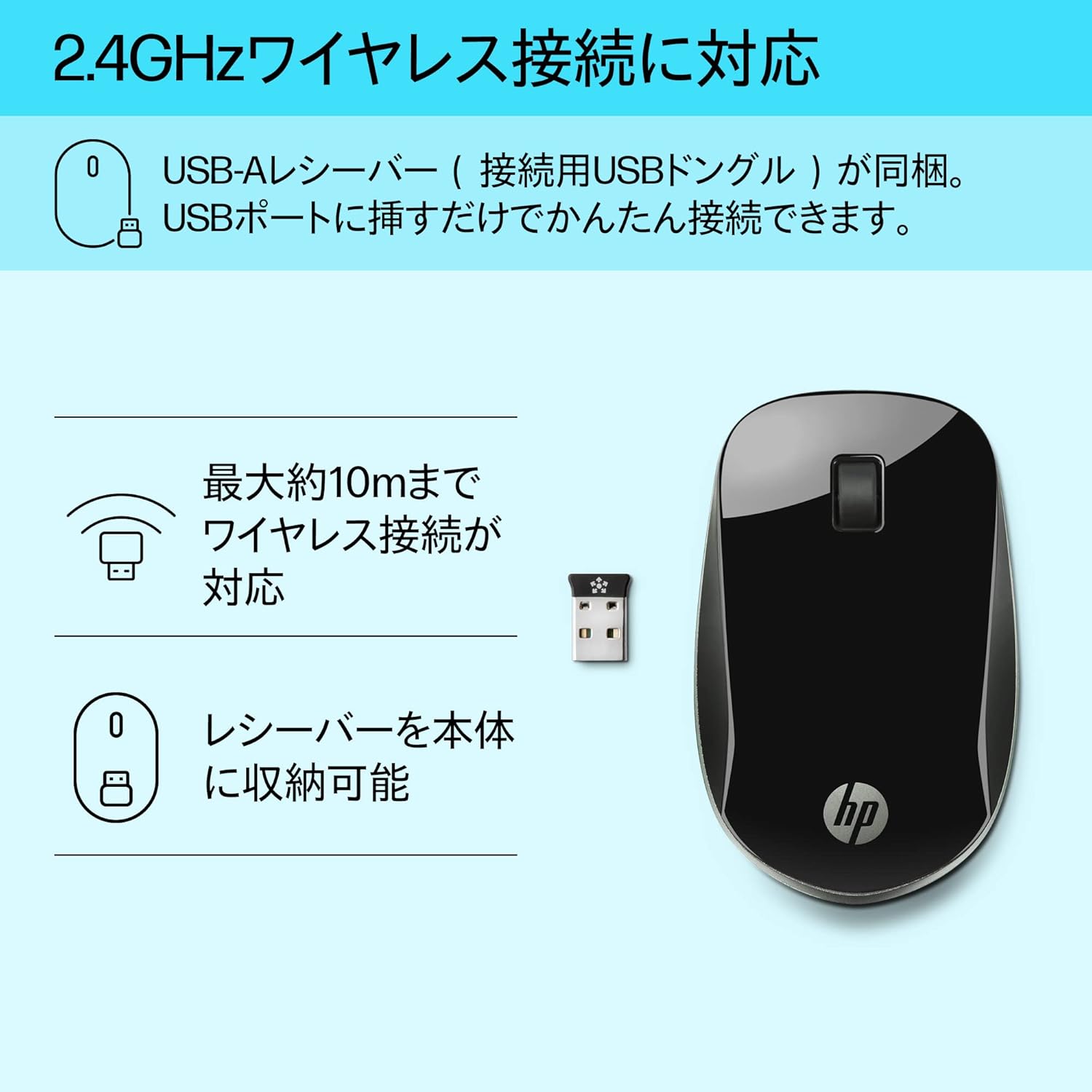
Figure 3: The HP Z4000 mouse and its 2.4GHz USB receiver, demonstrating the simple plug-and-play connection.
3. Operando o Mouse
The HP Z4000 mouse features a standard three-button layout and a scroll wheel for intuitive navigation.
3.1 Funções Básicas
- Clique esquerdo: Botão principal para selecionar itens e abrir files, e executando comandos.
- Clique com o botão direito: Botão secundário para acessar menus de contexto e opções adicionais.
- Rodinha do mouse: Enrole para cima ou para baixo para navegar pelos documentos e web pages. The scroll wheel is also clickable for middle-click functionality (if supported by your operating system/application).

Figura 4: parte superior view of the mouse, indicating the left click, right click, and rubber scroll wheel for easy operation.
3.2 Ergonomia e Design
The mouse features an arch-shaped, symmetrical design that comfortably fits both left and right hands. Its ultra-slim profile (less than 2.6 cm in height) promotes a natural hand and wrist position, reducing strain during extended use.
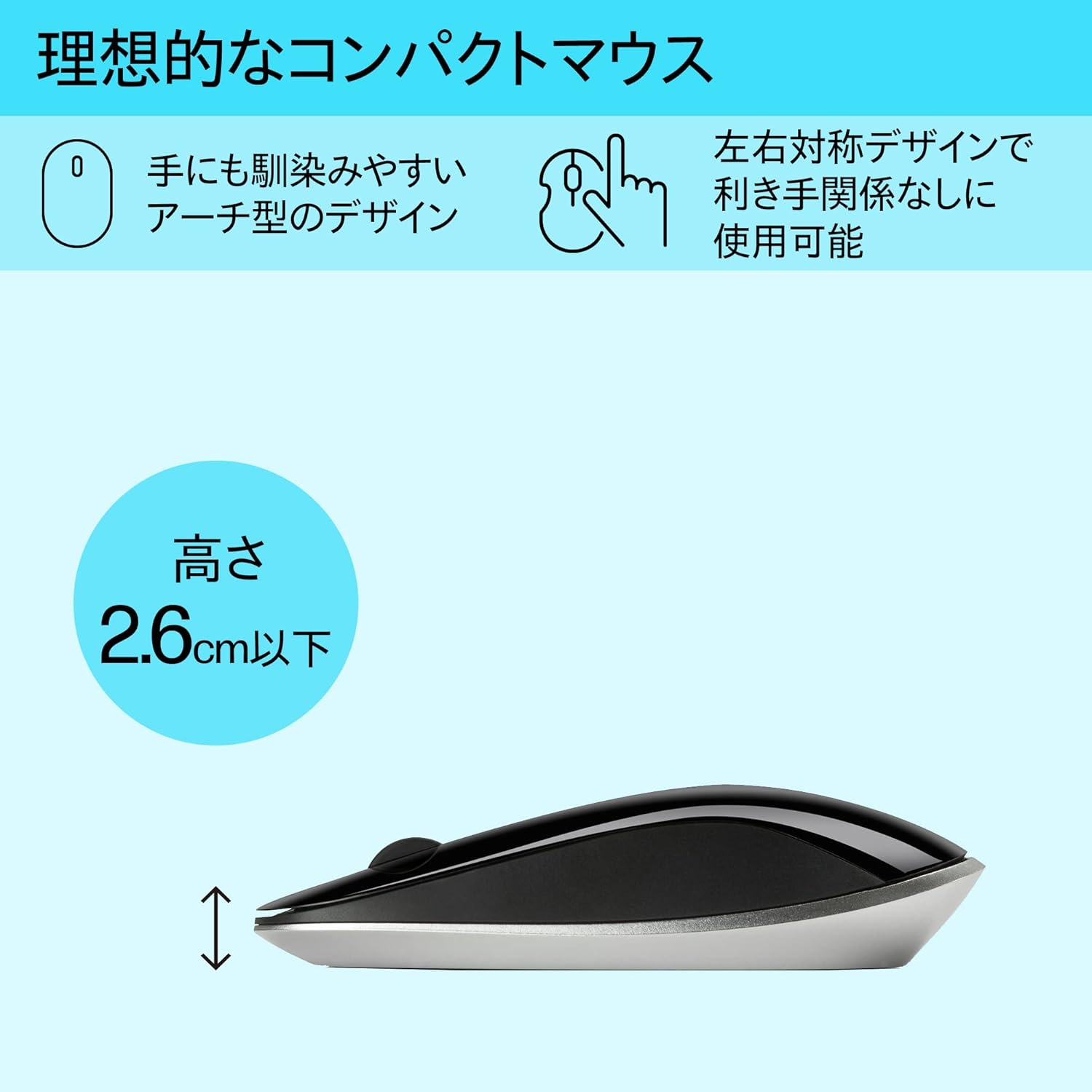
Figure 5: The ergonomic arch design and slim profile (under 2.6cm) of the HP Z4000 mouse, designed for comfortable use.
4. Manutenção
4.1 Limpando o rato
- Certifique-se de que o mouse esteja desligado antes de limpar.
- Use um pano macio e sem fiapos levemente dampcom água ou uma solução de limpeza suave.
- Wipe the surface of the mouse gently. Avoid excessive moisture.
- Não utilize produtos de limpeza abrasivos ou solventes.
4.2 Substituição da bateria
The mouse uses one AA battery, with an average battery life of 12 months. When the mouse performance degrades or it stops responding, it's time to replace the battery.
- Desligue o mouse usando o botão liga/desliga.
- Abra a tampa do compartimento da bateria na parte inferior do mouse.
- Remova a pilha AA antiga.
- Insert a new AA battery, observing the correct polarity.
- Feche a tampa da bateria.
- Ligue o mouse novamente.
5. Solução De Problemas
5.1 Mouse não responde
- Verifique a potência: Certifique-se de que o mouse esteja ligado.
- Verifique a bateria: Substitua a pilha AA se estiver fraca ou descarregada.
- Verificar receptor: Certifique-se de que o receptor USB esteja conectado firmemente a uma porta USB funcional do seu computador. Tente usar uma porta USB diferente.
- Restabelecer a conexão: If your mouse has a "CONNECT" button (refer to Figure 2), press it and then press the connect button on the receiver (if applicable, or simply re-insert the receiver).
- Distância: Ensure the mouse is within the 10-meter (30ft) operating range of the receiver.
5.2 Movimento errático do cursor
- Superfície: Utilize o mouse em uma superfície limpa, não refletora e uniforme. Evite superfícies de vidro ou altamente reflexivas.
- Limpeza do sensor: Check the optical sensor on the underside of the mouse for any dust or debris and clean it gently with a soft cloth.
- Interferência: Move the mouse away from other wireless devices that might cause interference.
6. Especificações
| Recurso | Detalhe |
|---|---|
| Marca | HP |
| Número do modelo | H5N61AA |
| Conectividade | Conexão sem fio de 2.4 GHz (receptor USB) |
| Detecção de Movimento | Óptico |
| Número de botões | 3 (Clique para a esquerda, para a direita ou com a roda de rolagem) |
| Dimensões (CxLxA) | 10.1 x 2.5 x 6.4 cm (aproximadamente 4 x 1 x 2.5 polegadas) |
| Peso | 231 g (aproximadamente 8.1 oz) |
| Cor | Preto |
| Tipo de Bateria | Bateria 1 x AA (incluída) |
| Duração média da bateria | 12 meses |
| Sistemas operacionais compatíveis | Linux, Windows 7, Windows XP (e versões mais recentes) |
7. Garantia e Suporte
The HP Ultra-Slim Z4000 Wireless Optical Mouse comes with a Garantia do fabricante de 1 ano a partir da data da compra.
For warranty claims, technical support, or further assistance, please refer to the contact information provided in your product's warranty card or visit the official HP support website:
Guarde seu comprovante de compra para validação da garantia.