1. Introdução
This manual provides detailed instructions for the setup, operation, and maintenance of your Waveshare 13.3-inch Capacitive Touch Screen LCD (V1). This display features a 1920x1080 resolution, HDMI input, IPS panel for wide viewing angles, and a durable toughened glass cover. Please read this manual thoroughly before using the product to ensure proper functionality and longevity.
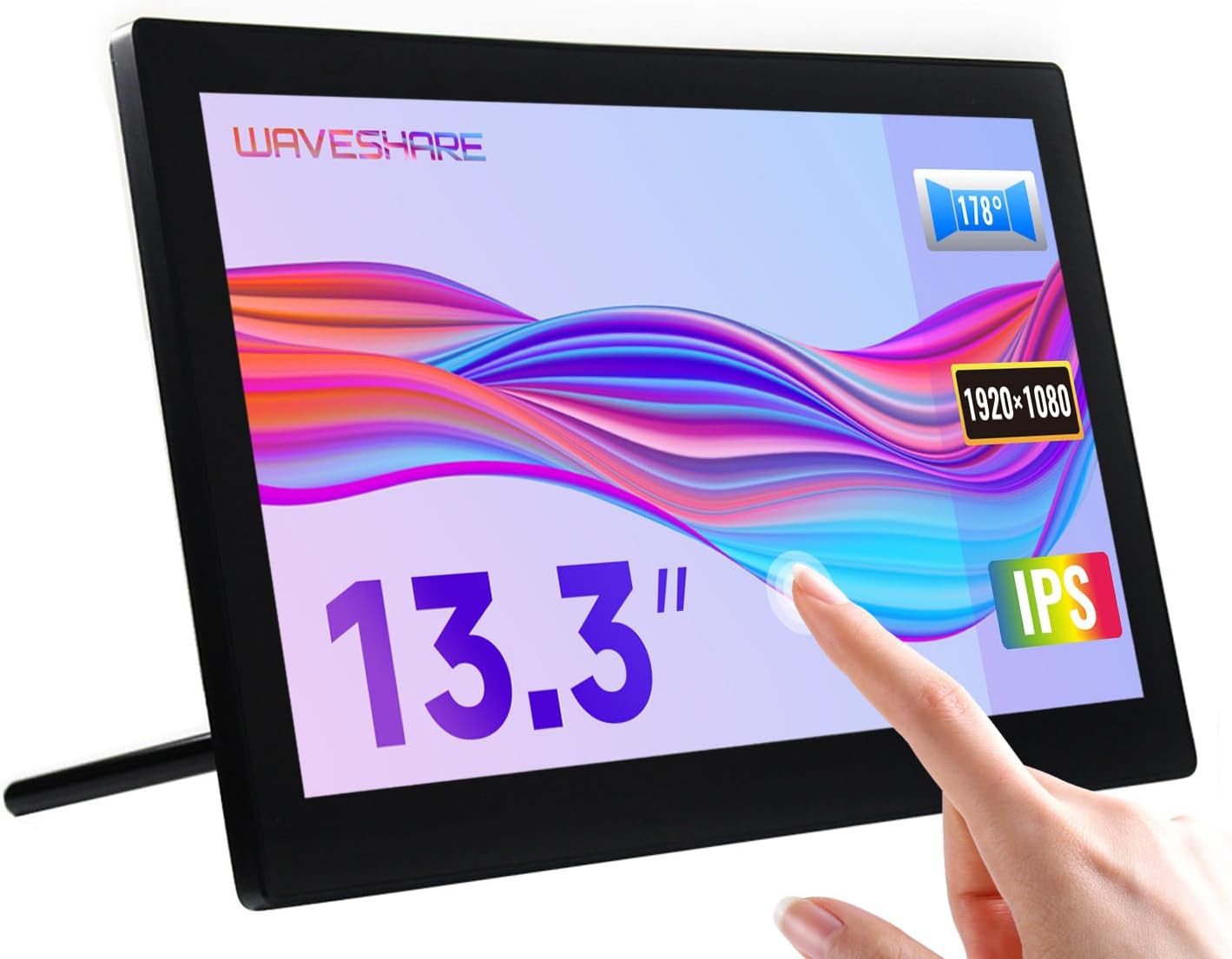
Image 1.1: The Waveshare 13.3-inch Capacitive Touch Screen LCD, showcasing its touch functionality and sleek design.
2. Informações de segurança
- Certifique-se de que a fonte de alimentação voltage matches the product's requirements to prevent damage.
- Avoid exposing the display to extreme temperatures, humidity, or direct sunlight.
- Não desmonte a unidade. Encaminhe todos os serviços de manutenção para pessoal qualificado.
- Keep the screen away from strong magnetic fields.
- Handle with care to avoid dropping or impacting the screen, especially the toughened glass panel.
3. Conteúdo da embalagem
Verifique se todos os itens estão presentes na embalagem:
- Waveshare 13.3-inch HDMI LCD (H) Display
- Adaptador de energia
- Cabo HDMI
- USB-A to Micro-USB Cable (for touch functionality)
- Manual do usuário (este documento)
4. Produto acabadoview
4.1. Características
- Painel IPS de 13.3 polegadas com resolução de 1920x1080.
- Capacitive 10-point touch control (operating system dependent).
- Toughened glass panel with up to 6H hardness.
- HDMI and VGA display interfaces.
- Built-in Hi-Fi speakers and 3.5mm audio jack.
- Supports various devices including Raspberry Pi, Jetson Nano, PCs, and game consoles.
- Integrated case with a 75° back stand and VESA mounting holes (75x75mm).

Image 4.1: Detailed features and system compatibility of the display.
4.2. Componentes Físicos
The display includes various ports and control buttons:
- VGA Display Port: For video input via VGA.
- Porta HDMI: For video input via HDMI.
- Conector de áudio de 3.5 mm: Para saída de áudio.
- Touch Port (USB): For connecting the touch functionality to your device.
- Entrada de energia de 12V: Para conectar o adaptador de energia.
- Back Buttons: Power, direction controls, and Menu/Enter/Return buttons for OSD navigation.

Imagem 4.2: Traseira view of the display with ports and a Raspberry Pi connection exampeu.
5. Instruções de configuração
5.1. Conexão inicial
- Vídeo de conexão: Use the provided HDMI cable to connect the display's HDMI port to your source device (e.g., Raspberry Pi, PC). If using VGA, connect a VGA cable.
- Connect Touch (USB): Connect the USB-A to Micro-USB cable from your source device's USB port to the display's Touch Port. This enables touch functionality.
- Conecte a energia: Plug the power adapter into the display's 12V Power Input, then connect it to a power outlet.
- Ligar: Press the power button on the back of the display. The screen should illuminate and display content from your source device.

Image 5.1: Display showing a Windows desktop after successful connection.
5.2. Conexão Exampos
The display supports various connection configurations:
- Working with Raspberry Pi 4: Connect HDMI for video and USB for touch. Power the display with its 12V adapter.
- Working with Raspberry Pi Zero W: Requires additional mini HDMI adapter and USB cable. Connect mini HDMI for video and USB for touch. Power the display with its 12V adapter.
- Working with AI Computer Jetson Nano: Connect HDMI for video and USB for touch. Power the display with its 12V adapter.
- Working with Mini PC: Connect HDMI for video and USB for touch. Power the display with its 12V adapter.

Image 5.2: Visual guide for connecting the display to different devices.
6. Instruções de operação
6.1. Menu de exibição na tela (OSD)
The OSD menu allows you to adjust display settings such as brightness, contrast, and input source. Use the back buttons (direction controls and Menu/Enter/Return) to navigate and select options.
- Pressione o MENU botão para abrir o menu OSD.
- Use o Direção Botões para navegar pelas opções do menu.
- Imprensa MENU again (or the designated Enter button) to select an option or confirm a setting.
- Use o Retornar button to go back or exit the menu.
6.2. Displaying Content
Once connected and powered on, the display will automatically detect the active video input. Ensure your source device is outputting video to the selected HDMI or VGA port.

Image 6.1: The display showing multimedia content from a web navegador.
6.3. Controle de toque
The display features capacitive 10-point touch control. Ensure the USB touch cable is connected to your source device for touch functionality. Driver-free operation is supported on most compatible operating systems.

Image 6.2: Illustration of touch control and audio features.
6.4. Saída de áudio
The display includes built-in Hi-Fi speakers for audio output. Alternatively, you can connect external speakers or headphones to the 3.5mm audio jack for private listening or higher quality audio.
7. Device & System Support
The Waveshare 13.3-inch display offers broad compatibility:
- Raspberry Pi: Supports all versions of Raspberry Pi.
- Supports Raspberry Pi OS, 10-point touch, driver free.
- Supports Ubuntu / Kali / WIN10 IoT, single point touch, driver free.
- Supports Retropie, driver free.
- Jetson Nano: Supports Ubuntu, single point touch, driver free.
- Computador: Supports Windows 11 / 10 / 8.1 / 8 / 7, 10-point touch, driver free.
- Consoles de jogos: Compatível com Xbox 360, PS4 e Switch (apenas vídeo e som).

Imagem 7.1: Terminadoview of supported devices and operating systems.
8. Manutenção
- Limpando a tela: Use um pano macio e sem fiapos levementeampLimpe com água ou uma solução de limpeza de telas. Evite produtos químicos agressivos ou materiais abrasivos.
- Cuidados Gerais: Keep the display free from dust. When not in use for extended periods, consider covering it to prevent dust accumulation.
- Armazenar: Store the display in a cool, dry place, away from direct sunlight and extreme temperatures.
9. Solução De Problemas
| Problema | Possível causa | Solução |
|---|---|---|
| Sem imagem/Tela preta |
|
|
| Touch not working |
|
|
| Sem áudio |
|
|
10. Especificações
| Recurso | Detalhe |
|---|---|
| Tamanho da tela | 13.3 polegadas |
| Resolução | 1920x1080 (FHD 1080p) |
| Painel de exibição | IPS |
| Viewângulo de engate | 178° |
| Tipo de toque | Capacitive, 10-point touch |
| Dureza do painel sensível ao toque | Up to 6H Toughened Glass |
| Interface de exibição | HDMI, VGA |
| Saída de áudio | Built-in Hi-Fi Speakers, 3.5mm Audio Jack |
| Entrada de energia | 12 V CC |
| Dimensões do produto (CxLxA) | 7.09 x 3.94 x 3.54 polegadas (aproximadamente 180 x 100 x 90 mm) |
| Peso do item | 2.2 libras (aproximadamente 1 kg) |
| Material do gabinete | Policarbonato / ABS |

Image 10.1: Physical dimensions of the display.
11. Garantia e Suporte
Waveshare products are designed for reliability and performance. For warranty information, technical support, or further assistance, please visit the official Waveshare webAcesse o site ou entre em contato diretamente com o atendimento ao cliente. Guarde o recibo de compra como comprovante para solicitações de garantia.
Official Waveshare Website: www.waveshare.com


