1. Introdução
This manual provides detailed instructions for the installation, operation, and troubleshooting of your Aigital US4605A AC1200 Dual Band USB WiFi Adapter. This device is designed to provide high-speed wireless connectivity for your desktop computer or laptop, supporting both 2.4GHz and 5GHz frequency bands.
2. Conteúdo da embalagem
Por favor, verifique se todos os itens estão presentes em sua embalagem:
- Aigital US4605A AC1200 Dual Band USB WiFi Adapter
- Driver CD (if included, otherwise drivers are typically downloaded or plug-and-play)
- Quick Installation Guide (this document serves as a comprehensive guide)
3. Produto acabadoview
The Aigital US4605A is a compact and powerful USB WiFi adapter featuring dual-band capabilities and high-gain antennas for enhanced signal reception.

Image 3.1: Aigital US4605A AC1200 Dual Band USB WiFi Adapter. The adapter features a USB 3.0 connector, a main body with an indicator light, and two adjustable external antennas for improved signal reception.
Os principais recursos incluem:
- AC1200 Dual Band: Supports 867Mbps on the 5GHz band and 300Mbps on the 2.4GHz band for flexible and high-speed connections.
- Powerful 5dBi Antennas: Two high-gain antennas provide extended range and stable signal.
- Interface USB 3.0: Offers up to 10 times faster data transfer speeds compared to USB 2.0, while remaining backward compatible.
- Ampla compatibilidade: Supports Windows 11/10/8 and Mac OS 10.9~10.15, OS 11.0+.

Image 3.2: The adapter supports both 5GHz (up to 867Mbps for faster speed) and 2.4GHz (up to 300Mbps for longer range) bands, enhancing overall wireless performance.
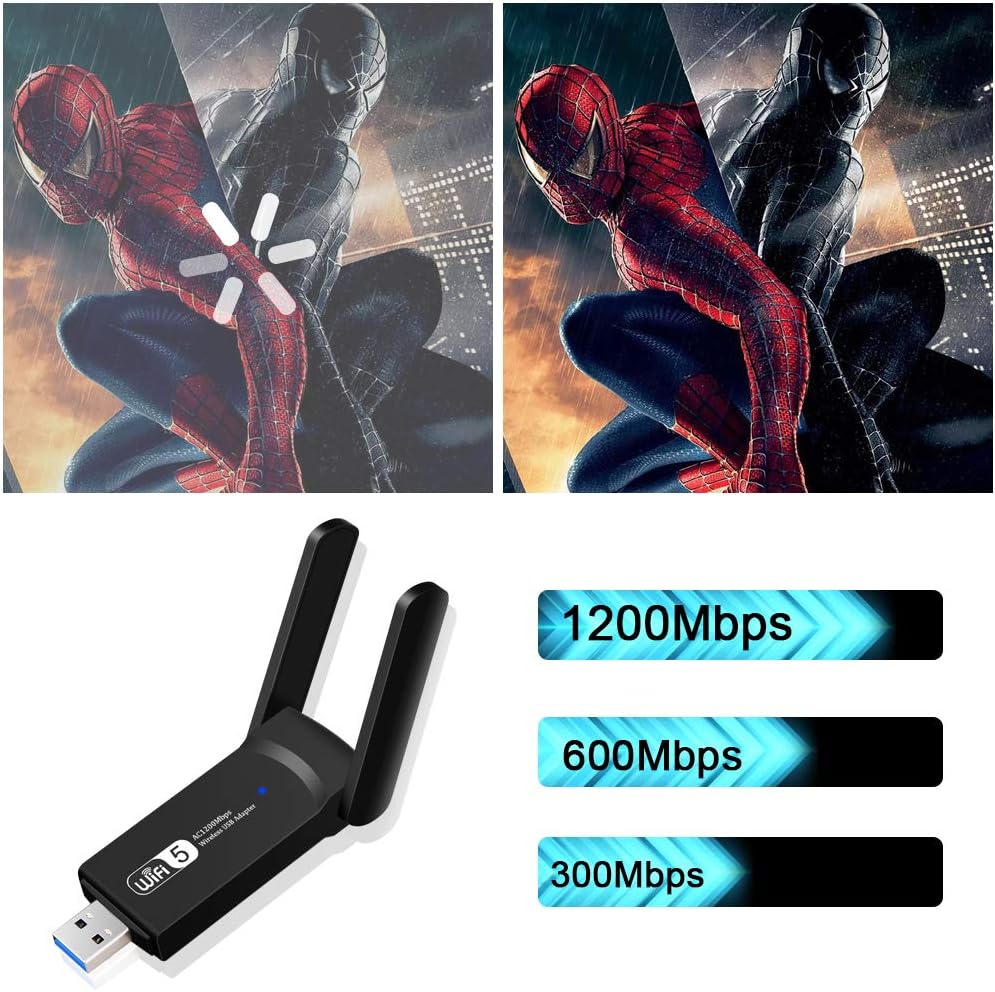
Image 3.3: The adapter supports a maximum combined speed of 1200Mbps, distributed across its dual bands.

Image 3.4: The USB 3.0 interface provides significantly faster data transfer rates compared to USB 2.0, ensuring optimal performance for the 1200Mbps WiFi adapter.
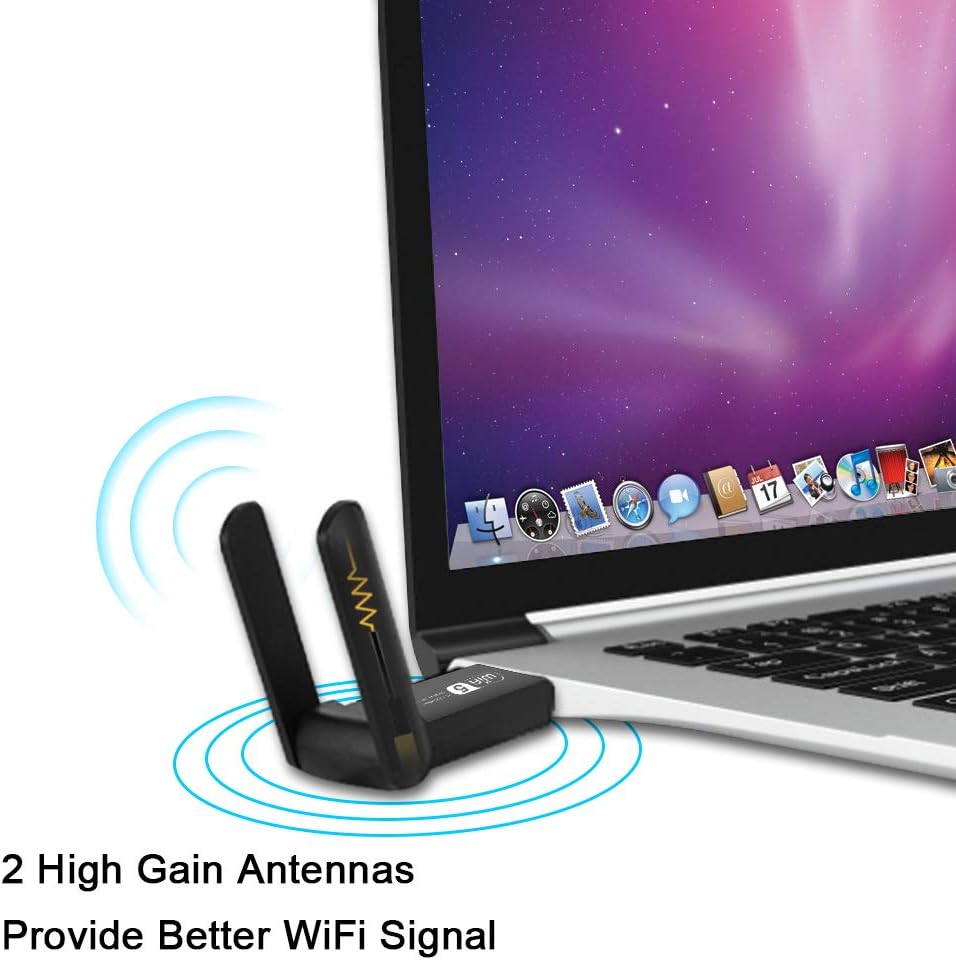
Image 3.5: The two external 5dBi high-gain antennas are designed to provide a stronger and more stable Wi-Fi signal.
4. Instalação e configuração
Follow these steps to install your Aigital US4605A USB WiFi Adapter.
4.1. Instalação do driver
For optimal performance and full functionality, driver installation is required for most operating systems. For Windows 11/10, the adapter may be plug-and-play, but installing the latest drivers is recommended.
- Do NOT plug in the adapter yet.
- Baixar drivers: Visit the official Aigital support website or use the provided driver CD (if applicable) to obtain the latest drivers for your operating system.
- Instale os drivers: Execute o instalador do driver baixado. file and follow the on-screen instructions. Restart your computer if prompted.
- Adaptador de conexão: Once the drivers are installed, plug the Aigital US4605A USB WiFi Adapter into an available USB 3.0 port on your computer. While compatible with USB 2.0, a USB 3.0 port is recommended for maximum speed.
- Verificar instalação: After connecting, the adapter's indicator light should illuminate, and your computer should recognize the device. You can verify this in Device Manager (Windows) or System Information (Mac).
Observação: For Windows 11/10, the system might automatically install a generic driver. If you experience connectivity issues or wish to utilize the full features, manually install the specific drivers from the manufacturer's website.
5. Modos de operação
The Aigital US4605A USB WiFi Adapter supports two primary operating modes:
5.1. Station Mode (Signal Receiver)
In Station Mode, the adapter allows your desktop computer or laptop to connect to an existing wireless network (Wi-Fi router).
- Ensure the adapter is plugged into your computer.
- Open your computer's network settings (e.g., Wi-Fi icon in the taskbar for Windows, Wi-Fi menu in the menu bar for Mac).
- Selecione a rede Wi-Fi desejada na lista de redes disponíveis.
- Digite a senha da rede (se necessário) e clique em "Conectar".
- Uma vez conectado, você deverá ter acesso à internet.
5.2. AP Mode (Access Point / Hotspot)
In AP Mode, the adapter can create a wireless hotspot, allowing other devices (smartphones, tablets, other computers) to connect to your computer's internet connection (typically if your computer is connected via Ethernet).
- Ensure your computer has an active internet connection (e.g., via Ethernet cable).
- Plug in the Aigital US4605A adapter.
- Para Windows: Go to Settings > Network & Internet > Mobile hotspot. Turn on "Mobile hotspot" and configure the network name (SSID) and password. Select your Ethernet connection as the source.
- Para Mac: Go to System Settings > General > Sharing. Enable "Internet Sharing" and select your Ethernet connection as the source, then choose "Wi-Fi" for sharing with other computers. Configure Wi-Fi options (network name, security, password).
- Other devices can now search for and connect to the Wi-Fi hotspot created by your adapter.
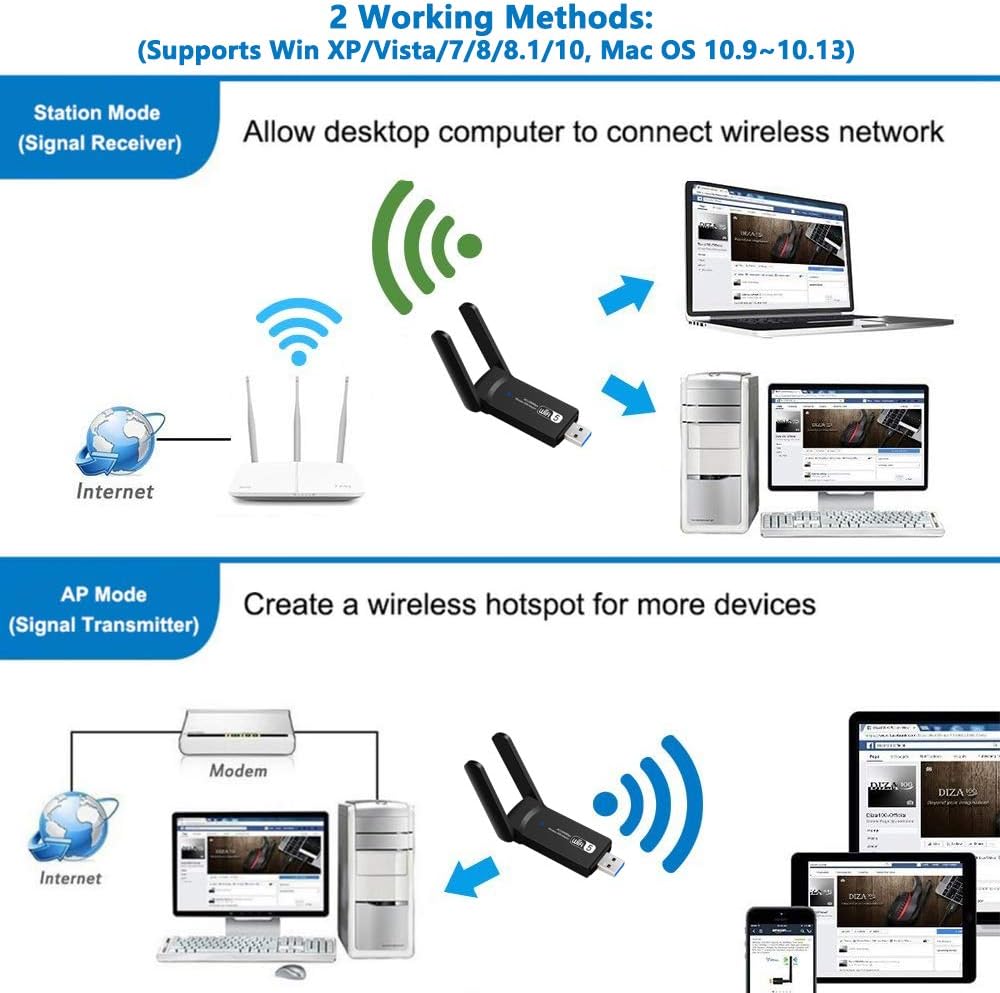
Image 5.1: Illustration of the two working methods: Station Mode (receiving Wi-Fi signal from a router) and AP Mode (creating a Wi-Fi hotspot from a wired connection).
6. Compatibilidade
The Aigital US4605A USB WiFi Adapter is compatible with a range of operating systems:
- Windows 11
- Windows 10
- Windows 8.1
- Windows 8
- Windows 7
- Windows Vista
- Windows XP
- Mac OS 10.9 to 10.15 (Catalina)
- Mac OS 11.0+ (Big Sur and later)
Observação: For Windows 11/10, the device may be plug-and-play. For other operating systems, driver installation is typically required. Always use the latest drivers from the manufacturer's website for best performance.
7. Especificações
| Recurso | Detalhe |
|---|---|
| Marca | Digital |
| Número do modelo | EUA4605A |
| padrão sem fio | IEEE 802.11ac/b/g/n |
| Taxa de transferência de dados | Até 1200 Mbps (867 Mbps em 5 GHz, 300 Mbps em 2.4 GHz) |
| Bandas de frequência | 2.4 GHz e 5 GHz (banda dupla) |
| Antenas | 2x 5dBi High Gain Antennas |
| Interface | USB 3.0 (Backward compatible with USB 2.0) |
| Sistemas Operacionais | Windows 11/10/8.1/8/7/Vista/XP, Mac OS 10.9~10.15, OS 11.0+ |
| Dimensões (CxLxA) | 2.56 x 1.1 x 0.39 polegadas (aprox.) |
| Peso | 0.8 onças (aprox.) |
| UPC | 761780472738 |

Image 7.1: Physical dimensions of the Aigital US4605A adapter and icons indicating compatibility with Mac and Windows operating systems.
8. Solução De Problemas
If you encounter issues with your Aigital US4605A USB WiFi Adapter, please refer to the following common problems and solutions:
- Nenhuma rede Wi-Fi detectada:
- Certifique-se de que o adaptador esteja firmemente conectado a uma porta USB.
- Verify that drivers are correctly installed. Check Device Manager (Windows) or System Information (Mac) for any error indicators. Reinstall drivers if necessary.
- Verifique se o Wi-Fi do seu roteador está ativado e transmitindo.
- Tente conectar o adaptador a uma porta USB diferente.
- Velocidade de conexão lenta:
- Ensure the adapter is plugged into a USB 3.0 port for optimal performance.
- Confirm you are connected to the 5GHz band if your router supports it and you are within close range. The 5GHz band offers higher speeds but shorter range.
- Reduce interference by moving the adapter or computer away from other electronic devices (microwaves, cordless phones).
- Atualize o firmware do seu roteador.
- Certifique-se de que seu provedor de serviços de internet (ISP) esteja fornecendo as velocidades esperadas.
- Desconexões frequentes:
- Check signal strength. If the signal is weak, try moving closer to the router or adjusting the adapter's antennas.
- Ensure power management settings are not turning off the USB device to save power. (Windows: Device Manager > USB Root Hub > Properties > Power Management > Uncheck "Allow the computer to turn off this device to save power").
- Update drivers to the latest version.
- Reinicie o roteador e o computador.
- Adaptador não reconhecido:
- Experimente uma porta USB diferente.
- Reinicie o seu computador.
- Ensure drivers are installed correctly. If not, reinstall them.
- Check if the adapter is physically damaged.
9. Manutenção
To ensure the longevity and optimal performance of your Aigital US4605A USB WiFi Adapter, consider the following maintenance tips:
- Mantenha limpo: Gently wipe the adapter with a dry, soft cloth to remove dust. Avoid using liquid cleaners.
- Proteja contra danos: Avoid dropping the adapter or exposing it to extreme temperatures or humidity.
- Armazenamento adequado: When not in use, store the adapter in a safe, dry place.
- Atualizações de Driver: Verifique periodicamente o suporte da Aigital. webSite para drivers atualizados, garantindo compatibilidade e melhorias de desempenho.
10. Garantia e Suporte
Aigital products typically come with a standard manufacturer's warranty. Please refer to the warranty card included with your product or visit the official Aigital website para obter termos e condições detalhados da garantia.
For technical support, driver downloads, or further assistance, please visit the Aigital official support website or contact their customer service. Contact information can usually be found on the product packaging or the manufacturer's website.
Observação: Guarde o recibo de compra como comprovante para solicitações de garantia.
11. Informações do vídeo
No official product videos are available for embedding based on the provided product data.


