1. Introdução
The Microsoft Surface Go Alcantara Signature Type Cover is designed to enhance the functionality of your Surface Go device, transforming it into a versatile laptop experience. This ultra-slim accessory features a full-mechanical keyset, backlit keys, and a large glass trackpad, providing a comfortable and precise input solution. The Alcantara material offers a luxurious feel while being durable and stain-resistant.
This manual provides essential information on setting up, operating, maintaining, and troubleshooting your Type Cover to ensure optimal performance.
2. Configuração e conexão
The Surface Go Signature Type Cover connects magnetically to your Surface Go device, allowing for instant attachment and detachment.
2.1 Attaching the Type Cover
- Align the magnetic connector on the Type Cover with the corresponding port at the bottom edge of your Surface Go.
- Gently bring the Type Cover closer to the Surface Go until the magnets engage and the cover clicks into place.
- Ensure the connection is secure. The Surface Go will automatically detect the Type Cover.

Image: The Microsoft Surface Go tablet with the Alcantara Signature Type Cover securely attached, demonstrating its use as a laptop.
3. Operating the Type Cover
3.1 Funcionalidade do teclado
The Type Cover features a full-mechanical keyset with optimal spacing for fast and fluid typing. It includes standard QWERTY layout keys, function keys (F1-F12), and dedicated media control keys.
- Teclas retroiluminadas: The keyboard backlight can be adjusted through multiple levels. Use the dedicated backlight key (often an F-key with a sun icon) to cycle through brightness settings or turn it off.
- Bloqueio de teclas de função: The Fn key often has a lock feature (indicated by an LED) to switch between standard F-key functions and media/shortcut functions.
3.2 Utilização do Trackpad
The extra-large glass trackpad provides precise control and navigation. It supports multi-touch gestures for enhanced productivity.
- Toque com um dedo: Clique esquerdo.
- Toque com dois dedos: Clique com o botão direito.
- Rolagem com dois dedos: Percorra os documentos ou web páginas.
- Ampliar com os dedos: Aumente ou diminua o zoom no conteúdo.
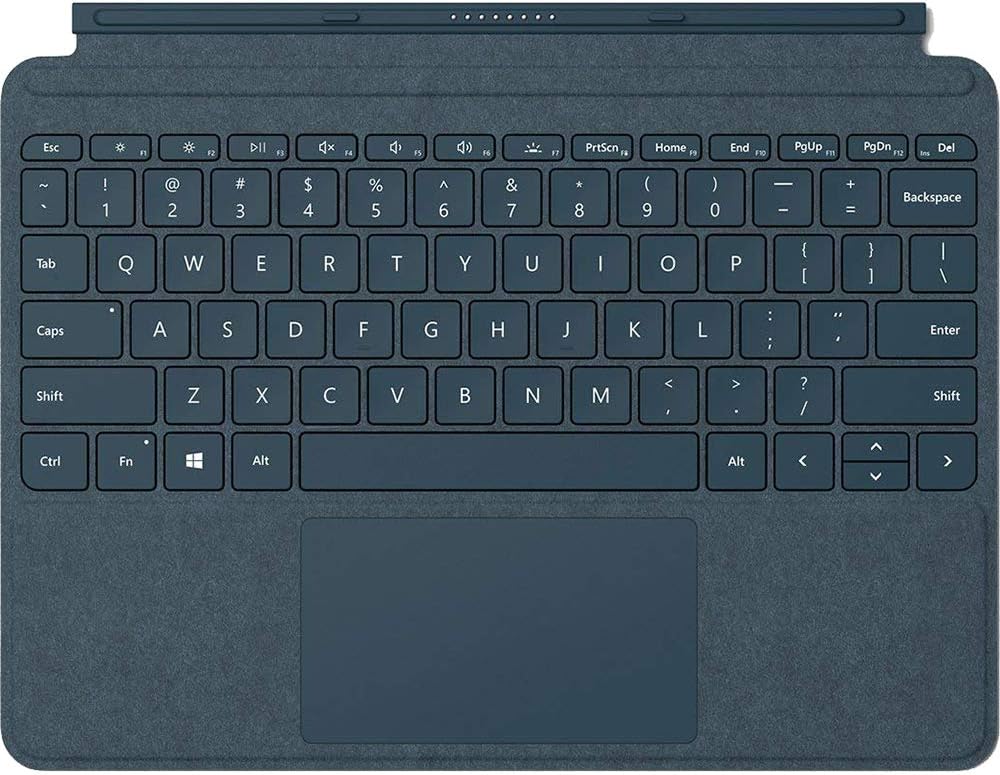
Imagem: Um close-up, vista de cima para baixo view of the Cobalt Blue Alcantara Signature Type Cover, highlighting the full keyboard layout and the integrated trackpad.
3.3 Modos de uso
- Modo laptop: Open the Type Cover and use the Surface Go Kickstand to position your device for a traditional laptop experience.
- Modo Tablet: Fold the Type Cover completely back behind the Surface Go. The keyboard keys will automatically disable to prevent accidental input.
- Modo de proteção: Close the Type Cover over the Surface Go display to protect the screen and conserve battery life.
4. Manutenção e Cuidados
To maintain the appearance and functionality of your Alcantara Signature Type Cover, follow these care instructions:
- Cleaning the Alcantara Material: Use um pano macio e sem fiapos dampened with water or a mild soap solution. Gently wipe the surface. Avoid harsh chemicals or abrasive cleaners.
- Cleaning the Keys and Trackpad: Use a soft, dry cloth to wipe dust and smudges. For stubborn marks, a slightly dampened cloth can be used, ensuring no liquid enters the key gaps.
- Armazenar: When not in use, keep the Type Cover attached to your Surface Go or store it in a clean, dry environment to prevent dust accumulation.
5. Solução De Problemas
If you encounter issues with your Surface Go Signature Type Cover, consider the following:
- Keyboard/Trackpad Not Responding:
- Ensure the Type Cover is securely attached to the Surface Go. Detach and reattach it.
- Restart your Surface Go device.
- Check for any pending Windows updates that might include driver updates for accessories.
- A luz de fundo não funciona:
- Press the backlight adjustment key (often F1 or F2 with a sun icon) to cycle through brightness levels.
- Ensure your Surface Go's battery is not critically low, as backlight functionality might be reduced to conserve power.
- Accidental Input in Tablet Mode:
- Ensure the Type Cover is folded completely back. The keys should automatically disable. If not, detach and reattach the cover, or restart the Surface Go.
Para obter mais assistência, consulte o suporte oficial do Microsoft Surface. website.
6. Especificações
| Número do modelo | KCS-00021 |
| Marca | Microsoft |
| Cor | Azul cobalto |
| Material | Alcantara (on select covers), Microfiber (for Black) |
| Interface | Magnético |
| Sensor | Acelerômetro |
| Trackpad Dimensions | 99.2 mm x 56.5 mm (height) |
| Peso do item | 8.6 onças (aproximadamente 244 gramas) |
| Dimensões do produto (CxLxA) | 7.48 x 9.77 x 0.18 polegadas (aproximadamente 19 x 24.8 x 0.46 cm) |
| Dispositivos compatíveis | Surface Go, Surface Go 2, Surface Go 3 |
| Recurso especial | Backlighting (Single Color) |
7. Garantia e Suporte
This Microsoft Surface Go Alcantara Signature Type Cover is covered by Microsoft's standard limited warranty. For detailed warranty information, including terms, conditions, and how to make a claim, please refer to the official Microsoft support website ou a documentação de garantia incluída na sua compra.
For technical support, driver updates, or additional assistance, visit the official Microsoft Surface support page:


