Introdução
The Nyko Wireless Core Controller is designed to enhance your gaming experience across multiple platforms, including Nintendo Switch, Android devices, and PC. This controller features an ergonomic design, reliable Bluetooth connectivity, and a programmable turbo function. Please read this manual thoroughly to ensure proper setup and operation of your new controller.
O que está incluído
Verifique se todos os itens estão presentes na embalagem:
- 1x Nyko Wireless Core Controller
- 1x Cabo de carregamento USB tipo C

Image: Contents of the Nyko Wireless Core Controller package, showing the controller and its USB Type-C charging cable.
Características
The Nyko Wireless Core Controller offers a range of features for an optimized gaming experience:
- Conectividade sem fio: Utilizes Bluetooth for a responsive, lag-free connection.
- Design ergonômico: Full-sized controller with comfortable grips for extended gameplay sessions.
- Função Turbo: Programmable turbo button for any face buttons or triggers, allowing for rapid, automatic inputs.
- Bateria recarregável: Internal battery provides up to 20 hours of playtime, recharged via the included USB Type-C cable.
- Controles de movimento: Integrated gyroscope supports games requiring motion control.
- Feedback de vibração: Proporciona feedback tátil imersivo durante o jogo.
- Compatibilidade multiplataforma: Works with Nintendo Switch, Android, and PC.
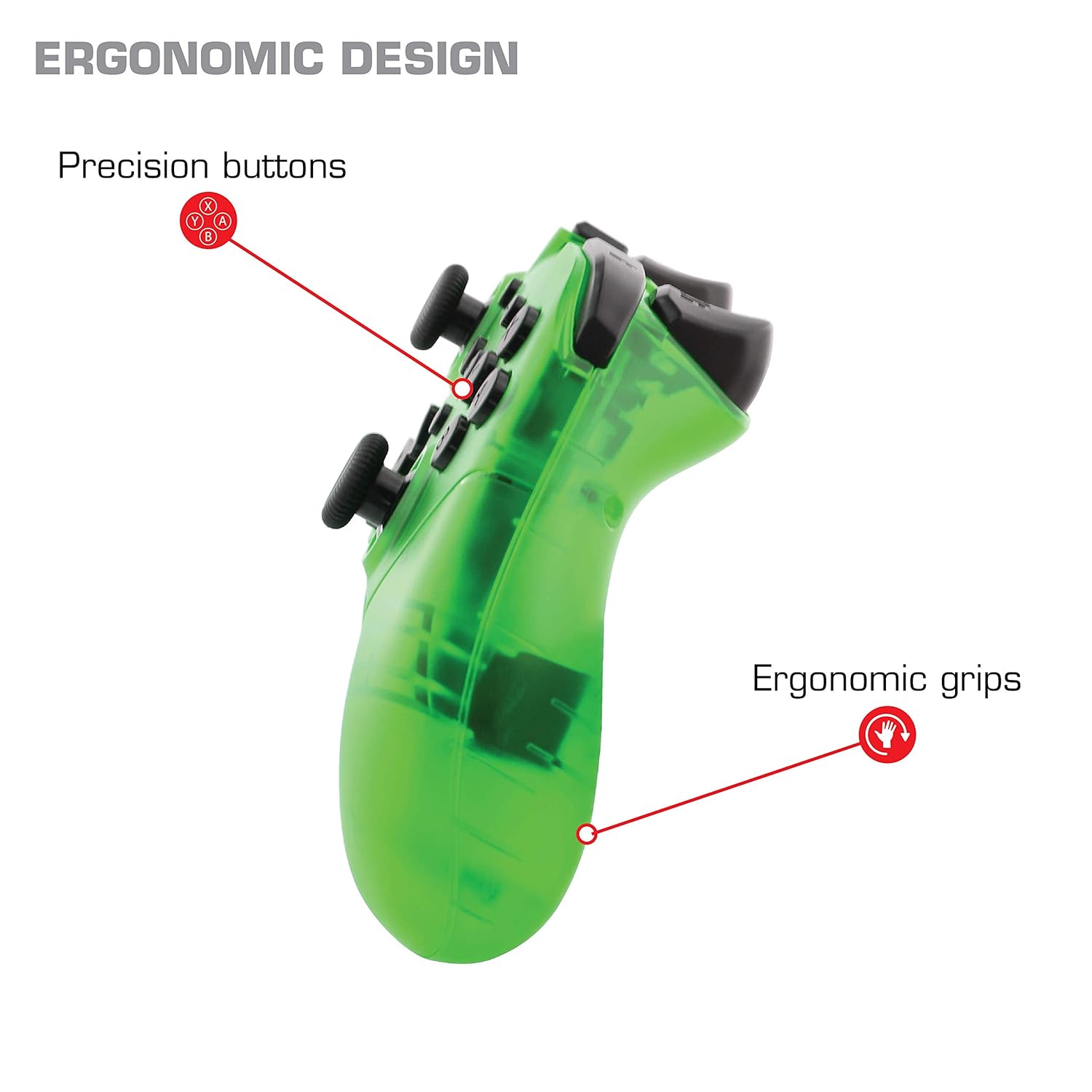
Imagem: Close-up view of the Nyko Wireless Core Controller highlighting its ergonomic design and precision buttons.

Imagem: Frente view of the Nyko Wireless Core Controller, indicating its compatibility with PC, the turbo feature, and LED player indicators.
Video: A comparison between the Nyko Wireless Core Controller and a standard Nintendo Switch Pro Controller, showcasing their similar layouts and features.
Configurar
Carregamento inicial
Before first use, fully charge the controller using the included USB Type-C cable. Connect the small end of the cable to the controller's USB-C port and the larger end to a USB power source (e.g., Nintendo Switch dock, PC, or USB wall adapter).
Emparelhamento com o Nintendo Switch
- Certifique-se de que seu console Nintendo Switch esteja ligado e atualizado com a versão mais recente do software do sistema.
- No menu HOME, selecione "Controladores" > "Alterar ordem/posição de pega".
- While on this screen, press and hold the SYNC button on the top of the Nyko controller for a few seconds until the player indicator LEDs begin to flash.
- Once the controller is recognized and paired, the player indicator LED(s) will light up solid.
- Observação: For the first connection, it may be necessary to connect the controller physically to the Switch dock via the USB-C cable to initiate pairing.
Pairing with Android/PC
- Ensure Bluetooth is enabled on your Android device or PC.
- No seu dispositivo, acesse as configurações de Bluetooth e procure por novos dispositivos.
- Press and hold the SYNC button on the top of the Nyko controller until the player indicator LEDs begin to flash, indicating it's in pairing mode.
- Select "Nyko Core Controller" (or similar name) from the list of available devices on your Android/PC.
- Once paired, the player indicator LED(s) will light up solid.
Instruções de operação
Controles básicos
The controller features standard button layouts including A, B, X, Y buttons, D-Pad, Left and Right Analog Sticks, L/R and ZL/ZR shoulder buttons, HOME, +, -, and Screenshot buttons. Refer to your game's instructions for specific button functions.
Programmable Turbo Functionality
The turbo function allows for rapid, repeated input of a button press. This can be set for multiple buttons simultaneously.

Image: Diagram of the Nyko Wireless Core Controller indicating which buttons are programmable for turbo functionality and which are not.
Enabling Turbo and Auto-Fire
- To enable Turbo: Pressione e segure o Botão Turbo, then press any face button (Y, X, B, A) or trigger (L, R, ZL, ZR) you wish to have turbo functionality. While holding the assigned button, it will rapidly input.
- To enable Auto-Fire: Pressione e segure o Botão Turbo, then press the desired button duas vezes. The button will now continuously input without needing to be held down.
Disabling Turbo and Auto-Fire
- To disable Turbo/Auto-Fire for a specific button: Pressione e segure o Botão Turbo, then press the assigned button duas vezes.
- To reset all Turbo/Auto-Fire settings: Pressione e segure o Botão Turbo e o (-) botão simultaneamente.
Changing the Speed of Turbo and Auto-Fire
This setting affects the speed of all active turbo/auto-fire enabled buttons.
- Pressione e segure o Botão Turbo.
- To increase speed, tilt the right analog stick up.
- To decrease speed, tilt the right analog stick down.
- Solte o Botão Turbo when your desired speed is set.
Manutenção
Limpeza
Para limpar o controlador, use um pano macio e seco. Para sujeira mais resistente, umedeça levemente o controlador.ampen the cloth with water. Avoid using harsh chemicals, solvents, or abrasive cleaners, as these can damage the controller's finish and internal components.
Cuidados com a bateria
The controller contains a built-in Lithium Ion battery. To prolong battery life:
- Evite descarregar completamente a bateria com frequência.
- Guarde o controlador em local fresco e seco quando não estiver em uso por longos períodos.
- Não exponha o controlador a temperaturas extremas.
Solução de problemas
Controller Not Connecting/Losing Connection
- Verifique a bateria: Ensure the controller is fully charged. A completely drained battery may prevent initial connection.
- Re-pair Controller: Follow the pairing instructions in the "Setup" section. For Nintendo Switch, try connecting via USB-C to the dock first.
- Distância e interferência: Ensure the controller is within range of the console/device and there are no major obstructions or sources of wireless interference.
- Atualização do sistema: Ensure your Nintendo Switch console or PC operating system is up to date.
Botões não respondem
- Re-sync: Try re-syncing the controller with your device.
- Reiniciar: Power off and on both the controller and the console/device.
- Limpar: Ensure no debris is lodged around the buttons.
Rumble is Too Strong
The controller's vibration feature is designed to provide strong feedback. If the rumble intensity is too high, check the in-game settings of the specific game you are playing, as some games allow for rumble intensity adjustment. The controller itself does not have a direct setting to adjust rumble strength.
Especificações
- Número do modelo: 87264
- Conectividade: Bluetooth sem fio
- Porta de carregamento: USB Tipo C
- Tipo de Bateria: Íon de lítio (incluído)
- Tempo aproximado de jogo: Até 20 horas
- Dimensões do produto: 6.3 x 2.76 x 5.91 polegadas
- Peso do item: 10.6 onças
- Fabricante: Nyko
- Compatibilidade: Nintendo Switch, Android, PC
Garantia e Suporte
Nyko products are manufactured to high-quality standards. For specific warranty information, please refer to the warranty card included with your product or visit the official Nyko website. For technical support, troubleshooting assistance, or to inquire about replacement parts, please contact Nyko Customer Support through their official channels.
Suporte online: www.nyko.com/support


