Introdução
This manual provides essential information for setting up, operating, maintaining, and troubleshooting your Acer Swift 3 SF314-55G-78U1 laptop. Please read this guide thoroughly to ensure proper use and to maximize the performance and lifespan of your device.

Image: The Acer Swift 3 SF314-55G-78U1 laptop, shown open with the screen displaying the Windows 10 operating system interface. The keyboard and touchpad are visible.
1. Configuração
1.1 Desembalagem e Inspeção Inicial
Retire cuidadosamente todos os componentes da embalagem. Certifique-se de que os seguintes itens estejam presentes:
- Acer Swift 3 SF314-55G-78U1 Laptop
- Adaptador CA
- Cabo de alimentação
Inspect the laptop for any physical damage. If any components are missing or damaged, contact your retailer or Acer support immediately.
1.2 Conectando à energia
Before first use, it is recommended to fully charge the laptop battery. Connect the AC adapter to the laptop's power input port and then plug the power cord into a wall outlet.
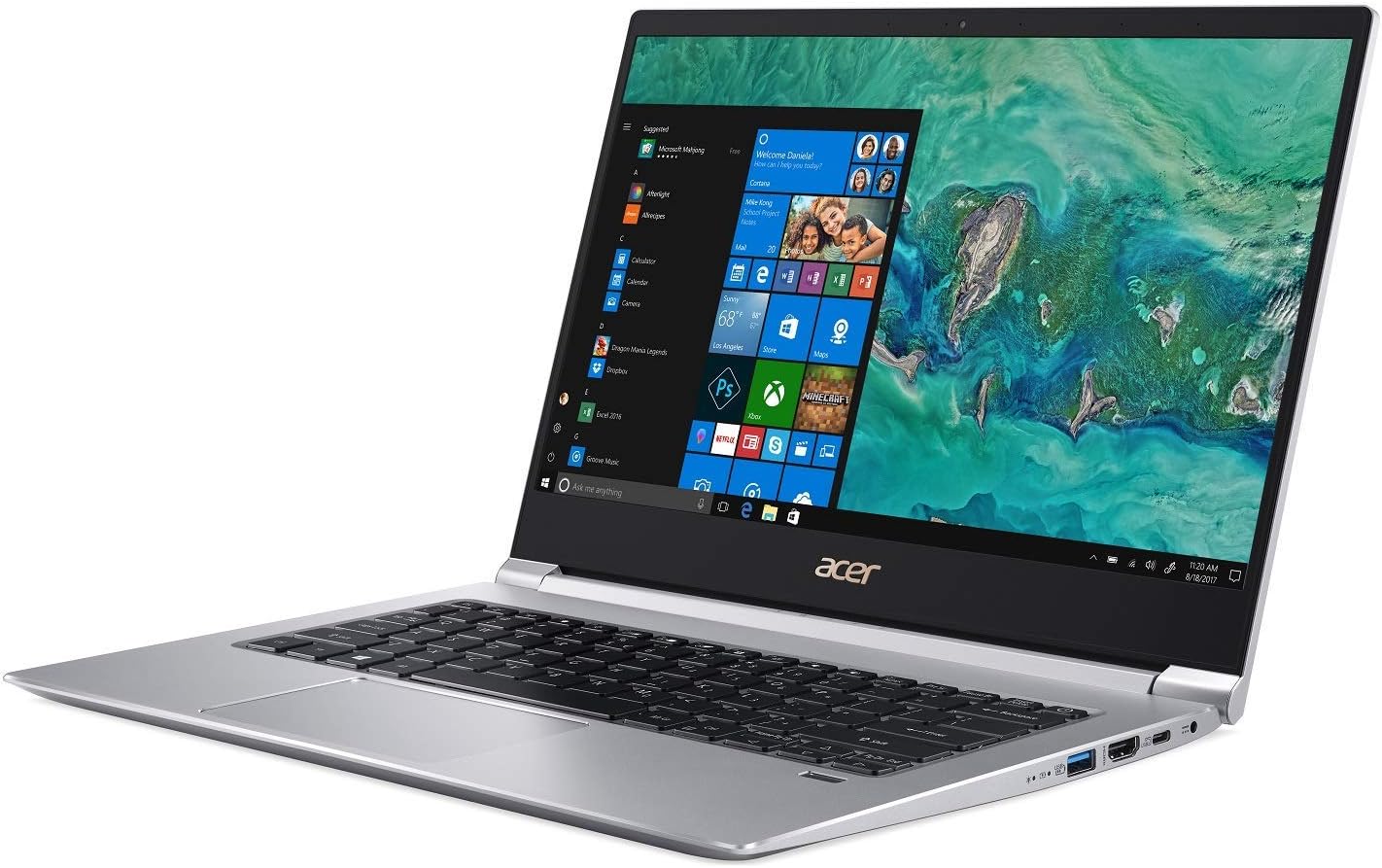
Imagem: Lado view of the Acer Swift 3 laptop, highlighting the various input/output ports including USB, HDMI, and the power input.
The battery indicator light will illuminate, typically orange, to show that the laptop is charging. It will change color (e.g., blue or green) or turn off when fully charged.
1.3 Inicialização do sistema e configuração do Windows
Press the power button to turn on the laptop. The first boot will guide you through the Windows 10 Home setup process. Follow the on-screen instructions to:
- Selecione sua região e idioma.
- Aceitar os termos da licença.
- Crie uma conta de usuário ou entre com uma conta Microsoft.
- Configure as definições de privacidade.
1.4 Connecting to a Wireless Network (Wi-Fi)
During the Windows setup, you will be prompted to connect to a Wi-Fi network. Select your network from the list and enter the password if required. If you skip this step, you can connect later via the Windows settings:
- Clique no ícone do Wi-Fi na bandeja do sistema (canto inferior direito da tela).
- Select your desired network and click "Connect".
- Enter the security key (password) if prompted.
1.5 Setting Up Fingerprint Recognition (Windows Hello)
Your laptop features an Acer Bio-Protection Fingerprint Solution for secure login. To set it up:
- Vá para Configurações > Contas > Opções de login.
- Em "Impressão digital do Windows Hello", clique em Configurar.
- Follow the on-screen instructions to scan your finger.
2. Operando seu laptop
2.1 Teclado e touchpad
The laptop features a full-size, backlit keyboard for comfortable typing. The touchpad supports multi-touch gestures for navigation and interaction with Windows 10.
- Teclado retroiluminado: Use the function keys (Fn + F key combination, typically F8 or F9) to adjust the backlight brightness or turn it on/off.
- Gestos do touchpad: Refer to Windows 10 settings for a list of supported gestures (e.g., two-finger scroll, pinch-to-zoom).
2.2 Conectando dispositivos externos
Your Acer Swift 3 is equipped with various ports for connecting peripherals:
- USB Tipo-C (USB 3.1 Gen 2): One port for data transfer up to 10 Gbps, DisplayPort over USB Type-C, and USB charging.
- USB 3.0: Two ports, one supporting power-off charging for devices.
- HDMI: One port for connecting to external displays or projectors.
- Slot para cartão SD: For reading and writing data from Secure Digital cards.
- Jack de áudio: Para conectar fones de ouvido ou alto-falantes externos.
Tela e áudio de 2.3 polegadas
The 14-inch Full HD (1920 x 1080) widescreen LED-backlit IPS display provides clear visuals. The laptop also features Acer True Harmony Technology and Acer Purified.Voice technology with two built-in microphones for enhanced audio and communication.
- Ajustando o brilho: Use the function keys (Fn + F key combination, typically F5/F6) to adjust screen brightness.
- Saída de áudio: Ensure audio drivers are up-to-date for optimal sound quality. Connect headphones to the audio jack for private listening.
3. Manutenção
3.1 Limpando seu laptop
Para manter a aparência e a funcionalidade do seu laptop:
- Use a soft, lint-free cloth to wipe the screen and chassis.
- Para marcas persistentes, dampUmedeça levemente o pano com água ou um produto de limpeza para telas.
- Evite produtos químicos agressivos, abrasivos ou solventes.
- Limpe regularmente o teclado e o touchpad para remover poeira e detritos.
3.2 Cuidados com a bateria
The laptop is equipped with a 4-cell Li-Ion battery. To prolong battery life:
- Evite temperaturas extremas.
- Não deixe o laptop totalmente carregado ou totalmente descarregado por períodos prolongados.
- Para armazenamento a longo prazo, carregue a bateria até cerca de 50-60%.
- Calibrate the battery periodically by fully discharging and recharging it.
3.3 Atualizações de Software e Drivers
Regularly update your operating system and device drivers to ensure optimal performance and security. Outdated drivers can lead to various issues, including audio problems or keyboard malfunctions.
- Atualizações do Windows: Vá para Configurações > Atualização e Segurança > Atualização do Windows.
- Atualizações de Driver: Visite o suporte oficial da Acer. website for your specific model (SF314-55G-78U1) to download the latest drivers, especially for audio, graphics (NVIDIA GeForce MX150), and chipset.
4. Solução De Problemas
This section addresses common issues you might encounter with your Acer Swift 3 laptop.
4.1 No Power or Laptop Not Turning On
- Certifique-se de que o adaptador CA esteja conectado firmemente tanto ao laptop quanto a uma tomada elétrica em funcionamento.
- Verifique se a tomada está funcionando conectando outro aparelho.
- Se a bateria estiver completamente descarregada, pode levar alguns minutos para que o laptop ligue.
4.2 Audio Issues (Crackling, No Sound)
- Update Audio Drivers: This is a common solution. Visit the Acer support website for the latest audio drivers for your model.
- Check volume settings in Windows and for individual applications.
- Ensure headphones or external speakers are properly connected if used.
- Reinicie o laptop.
4.3 Teclado ou touchpad não respondem
- Reinicie o laptop.
- Ensure no external devices are interfering (e.g., external keyboard/mouse).
- Check for driver updates for the keyboard and touchpad on the Acer support website.
- If the keyboard freezes after sleep mode, try disabling fast startup in Windows power options.
4.4 Battery Drains Quickly or Incorrectly Reports Charge
- Ensure all background applications are closed when not in use.
- Ajuste o brilho da tela para um nível mais baixo.
- Check power settings in Windows to optimize battery usage.
- Perform a battery calibration (full discharge then full recharge).
- Update chipset and power management drivers from the Acer support website.
4.5 Fingerprint Reader Not Working Consistently
- Ensure your finger is clean and dry when scanning.
- Try re-registering your fingerprint in Windows Hello settings.
- Check for updated fingerprint sensor drivers on the Acer support website.
5. Especificações
Below are the key technical specifications for the Acer Swift 3 SF314-55G-78U1 laptop:
| Recurso | Especificação |
|---|---|
| Nome do modelo | SF314-55G-78U1 |
| Processador | Processador Intel Core i7-8565U de 8ª geração (até 4.6 GHz) |
| Gráficos | NVIDIA GeForce MX150 with 2 GB GDDR5 VRAM |
| Mostrar | 14" Full HD (1920 x 1080) IPS LED-backlit |
| BATER | 8GB DDR4 Dual Channel Memory |
| Armazenar | SSD PCIe de 256 GB |
| Sistema operacional | Windows 10 Início |
| Conectividade sem fio | Intel Wireless-AC 9560 802.11ac Gigabit Wi-Fi, Bluetooth 5.0 |
| Portos | 1x USB Type-C (USB 3.1 Gen 2, DisplayPort, Charging), 2x USB 3.0 (1x power-off charging), 1x HDMI, SD Card Reader, Audio Jack |
| Bateria | 4-cell Li-Ion (3220 mAh), Up to 12 hours battery life |
| Peso | Aproximadamente 2.98 lbs (1.35 kg) |
| Dimensões (CxLxA) | 12.72 x 8.98 x 0.59 polegadas |
| Características especiais | Backlit Keyboard, Acer Bio-Protection Fingerprint Solution, HD Webcam, Acer True Harmony Technology, Acer Purified.Voice |
6. Garantia e Suporte
6.1 Informações de garantia
Your Acer Swift 3 SF314-55G-78U1 laptop comes with a standard manufacturer's warranty. The specific terms and duration of the warranty may vary by region and retailer. Please refer to the warranty card included with your product or visit the official Acer website para obter informações detalhadas sobre a garantia.
Guarde o comprovante de compra (recibo ou nota fiscal), pois ele será necessário para qualquer solicitação de garantia.
6.2 Suporte Técnico
For technical assistance, driver downloads, or service inquiries, please contact Acer support:
- Suporte Acer Website: Visita www.acer.com/support for FAQs, driver downloads, and contact options.
- Informações de contato: Specific phone numbers and email support options are available on the Acer support website da sua região.
When contacting support, have your laptop's model name (SF314-55G-78U1) and serial number ready. The serial number is typically located on a sticker on the bottom of the laptop.


