1. Introdução
This manual provides detailed instructions for the installation, operation, and maintenance of your Everycom EC801B 80mm Thermal Printer. Please read this manual thoroughly before using the printer to ensure proper function and longevity of the device. The EC801B is a high-speed thermal receipt printer equipped with an auto-cutter and versatile connectivity options including USB and LAN.
2. Informações de segurança
- DO NOT DISASSEMBLE THE PRINTER PERSONALLY. For any service-related queries, please contact Everycom support.
- The printer should be installed on a flat and solid surface to avoid vibration or impact damage.
- Ensure the power supply matches the printer's requirements to prevent electrical damage.
- Keep the printer away from water, dust, and direct sunlight.
3. Conteúdo da embalagem
Verifique se todos os itens listados abaixo estão incluídos no seu pacote:
- 1 x Everycom EC801B Thermal Receipt Printer
- 1 x adaptador de energia
- 1 cabo de dados x USB
- 1 x Paper Roll (Sampe)
- 1 x Manual do Usuário
- 1 CD x driver

Image: Contents of the Everycom EC801B printer package, including the printer unit, power adapter, USB cable, sample paper roll, user manual, and driver CD.
4. Produto acabadoview
Familiarize yourself with the various parts of your Everycom EC801B thermal printer.
4.1 Frente e Topo View

Imagem: Frente view of the Everycom EC801B thermal printer, showing the paper output slot and control panel.

Imagem: Topo view of the Everycom EC801B thermal printer, highlighting the control panel with POWER, ERROR, PAPER indicators, and the FEED button.
4.2 Painel de controle
- Indicador de energia: Acende quando a impressora é ligada.
- Indicador de ERRO: Flashes or illuminates to indicate an error (e.g., paper out, cover open).
- PAPER Indicator: Illuminates when paper is present, flashes when paper is low.
- Botão ALIMENTAR: Press to advance paper. Hold to print a self-test page.
4.3 Rear Panel (Connectivity Ports)

Imagem: Traseira view of the Everycom EC801B thermal printer, showing the power port, cash drawer port, Ethernet (LAN) port, and USB port.
- Porta de alimentação: Conecta-se ao adaptador de energia.
- CASH Drawer Port: Connects to a compatible cash drawer.
- Porta LAN (Ethernet): Connects to a network for network printing.
- Porta USB: Connects to a computer via USB cable.
5. Configuração
5.1 Colocação Física
Place the printer on a stable, flat surface. Ensure there is adequate space around the printer for ventilation and easy access to ports and paper loading.
5.2 cabos de conexão
- Conexão de energia: Connect the power adapter to the printer's POWER port and then plug the adapter into a power outlet.
- Data Connection (Choose one):
- USB: Connect the USB data cable from the printer's USB port to an available USB port on your computer.
- LAN: Conecte um cabo Ethernet da porta LAN da impressora ao seu roteador ou switch de rede.
- Cash Drawer (Optional): If using a cash drawer, connect its cable to the printer's CASH Drawer port.
5.3 Carregando papel
- Open the printer cover by pushing the cover open lever (if present) or lifting the top cover.
- Insert the 80mm thermal paper roll into the compartment, ensuring the paper feeds from the bottom and the leading edge extends out of the printer.
- Close the printer cover firmly until it clicks into place. Ensure there is no slack in the paper.

Imagem: Topo view of the Everycom EC801B printer with the cover open, revealing the paper roll compartment.
5.4 Instalação do driver
For the printer to communicate with your computer, drivers must be installed.
- Insira o CD de drivers fornecido na unidade de CD-ROM do seu computador.
- Follow the on-screen instructions to install the printer drivers. If your computer does not have a CD drive, drivers can typically be downloaded from the Everycom official website.
- After installation, configure the printer settings through your operating system's printer management tools.
6. Instruções de operação
6.1 Ligar/Desligar
To power on the printer, ensure the power adapter is connected and press the power switch located on the side or rear of the printer. The POWER indicator light will illuminate. To power off, press the power switch again.
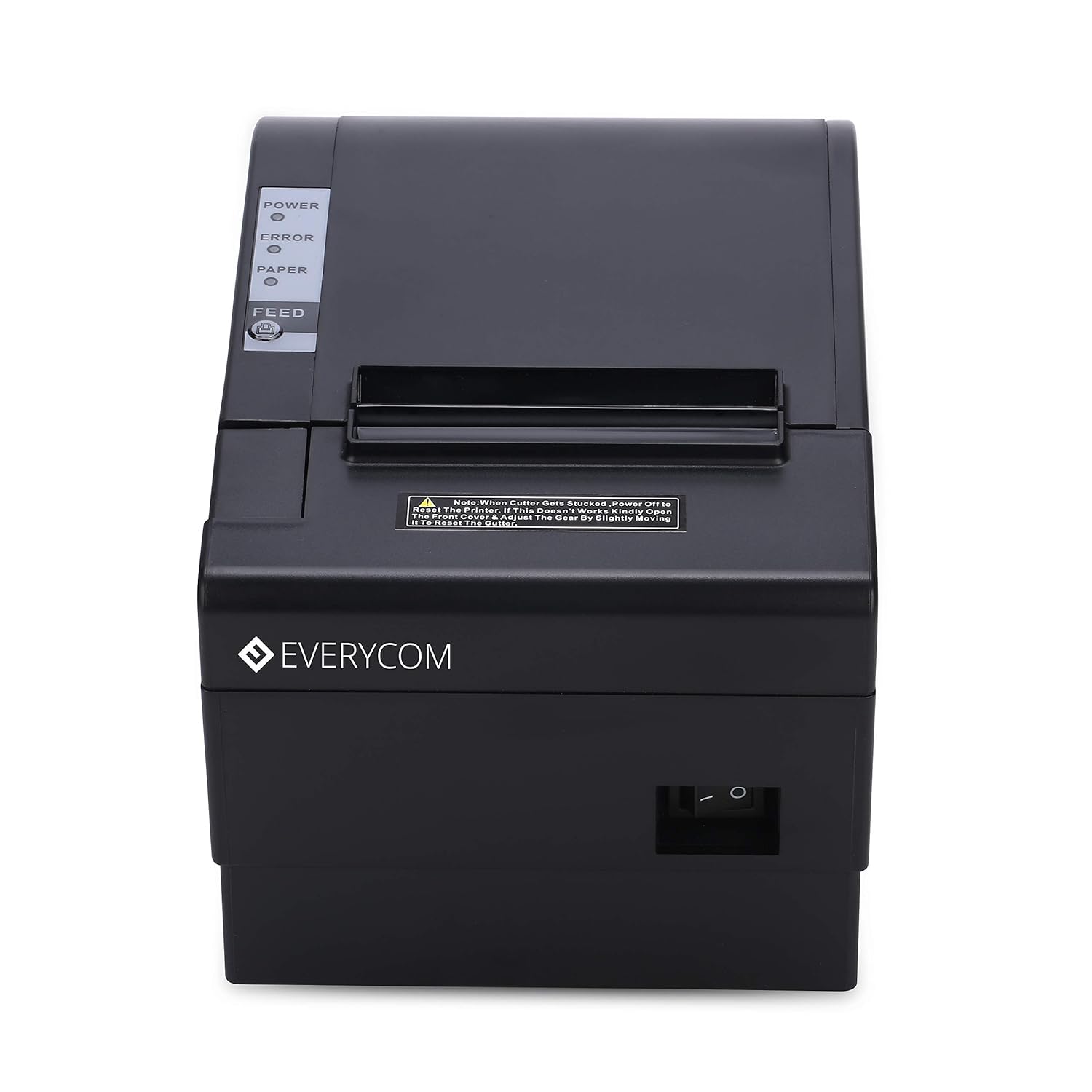
Imagem: Frente view of the Everycom EC801B printer, showing the location of the power switch on the side.
6.2 Printing a Self-Test Page
A self-test page can confirm basic printer functionality and print quality without requiring a computer connection.
- Certifique-se de que a impressora esteja desligada e que haja papel inserido.
- Pressione e segure o ALIMENTAR botão.
- Enquanto segura o ALIMENTAR botão, ligue a impressora.
- Solte o ALIMENTAR button once the printer starts printing. A self-test page will print, showing printer information and a sampa impressão.

Image: Everycom EC801B printer actively printing a self-test receipt with a QR code and text.
6.3 Basic Printing Operation
Once drivers are installed and the printer is connected, you can print from any application that supports printing. Select the Everycom EC801B from your list of available printers and initiate the print command.
6.4 Função de corte automático
The EC801B features an automatic cutter that will cut the receipt paper after each print job, or as configured in your printer settings/software.
7. Manutenção
7.1 Limpando a Impressora
A limpeza regular ajuda a manter a qualidade de impressão e prolonga a vida útil da impressora.
- Cabeça de impressão: Use um cotonete levementeampLimpe delicadamente a cabeça de impressão térmica com álcool isopropílico. Deixe secar completamente antes de usar.
- Caminho do papel: Use a soft, dry cloth to remove any paper dust or debris from the paper path.
- Exterior: Limpe o exterior com um pano macio e seco.amp pano. Não use produtos químicos agressivos ou produtos de limpeza abrasivos.
7.2 Substituição do rolo de papel
When the PAPER indicator flashes or printing becomes faint, it's time to replace the paper roll. Follow the steps in Section 5.3 to load a new 80mm thermal paper roll.
8. Solução De Problemas
Se você encontrar problemas com sua impressora, consulte os problemas e soluções comuns a seguir:
| Problema | Possível causa | Solução |
|---|---|---|
| A impressora não liga. | Sem energia, adaptador com defeito | Check power cable connection, ensure outlet is working, try another adapter if available. |
| No printing / Blank output | Paper loaded incorrectly, no paper, print head issue, driver issue | Reload paper correctly (thermal side facing print head), replace paper roll, clean print head, reinstall drivers. |
| ERROR indicator on/flashing | Paper out, cover open, print head overheat | Check paper, close cover firmly, allow printer to cool down. |
| Qualidade de impressão ruim | Dirty print head, low quality paper, old paper roll | Clean print head, use high-quality thermal paper, replace old paper. |
| Impressora não reconhecida pelo computador | Driver not installed, incorrect cable, port issue | Install/reinstall drivers, check USB/LAN cable connection, try a different port. |
If the problem persists after attempting these solutions, please contact Everycom customer support.
9. Especificações
Key technical specifications for the Everycom EC801B Thermal Printer:
| Recurso | Detalhe |
|---|---|
| Modelo | EC801B |
| Tecnologia de impressão | Impressão de linha térmica |
| Velocidade de impressão | 220 mm/segundo |
| Largura do papel | 80 mm |
| Conectividade | USB, LAN (Ethernet) |
| Cortador automático | Sim |
| Saída da impressora | Monocromático |
| Dimensões (CxLxA) | 18.6 x 14.5 x 13.3 cm |
| Peso do item | 1.2 kg |
| Fabricante | Everycom Electronics (Made in India) |
10. Garantia e Suporte
The Everycom EC801B Thermal Printer comes with a Garantia de 1 anos a partir da data da compra. Esta garantia cobre defeitos de fabricação e mau funcionamento em condições normais de uso.
For technical assistance, troubleshooting, or warranty claims, please contact Everycom Customer Support:
- Número gratuito: 1800 121 4480
- Horário de atendimento ao cliente: Segunda a sábado, das 10h às 18h30 (exceto em feriados).

Image: Everycom customer service contact details, including the toll-free number and working hours.


