1. Introdução
This manual provides comprehensive instructions for the setup, operation, and maintenance of your Xprinter XP-360B Thermal Label Barcode Printer. Please read this manual thoroughly before using the printer to ensure proper functionality and to prevent damage.
The XP-360B is a high-speed thermal label printer designed for various applications, including barcode printing, shipping labels, and receipt printing. It supports label widths from 20mm to 80mm and offers a maximum print speed of 200mm per second.

Figure 1.1: Xprinter XP-360B Thermal Label Barcode Printer. This image shows the printer from a front-right angle, with labels being fed out of the front slot.
2. Informações de segurança
To ensure safe operation and prolong the life of your printer, please observe the following safety precautions:
- Não exponha a impressora à água ou umidade excessiva.
- Evite colocar a impressora sob luz solar direta ou perto de fontes de calor.
- Utilize apenas o adaptador de energia fornecido com a impressora.
- Não tente desmontar ou reparar a impressora por conta própria. Consulte um técnico qualificado.
- Mantenha a impressora longe de poeira e detritos.
- Certifique-se de que a impressora esteja colocada em uma superfície estável e plana.
- Unplug the printer from the power outlet before cleaning or when not in use for extended periods.
3. Conteúdo da embalagem
Verifique se todos os itens estão presentes na embalagem:
- Xprinter XP-360B Thermal Label Barcode Printer
- Adaptador de energia
- Cabo USB
- Manual do usuário (este documento)
- CD de drivers (ou link para baixar os drivers)
4. Produto acabadoview
4.1. Frente View

Figura 4.1: Frente view of the XP-360B printer, showing the label output slot and control buttons.
- Slot de saída de etiquetas: Where printed labels exit the printer.
- Botões de controle:
- PODER: Indicador de energia.
- ERRO: Error indicator.
- PAUSA: Interrompe ou retoma a impressão.
- ALIMENTAR: Feeds a blank label.
4.2. Lado View
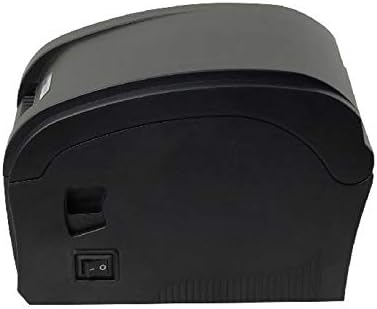
Figura 4.2: Lateral view of the XP-360B printer, highlighting the power switch.
- Interruptor de alimentação: Liga ou desliga a impressora.
4.3. Interno View (Cover Open)

Figura 4.3: interno view of the XP-360B printer with the top cover open, showing the label roll compartment and print head assembly.
- Print Head Assembly: Contains the thermal print head.
- Label Roll Compartment: Area for loading the label roll.
- Adjustable Paper Guides: Guides to align the label roll.
5. Configuração
5.1. Desembalagem e colocação
- Retire cuidadosamente a impressora e todos os acessórios da embalagem.
- Place the printer on a stable, flat surface with adequate ventilation.
- Ensure there is enough space around the printer for proper operation and maintenance.
5.2. Conectando a impressora
- Conecte o adaptador de energia à porta de entrada de energia da impressora.
- Conecte o adaptador de alimentação a uma tomada elétrica adequada.
- Conecte uma extremidade do cabo USB à porta USB da impressora.
- Conecte a outra extremidade do cabo USB a uma porta USB disponível no seu computador.
5.3. Carregando Etiquetas
- Certifique-se de que a impressora esteja desligada.
- Abra a tampa superior da impressora.
- Place the label roll into the label compartment, ensuring the labels feed from the bottom of the roll towards the front of the printer.
- Adjust the movable paper guides to fit the width of your label roll snugly, without being too tight.
- Pull a few labels out past the print head and through the label output slot.
- Feche bem a tampa superior até ouvir um clique.

Figure 5.1: Loading a roll of thermal labels into the XP-360B printer's internal compartment.
5.4. Instalação do driver
Before using the printer, you must install the appropriate drivers on your computer. Drivers are typically provided on a CD or can be downloaded from the manufacturer's official website.
- Insert the driver CD into your computer's CD-ROM drive, or navigate to the official Xprinter support website to download the XP-360B drivers.
- Siga as instruções na tela para concluir a instalação do driver.
- Após a instalação, recomenda-se reiniciar o computador.
6. Instruções de operação
6.1. Ligar / desligar
- To turn on the printer, flip the power switch located on the side of the printer to the 'ON' position. The POWER indicator light will illuminate.
- To turn off the printer, flip the power switch to the 'OFF' position.
6.2. Impressão básica
- Certifique-se de que a impressora esteja conectada ao computador e ligada.
- Open the document or application from which you wish to print labels (e.g., label design software, shipping platform).
- Go to the print settings (File > Imprimir).
- Select "Xprinter XP-360B" as your printer.
- Adjust the paper size and orientation settings to match your labels (e.g., 4x6 inch, portrait/landscape).
- Click "Print". The printer will automatically detect the label gaps and print accordingly.
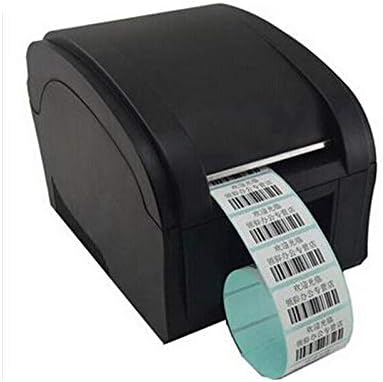
Figure 6.1: The XP-360B printer in operation, feeding out a continuous roll of printed labels.
6.3. Using Control Buttons
- Botão ALIMENTAR: Press this button once to feed a single blank label. This is useful for testing label alignment or advancing to the next label.
- Botão PAUSAR: Press this button to temporarily pause a print job. Press it again to resume printing.
7. Manutenção
A manutenção regular garante o desempenho ideal e prolonga a vida útil da sua impressora.
7.1. Limpeza da cabeça de impressão
The print head should be cleaned regularly, especially if print quality degrades or after printing a large volume of labels.
- Turn off the printer and unplug it from the power outlet.
- Abra a tampa superior da impressora.
- Se a impressora tiver sido usada recentemente, aguarde alguns minutos para que a cabeça de impressão esfrie.
- Gently wipe the thermal print head surface with an alcohol swab or a lint-free cloth lightly dampenriquecido com álcool isopropílico.
- Deixe a cabeça de impressão secar completamente antes de fechar a tampa e ligar a impressora.
7.2. Limpeza do rolo de impressão
The platen roller helps feed the labels smoothly. Clean it if you notice feeding issues.
- Follow steps 1-3 from "Cleaning the Print Head".
- Rotate the platen roller manually and wipe its surface with an alcohol swab or a lint-free cloth lightly dampenriquecido com álcool isopropílico.
- Allow it to dry completely before closing the cover.
8. Solução De Problemas
This section addresses common issues you might encounter with your XP-360B printer.
| Problema | Possível causa | Solução |
|---|---|---|
| A impressora não liga | Cabo de alimentação solto; tomada elétrica com defeito; falha na impressora | Verifique a conexão do cabo de alimentação; tente outra tomada; se o problema persistir, entre em contato com o suporte. |
| No printing / Printer offline | USB cable loose; Driver not installed; Printer offline in OS | Check USB connection; Install drivers; Check printer status in computer settings. |
| Qualidade de impressão ruim / Impressões desbotadas | Dirty print head; Low quality labels; Incorrect print density settings | Clean the print head (see Section 7.1); Use high-quality thermal labels; Adjust print density in driver settings. |
| Etiquetas não alimentadas corretamente | Labels loaded incorrectly; Paper guides not adjusted; Dirty platen roller | Re-load labels correctly; Adjust paper guides; Clean platen roller (see Section 7.2). |
| A luz de ERRO está acesa. | Paper jam; Cover open; Print head overheating | Clear any paper jams; Ensure cover is closed properly; Turn off printer and let it cool down. |
9. Especificações
| Recurso | Descrição |
|---|---|
| Modelo | XP-360B |
| Método de impressão | Térmica direta |
| Interface | USB |
| Velocidade de impressão | Até 200 mm/segundo |
| Max Paper Width | 80mm (adjustable from 20mm) |
| Modo de alimentação de papel | Automático |
| Impressão em Rede | Com fio |
| Impressão Duplex | Não |
| Dimensões | 25 x 22 x 21 cm |
| Peso | 2 kg |
10. Garantia e Suporte
Xprinter products are designed for reliability and performance. For specific warranty terms and conditions, please refer to the warranty card included with your product or visit the official Xprinter website.
If you encounter any issues that cannot be resolved using the troubleshooting guide, or if you require technical assistance, please contact Xprinter customer support through their official website ou as informações de contato fornecidas na documentação do produto.
Please have your model number (XP-360B) and purchase information ready when contacting support.


