Introdução
This manual provides comprehensive instructions for the Samsung Galaxy Tab E 8.0 (model SM-T377A) tablet. This device features an 8-inch HD touchscreen, a Quad-Core CPU, 1.5GB of RAM, 16GB of internal storage, Bluetooth, and 4G LTE AT&T connectivity, running on Android 5.1 Lollipop. Please read this manual carefully to ensure proper use and maintenance of your device.

Figura 1: Frente view of the Samsung Galaxy Tab E 8.0 tablet displaying the home screen.
1. Configuração
1.1 Conteúdo da embalagem
Certifique-se de que seu pacote contenha os seguintes itens:
- Samsung Galaxy Tab E 8.0 (SM-T377A) Tablet
- Cabo de carregamento USB
- Adaptador de energia
- Guia de Início Rápido (se incluído)
1.2 Carregando a bateria
Before initial use, fully charge the tablet's battery. Connect the USB charging cable to the tablet's charging port and the other end to the power adapter. Plug the adapter into a wall outlet. The charging indicator will appear on the screen. A full charge typically takes several hours.
1.3 Ligar/Desligar
- Para ligar: Mantenha pressionado o botão Liga/Desliga (localizado na lateral) até que o logotipo da Samsung apareça.
- Para desligar: Mantenha pressionado o botão Liga/Desliga e, em seguida, selecione "Desligar" nas opções da tela.
1.4 Assistente de Configuração Inicial
Upon first power-on, the tablet will guide you through an initial setup process. This includes:
- Seleção de idioma: Escolha o seu idioma preferido.
- Conexão Wi-Fi: Select an available Wi-Fi network and enter the password to connect to the internet.
- Conta do Google: Sign in with an existing Google account or create a new one. This is essential for downloading apps from the Google Play Store.
- Data e hora: Defina a data e a hora corretas.
- Segurança: Configure um bloqueio de tela (PIN, padrão ou senha) para a segurança do dispositivo.
1.5 SIM Card Installation (for 4G LTE models)
If your model supports 4G LTE, you may need to install a SIM card to access mobile data and cellular services. Refer to the diagram below for SIM card tray location.

Figura 2: Traseira view of the tablet, indicating the camera and AT&T branding.
- Localize a bandeja do cartão SIM na lateral do tablet.
- Use the provided SIM ejector tool (or a small paperclip) to gently press into the small hole on the tray.
- Retire a bandeja do cartão SIM.
- Place the SIM card into the tray with the gold contacts facing down, ensuring it fits correctly.
- Reinsira cuidadosamente a bandeja no tablet.
2. Instruções de operação
2.1 Navegação básica
The Samsung Galaxy Tab E 8.0 uses a capacitive multi-touch display for interaction.
- Tocar: Toque em um ícone para abrir um aplicativo ou selecionar um item.
- Toque e segure: Pressione e segure um item para ver mais opções ou para movê-lo.
- Deslize: Arraste o dedo pela tela para percorrer as páginas ou listas.
- Pitada: Use dois dedos para ampliar ou reduzir as imagens e web páginas.
Botões físicos:
- Botão Home: Retorna à tela inicial.
- Botão Voltar: Retorna à tela anterior.
- Botão de aplicativos recentes: Exibe uma lista de aplicativos usados recentemente.

Figure 3: Tablet in landscape mode showing the home screen.
2.2 Conectando-se às redes
- Wi-fi: Vá para Configurações > Wi-Fi, turn Wi-Fi on, select your network, and enter the password.
- Bluetooth: Vá para Configurações > BluetoothLigue o Bluetooth e emparelhe com os dispositivos disponíveis.
- Dados móveis (4G LTE): Vá para Configurações > Uso de dados to enable or disable mobile data. Ensure a valid SIM card is installed.
2.3 Utilizando a câmera
The tablet features a 5 MP rear camera with autofocus. To use the camera:
- Toque no Câmera icon on the home screen or app drawer.
- Enquadre sua foto usando a tela como um... viewlocalizador.
- Toque no Obturador botão para tirar uma foto.
- Alterne entre os modos de foto e vídeo conforme necessário.
2.4 Gerenciando Aplicativos
You can download and manage applications through the Google Play Store or Samsung's Galaxy Apps.

Figure 4: The Galaxy Apps store interface on the tablet.
- Baixando aplicativos: Abra o Loja de jogos or Aplicativos Galaxy, search for the desired app, and tap 'Install'.
- Desinstalando aplicativos: Vá para Settings > Applications > Application managerSelecione o aplicativo e toque em "Desinstalar".
2.5 Modo Infantil
The tablet supports Kids Mode, providing a child-friendly interface with parental controls.
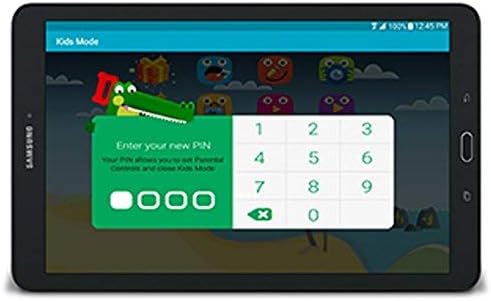
Figure 5: Kids Mode interface with PIN entry for parental controls.
- Localize e toque em Modo infantil ícone.
- Follow the on-screen instructions to set up a PIN and configure allowed apps and usage limits.
- To exit Kids Mode, tap the exit icon and enter your PIN.
3. Manutenção
3.1 Cuidados com a bateria
To maximize battery life (average 12 hours) and longevity:
- Evite temperaturas extremas.
- Não deixe a bateria descarregar completamente antes de recarregá-la com frequência.
- Feche os aplicativos não utilizados que estiverem sendo executados em segundo plano.
- Reduza o brilho da tela sempre que possível.
3.2 Limpando o Dispositivo
Use a soft, lint-free cloth to clean the screen and body of the tablet. Avoid abrasive materials or harsh chemicals that could damage the display or finish.
3.3 Atualizações de Software
Verifique periodicamente se há atualizações de software para garantir o melhor desempenho e segurança. Acesse Settings > About device > Software update.
3.4 Gerenciamento de armazenamento
The tablet has 16GB of internal storage. To manage storage:
- Apague regularmente os itens desnecessários. filefotos e vídeos.
- Desinstale aplicativos não utilizados.
- Consider using cloud storage services for backups.
- The tablet supports expandable storage via a microSD card (sold separately).
4. Solução De Problemas
4.1 Problemas e soluções comuns
- Dispositivo não liga:
- Ensure the battery is charged. Connect the charger and wait a few minutes before attempting to power on.
- Press and hold the Power button for at least 10-15 seconds to perform a forced restart. - Screen unresponsive or frozen:
- Perform a forced restart by pressing and holding the Power button for 10-15 seconds.
- If the issue persists, consider a factory reset (see 4.2). - Problemas de carregamento:
- Ensure the charging cable and adapter are securely connected and are not damaged.
- Try a different wall outlet or USB port.
- Use only Samsung-approved charging accessories. - Cartão SIM não detectado:
- Ensure the SIM card is correctly inserted into the tray (refer to 1.5).
- Restart the tablet.
- Verify that the SIM card is active with your service provider. - Baixa duração da bateria:
- Réview battery care tips in section 3.1.
- Close background apps and reduce screen brightness.
- Check for apps consuming excessive battery in Configurações> Bateria.
4.2 Redefinição de fábrica
A factory reset will erase all data from your tablet and restore it to its original factory settings. Back up important data before proceeding.
- Vá para Settings > Backup and reset > Factory data reset.
- Tocar Redefinir dispositivo, então Apagar tudo.
- O tablet será reiniciado e o processo de reinicialização começará.
5. Especificações
| Recurso | Especificação |
|---|---|
| Nome do modelo | Galaxy Tab E 8.0 (SM-T377A) |
| Sistema operacional | Android 5.1 Lollipop |
| Tamanho da tela | 8 polegadas |
| Resolução da tela | 1280 x 800 pixels |
| Processador | Qualcomm Snapdragon 410 (1.2 GHz Quad-Core) |
| BATER | 1.5 GB |
| Armazenamento interno | SSD de 16 GB |
| Armazenamento expansível | MicroSD (up to 128GB, not included) |
| Câmera Traseira | 5 MP (Autofocus) |
| Câmera Frontal | Not specified (typically lower resolution) |
| Conectividade sem fio | 802.11abg, 802.11bgn Wi-Fi, Bluetooth |
| Conectividade celular | 4G LTE (AT&T) |
| Portos | 1x USB 2.0 |
| Duração da bateria | Up to 12 Hours (average) |
| Peso do item | 12.6 onças |
| Dimensões do produto | 10 x 10 x 10 polegadas |
6. Garantia e Suporte
6.1 Garantia Amazon Renewed
This product is covered by the Amazon Renewed Guarantee. If you are not satisfied with your purchase, renewed products are eligible for replacement or refund within 90 days of receipt.
6.2 Suporte Adicional
For additional assistance, please refer to the official Samsung support website or contact your retailer. Keep your purchase receipt and product information handy when seeking support.


