Introdução
This manual provides essential instructions for setting up, operating, maintaining, and troubleshooting your Microsoft Surface Pro 2017. The Surface Pro 2017 is a versatile 2-in-1 device designed to function as both a powerful laptop and a portable tablet, offering a seamless computing experience.
Leia este manual atentamente para garantir o uso correto e maximizar a vida útil do seu dispositivo. Guarde este manual para futuras consultas.
O que está na caixa
Upon unboxing your Microsoft Surface Pro 2017, verify that all components are present:
- Dispositivo Microsoft Surface Pro 2017
- Adaptador de energia CA
Note: Additional accessories such as the Surface Pen, Type Cover, or Surface Dial are sold separately and may not be included with your device.
Configurar
1. Inicialização e carregamento
- Conecte o adaptador de energia: Plug the AC power adapter into a wall outlet and then connect the magnetic charging connector to the charging port on your Surface Pro. The LED indicator on the connector will illuminate when charging.
- Ligar: Press and hold the power button located on the top edge of the device for a few seconds until the Microsoft logo appears on the screen.
2. Configuração do Windows
Follow the on-screen prompts to complete the initial Windows setup. This process typically includes:
- Selecionando sua região e idioma.
- Conectando-se a uma rede Wi-Fi.
- Aceitar o contrato de licença.
- Criar ou iniciar sessão com uma conta Microsoft.
- Setting up security features like Windows Hello (facial recognition) or a PIN.
3. Conectando-se ao Wi-Fi
- During Windows setup, you will be prompted to connect to a network. Select your desired Wi-Fi network from the list and enter the password if required.
- If you need to connect later, go to Começar > Configurações > Rede e Internet > Wi-fi. Turn Wi-Fi on, select your network, and click Conectar.
Instruções de operação
Basic Device Orientation and Controls
The Surface Pro 2017 features a 12.3-inch PixelSense display with multi-touch support. Key physical controls include:
- Botão de energia: Located on the top edge, used to turn the device on/off, sleep, or wake.
- Botões de volume: Located on the side, used to adjust audio volume.
- Suporte: Integrated on the back, allows for multiple viewângulos de inclinação.
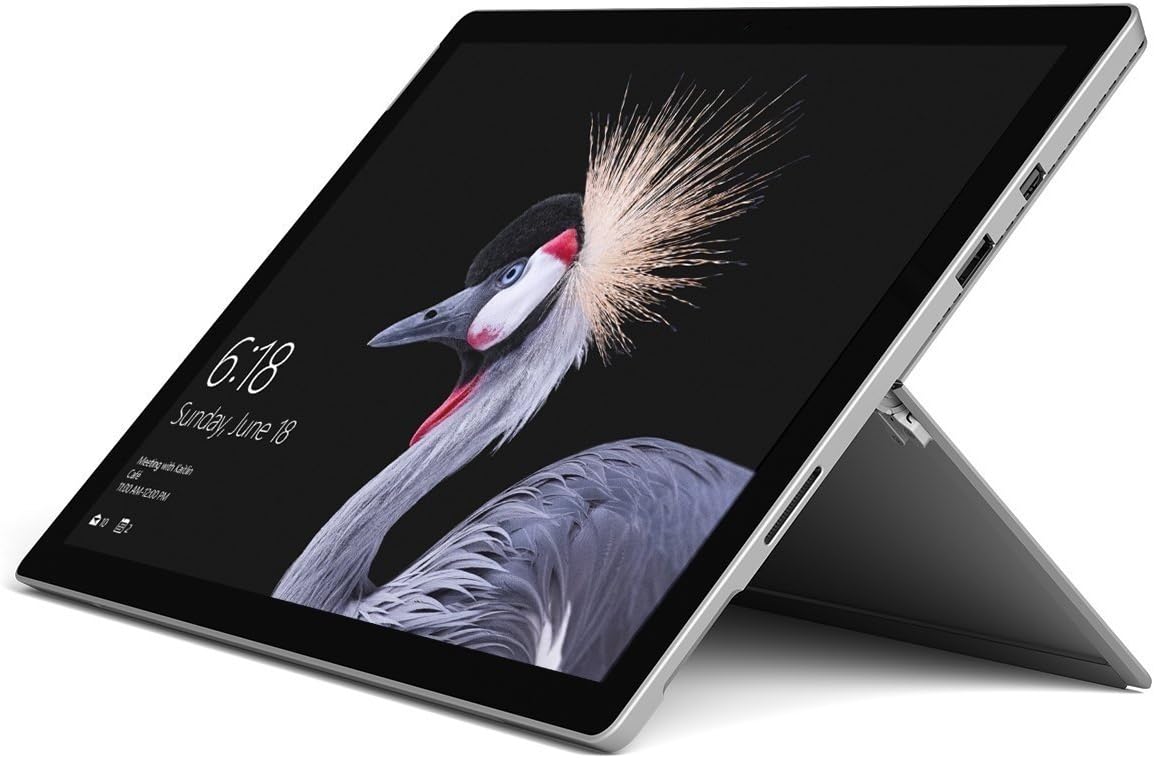
Image: Microsoft Surface Pro 2017 in laptop mode with its kickstand extended, showcasing the device's display.
Usando o suporte
The integrated kickstand allows you to position your Surface Pro at various angles for comfortable viewing, typing, or drawing. Gently pull the kickstand out from the back of the device until it reaches your desired angle.
Gerenciamento de energia
- Modo dormir: Briefly press the power button to put the Surface Pro into sleep mode. Press it again to wake the device.
- Desligar: Vá para Começar > Poder > Desligar.
- Reiniciar: Vá para Começar > Poder > Reiniciar.
Conectando Periféricos
The Surface Pro 2017 includes various ports for connecting external devices:
- Porta USB 3.0: For connecting USB drives, keyboards, mice, and other compatible accessories.
- Mini DisplayPort: Para conexão a monitores ou projetores externos.
- Leitor de cartão microSD: Para expandir o armazenamento ou transferir files de cartões de memória.
- Porta de conexão de superfície: For power and connecting to Surface Dock accessories.
- Tomada de fone de ouvido de 3.5 mm: Para saída de áudio.
Bluetooth: To connect Bluetooth devices (e.g., headphones, mice), go to Começar > Configurações > Dispositivos > Bluetooth e outros dispositivos. Ensure Bluetooth is turned on, then select "Add Bluetooth or other device" and follow the pairing instructions.

Imagem: Side profile of the Microsoft Surface Pro 2017, highlighting the various ports available for connectivity.
Manutenção
Cleaning Your Surface Pro
- Tela: Use um pano macio e sem fiapos levementeampened with water or an approved screen cleaner. Avoid harsh chemicals or abrasive materials.
- Corpo: Wipe the exterior with a soft, dry cloth. Do not allow liquids to enter openings.
- Portas: Keep ports free of dust and debris. Use compressed air carefully if needed, holding the can upright.
Cuidados com a bateria
- Evite temperaturas extremas, pois elas podem reduzir a vida útil da bateria.
- Para otimizar a saúde da bateria, evite descarregá-la completamente com frequência ou mantê-la com carga de 100% por longos períodos.
- Use only the official Microsoft AC power adapter or a compatible charger.
Atualizações de software
Regularly update your Windows operating system and device drivers to ensure optimal performance, security, and compatibility. Go to Começar > Configurações > Atualização e Segurança > Atualização do Windows Para verificar e instalar atualizações.
Solução de problemas
Esta seção aborda problemas comuns que você pode encontrar com seu Surface Pro 2017.
Device Will Not Turn On
- Certifique-se de que o dispositivo esteja carregado. Conecte o adaptador de energia e aguarde alguns minutos antes de tentar ligá-lo.
- Perform a two-button shutdown: Press and hold the volume-up button and the power button simultaneously for at least 15 seconds, then release both. Wait 10 seconds, then press the power button again to turn on the Surface.
Screen Not Responding to Touch
- Reinicie o dispositivo.
- Certifique-se de que a tela esteja limpa e livre de detritos.
- Check for available Windows updates, as driver updates can resolve touch issues.
Problemas de conectividade Wi-Fi
- Certifique-se de que o Wi-Fi esteja ativado em Configurações > Rede e Internet > Wi-fi.
- Restart your Surface Pro and your Wi-Fi router.
- Esqueça a rede e reconecte-se: Acesse Configurações > Rede e Internet > Wi-fi, click on your network, then Esquecer. Reconnect and enter the password.
Especificações
| Recurso | Especificação |
|---|---|
| Nome do modelo | Superfície Pro 2017 |
| Número do modelo do item | 7Y30 |
| Tamanho da tela | 12.3 polegadas |
| Resolução da tela | 2736 x 1824 pixels |
| Processador | Intel Core m3-7Y30 (1 GHz Intel_Mobile_CPU) |
| BATER | Memória RAM DDR4 de 4 GB |
| Armazenar | SSD de 128 GB |
| Placa gráfica | Integrated (Intel) |
| Sistema operacional | Windows |
| Tipo sem fio | 802.11abg |
| Peso do item | 1.89 libras |
| Dimensões do produto | 11.5 x 7.9 x 0.3 polegadas |
| Cor | Prata |
Garantia e Suporte
For detailed warranty information, please refer to the warranty card included with your purchase or visit the official Microsoft support webOs termos e condições da garantia podem variar de acordo com a região e o revendedor.
For technical support, driver downloads, and additional resources, please visit the official Microsoft Support website: support.microsoft.com/surface


