Introdução
Thank you for choosing the Macally Wireless Bluetooth Keyboard. This multi-device keyboard is designed to enhance your productivity across various platforms, including Mac, iOS, Windows, and Android devices. Featuring 110 keys, 20 Mac OS shortcuts, and a numeric keypad, it offers a comfortable and efficient typing experience. Its ultra-slim design and rechargeable battery make it an ideal companion for both work and leisure.

Image: The Macally Wireless Bluetooth Keyboard, showcasing its full layout and sleek silver design.
Conteúdo da embalagem
- Macally Wireless Bluetooth Keyboard
- Cabo de carregamento
- Guia do usuário
Configurar
1. Carregando o teclado
Before initial use, fully charge the keyboard using the included charging cable. Connect the cable to the keyboard's charging port and a USB power source. The LED indicator will show charging status.

Image: Illustration showing the keyboard connected to a charging cable, emphasizing its rechargeable nature.
2. Emparelhamento com dispositivos
The Macally Wireless Bluetooth Keyboard supports connecting up to three Bluetooth-enabled devices simultaneously. Follow these steps to pair your devices:
- Ligue o teclado usando o botão liga/desliga.
- Press and hold one of the Bluetooth keys (BT1, BT2, or BT3) for a few seconds until the corresponding LED indicator starts blinking rapidly. This indicates pairing mode.
- On your device (computer, tablet, or smartphone), go to Bluetooth settings and search for available devices.
- Select "Macally Keyboard" (or similar name) from the list.
- If prompted, enter the pairing code displayed on your screen using the Macally keyboard and press Enter.
- Once paired, the LED indicator will stop blinking and remain solid for a few seconds before turning off.
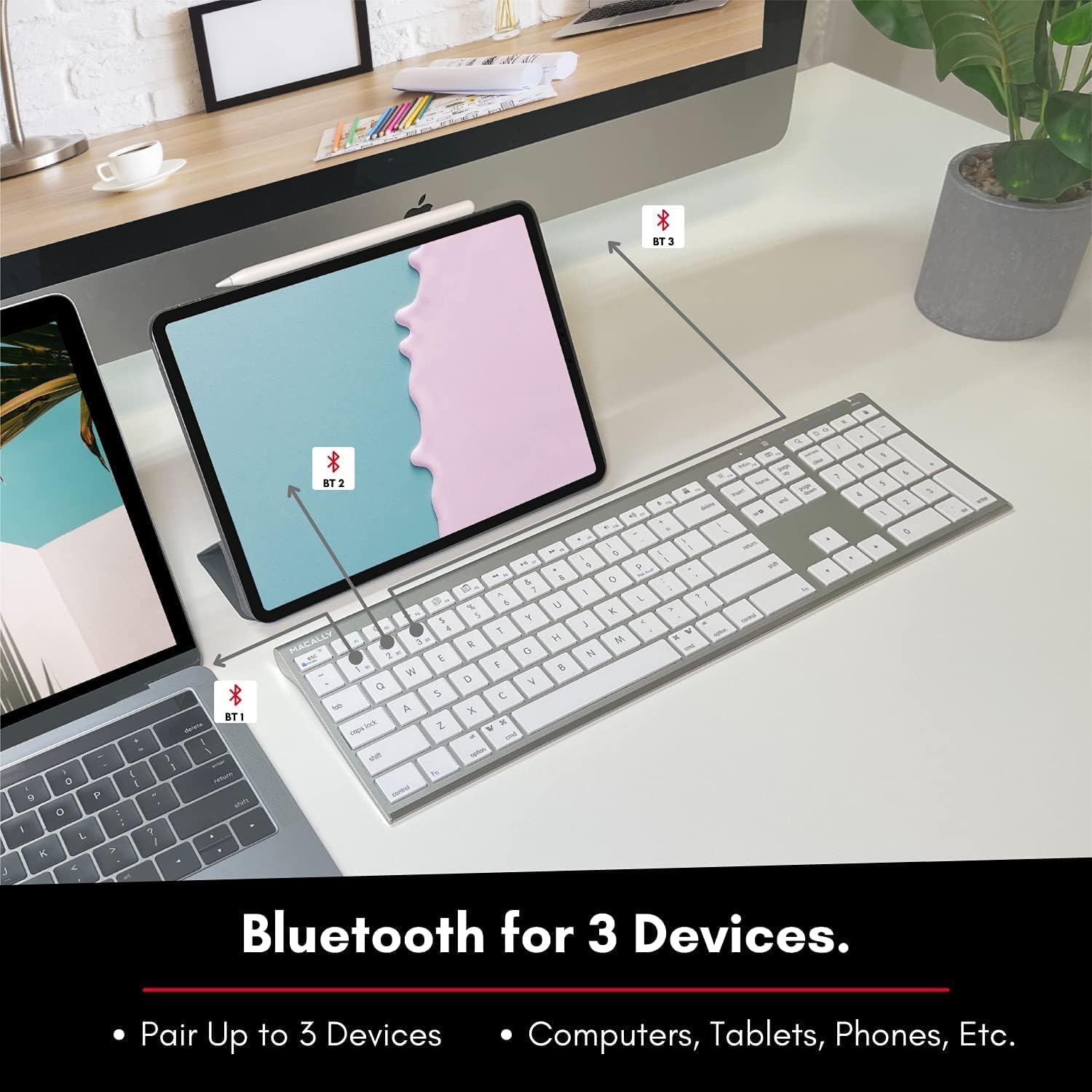
Image: The keyboard connected to a laptop and a tablet, illustrating its multi-device pairing capability.
Instruções de operação
Alternando entre dispositivos
To switch between paired devices, simply press the corresponding Bluetooth key (BT1, BT2, or BT3) once. The keyboard will automatically connect to the selected device within a few seconds.

Image: Visual representation of the keyboard seamlessly switching between a smartphone, iMac, and laptop, highlighting the multi-sync feature.
Teclas de função e atalhos
The keyboard features a full set of 110 keys, including a numeric keypad and 20 dedicated Mac OS shortcut keys. These shortcuts provide quick access to various functions such as brightness control, volume adjustment, media playback, and more. Refer to your device's operating system documentation for specific shortcut functionalities.
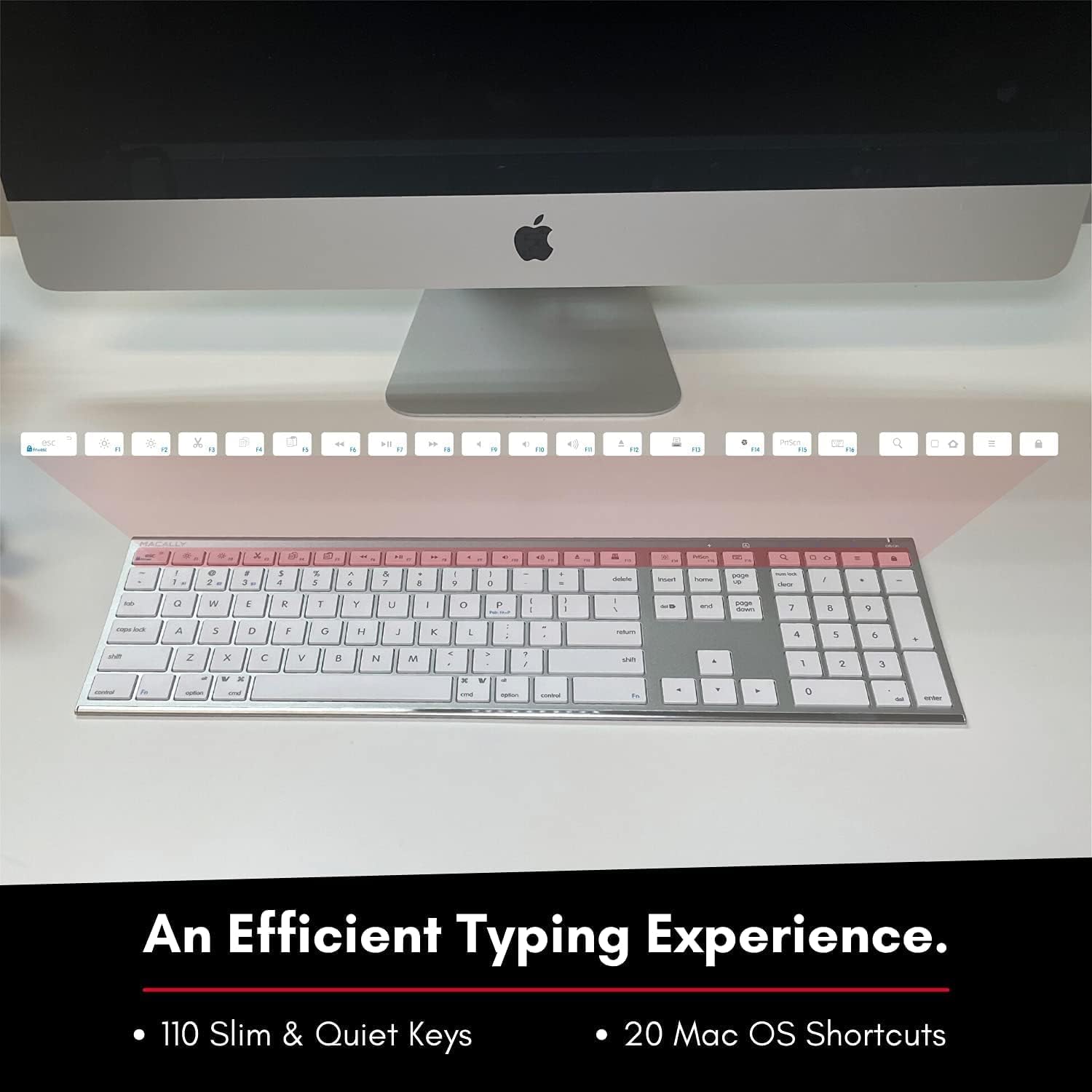
Image: Close-up of the keyboard's top row, highlighting the dedicated function and shortcut keys.
Compatibilidade
This keyboard is broadly compatible with a range of operating systems and devices, including:
- Mac OS
- Windows
- iOS (iPhone, iPad)
- Andróide

Image: The keyboard positioned in front of an iMac, indicating its compatibility with Mac systems.
Manutenção
To ensure the longevity and optimal performance of your Macally Wireless Bluetooth Keyboard, follow these maintenance guidelines:
- Limpeza: Use a soft, lint-free cloth to wipe the surface of the keyboard. For stubborn dirt, slightly dampLimpe o pano com água ou uma solução de limpeza suave. Evite o excesso de umidade.
- Cuidados com a bateria: The keyboard features a built-in rechargeable battery. To maximize battery life, avoid fully discharging the battery frequently. Charge the keyboard when the low battery indicator appears.
- Armazenar: Quando não estiver em uso por longos períodos, desligue o teclado para economizar bateria. Guarde-o em local fresco e seco, longe da luz solar direta e de temperaturas extremas.
- Evite derramamentos: Mantenha líquidos longe do teclado para evitar danos aos componentes internos.
Solução de problemas
Keyboard Not Responding or Typing Incorrectly
- Certifique-se de que o teclado esteja carregado.
- Verify that the keyboard is powered on and the correct Bluetooth channel (BT1, BT2, or BT3) is selected for your device.
- Tente emparelhar novamente o teclado com o seu dispositivo.
- Check if the Fn lock is active. On the top right, there should be a lock symbol with an FN in the lock. If there is a Blue LED light on the panel which is on the top right, then press and hold Fn e pressione ESC to shut off the Fn lock.

Image: A troubleshooting tip for the Fn lock feature, showing the relevant keys.
Mouse Keys Issue (macOS)
- If your keyboard inputs are behaving like mouse movements, you may have "Mouse Keys" enabled.
- Go to System Preferences (or System Settings on newer macOS versions), then click on Acessibilidade. After that, scroll to Controle de ponteiro e desabilitar Enable Mouse Keys.

Image: A troubleshooting tip for disabling Mouse Keys in system settings.
Problemas de conexão Bluetooth
- Certifique-se de que o Bluetooth do seu dispositivo esteja ativado e detectável.
- Move the keyboard closer to your device to ensure a strong signal.
- Remova quaisquer fontes potenciais de interferência (por exemplo, outros dispositivos sem fio, objetos metálicos grandes).
- Reinicie o teclado e o dispositivo.
Especificações
| Marca | Macally |
| Número do modelo | ACEBTKEY-US |
| Dimensões do produto | 18.11 x 6.3 x 0.91 polegadas |
| Peso do item | 14.9 onças |
| Tecnologia de Conectividade | Bluetooth |
| Número de Chaves | 110 |
| Dispositivos compatíveis | MacOS, Windows, iOS, Android |
| Bateria | 3 Lithium Polymer batteries (included, rechargeable) |
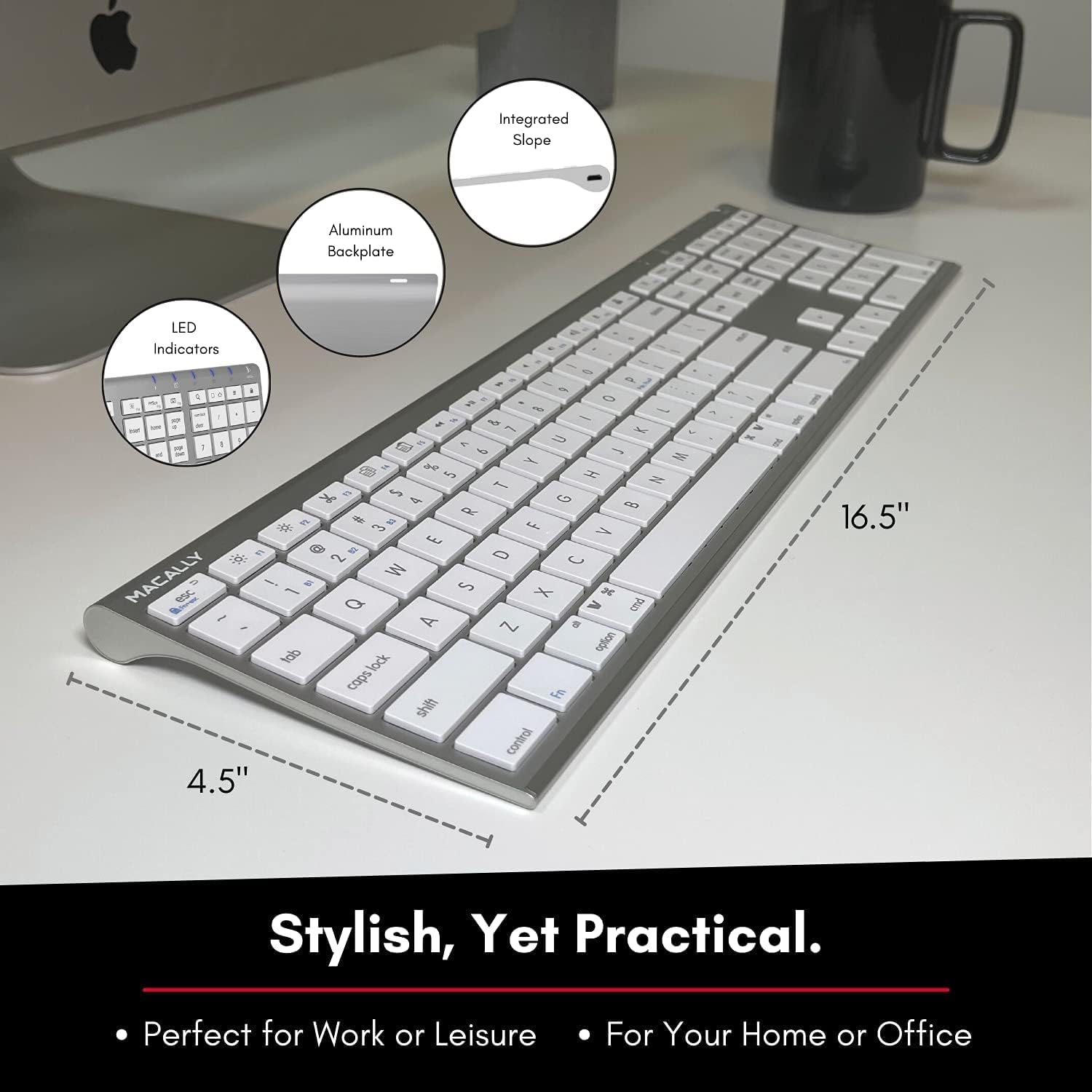
Image: Diagram illustrating the physical dimensions of the Macally Wireless Bluetooth Keyboard.
Garantia e Suporte
Macally is committed to delivering high-quality, user-friendly workflow solutions. For any product inquiries, technical support, or warranty information, please visit the official Macally website ou entre em contato com o serviço de atendimento ao cliente. Você pode encontrar mais informações e recursos de suporte no Macally Store on Amazon.


