1. Introdução
The Audiolab 6000N Play is a wireless audio streaming player designed to integrate high-resolution music streaming into your home audio system. It utilizes DTS Play-Fi technology, allowing for seamless streaming over your wireless network and supporting multi-room audio configurations. This device enables streaming from various sources, including smartphones, tablets, PCs, and Network Attached Storage (NAS) drives.
2. Produto acabadoview
2.1 Principais Características
- Wireless audio streaming via DTS Play-Fi.
- High-resolution audio support up to 192kHz/24bit.
- Multi-room audio capability.
- Integrated Digital-to-Analog Converter (DAC).
- Compatibility with various streaming services and local network sources.
2.2 Controles do painel frontal
The front panel of the Audiolab 6000N Play features essential controls for basic operation.

Figura 1: Frente view of the Audiolab 6000N Play. This image displays the sleek black chassis with the "6000N Play" branding on the left, six preset buttons (1-6) in the center, and the power button on the right, along with the "audiolab" logo.
- Botão de energia: Located on the right side, used to turn the unit on or off.
- Botões predefinidos (1-6): Allow for quick access to pre-saved radio stations or playlists.
2.3 Conexões do Painel Traseiro
The rear panel provides all necessary input and output connections for integrating the 6000N Play into your audio system.
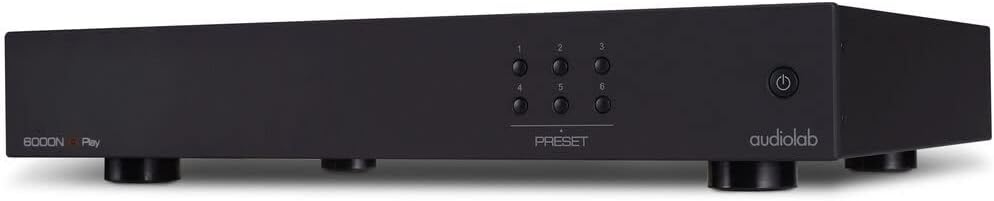
Figura 2: Angulado view of the Audiolab 6000N Play, showing the front panel and a glimpse of the side. This perspective highlights the compact design and the arrangement of the preset and power buttons.
- Analog Outputs (RCA): Para se conectar a um amplificador ou pré-ampmais vivo.
- Digital Outputs (Coaxial, Optical): For connecting to an external DAC or AV receiver.
- Conexão de Rede: Para uma conexão de rede com fio.
- Wi-Fi Antenna Connector: Para conectividade de rede sem fio.
- Entrada de energia: Para conectar o cabo de alimentação.
3. Configuração
3.1 Desembalagem e Colocação
Carefully remove the 6000N Play from its packaging. Place the unit on a stable, level surface away from direct heat sources and excessive moisture. Ensure adequate ventilation around the unit.
3.2 Conectando-se ao seu sistema de áudio
- Conexão analógica: Connect the RCA analog outputs of the 6000N Play to an available analog input on your amplificador ou pré-amplificador usando cabos RCA de alta qualidade.
- Conexão digital (opcional): If using an external DAC or AV receiver, connect the Coaxial or Optical digital output of the 6000N Play to the corresponding digital input on your external device.
3.3 Conexão de rede
The 6000N Play requires a network connection for streaming.
- Conexão com fio: Connect an Ethernet cable from your router or network switch to the Ethernet port on the rear panel of the 6000N Play.
- Conexão sem fio: Attach the supplied Wi-Fi antenna to the connector on the rear panel. The wireless setup will be completed via the DTS Play-Fi app.
3.4 Conexão de Energia
Connect the supplied power cable to the power input on the rear panel of the 6000N Play, then plug the other end into a suitable AC power outlet (100V—120V~50/60Hz).
4. Instruções de operação
4.1 Ligar/Desligar
Press the power button on the front panel to turn the unit on or off. The unit will enter standby mode when powered off.
4.2 DTS Play-Fi App Installation
To control the 6000N Play and access streaming services, you must install the DTS Play-Fi app on your smartphone, tablet, or PC.
- Download the "DTS Play-Fi" app from your device's app store (Apple App Store, Google Play Store, Amazon Appstore, or Windows Store).
- Launch the app and follow the on-screen instructions to set up your Audiolab 6000N Play on your network. This includes connecting to Wi-Fi if you chose a wireless setup.
4.3 Streaming de música
Once the 6000N Play is connected to your network and configured with the Play-Fi app:
- Open the DTS Play-Fi app.
- Select your desired music source (e.g., Amazon Music, Deezer, Spotify, or local media server).
- Choose the Audiolab 6000N Play as the playback device.
- Begin playback.
4.4 Utilizando predefinições
The six preset buttons on the front panel can be configured via the Play-Fi app to quickly access your favorite internet radio stations or playlists.
- In the DTS Play-Fi app, navigate to the desired content you wish to save as a preset.
- Look for an option to "Save as Preset" or similar within the app interface.
- Assign it to one of the six available preset numbers.
- Once saved, pressing the corresponding preset button on the 6000N Play's front panel will initiate playback of the saved content.
5. Manutenção
5.1 Limpeza
To clean the unit, disconnect it from the power supply. Use a soft, dry, lint-free cloth to wipe the surfaces. Avoid using abrasive cleaners, solvents, or chemical sprays, as these can damage the finish.
5.2 Atualizações de Software
Periodically check the DTS Play-Fi app or the Audiolab website for firmware updates. Updates can improve performance, add new features, or resolve issues. Follow the instructions provided by the app or website for performing updates.
6. Solução De Problemas
If you encounter issues with your Audiolab 6000N Play, refer to the following common troubleshooting steps:
- Sem energia:
- Certifique-se de que o cabo de alimentação esteja firmemente conectado tanto à unidade quanto à tomada elétrica.
- Verifique se a tomada elétrica está funcionando.
- Sem som:
- Check all audio cable connections between the 6000N Play and your amplevantador / receptor.
- Certifique-se de que a entrada correta esteja selecionada em seu amplevantador / receptor.
- Verify the volume level on both the 6000N Play (via app) and your amplevantador / receptor.
- Confirm that music is actively playing in the DTS Play-Fi app.
- Problemas de conexão de rede:
- For Wi-Fi, ensure the antenna is securely attached.
- Restart your router and the 6000N Play.
- Certifique-se de que sua rede Wi-Fi esteja ativa e dentro do alcance.
- Se estiver usando uma conexão com fio, verifique o cabo Ethernet.
- Re-run the network setup process in the DTS Play-Fi app.
- DTS Play-Fi App Problems:
- Certifique-se de que o aplicativo esteja atualizado para a versão mais recente.
- Reinicie o aplicativo ou seu dispositivo móvel.
- Se os problemas persistirem, tente reinstalar o aplicativo.
If these steps do not resolve the issue, please contact Audiolab customer support for further assistance.
7. Especificações
| Recurso | Especificação |
|---|---|
| Digital Output Level | 500 +/- 50mVpp |
| Resolução Máxima | 192 kHz/24 bits |
| Distorção Harmônica Total (THD) | <0.003% (1kHz @0dBFS BW=20-20kHz) |
| Requisitos de energia | 100V—120V~50/60Hz |
| Peso líquido | 10.78 libras (4.89 kg) |
| Dimensões do produto (L x P x A) | 17.8 x 12.52 x 2.62 polegadas (45.2 x 31.8 x 6.65 cm) |
| Tecnologia de Conectividade | Wi-Fi, Ethernet |
| Serviços de Internet suportados | Amazon Music, Deezer, Spotify (via DTS Play-Fi app) |
| Tipo de conector | RCA (Analog Out), Coaxial (Digital Out), Optical (Digital Out) |
8. Garantia e Suporte
Audiolab products are designed and manufactured to the highest quality standards. For detailed warranty information, please refer to the warranty card included with your product or visit the official Audiolab website. For technical support, product registration, or service inquiries, please contact your local Audiolab dealer or distributor, or visit the Audiolab support page online.
Official Audiolab Website: www.audiolab.co.uk