Introdução
This manual provides essential information for the setup, operation, and maintenance of your OREI Sony UBP-X800M2 Region Free 4K UHD Blu-ray Player. This player is designed for worldwide use, supporting all Blu-ray disc zones (A/B/C) and DVD regions (0-8), with a built-in NTSC↔PAL 4K HD converter. Enjoy stunning 4K UHD visuals, high-resolution audio including Dolby Atmos and DTS:X, and seamless access to streaming services via Wi-Fi or Ethernet.

Figura 1: Frente view of the OREI Sony UBP-X800M2 4K UHD Blu-ray Player.
Configurar
1. Desembalagem e colocação
- Remova cuidadosamente todos os componentes da embalagem.
- Place the player on a stable, level surface with adequate ventilation.
- Ensure no objects block the ventilation openings.
2. Conectando à sua TV
Connect the player to your TV using an HDMI cable for optimal 4K UHD video and audio.
- Conecte uma extremidade do cabo HDMI à SAÍDA HDMI porta na parte traseira do reprodutor de Blu-ray.
- Conecte a outra extremidade do cabo HDMI a uma entrada HDMI na sua TV.
- If using an audio receiver, connect the player's HDMI OUT to the receiver's HDMI IN, then the receiver's HDMI OUT to the TV's HDMI IN.

Figure 2: Rear panel connections, showing HDMI, LAN, and audio outputs.
3. Conexão de energia
- Connect the AC power cord to the player's power input and then to a suitable electrical outlet.
4. Conexão de rede (opcional)
For streaming services and firmware updates, connect the player to your home network.
- Conexão com fio: Connect an Ethernet cable from the player's LAN (100) port to your router or modem.
- Conexão sem fio: Navigate to the network settings in the player's menu to connect to your Wi-Fi network.
5. Region Changing Instructions
This player supports all DVD regions (0-8) automatically. Blu-ray regions (A, B, C) are changed manually using the remote control.
- Turn the player ON e OPEN THE DISC TRAY.
- Once the tray is completely open, press the corresponding colored button on the remote to select the desired Blu-ray region:
- Zona A: Pressione o BOTÃO AMARELO no controle remoto.
- Zona B: Pressione o BOTÃO AZUL no controle remoto.
- Zona C: Pressione o BOTÃO VERMELHO no controle remoto.
- You can now put your disc in the tray and then close the tray.

Figure 3: Remote control with colored buttons for region selection.
Instruções de operação
1. Reprodução de disco
The player supports a wide range of disc formats, including 4K UHD Blu-ray, standard Blu-ray, Blu-ray 3D, DVD, CD, and Super Audio CD (SACD).
- Pressione o ABRIR/FECHAR button on the player or remote to open the disc tray.
- Place the disc gently onto the tray with the label side facing up.
- Pressione o ABRIR/FECHAR botão novamente para fechar a bandeja.
- The player will automatically begin playback or display a disc menu.

Figura 4: Frente view do aparelho com a bandeja de discos aberta, pronto para a inserção do disco.
2. Serviços de streaming
Access popular streaming services like Netflix and YouTube directly from the player's home menu.
- Ensure the player is connected to the internet (Wi-Fi or Ethernet).
- From the home screen, select the desired streaming application.
- Log in with your account credentials to begin streaming.
3. Reprodução de mídia USB
Reproduzir mídia files (audio, video, photos) from a USB storage device.
- Insert your USB device into the front USB port.
- Select the USB option from the player's home menu to browse and play your media.
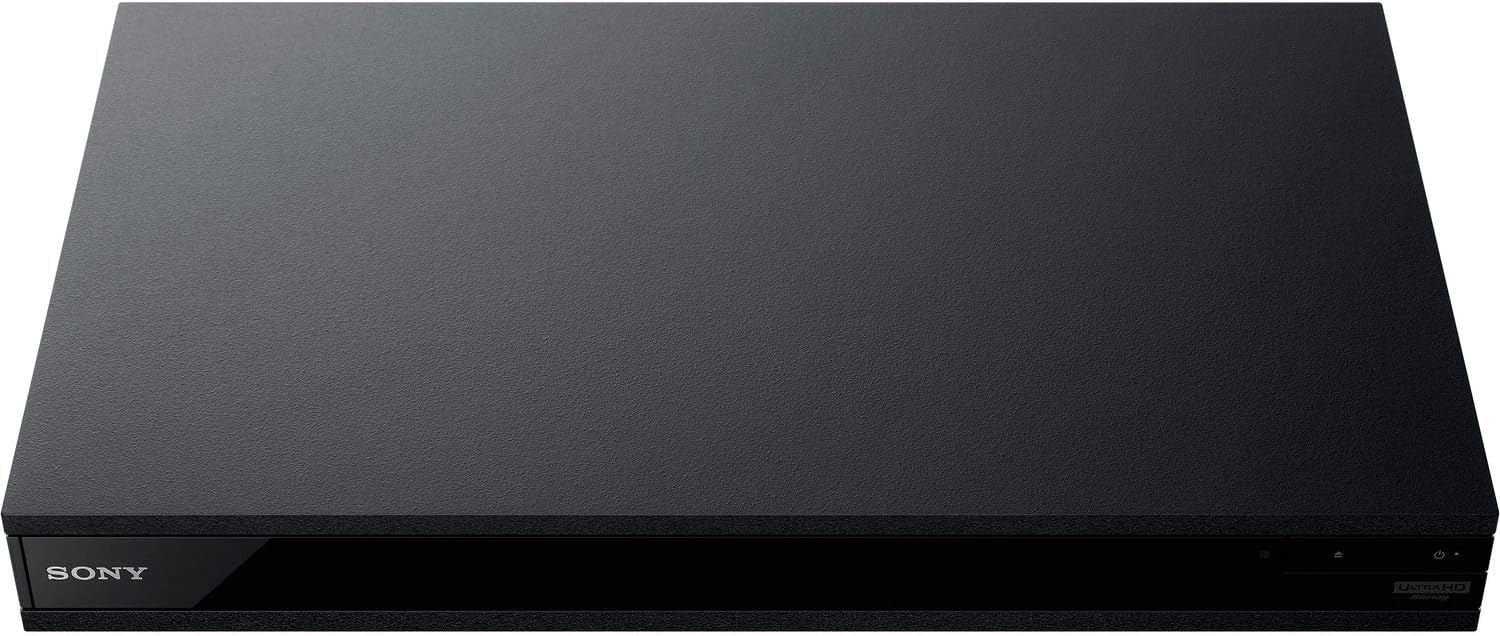
Figura 5: Frente view of the player with a USB drive inserted into the front port.
Manutenção
1. Limpando o reprodutor
- Limpe a parte externa do aparelho com um pano macio e seco.
- Não utilize produtos de limpeza abrasivos, ceras ou solventes.
- Ensure ventilation openings remain clear of dust and debris.
2. Cuidados com os Discos
- Manuseie os discos pelas bordas para evitar impressões digitais e arranhões.
- Limpe os discos com um pano macio e sem fiapos, limpando do centro para fora.
- Guarde os discos em seus estojos, longe da luz solar direta e de temperaturas extremas.
3. Atualizações de firmware
Firmware updates can be done via the internet to ensure optimal performance and access to the latest features.
- Go to the home menu, then setup menu, and then to Software Update.
- Click on "Update Via Internet". If a new firmware is available, the player will automatically update.
- NÃO turn off the player while it is updating.
- NÃO perform firmware updates by USB unless instructed by OREI support.
Solução de problemas
Problemas comuns
- Sem imagem/som:
- Check all HDMI and audio cable connections.
- Ensure the TV input is set to the correct HDMI port.
- Verify the player is powered on.
- Disc Does Not Play:
- Certifique-se de que o disco esteja limpo e sem arranhões.
- Verify the disc is inserted correctly (label side up).
- For Blu-ray discs, confirm the player's region setting matches the disc's region (refer to "Region Changing Instructions" in the Setup section).
- Open the tray again and leave the disc in the tray. Once fully open, press the color button to select the region. Then close the tray.
- Region Code Error Message:
If you put in a disc before changing regions, you may get an error message indicating the wrong region. The player remembers this message. To remove that error, you need to reset the player.
- Pressione o LAR button on the remote with no disc inside to go to the home screen.
- Use arrow buttons on the remote to go to the upper right corner where it says Configurar e pressione DIGITAR.
- Role para baixo até Redefinindo on the bottom of the menu.
- Selecione Redefinir para as configurações padrão de fábrica.
- Role para baixo e selecione TODAS AS CONFIGURAÇÕES e pressione DIGITAR -> Pressione Iniciar Entrar -> Close DIGITAR.
- Turn the player off and then on again after 30 seconds.
- Select Language English and then select quick start mode OFF. You may need to activate network settings again.
- If you prefer not to connect the player to the internet, you may press the LAR button and go to the home screen. Now start from step 1 under "Region Changing Instructions" to change regions.
Especificações
| Marca | OREI |
| Nome do modelo | Sony X800M2 (UBP-X800M2) |
| Dimensões do produto | 19 x 14.1 x 3.8 polegadas |
| Peso do item | 8.82 libras (4000 gramas) |
| Tipo de mídia | Blu-Ray Disc, DVD, 4K UHD Blu-ray, Blu-ray 3D, CD, Super Audio CD |
| Resolução | 3840x2160 (4K UHD) |
| Tecnologia de Conectividade | Ethernet, HDMI, USB, Wi-Fi |
| Tipo de conector | HDMI |
| Modo de saída de áudio | Surround (Dolby Atmos, DTS:X, High-Resolution Audio) |
| Cor | Preto |
| Baterias | São necessárias 2 pilhas AAA (para controle remoto) |
| Recurso especial | Region Free (Blu-ray Zones A/B/C, DVD Regions 0-8), Built-in NTSC↔PAL 4K HD Converter |
Garantia e Suporte
Informações de garantia
For specific warranty details, please refer to the warranty card included with your product or visit the official OREI webGuarde o comprovante de compra como prova de aquisição.
Suporte ao cliente
If you encounter any issues or have questions regarding your OREI Sony UBP-X800M2 Blu-ray Player, please contact OREI customer support.
- Suporte online: Visite o Loja OREI na Amazon para perguntas frequentes e recursos de suporte.
- Assistência Técnica: Contact OREI directly for technical support. (Specific contact details not provided in source data, please refer to product packaging or official weblocal).


