1. Introdução
Este manual fornece informações essenciais para configurar, operar e manter o seu equipamento. ViewSonic VX2776-SH 27-inch Full HD IPS monitor. Please read these instructions carefully before using the product.
O ViewSonic VX2776-SH monitor features a 27-inch (68.58 cm) Full HD (1920x1080) IPS display, offering vibrant colors and wide viewing angles. It includes SuperClear IPS Technology, a sleek frameless design, and a 75Hz refresh rate for smooth visuals. Eye-care technologies such as Flicker-Free and a Blue Light Filter are integrated to reduce eye strain. Connectivity options include HDMI and VGA inputs.

Figura 1: ViewSonic VX2776-SH Monitor Overview with Key Features
2. Conteúdo da embalagem
Verifique se todos os itens estão presentes na embalagem:
- ViewSonic VX2776-SH Monitor x1
- 3-pin Power Plug (IEC C13 / CEE22) x1
- Cabo HDMI (v1.4; Macho-Macho) x1
3. Instruções de configuração
3.1. Montagem do Suporte
Para montar o suporte do monitor:
- Coloque o monitor cuidadosamente com a tela virada para baixo sobre uma superfície macia e limpa para evitar arranhões.
- Align the triangular base with the stand neck.
- Secure the base to the neck using the provided screw.
- Attach the assembled stand to the back of the monitor by aligning the mounting points and securing it firmly.
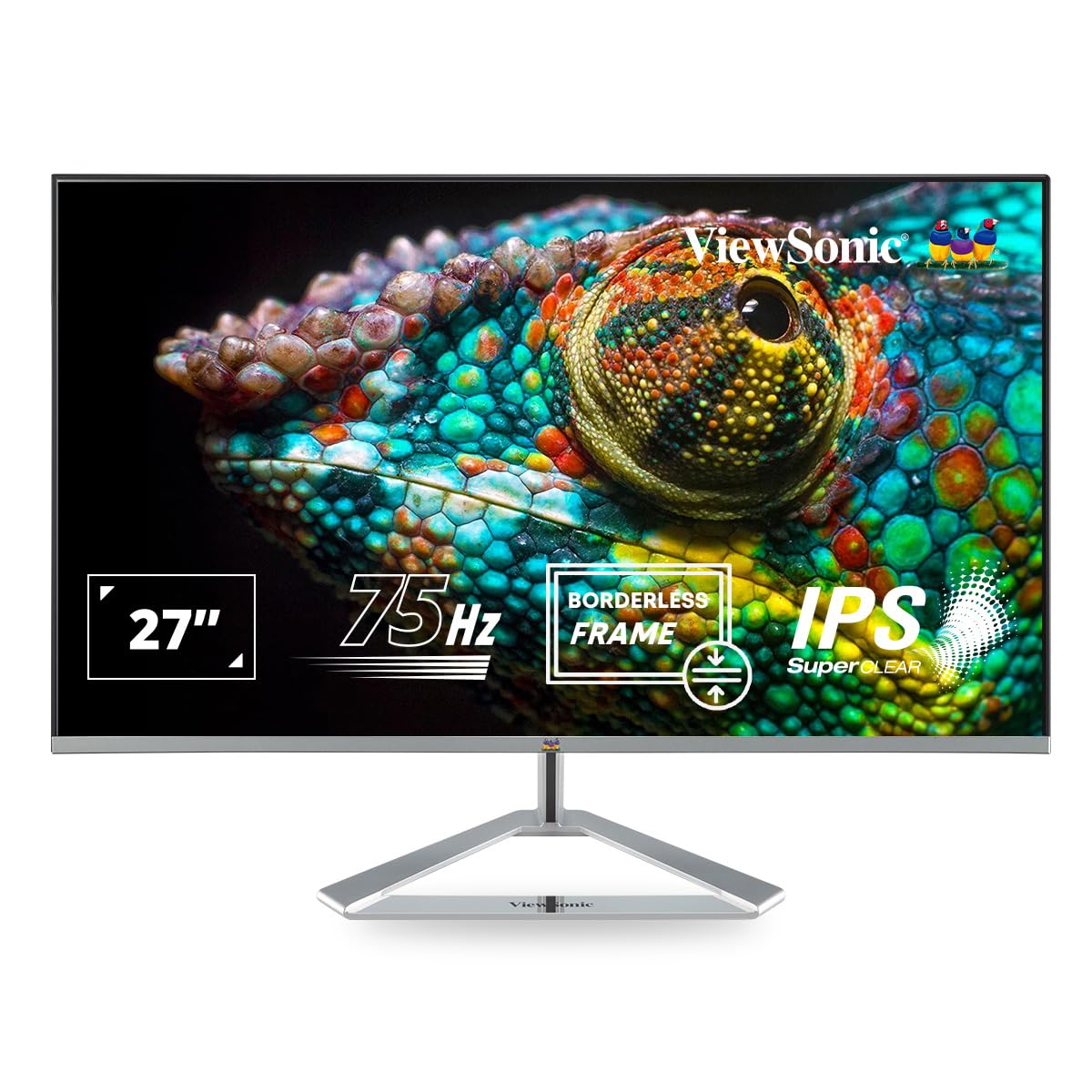
Figure 2: Monitor with Assembled Triangular Stand
3.2. Conectando o monitor
Certifique-se de que o monitor e o computador estejam desligados antes de fazer qualquer conexão.
- Conexão de energia: Conecte o cabo de alimentação à entrada de energia do monitor e, em seguida, a uma tomada elétrica.
- Conexão de vídeo: Connect one end of the HDMI cable (or VGA cable) to the corresponding port on your computer's graphics card and the other end to an HDMI or VGA input port on the monitor. The monitor supports dual HDMI inputs.
- Saída de áudio (opcional): If you are using external speakers or headphones, connect them to the monitor's audio out port.

Figure 3: Monitor Connectivity Ports (HDMI, VGA)
3.3. Suporte de parede VESA (opcional)
The monitor is VESA mount compatible (100x100mm). To mount the monitor on a wall or monitor arm, remove the stand and attach the VESA-compatible bracket (not included) to the mounting holes on the back of the monitor.

Figure 4: VESA Mounting Area on Monitor Back
4. Instruções de operação
4.1. Ligar/desligar
Pressione o botão liga/desliga localizado no canto inferior direito do monitor para ligá-lo ou desligá-lo. A luz indicadora de energia acenderá quando o monitor estiver ligado.
4.2. Menu de exibição na tela (OSD)
The OSD menu allows you to adjust various display settings. Use the buttons located on the bottom right of the monitor to navigate the menu:
- Pressione um botão para ativar o menu OSD.
- Utilize os botões de navegação para percorrer as opções.
- Pressione o botão Selecionar para confirmar a seleção.
- Pressione o botão de saída para fechar o menu OSD.
4.3. ViewConfigurações de modo
ViewMode provides optimized presets for different screen applications. These presets adjust gamma curve, color temperature, contrast, and brightness to enhance your viewexperiência.
- Jogo: Optimized for gaming visuals.
- Filme: Enhanced for video playback.
- Web: Suitable for general web navegação.
- Texto: Ideal for reading documents, reducing eye strain.
- Mono: Displays content in grayscale.

Figura 5: ViewMode Optimized Settings
4.4. Tecnologia para Cuidados com os Olhos
The monitor incorporates eye-care features to promote comfortable viewing during extended use:
- Sem cintilação: Eliminates screen flickering, which can cause eye strain and fatigue.
- Filtro de luz azul: Reduces harmful blue light emissions, helping to protect your eyes.

Figura 6: Tecnologia sem cintilação

Figure 7: Blue Light Filter
4.5. Modo Eco
Eco Mode helps reduce power consumption and prolong the monitor's lifespan. You can enable or disable this feature through the OSD menu.

Figure 8: Eco Mode Functionality
5. Manutenção
To ensure optimal performance and longevity of your monitor:
- Limpando a tela: Limpe suavemente a tela com um pano macio e sem fiapos. Para manchas persistentes, dampen the cloth with a mild, non-abrasive screen cleaner. Do not spray cleaner directly onto the screen.
- Limpando o Casing: Use um pano macio e seco para limpar o monitor.asing. Evite usar detergentes fortes ou produtos de limpeza abrasivos.
- Ventilação: Certifique-se de que as aberturas de ventilação do monitor não estejam bloqueadas para evitar superaquecimento.
- Desligar: Desligue sempre o monitor quando não estiver em uso por longos períodos.
6. Solução De Problemas
Se você encontrar problemas com seu monitor, consulte as seguintes soluções comuns:
| Problema | Solução possível |
|---|---|
| Sem imagem na tela |
|
| A imagem está desfocada ou distorcida. |
|
| Sem som nos alto-falantes/fones de ouvido externos. |
|
| O LED de alimentação do monitor está apagado. |
|
7. Especificações
| Recurso | Detalhe |
|---|---|
| Número do modelo | VX2776-SH |
| Tamanho da tela | 27 polegadas (68.58 cm) |
| Tipo de painel | IPS |
| Resolução Nativa | 1920 x 1080 (Full HD) |
| Taxa de atualização | 75Hz |
| Proporção da tela | 16:9 |
| Conectividade | 2x HDMI (v1.4), 1x VGA |
| Recursos de cuidados com os olhos | Filtro de luz azul sem cintilação |
| Compatível com montagem VESA | 100x100mm |
| Dimensões do produto (CxLxA) | 61.4 x 18.4 x 44.3 cm |
| Peso do item | 4 kg |
8. Garantia e Suporte
For warranty information and technical support, please refer to the warranty card included with your product or visit the official ViewSônico website. Você também pode entrar em contato ViewSonic customer service for assistance with product registration, troubleshooting, and service inquiries.


