1. Introdução
This manual provides essential information for the safe and efficient use of your Lenovo Tab M8 Tablet. The Lenovo Tab M8 is an 8-inch HD Android tablet featuring a Quad-Core Processor, 32GB storage, and a full metal cover. It operates on Android 9 Pie and is designed for extended use with its long-life battery.
Leia atentamente este manual antes de utilizar o seu dispositivo para garantir o melhor desempenho e prolongar a sua vida útil.
2. Dispositivo acabadoview
Familiarize yourself with the physical components of your Lenovo Tab M8 Tablet.

Figura 2.1: Frente view of the Lenovo Tab M8 Tablet, showing the display and bezels.
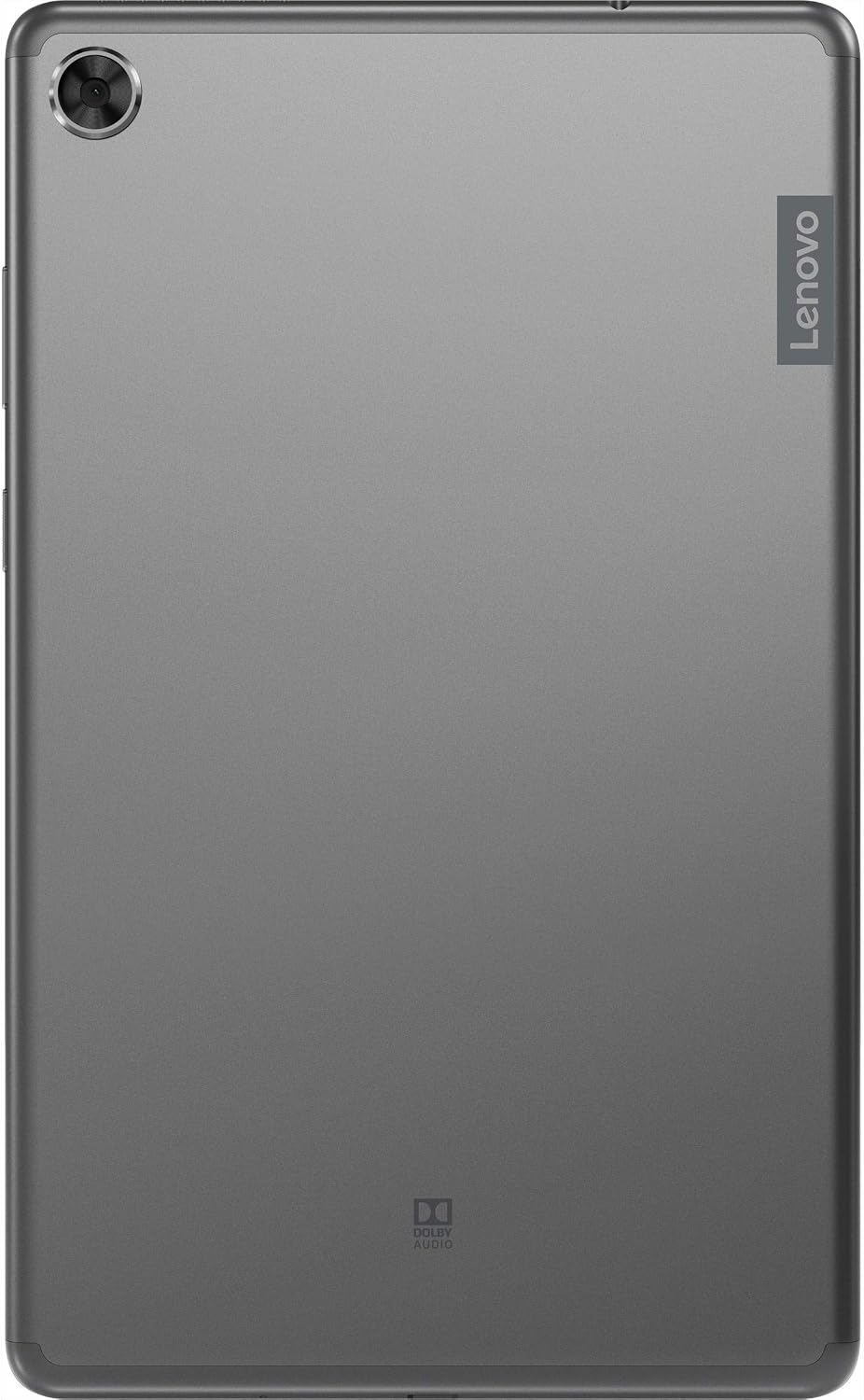
Figura 2.2: Voltar view of the Lenovo Tab M8 Tablet, highlighting the camera and Lenovo branding.

Figura 2.3: Lado view of the Lenovo Tab M8 Tablet, showing the power button and volume rocker.

Figura 2.4: Lado view of the Lenovo Tab M8 Tablet, illustrating the various ports and slots.
3. Configuração
3.1 Carregamento Inicial
Before first use, fully charge your tablet using the provided USB cable and power adapter. The battery indicator on the screen will show charging progress.
3.2 Ligar/Desligar
- To power on: Press and hold the Power button (refer to Figure 2.3) until the Lenovo logo appears.
- Para desligar: Pressione e mantenha pressionado o botão Liga/Desliga e, em seguida, selecione "Desligar" nas opções da tela.
- Para reiniciar: Pressione e mantenha pressionado o botão Liga/Desliga e, em seguida, selecione "Reiniciar" nas opções.
3.3 Assistente de Configuração Inicial
Ao ser ligado pela primeira vez, o tablet irá guiá-lo pelo processo de configuração inicial:
- Selecione o idioma: Escolha o seu idioma preferido.
- Conectar ao Wi-Fi: Select your Wi-Fi network and enter the password. A stable internet connection is required for updates and Google account setup.
- Copiar aplicativos e dados: You can choose to transfer data from another device or set up as new.
- Conta do Google: Sign in with your existing Google account or create a new one. This is necessary for accessing the Google Play Store and other Google services.
- Data e hora: Confirm or adjust date and time settings.
- Bloqueio de tela: Set up a PIN, pattern, or password for screen security.
- Serviços do Google: Review e aceitar os termos dos serviços do Google.
4. Instruções de operação
4.1 Navegação básica
- Tocar: Touch the screen once to select an item or open an application.
- Pressão longa: Touch and hold an item to access additional options.
- Deslize: Arraste o dedo pela tela para percorrer as páginas ou listas.
- Ampliar com os dedos: Use dois dedos para ampliar ou reduzir as imagens e web páginas.
4.2 Conectividade Wi-Fi e Bluetooth
- Wi-fi: Vá para Configurações > Rede e internet > Wi-Fi. Turn Wi-Fi on, select your network, and enter the password if required.
- Bluetooth: Vá para Configurações > Dispositivos conectados > Bluetooth. Turn Bluetooth on, then pair with compatible devices like headphones or speakers.
4.3 Usando as câmeras
The tablet features both front and rear cameras. Open the Camera app from your home screen or app drawer. Tap the shutter button to take photos or switch to video mode to record. Use the icon on the screen to switch between front and rear cameras.
4.4 Gerenciamento de bateria
The Lenovo Tab M8 is equipped with a 5000 mAh battery. To optimize battery life:
- Reduza o brilho da tela.
- Desligue o Wi-Fi e o Bluetooth quando não estiverem em uso.
- Feche os aplicativos não utilizados que estiverem sendo executados em segundo plano.
- Ative o modo de economia de bateria em Configurações> Bateria.
5. Manutenção
5.1 Limpando o Dispositivo
Use a soft, lint-free cloth to clean the screen and body of the tablet. Avoid using harsh chemicals or abrasive materials. For stubborn smudges, slightly dampLimpe o pano com água ou um produto de limpeza específico para telas eletrônicas.
5.2 Atualizações de Software
Verifique e instale regularmente as atualizações de software para garantir que seu tablet tenha os recursos mais recentes, patches de segurança e melhorias de desempenho. Acesse Configurações > Sistema > Atualização do sistema para verificar as atualizações disponíveis.
5.3 Gerenciamento de armazenamento
To maintain optimal performance, manage your tablet's 32GB internal storage. You can uninstall unused apps, clear app caches, and transfer large files (photos, videos) to cloud storage or an external microSD card (if supported). Access storage settings via Configurações > Armazenamento.
6. Solução De Problemas
- O tablet não liga: Ensure the battery is charged. Connect the tablet to its charger and wait a few minutes before attempting to power on again.
- Tela não responde: Try restarting the tablet by holding the power button for approximately 10-15 seconds until the device powers off and then on again.
- Problemas de conectividade Wi-Fi/Bluetooth:
- Toggle Wi-Fi/Bluetooth off and on in settings.
- Restart your Wi-Fi router or Bluetooth device.
- Forget the network/device and reconnect.
- Desempenho lento:
- Feche os aplicativos não utilizados.
- Limpar caches de aplicativos (Configurações > Apps e notificações > [Nome do app] > Armazenamento e cache > Limpar cache).
- Garanta espaço de armazenamento livre suficiente.
- Reinicie o tablet.
- Restauração de fábrica (último recurso): If issues persist, you may need to perform a factory reset. This will erase all data on your tablet. Go to Configurações > Sistema > Opções de redefinição > Apagar todos os dados (redefinição de fábrica). Faça backup dos dados importantes antes de prosseguir.
7. Especificações
| Recurso | Detalhe |
|---|---|
| Nome do modelo | Lenovo Tab M8 |
| Tamanho da tela | 8 polegadas |
| Resolução da tela | 1280 x 800 (HD) |
| Processador | Quad-Core, 2 GHz |
| BATER | 4 GB |
| Armazenamento interno | 32 GB |
| Sistema operacional | Android 9 Torta |
| Câmera Traseira | 5 MP |
| Conectividade sem fio | Wi-Fi 802.11ac, Bluetooth 5.0 |
| Capacidade da bateria | 5000 mAh |
| Dimensões (CxLxA) | 9.59 x 6.69 x 0.39 polegadas |
| Peso do item | 0.01 onças |
8. Garantia e Suporte
As this product is listed as "Renewed," specific warranty terms may vary. Please refer to the warranty information provided by the seller at the time of purchase. Typically, renewed products come with a limited warranty from the seller or a third-party refurbisher.
For technical support, driver downloads, and additional resources, please visit the official Lenovo support website: support.lenovo.com. You will need your device's model number (ZA5G0060US) for specific support.