Introdução
This manual provides instructions for the proper setup, operation, and maintenance of your ELECOM EX-G Left Handed Trackball Mouse, model M-XT4DRBK-G. This wireless trackball mouse is designed for left-handed users, featuring ergonomic design, thumb control, and programmable buttons for enhanced productivity and comfort.

Image: The ELECOM EX-G Left Handed Trackball Mouse, showcasing its ergonomic design and red trackball.
Configurar
1. Conteúdo da embalagem
Verifique se todos os itens estão presentes na embalagem:
- ELECOM EX-G Left Handed Trackball Mouse
- Receptor sem fio USB
- Pilha AA (1)
- Manual de Instruções (este documento)

Image: The trackball mouse, a single AA battery, and the USB receiver, representing the items included in the box.
2. Instalação da bateria
- Localize o compartimento da bateria na parte inferior do mouse.
- Abra a tampa do compartimento da bateria.
- Insira a pilha AA fornecida, certificando-se da polaridade correta (+/-).
- Feche bem a tampa do compartimento da bateria.

Image: A diagram showing the battery installation process for the trackball mouse.
3. Conexão do receptor USB
- Remova o receptor USB do compartimento de armazenamento na parte inferior do mouse.
- Conecte o receptor USB a uma porta USB disponível em seu computador.
- Your computer should automatically detect the device.

Image: A diagram illustrating how to insert the USB receiver into a computer's USB port.
4. Ligar
Locate the power switch on the underside of the mouse and slide it to the "ON" position. The mouse is now ready for use.

Image: A diagram showing the power switch on the underside of the trackball mouse in the "ON" position.
5. Software Installation (ELECOM Mouse Assistant)
To customize the 6 programmable buttons and other settings, download and install the "ELECOM Mouse Assistant" software from the official ELECOM website. This software allows you to assign various functions to each button.

Image: Screenshot of the ELECOM website showing the download links for the Mouse Assistant software for Windows and Mac.

Image: Screenshot of the ELECOM Mouse Assistant software interface, showing button customization options and DPI settings.
Instruções de operação
1. Basic Trackball Operation
Control the cursor by rolling the red trackball with your thumb. The optical tracking technology provides precise movement.

Image: A left hand operating the trackball mouse, demonstrating thumb control of the red trackball.
Video: Official product video demonstrating the ELECOM Left-Handed Wireless Thumb-Operated Trackball Mouse (M-XT4DRBK-G) in use, highlighting its features and ergonomic design.
2. Ajuste de DPI
The DPI button allows you to switch between two cursor speeds: 750 DPI (Low) and 1500 DPI (High). Press the DPI button located near the scroll wheel to toggle between these settings.

Image: Close-up of the trackball mouse showing the DPI switch button, labeled "HIGH", located above the trackball.
3. Funções dos botões
The mouse features 6 physical buttons, which can be customized using the ELECOM Mouse Assistant software. Default functions include:
- Clique esquerdo: Primary selection.
- Clique com o botão direito: Context menu.
- Clique na roda de rolagem: Middle click or auto-scrolling.
- Botão Voltar: Navega de volta para web navegadores ou file exploradores.
- Botão Avançar: Navega para a frente em web navegadores ou file exploradores.
- Botão de função: Personalizável via software.
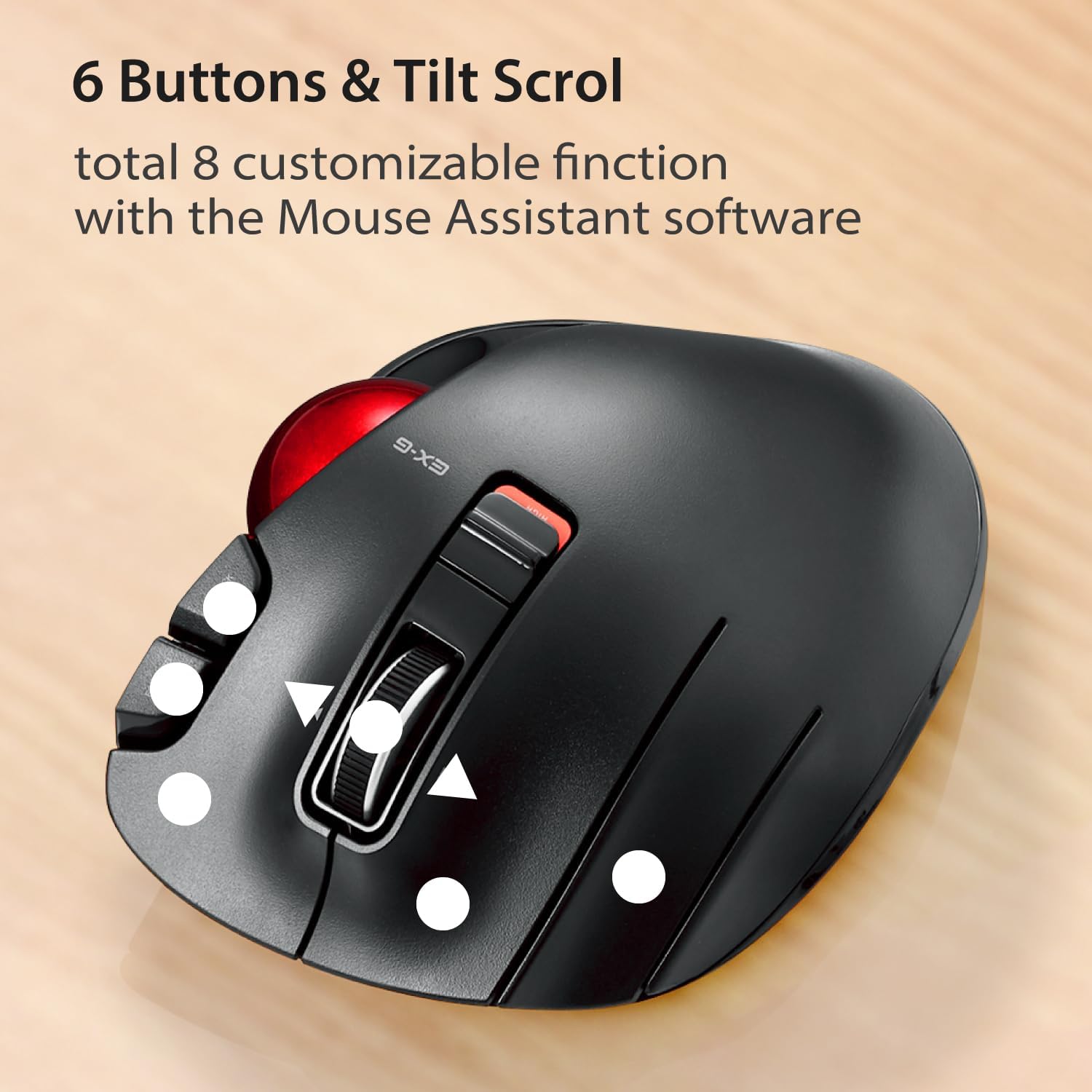
Imagem: Vista de cima para baixo view of the trackball mouse highlighting the positions of its 6 buttons and tilt scroll wheel.

Image: Detailed diagram labeling the tilt wheel, function button, back/forward buttons, DPI switch, 34mm ball, ball removal hole, power switch, low power indicator, high speed indicator, and USB receiver storage.
4. Tilt Scroll
The scroll wheel can be tilted left or right to enable horizontal scrolling, useful for navigating wide documents or spreadsheets. This function may not be supported on all operating systems (e.g., Windows RT8.1).
5. Design ergonômico
The mouse is designed to support the left hand in a natural, angled position, promoting comfort during extended use and reducing strain.

Image: A left hand resting comfortably on the trackball mouse, illustrating its ergonomic shape.
Manutenção
1. Trackball Cleaning
Over time, dust and debris may accumulate around the trackball, affecting its smooth operation. To clean:
- Desligue o mouse.
- Locate the trackball removal hole on the underside of the mouse.
- Use a pen or a similar blunt object to push the trackball out from the bottom.
- Clean the trackball and the inside of the trackball housing with a soft, lint-free cloth.
- Reinsert the trackball until it clicks into place.
Image: Diagram showing the location of the trackball removal hole on the underside of the mouse, indicating where to push to remove the trackball for cleaning.
2. Substituição da bateria
When the battery remaining light lamp indicates low power, replace the AA battery following the installation steps in the Setup section.
Solução de problemas
| Problema | Possível causa | Solução |
|---|---|---|
| O cursor não se move ou se move de forma errática. |
|
|
| Buttons are not responding as expected. |
|
|
| Horizontal scrolling not working. |
|
|
Especificações
| Recurso | Detalhe |
|---|---|
| Número do modelo | M-XT4DRBK-G |
| Dimensões (C x L x A) | 4.9 x 3.73 x 1.89 polegadas (124.4 x 94.7 x 47.9 mm) |
| Peso (sem bateria) | 4.5 onças (aproximadamente 127.6 g) |
| Conectividade | Conexão sem fio de 2.4 GHz (receptor USB) |
| Níveis de DPI | 750 / 1500 count (switchable) |
| Botões | 6 (Programmable) + Tilt Scroll |
| Tecnologia de rastreamento | Optical (Red Ball) |
| Fonte de energia | Bateria 1 x AA (incluída) |
| Requisitos do sistema | Windows Vista, 7, 8, 10 or later; macOS 10.10 or later |

Image: Diagram showing the length, width, and height dimensions of the trackball mouse.
Informações de garantia
ELECOM products are typically covered by a limited manufacturer's warranty. For specific details regarding the warranty period and terms for your M-XT4DRBK-G trackball mouse, please refer to the warranty card included with your product or visit the official ELECOM website.
Apoiar
For further assistance, technical support, or to download the latest version of the ELECOM Mouse Assistant software, please visit the official ELECOM-USA website:
You can also find additional product information and FAQs on the ELECOM brand store on Amazon.


