1. Introdução
The i-tec USB-C Quattro Docking Station is designed to expand the connectivity of your USB-C enabled laptop or tablet, allowing for connection of up to four external displays, multiple USB peripherals, Gigabit Ethernet, and audio devices. It also provides up to 85W Power Delivery to charge your host device. This manual provides detailed instructions for setting up, operating, and maintaining your docking station.
2. Conteúdo da embalagem
Por favor, verifique se todos os itens listados abaixo estão presentes em sua embalagem:
- i-tec USB-C Quattro Docking Station
- Adaptador de energia
- Cabo de energia
- Cabo USB-C para USB-C
- Guia de início rápido

Figura 2.1: Package Contents. The image displays the docking station, its power adapter, a power cable, and a quick setup guide.
3. Produto acabadoview
Familiarize yourself with the ports and indicators on your i-tec USB-C Quattro Docking Station.
3.1 Painel Frontal

Figura 3.1: Front Panel. This image shows the front of the docking station with a power button, microphone input jack, headphone output jack, one USB-C data port, and one USB 3.0 port.
- Botão de energia: To power on/off the docking station.
- Conector de microfone (3.5 mm): Conecte um microfone.
- Entrada para fone de ouvido (3.5mm): Conecte fones de ouvido ou alto-falantes.
- Porta de dados USB-C: Para conectar periféricos USB-C.
- Porta USB 3.0: For connecting USB 3.0/2.0 peripherals.
3.2 Painel traseiro

Figura 3.2: Rear Panel. This image displays the rear of the docking station, featuring the DC 20V power input, USB-C PD host connection, two DisplayPort outputs, two HDMI outputs, a Gigabit Ethernet (LAN) port, and four additional USB 3.0 ports.
- Entrada de energia DC 20V: Conecte o adaptador de energia incluído.
- USB-C PD Host Port: Connect to your laptop/tablet for data, video, and power delivery.
- 2x DisplayPort: Connect external monitors via DisplayPort cables.
- 2x HDMI: Connect external monitors via HDMI cables.
- GLAN (RJ-45) Port: Conecte-se a uma rede com fio.
- 4 portas USB 3.0: Connect USB 3.0/2.0 peripherals.
4. Instruções de configuração
Follow these steps to set up your i-tec USB-C Quattro Docking Station:
- Conecte a energia: Connect the power adapter to the DC 20V input on the rear of the docking station, then plug the power cable into a wall outlet.
- Conectar ao dispositivo host: Use the provided USB-C to USB-C cable to connect the docking station's USB-C PD Host Port to your laptop's USB-C port. Ensure your laptop's USB-C port supports DisplayPort Alternate Mode and Power Delivery for full functionality.
- Conectar monitores externos: Connect your monitors to the DisplayPort and/or HDMI ports on the rear of the docking station. You can connect up to four displays simultaneously.
- Conecte periféricos: Plug your USB devices (keyboard, mouse, external drives) into the available USB 3.0 or USB-C data ports. Connect an Ethernet cable to the GLAN port for wired network access. Connect headphones/speakers and a microphone to the respective audio jacks on the front panel.
- Ligar: Press the power button on the front of the docking station. Your operating system should automatically detect the connected devices.
- Instalação do driver (se necessário): For optimal performance or specific features, visit www.i-tec.cz/setup to download and install any required drivers for your operating system.
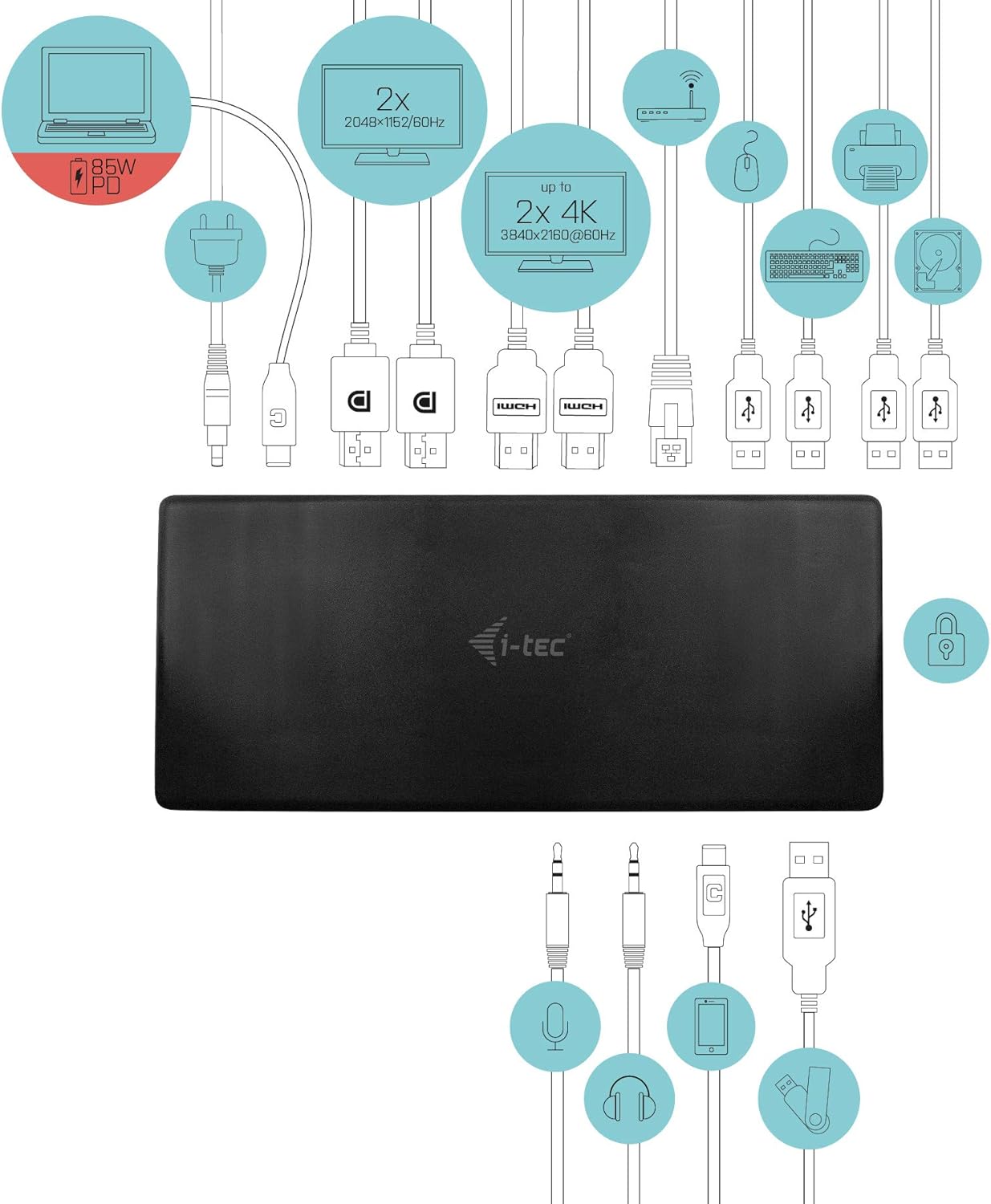
Figura 4.1: Connection Diagram. This diagram shows the various connections to the docking station, including power, host laptop, multiple monitors (DisplayPort and HDMI), Ethernet, and USB peripherals like a mouse, keyboard, and external storage.
5. Instruções de operação
Once set up, your docking station provides enhanced functionality for your workspace.
5.1 Configuração de vários monitores
The docking station supports up to four external displays. You can configure these displays in various modes (extended, mirrored) through your operating system's display settings.
- Resoluções: Supports up to 2x 2048x1152@60Hz and 2x 4K/60Hz, depending on your host device's capabilities and display connections.
- Windows: Right-click on the desktop, select 'Display settings' to arrange and configure your monitors.
- MacOS: Go to 'System Preferences' > 'Displays' to adjust settings.

Figura 5.1: Four-Display Setup Example. This image illustrates a workstation with a laptop connected to the docking station, driving four external monitors simultaneously, showcasing a multi-tasking environment.
5.2 Fornecimento de energia
The USB-C PD Host Port provides up to 85W of power to charge your connected laptop or tablet, eliminating the need for a separate power adapter for your host device.
5.3 Conectividade USB
Utilize the 5x USB 3.0 ports and 1x USB-C data port for connecting various peripherals such as external hard drives, USB flash drives, keyboards, mice, and printers. USB 3.0 ports offer high-speed data transfer.
5.4 Gigabit Ethernet
The GLAN RJ-45 port provides a stable and high-speed wired internet connection (10/100/1000 Mbps), which is often more reliable than Wi-Fi.
5.5 Funcionalidade de áudio
Connect your headphones, speakers, or microphone to the 3.5mm audio jacks on the front panel for integrated audio input and output.

Figura 5.2: Productivity Setup. This image shows a professional desk environment where the docking station facilitates a multi-monitor setup for enhanced productivity, displaying various applications and data across four screens.
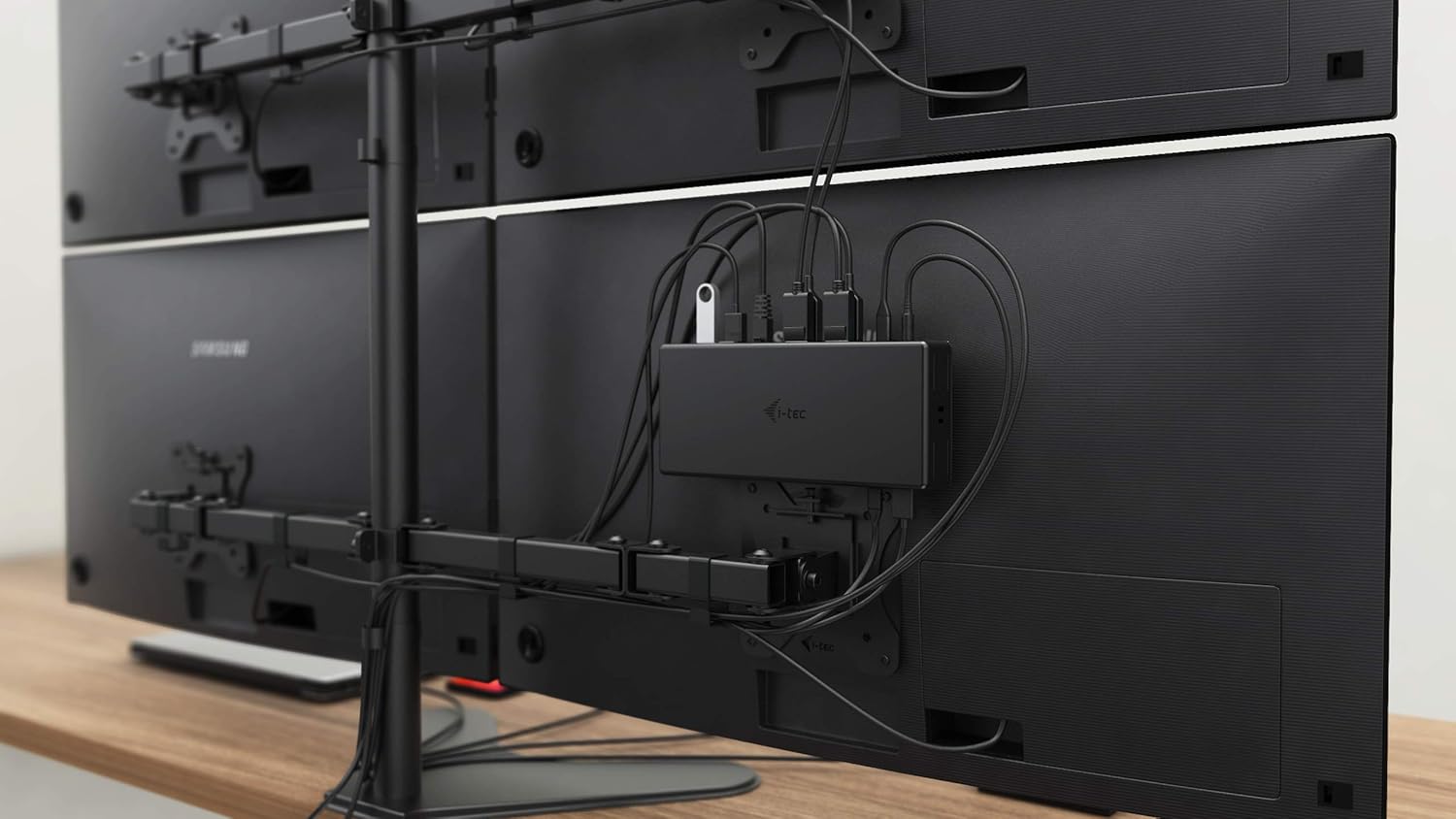
Figura 5.3: VESA Mounting. The docking station is shown mounted vertically on the back of a VESA-compatible monitor, demonstrating its space-saving installation capability and organized cable routing.

Figura 5.4: Connected Workstation. This image provides a close-up of the docking station on a desk, connected to a laptop via USB-C, and featuring various peripherals plugged into its front ports, including a USB drive and audio devices.
6. Manutenção
Para garantir a longevidade e o desempenho ideal da sua estação de acoplamento, siga estas diretrizes de manutenção:
- Limpeza: Use um pano macio e seco para limpar a parte externa da base de carregamento. Não use produtos de limpeza líquidos ou aerossóis.
- Ventilação: Certifique-se de que a estação de acoplamento esteja localizada em uma área bem ventilada para evitar superaquecimento. Não bloqueie nenhuma abertura de ventilação.
- Manuseio: Avoid dropping or subjecting the docking station to strong impacts.
- Ambiente: Mantenha o dispositivo longe de temperaturas extremas, umidade e luz solar direta.
- Gerenciamento de cabos: Ensure cables are not excessively bent or strained to prevent damage to ports and cables.
7. Solução De Problemas
Se você encontrar problemas com sua estação de acoplamento, consulte os problemas e soluções comuns a seguir:
7.1 Sem saída de vídeo
- Verifique as conexões: Ensure all display cables (HDMI/DisplayPort) are securely connected to both the docking station and the monitors.
- Conexão com o host: Verify the USB-C cable from the docking station is firmly connected to your laptop's USB-C port.
- Poder: Confirm the docking station is powered on and receiving power from the adapter.
- Compatibilidade de notebook: Verifique se a porta USB-C do seu laptop é compatível com o Modo Alternativo DisplayPort.
- Motoristas: Install the latest drivers from www.i-tec.cz/setup.
- Configurações do visor: Adjust your operating system's display settings to detect and extend/mirror displays.
7.2 USB Devices Not Working
- Reconecte: Disconnect and reconnect the USB device to a different port on the docking station.
- Poder: Certifique-se de que a estação de acoplamento esteja ligada.
- Conexão com o host: Verify the USB-C connection to your laptop.
- Consumo de energia: If connecting high-power USB devices, ensure the docking station's power adapter is correctly connected and providing sufficient power.
7.3 No Network Connection (GLAN)
- Verificação do cabo: Certifique-se de que o cabo Ethernet esteja firmemente conectado tanto à estação de acoplamento quanto ao seu roteador/modem.
- Roteador/Modem: Verify your router/modem is working correctly.
- Motoristas: Ensure the latest network drivers are installed for the docking station.
7.4 Laptop Not Charging (Power Delivery)
- Adaptador de energia: Confirm the docking station's power adapter is correctly connected and functioning.
- Cabo USB-C: Ensure the USB-C cable connecting the dock to your laptop supports Power Delivery.
- Compatibilidade de notebook: Verify your laptop's USB-C port supports Power Delivery input.
8. Especificações
| Recurso | Detalhe |
|---|---|
| Número do modelo | C31QUATTRODOCKPDUK |
| Marca | i-tec |
| Dimensões do produto | 10 x 2 x 2.7 polegadas (25.4 x 5.08 x 6.86 cm) |
| Peso do item | 10.2 onças (0.29 kg) |
| interface de hardware | DisplayPort, Ethernet, HDMI, USB, USB 3.0, USB Type C |
| Dispositivos compatíveis | Laptop, Monitor, Tablet with USB-C (DisplayPort Alt Mode & Power Delivery support recommended) |
| Total de portas USB | 6 (5x USB 3.0, 1x USB-C Data) |
| Total de portas HDMI | 2 |
| DisplayPort total | 2 |
| Ethernet | Gigabit Ethernet (RJ-45) |
| Conectores de áudio | 1x Microphone (3.5mm), 1x Headphone (3.5mm) |
| Fornecimento de energia | Up to 85W to host device |
| Cor | Preto |
| Sistemas Operacionais | Windows 10, macOS, Android, Linux |
9. Informações de garantia
The i-tec USB-C Quattro Docking Station is covered by a manufacturer's warranty. Please refer to the warranty card included in your package or visit the official i-tec webConsulte o site para obter os termos e condições detalhados da garantia. Guarde seu comprovante de compra para eventuais solicitações de garantia.
10. Suporte ao cliente
For further assistance, technical support, or to download the latest drivers and firmware, please visit the official i-tec support website:
You may also find helpful resources and FAQs on the product's dedicated setup page: www.i-tec.cz/setup


