Introdução
Este manual fornece instruções detalhadas para a configuração, operação, manutenção e resolução de problemas do seu equipamento. ViewSonic VP2768a 27-inch IPS 1440p Monitor. Please read this manual thoroughly before using your monitor to ensure proper functionality and to maximize your viewexperiência.
1. Configuração
1.1 O que vem na caixa
Verifique se todos os componentes estão presentes na embalagem:
- Monitor VP2768a
- Cabo de energia
- Cabo DP para DP
- Cabo USB tipo C
- USB Type B Uplink Cable
- Guia de início rápido
- Relatório calibrado de fábrica

Figure 1: Contents of the ViewSonic VP2768a monitor box. Includes the monitor, power cable, DisplayPort cable, USB-C cable, USB-B uplink cable, quick start guide, and factory calibration report.
Video 1: Unboxing the ViewSonic VP2768a 27-inch QHD Professional Display. This video demonstrates the unboxing process and highlights the included accessories.
1.2 Montagem do Monitor
The monitor stand is designed for easy assembly. The stand column is pre-attached to the display. To attach the base:
- Carefully remove the monitor from its packaging, keeping the display protected.
- Locate the stand base and align it with the bottom of the stand column.
- Secure the base to the column, typically by tightening a captive screw on the underside of the base. This is a tool-less design, allowing for hand-tightening.
- Once assembled, carefully place the monitor on a stable, flat surface.
Video 2: Monitor assembly demonstration. This video shows how to attach the monitor base to the stand column.
1.3 Conectando seu monitor
The VP2768a offers versatile connectivity options. Ensure your computer is powered off before making any connections.
- Conexão de energia: Connect the provided power cable to the monitor's power input and then to a power outlet.
- Conexão USB C: For a simplified setup, connect your laptop or device to the monitor using the supplied USB Type-C cable. This single cable can deliver video, audio, data, and up to 90W of power to charge your connected device.
- Conexão DisplayPort: Use the provided DisplayPort (DP to DP) cable to connect your computer's DisplayPort output to the monitor's DisplayPort input for high-resolution video.
- Conexão HDMI: Alternatively, connect your computer's HDMI output to the monitor's HDMI 1.4 input using an HDMI cable (not included).
- USB Type B Uplink: If not using USB-C, connect the USB Type B Uplink cable from your computer to the monitor to enable the monitor's integrated USB Type A ports.
- Ethernet RJ45: Connect an Ethernet cable to the monitor's RJ45 port for a stable wired network connection, especially useful when using USB-C with a laptop.

Figura 2: Traseira view of the monitor highlighting the connectivity ports. This includes HDMI 1.4, DisplayPort In, DisplayPort Out (DaisyChain), 2x USB Type A, 1x USB Type B, 1x 65W Powered USB Type C, and 1x Ethernet LAN (RJ45).
2. Operando seu monitor
2.1 Power On/Off and OSD Menu
To power on the monitor, press the power button, usually located on the backside or bottom edge. The On-Screen Display (OSD) menu allows you to adjust various settings such as brightness, contrast, color modes, and input sources. The OSD menu buttons are located on the backside of the monitor for a clean front bezel design.
2.2 Ajustes Ergonômicos
The VP2768a features an advanced ergonomic stand for optimal viewconforto:
- Ajuste de altura: Ajuste a altura da tela para que fique na altura dos olhos.
- Inclinar: Adjust the screen's vertical angle to reduce glare and improve viewindo.
- Giratório: Rotate the screen horizontally to share content or adjust your viewângulo de engate.
- Pivô: Rotate the screen 90 degrees for portrait mode, ideal for document viewing ou web navegação.
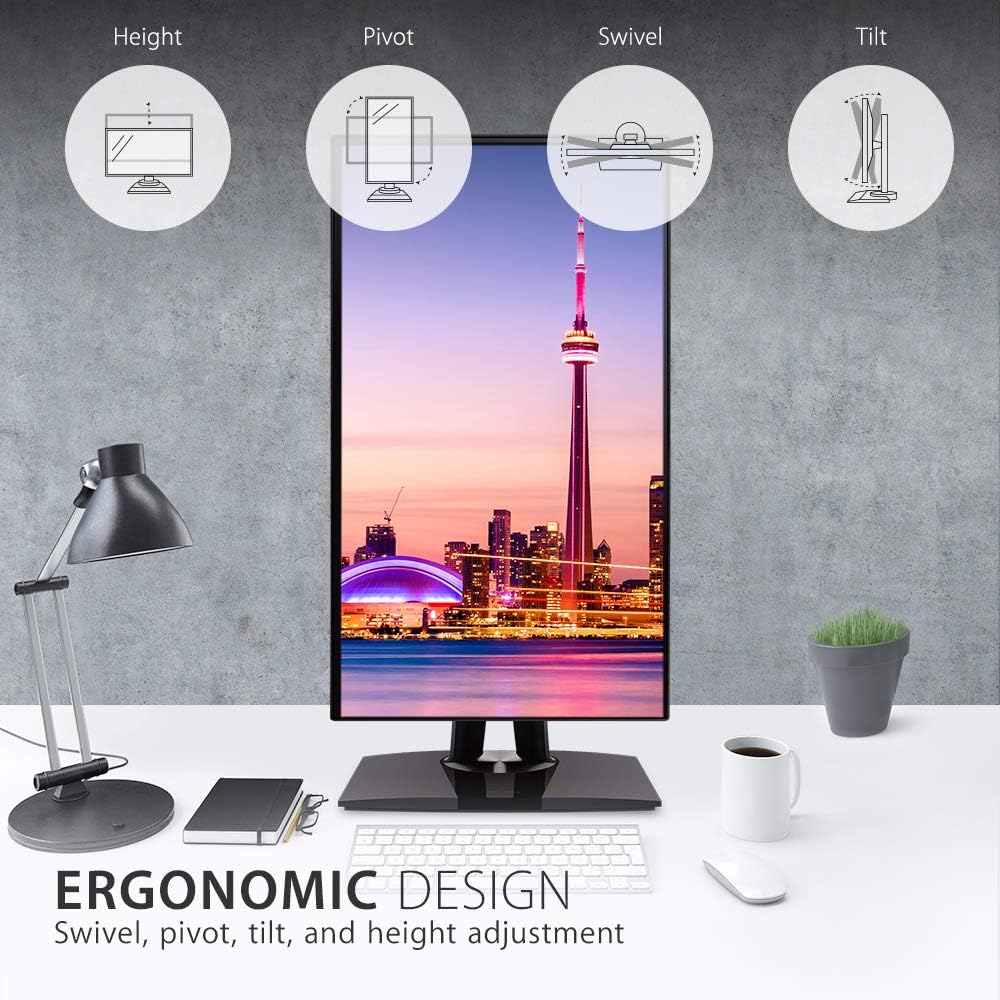
Figure 3: Ergonomic design features of the monitor, illustrating height, pivot, swivel, and tilt adjustments.
2.3 Precisão e Calibração de Cores
This monitor is designed for professional color-critical applications:
- Calibração de fábrica: Each monitor is factory calibrated to achieve an impressive Delta E<2 value, ensuring high color accuracy right out of the box.
- Color Spaces: Supports 100% sRGB, EBU, SMPTE-C, Rec. 709, and DICOM-SIM color spaces.
- LUT 3D de 14 bits: A 14-bit 3D Look-Up Table generates a smooth palette of 4.39 trillion colors for precise color reproduction.
- 6-Axis Color Adjustment: Provides advanced control over color settings.
- Uniformidade de cores: An integrated function ensures consistent chromaticity across the entire screen.
- Calibração de hardware: For the most precise color management, hardware calibration is available with the optional ViewSonic Colorbration Kit (sold separately).
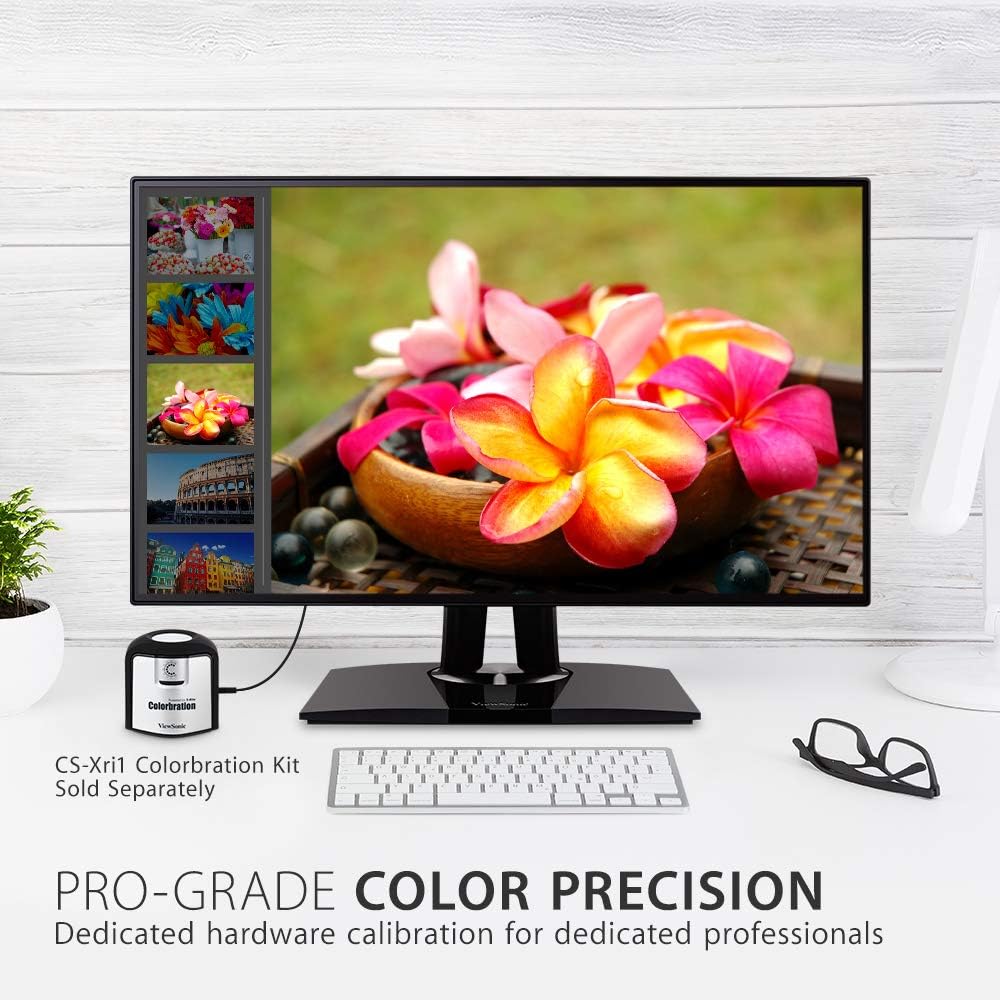
Figura 4: O monitor mostraasing its color precision, with an optional Colorbration Kit for hardware calibration.
2.4 Tecnologia para Cuidados com os Olhos
The monitor incorporates Flicker-Free technology and a Blue Light Filter to minimize eye strain and fatigue during extended use.
2.5 Conexão em série
The DisplayPort out feature allows for seamless daisy-chaining of multiple monitors. Connect your primary monitor to your computer via DisplayPort, then connect the primary monitor's DisplayPort out to the DisplayPort in of a second monitor. This reduces cable clutter and simplifies multi-monitor setups.
2.6 USB-C Docking Functionality
The USB-C port on the VP2768a acts as a powerful docking station. A single USB-C cable from your laptop can provide:
- Fornecimento de energia de 90 W: Charges your connected laptop or device.
- Sinal de vídeo: Transmits high-resolution video to the monitor.
- Sinal de áudio: Transmits audio.
- Transferência de dados: Enables data transfer for connected USB peripherals.
- Ethernet RJ45: Provides a stable wired network connection through the monitor's integrated Ethernet port.

Figure 5: USB-C connectivity for power, video, audio, and data, simplifying your workspace.
3. Manutenção
To maintain the performance and appearance of your monitor:
- Limpando a tela: Limpe suavemente a tela com um pano macio e sem fiapos. Para manchas persistentes, esfregue levemente.ampLimpe o pano com água ou um produto de limpeza específico para telas. Evite usar produtos químicos agressivos ou materiais abrasivos.
- Limpando o Casing: Use um pano macio e seco para limpar o monitor.asing.
- Ventilação: Certifique-se de que as aberturas de ventilação do monitor não estejam bloqueadas para evitar superaquecimento.
4. Solução De Problemas
4.1 No Image or Intermittent Display
- Verifique a potência: Certifique-se de que o cabo de alimentação esteja firmemente conectado tanto ao monitor quanto à tomada.
- Verifique os cabos de vídeo: Verify that the video cable (USB-C, DisplayPort, or HDMI) is firmly connected to both the monitor and your computer.
- Fonte de entrada: Confirm the correct input source is selected in the monitor's OSD menu.
- Problemas de conectividade USB-C: Some users have reported intermittent display cut-outs or erratic behavior when using USB-C with other USB devices. If you experience this, try using a different USB-C cable, or connect via DisplayPort/HDMI and use a separate USB hub for peripherals.
4.2 Color or Brightness Issues
- Configurações do OSD: Acesse o menu OSD para ajustar as configurações de brilho, contraste e cor.
- Restauração de fábrica: If color issues persist, consider performing a factory reset through the OSD menu.
- Calibração: For professional use, ensure your monitor is properly calibrated using the factory calibration report or an optional hardware calibration kit.
5. Especificações
| Recurso | Detalhe |
|---|---|
| Tamanho da tela | 27 polegadas |
| Resolução | QHD Wide 1440p (2560 x 1440 pixels) |
| Tipo de painel | IPS |
| Proporção da tela | 16:9 |
| Gama de cores | 100% sRGB, Rec. 709 |
| Precisão de cor | Delta E<2 |
| Brilho | 350 nits (típico) |
| Conectividade | 1x HDMI 1.4, 1x DisplayPort In, 1x DisplayPort Out (DaisyChain), 2x USB Type A, 1x USB Type B, 1x 90W USB Type C, 1x Ethernet LAN (RJ45) |
| Ergonomia | Altura, inclinação, rotação, pivô |
| Cuidados com os olhos | Flicker-Free Technology, Blue Light Filter |
| Peso do item | 15.17 libras |
| Dimensões do produto | 16.1 x 8.5 x 24.1 polegadas |
Figure 6: Key dimensions of the ViewSonic VP2768a monitor.
6. Garantia e Suporte
Seu ViewSonic VP2768a monitor comes with a 3-year warranty. For technical assistance or warranty claims, please contact ViewSonic customer support. US-based customer support is available to assist you with any product-related inquiries.

Figura 7: Overview of ViewSonic's commitment to warranty, support, and product features.