Introdução
This manual provides comprehensive instructions for the setup, operation, and maintenance of your AOCHUAN Smart XR 3-Axis Handheld Gimbal Stabilizer. Please read this manual thoroughly before using the device to ensure proper functionality and to maximize your user experience.
Principais características
- Design compacto e leve: Features a 370g lightweight in a small foldable size of 112*154*68mm, easily fitting into your backpack or pocket.
- Estabilização de 3 eixos: Equipped with a three-axis stabilization control system for smooth and steady footage.
- Dual Focus Control & Combined Zoom: Allows for precise focus adjustment (clear/faint) by rotating the focusing roller and focal length adjustment (zoom in/zoom out) via a sliding zoom push rod.
- Removable & Rechargeable Battery: Utilizes a 3200mAh lithium-ion battery with up to eight hours of battery life. Supports charging and replacement for extended shooting time.
- iOS & Android App Support: Compatible with a dedicated app offering multiple shooting modes, simple interface design, and stable connectivity.
Configurar
1. Desdobrando o Gimbal
Carefully unfold the gimbal from its compact storage position. Ensure all joints are securely locked into place before mounting your smartphone.
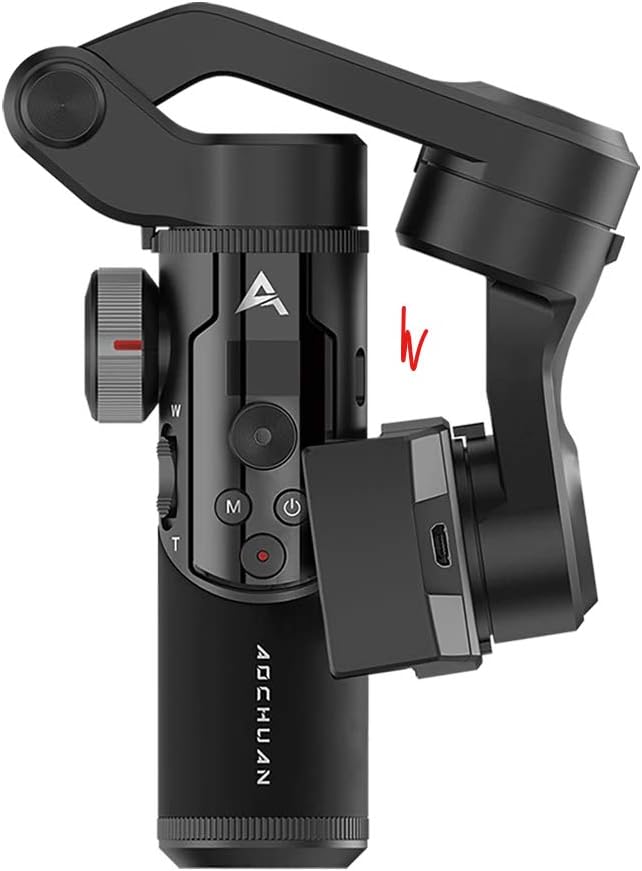
Image: The AOCHUAN Smart XR Gimbal shown in its folded, compact state.
2. Instalando a bateria
The Smart XR gimbal uses a removable 3200mAh lithium-ion battery. Unscrew the cap at the bottom of the handle, insert the battery with the correct polarity, and then secure the cap.

Imagem: Um close-up view illustrating the removable battery compartment at the base of the gimbal handle.
3. Montando seu smartphone
Estenda o telefone clamp and carefully place your smartphone into it, ensuring it is centered and balanced. The gimbal is designed to hold various smartphone sizes securely.

Image: The AOCHUAN Smart XR Gimbal with a smartphone securely mounted, demonstrating its readiness for use.
4. Conectando via Bluetooth
Download the official AOCHUAN app from your device's app store. Power on the gimbal. Open the app and follow the on-screen instructions to connect your smartphone to the gimbal via Bluetooth. This connection enables full control over gimbal functions and shooting modes.
Operando o Gimbal
Sobre os controlesview

Imagem: Uma imagem detalhada view of the gimbal's control panel, highlighting the LCD display which shows current mode, battery level, and Bluetooth status.
- Botão de energia: Pressione e segure para ligar/desligar.
- Botão de modo (M): Cycles through different operating modes.
- joystick: Controla os movimentos de panorâmica e inclinação do gimbal.
- Focus Roller (W/T): Rotates to adjust focus (clear/faint).
- Controle deslizante de zoom: Slides to adjust focal length (zoom in/zoom out).
- Botão de gravação: Initiates and stops video recording or takes photos.
Modos de operação
The Smart XR offers several intelligent shooting modes for diverse scenarios:
- Half-Follow Mode (PF): The gimbal follows your pan movements while keeping the tilt and roll axes locked.
- Full-Follow Mode (F): The gimbal follows both your pan and tilt movements, keeping the roll axis locked.
- POV Mode (Global Lock): All three axes (pan, tilt, roll) follow your movements, providing a first-person perspective.
- Full-Lock Mode (L): Os três eixos estão travados, mantendo a câmera apontada em uma direção fixa, independentemente do movimento do gimbal.
- Mad "dog" Mode (GO): A quick transition mode for dynamic shots.
Video: An official demonstration of the AOCHUAN Smart XR Gimbal's various operating modes and features, including its compact design, removable battery, and dual focus control.
Switching Orientation
The gimbal supports quick switching between landscape and portrait modes, ideal for different social media platforms and content creation needs. Refer to the app for specific controls.
Advanced Filming Modes (via App)
Utilize the companion app to unlock advanced filming modes such as Inception, Time-lapse, and Hitchcock for creative video effects.
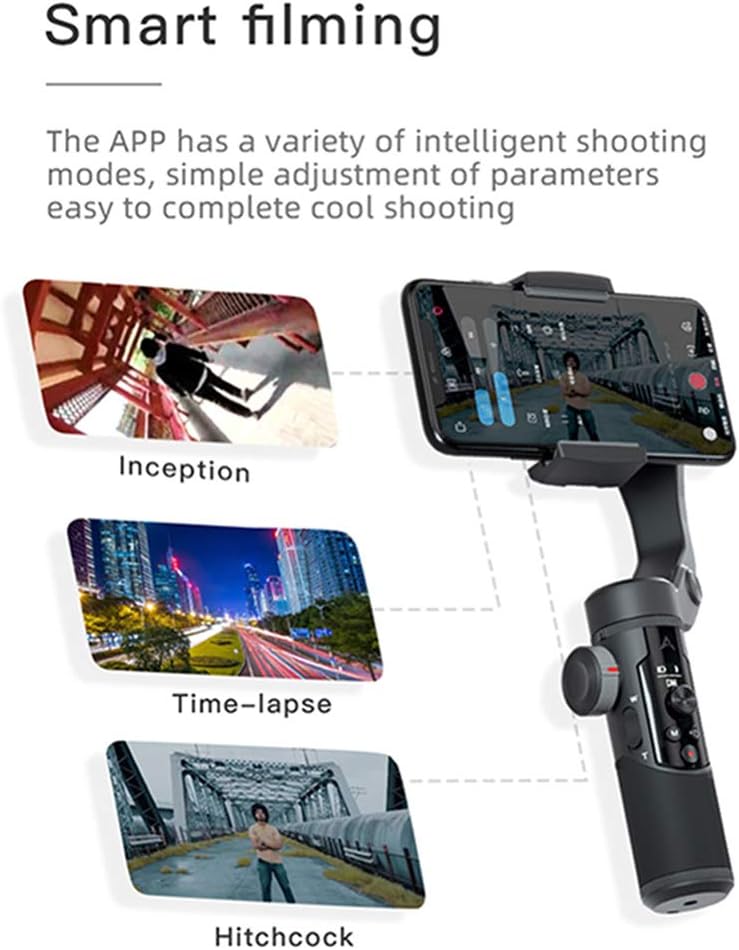
Image: A visual representation of the advanced filming modes, such as Inception, Time-lapse, and Hitchcock, accessible through the dedicated smartphone application.
Manutenção
- Limpeza: Use um pano macio e seco para limpar o gimbal. Evite usar produtos de limpeza líquidos ou solventes.
- Armazenar: Store the gimbal in a cool, dry place, away from direct sunlight and extreme temperatures. When not in use for extended periods, remove the battery.
- Cuidados com a bateria: Fully charge the battery before first use. For long-term storage, charge the battery to about 50% to prolong its lifespan.
Solução de problemas
- O gimbal não liga: Certifique-se de que a bateria esteja totalmente carregada e inserida corretamente.
- comida instáveltage: Ensure your smartphone is properly balanced in the clamp. Recalibrate the gimbal via the app if necessary.
- Problemas de conexão Bluetooth: Ensure Bluetooth is enabled on your smartphone and the gimbal. Restart both devices and try reconnecting.
- O aplicativo não está respondendo: Close and reopen the app. Check for app updates in your device's app store.
Especificações
| Marca | CINOVA |
| Modelo | Smart XR |
| Peso do item | 370 gramas (13.1 onças) |
| Dimensões da embalagem | 7.09 x 5.59 x 3.03 polegadas |
| Cor | Preto |
| Dispositivos compatíveis | Camera, Cellphone (iOS & Android) |
| Capacidade da bateria | 3200mAh de íon de lítio |
| UPC | 787823498428 |
Garantia e Suporte
For detailed warranty information and customer support, please refer to the product packaging or visit the official CYNOVA website. You can also contact their customer service directly for assistance with product registration, technical issues, or repair services.
Note: Specific warranty terms and support contact details are subject to change by the manufacturer. Always refer to the most current information provided with your product or on the manufacturer's official channels.


