Introdução
This manual provides essential information for the proper installation, operation, and maintenance of your Zebronics Zeb-D370S DVD Player. Please read this manual thoroughly before using the device to ensure safe and efficient operation. Keep this manual for future reference.
Informações importantes de segurança
- Não exponha o aparelho à chuva ou umidade para evitar incêndio ou choque elétrico.
- Não abra o casing. Encaminhe todos os serviços de manutenção para pessoal qualificado.
- Assegure-se de que haja ventilação adequada ao redor do aparelho. Não obstrua as aberturas de ventilação.
- Use only the power adapter supplied with the unit or specified by the manufacturer.
- Evite colocar o aparelho sobre superfícies instáveis.
- Desconecte o cabo de alimentação durante tempestades com raios ou quando não for utilizá-lo por longos períodos.
Conteúdo da embalagem
Verifique se todos os itens estão presentes na embalagem:
- Zebronics Zeb-D370S DVD Player Unit
- Controle remoto
- Cabo AV
- Cabo de energia
- Manual de instruções
Produto acimaview
The Zebronics Zeb-D370S is a versatile DVD player featuring a built-in stereo speaker and amplifier, HDMI, USB, and SD card support, and dual karaoke microphone inputs. It supports multiple formats and offers 5.1 channel, coaxial, and optical audio outputs.
Front Panel Controls and Ports
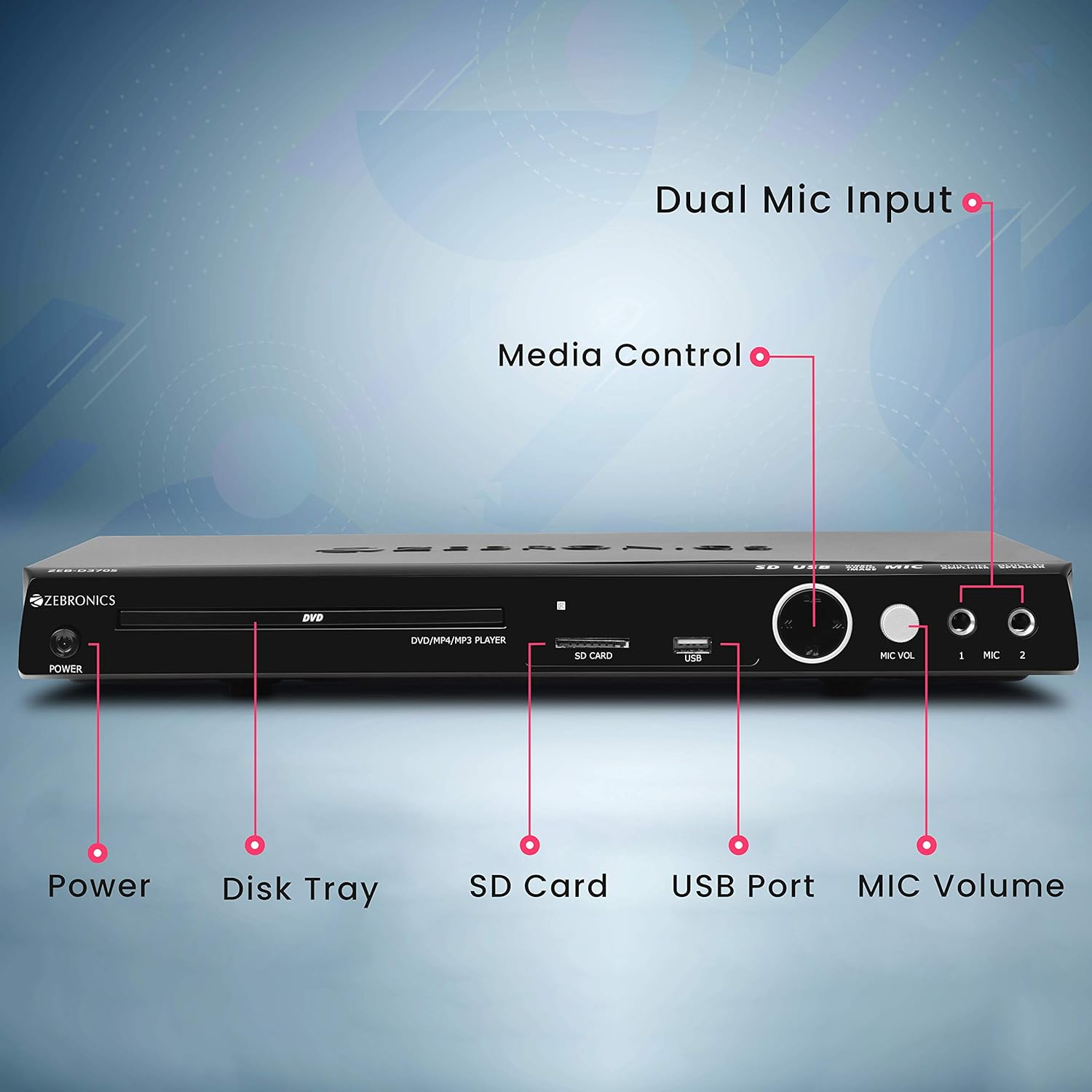
Front panel of the Zebronics Zeb-D370S DVD Player, showing the Power button, Disk Tray, SD Card slot, USB Port, MIC Volume control, and two Microphone inputs (MIC 1, MIC 2).
- Botão de energia: Liga ou desliga a unidade.
- Disk Tray: For inserting DVDs, CDs, VCDs, and SVCDs.
- Slot para cartão SD: Para reproduzir mídia files de um cartão SD.
- Porta USB: Para reproduzir mídia files de uma unidade USB.
- Volume MIC: Ajusta o volume dos microfones conectados.
- MIC 1 & MIC 2: Inputs for connecting microphones for karaoke.
- Botões de controle de mídia: Play/Pause, Stop, Skip, etc.
Conexões do painel traseiro

Rear panel of the Zebronics Zeb-D370S DVD Player, detailing the Coaxial Output, Optical Output, 5.1 Channel Output, HDMI port, Composite video output, Component video output, S-Video output, and Ext-Audio Output.
- Saída HDMI: For high-definition video and audio connection to a TV or display.
- Saída de vídeo composto: Saída de vídeo em definição padrão.
- Saída de vídeo componente: Higher quality analog video output (YPbPr).
- Saída S-Vídeo: Improved analog video output.
- Digital Audio Output (Optical & Coaxial): For connecting to external audio receivers or sound systems.
- Analog 5.1 Channel Output: For connecting to a 5.1 channel speaker system.
- Ext-Audio Output: Additional audio output connections.
- Saída do alto-falante: Terminals for connecting external speakers, utilizing the built-in ampmais vivo.

Traseira view of the Zebronics Zeb-D370S DVD Player highlighting the built-in amplifier, built-in speaker, and speaker output terminals.
Instruções de configuração
1. Conexão de energia
- Ensure the DVD player is placed on a stable, flat surface with adequate ventilation.
- Connect the power cable to the AC input on the rear of the DVD player.
- Plug the other end of the power cable into a standard electrical outlet (110V - 260V AC).
2. Video Connection to TV/Display
Escolha um dos seguintes métodos de conexão:
- HDMI (Recommended for best quality): Connect an HDMI cable from the HDMI output on the DVD player to an HDMI input on your TV.
- Vídeo componente: Connect component video cables (Red, Green, Blue) from the DVD player's component outputs to the corresponding inputs on your TV.
- Vídeo Composto: Connect a composite video cable (Yellow) from the DVD player's composite output to the yellow video input on your TV.
- S-Vídeo: Connect an S-Video cable from the DVD player's S-Video output to the S-Video input on your TV.
3. Conexão de áudio
Escolha um dos seguintes métodos de conexão de áudio:
- HDMI: If using HDMI for video, audio will also be transmitted via the HDMI cable.
- 5.1 Channel Analog Output: Connect RCA cables from the 5.1 channel outputs (Front Left, Front Right, Center, Subwoofer, Surround Left, Surround Right) on the DVD player to a compatible 5.1 channel ampamplificador ou sistema de alto-falantes.
- Áudio digital (óptico/coaxial): Connect an optical or coaxial cable from the respective output on the DVD player to a digital audio input on your amplifier or home theater system for surround sound.
- Built-in Speaker Output: If using the built-in speakers, ensure no external speakers are connected to the 5.1 channel outputs unless desired.
4. Microphone Connection (Optional)
- Plug your microphones into the MIC 1 and/or MIC 2 inputs on the front panel.
- Adjust the MIC Volume knob to control microphone audio levels.
Instruções de operação

Zebronics Zeb-D370S DVD Player with a disc inserted, remote control, and a visual representation of content playing on a screen, illustrating its multimedia capabilities.
1. Reprodução de disco
- Pressione o Poder button to turn on the DVD player.
- Pressione o Abrir/Fechar button (usually on the remote or front panel) to open the disc tray.
- Place a compatible disc (DVD Video, DVD+RW/-RW/+R/-R, Dual Layer Disc, CD Audio, CD-R/-RW, VCD, SVCD) onto the disc tray with the label side facing up.
- Pressione o Abrir/Fechar button again to close the tray. The player will automatically begin playback or display a menu.
- Use the remote control for playback functions such as Play, Pause, Stop, Fast Forward, Rewind, and Chapter Skip.
2. USB/SD Media Playback
- Insert a USB drive into the USB port or an SD card into the SD card slot on the front panel.
- The player should automatically detect the media and display a menu to browse files. If not, select the USB or SD source using the remote control's Fonte or Entrada botão.
- Navegue pelo seu files (VOB, MP4, DIVX, AVI, MPEG-1, MPEG-2, 3GP, MP3, WMA, AAC, JPEG, TXT) using the remote control and press Jogar para iniciar a reprodução.
3. Função Karaokê
- Connect one or two microphones to the MIC 1 and MIC 2 inputs.
- Play a karaoke disc or a media file with instrumental tracks.
- Adjust the MIC Volume knob on the front panel to control the microphone audio level.
4. Funções avançadas
- Extração de CDs: Convert audio CDs to digital formats (refer to on-screen menu for options).
- Picture Slideshow: View JPEG images from disc, USB, or SD card as a slideshow.
- Varredura Progressiva: Provides a smoother, flicker-free image on compatible displays.
- Zoom IN/OUT: Magnify or reduce the displayed image during playback.
- High Speed Search: Quickly scan through disc or media content.
- Bloqueio parental: Restrict playback of certain content based on ratings.
- Replay instantâneo: Jump back a few seconds during playback.
- Disc Resume: Resume playback from where it was last stopped on a disc.
Manutenção
- Limpeza da unidade: Use a soft, dry cloth to clean the exterior of the DVD player. Do not use liquid cleaners or abrasive materials.
- Cuidados com o disco: Manuseie os discos pelas bordas. Mantenha-os limpos e sem arranhões. Use um pano macio e sem fiapos para limpar os discos do centro para as bordas.
- Ventilação: Certifique-se de que as aberturas de ventilação não estejam bloqueadas para evitar superaquecimento.
Solução de problemas
If you encounter issues with your DVD player, refer to the table below for common problems and solutions:
| Problema | Possível causa | Solução |
|---|---|---|
| Sem energia | Cabo de alimentação desconectado; tomada elétrica não funciona | Verifique a conexão do cabo de alimentação; tente outra tomada. |
| Sem saída de vídeo | Incorrect video cable connection; Incorrect input selected on TV | Ensure video cables are securely connected; Select the correct input source on your TV (e.g., HDMI 1, AV) |
| Sem saída de áudio | Incorrect audio cable connection; TV/amplifier volume too low; Mute activated | Check audio cable connections; Increase volume; Deactivate mute function |
| Disco não reproduz | Disc is dirty or scratched; Disc format not supported; Disc inserted incorrectly | Clean the disc; Ensure disc is compatible; Insert disc with label side up |
| USB/SD media not detected | USB drive/SD card not inserted correctly; Incompatible file format; Corrupted media | Reinsert USB/SD; Check supported file formats; Try a different USB/SD device |
Especificações

Dimensions of the Zebronics Zeb-D370S DVD Player: 360mm (width), 220mm (depth), and 50mm (height).
| Recurso | Detalhe |
|---|---|
| Nome do modelo | Zeb D370S |
| Marca | ZEBRÔNICOS |
| Dimensões do produto | 28 x 39 x 82 mm (1.4 kg) |
| Resolução | 1920 x 1080 (Supported resolutions: 480i/576i/480p/576p/720p/1080i/1080p) |
| Características especiais | Surround Sound, Built-in Amplifier, Built-in Stereo Speaker, Karaoke Mic Input |
| Modo de saída de áudio | Stereo, Surround (2CH / 5.1CH / Virtual Surround Sound) |
| Configuração do canal de som surround do alto-falante | 5.1 |
| Formatos de áudio suportados | Dolby Digital, MP3, WMA, AAC |
| Video Playback System | NTSC / PAL / AUTO |
| Tipo de conector | HDMI, USB, SD Slot, MIC 1 & MIC 2, Composite, Component, S-Video, Digital Audio Output (Optical & Coaxial), Analog 5.1Ch Output, Ext-Audio Output x 2 |
| Media Type (Playback Disc) | DVD Video, DVD+RW/-RW/+R/-R, Dual Layer Disc, CD Audio, CD-R/-RW, VCD, SVCD |
| Mídia Files Suportado | VOB, MP4, DIVX, AVI, MPEG-1, MPEG-2, 3GP, MP3, WMA, AAC, JPEG, TXT |
| Vol operacionaltage | 110V - 260V CA |
| Funções | CD Ripping, Picture SlideShow, Progressive scan, Zoom IN/OUT, High speed search, Parental lock, Instant replay, Disc resume |
Garantia e Suporte
For warranty information, technical support, or service inquiries, please refer to the warranty card included with your product or visit the official Zebronics website. Não tente consertar o dispositivo você mesmo.


