1. Introdução
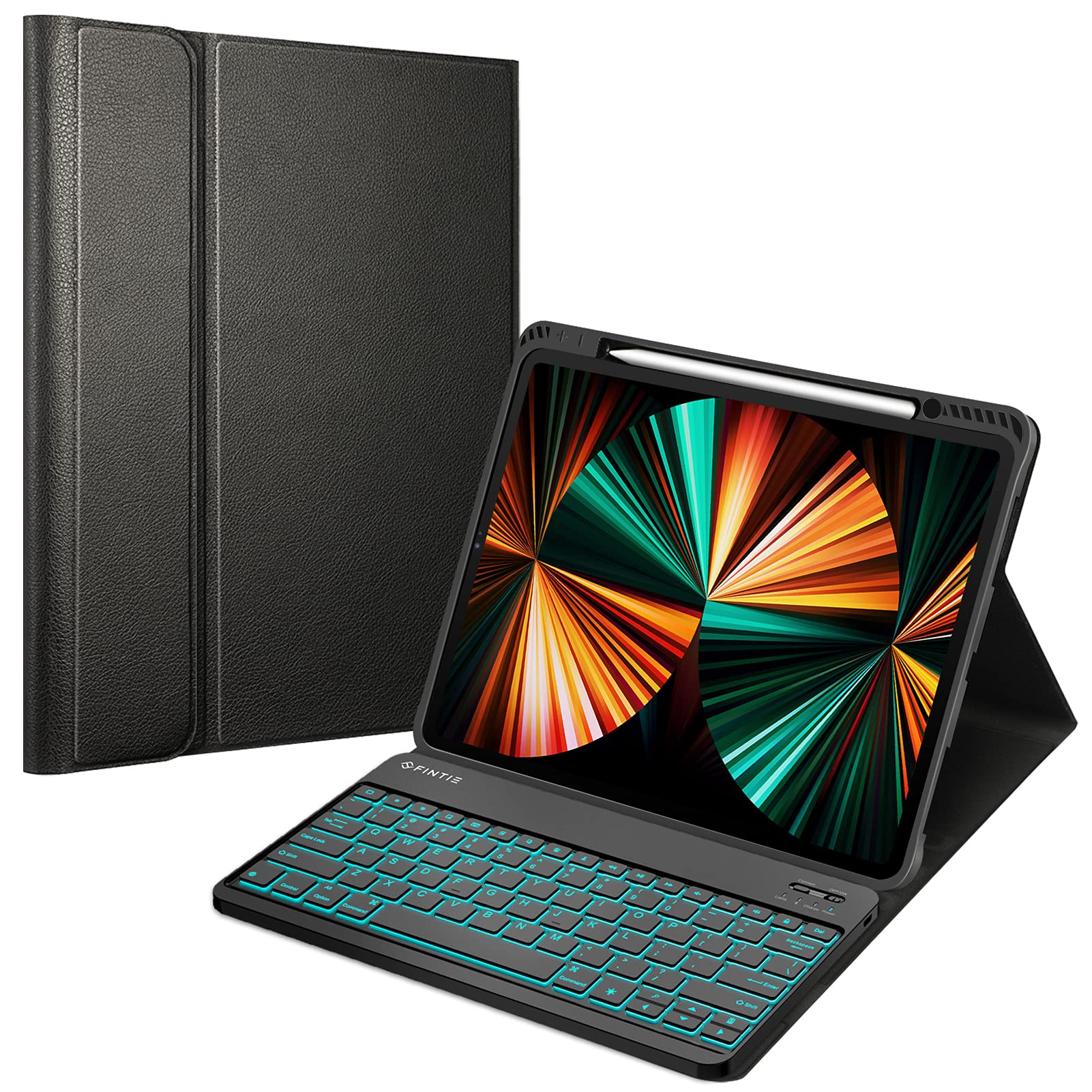
This manual provides instructions for the Fintie Keyboard Case designed for iPad Pro 12.9-inch models. The product includes a protective case and a detachable Bluetooth keyboard with a backlight feature. The case offers protection and an adjustable stand, while the keyboard facilitates a more efficient typing experience.
2. Compatibilidade
This keyboard case is exclusively designed for the following iPad Pro 12.9-inch models:
- iPad Pro 12.9-inch 6th Generation (2022) - Model Numbers: A2378, A2379, A2461, A2462
- iPad Pro 12.9-inch 5th Generation (2021) - Model Numbers: A2378, A2379, A2461, A2462
- iPad Pro 12.9-inch 4th Generation (2020) - Model Numbers: A2229, A2069, A2232, A2233
- iPad Pro 12.9-inch 3rd Generation (2018) - Model Numbers: A1876, A2014, A1895
To verify your iPad model number, check the back of your device. This case is not compatible with any other iPad models.

3. Conteúdo da embalagem
Certifique-se de que todos os itens estejam presentes na embalagem:
- 1 x Fintie Keyboard Case (iPad tablet not included)
- 1 x teclado Bluetooth
- 1 x cabo de carregamento micro USB
- 1 x Manual do Usuário
4. Configuração
4.1 Instalando o iPad na capa
- Gently align your iPad Pro 12.9-inch with the TPU back shell of the case.
- Press the iPad firmly into the case, ensuring all edges are securely seated within the flexible TPU material. The soft TPU back shell is designed to protect your iPad from shocks, drops, and impacts.

4.2 Conectando o teclado
The Bluetooth keyboard is magnetically detachable. Simply place the keyboard onto the designated area within the case. The magnets will secure it in position.

4.3 Carregando o teclado
Before initial use, fully charge the keyboard. Use the provided Micro USB charging cable to connect the keyboard to a USB power source (e.g., computer, USB wall adapter).
- A luz indicadora de carregamento acenderá durante o carregamento.
- The indicator light will turn off once the keyboard is fully charged.
4.4 Pairing the Bluetooth Keyboard with your iPad
- Certifique-se de que o teclado esteja carregado.
- Turn on the keyboard by sliding the power switch to the 'ON' position. The Bluetooth indicator light will flash.
- No seu iPad, acesse Configurações > Bluetooth.
- Ative o Bluetooth. Seu iPad buscará dispositivos disponíveis.
- Locate and select "Bluetooth Keyboard" (or a similar name) from the list of devices.
- If prompted, enter the pairing code displayed on your iPad using the keyboard, then press Digitar.
- Once paired, the Bluetooth indicator light on the keyboard will turn off, and your iPad will show the keyboard as "Connected."
Note: The keyboard backlight function will not operate until the keyboard is successfully paired with your device.
5. Instruções de operação
5.1 Using the Keyboard Backlight
The keyboard features a 7-color backlight with two adjustable brightness levels.
- To turn on the backlight: Press the Light icon key (often depicted as a light bulb or sun icon).
- To adjust brightness: Press the Light icon key a second time for increased brightness, and a third time to turn the backlight off.
- Para alterar as cores da luz de fundo: Pressione Light icon key + Up/Down arrow keys simultaneously. There are 7 optional colors.
Note: The backlight will automatically turn off when the keyboard battery level is below 20% to conserve power.
5.2 Ajuste Viewângulos de engate
The case features an adjustable stand that allows you to customize the viewing angle for your iPad in landscape mode. Simply fold the case cover to create a stable triangular stand.

5.3 Using the Apple Pencil Holder
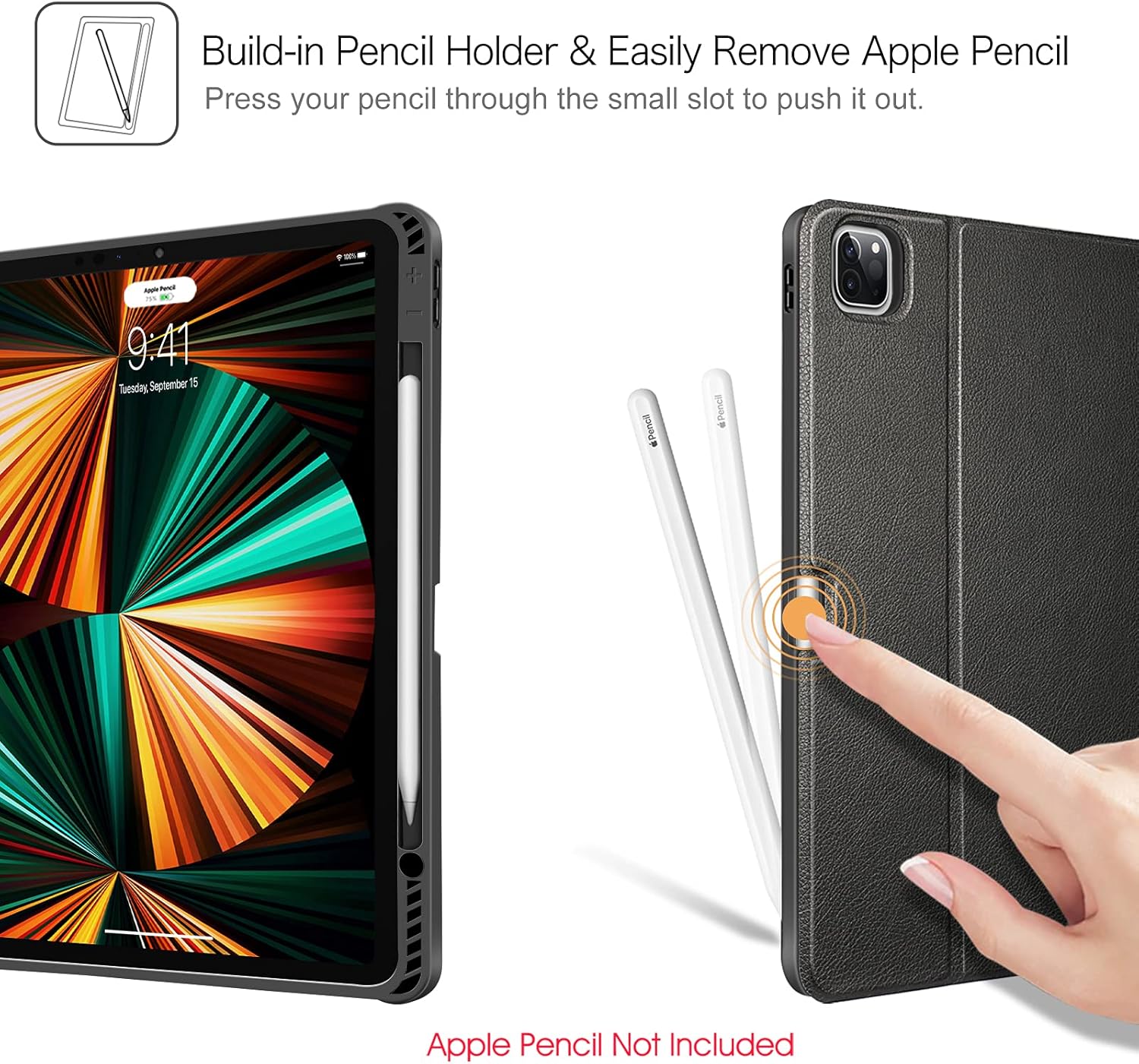
The case includes a built-in holder for your Apple Pencil. This holder allows for easy storage and supports Apple Pencil 2nd Generation magnetic and wireless charging when the case is on.
- To store: Place your Apple Pencil into the designated slot on the side of the case.
- To remove: Press your pencil through the small slot on the back of the case to push it out.
Note: Apple Pencil is not included with this product.

5.4 Função de ativação/desativação automática
The case supports the auto sleep/wake function for your iPad when used in 'CASE ONLY' mode (without the keyboard attached or when the keyboard is not actively in use). Closing the case will put your iPad to sleep, and opening it will wake it up.
6. Manutenção
6.1 Limpeza da caixa
- Wipe the exterior of the PU leather case with a soft, damp pano.
- Avoid using harsh chemicals or abrasive cleaners, as these can damage the material.
- For the TPU back cover, a mild soap solution can be used if necessary, followed by wiping with a clean, dry cloth.
6.2 Limpeza do teclado
- Use a soft, lint-free cloth to gently wipe the keys and surface of the keyboard.
- Para sujeira persistente, levementeampen the cloth with water or a small amount of isopropyl alcohol. Ensure no liquid enters the keyboard.
- Avoid spraying cleaners directly onto the keyboard.
6.3 Battery Care for the Keyboard
- Para prolongar a vida útil da bateria, evite descarregá-la completamente com frequência.
- Charge the keyboard regularly, especially if it will not be used for an extended period.
- Store the keyboard in a cool, dry place.
7. Solução De Problemas
7.1 Teclado não conecta/emparelha
- Verifique a potência: Certifique-se de que o teclado esteja ligado e totalmente carregado.
- Bluetooth ligado: Verify that Bluetooth is enabled on your iPad.
- Reparar: If previously paired, try unpairing the keyboard from your iPad's Bluetooth settings (Forget This Device), then repeat the pairing process (Section 4.4).
- Reiniciar dispositivos: Restart both your iPad and the keyboard, then attempt pairing again.
- Distância: Ensure the keyboard is within 10 meters (33 feet) of your iPad.
7.2 A luz de fundo não funciona
- Verifique o emparelhamento: The backlight will not work until the keyboard is successfully paired with your iPad.
- Nível da bateria: If the keyboard battery is below 20%, the backlight will automatically turn off. Charge the keyboard.
- Ativar: Pressione o Light icon key para ligar a luz de fundo.
7.3 Teclas não respondem
- Verifique a conexão: Ensure the keyboard is properly paired and connected to your iPad.
- Bateria: Charge the keyboard to ensure sufficient power.
- Reiniciar: Reinicie o iPad e o teclado.
7.4 Problemas de cobrança
- Cabo: Ensure the Micro USB charging cable is securely connected to both the keyboard and the power source. Try a different cable if available.
- Fonte de energia: Try a different USB power source (e.g., a different USB port on your computer or a different wall adapter).
8. Especificações
| Recurso | Detalhe |
|---|---|
| Dimensões do produto | 11.42 x 9.25 x 0.59 polegadas |
| Peso do item | 2.42 libras |
| Fabricante | ACABADO |
| Baterias | 1 bateria específica do produto necessária (incluída) |
| Tecnologia de Conectividade | Bluetooth |
| Descrição do teclado | Micro USB (para carregar) |
| Recurso especial | Magnetic, Backlit, Detachable Keyboard, Pencil Holder |
| Material | Acrylonitrile Butadiene Styrene (ABS), Faux Leather, Silicone, Thermoplastic Polyurethane (TPU) |
| Fonte de energia | powered USB |
9. Garantia e Suporte
Para informações sobre garantia e suporte ao cliente, consulte a documentação fornecida com sua compra ou entre em contato diretamente com o revendedor/fabricante. Guarde seu comprovante de compra para eventuais solicitações de garantia.


