1. Introdução
This manual provides detailed instructions for the setup, operation, and maintenance of your Bytech BYMCWC101BLK PC Web Camera. Please read this manual thoroughly before using the product to ensure proper functionality and longevity.
2. Conteúdo da embalagem
Verifique se todos os itens listados abaixo estão incluídos na embalagem do seu produto:
- Computador Bytech BYMCWC101BLK Web Câmera
- Manual do usuário (este documento)
- Cabo USB integrado
3. Configuração
Follow these steps to set up your Bytech BYMCWC101BLK PC Web Câmera:
- Colocação: Posicione o webcam on top of your computer monitor, laptop screen, or a flat surface. The adjustable clip allows for secure attachment.
- Conectar ao computador: Conecte o cabo USB integrado à tomada. webcam em uma porta USB disponível em seu computador.
- Instalação do driver: O webcam is typically plug-and-play. Your operating system (Windows, macOS, Linux) should automatically detect and install the necessary drivers. Wait for the installation to complete.
- Verificação: Abra um aplicativo de videoconferência (por exemplo, Zoom, Skype, Microsoft Teams) ou o aplicativo de câmera do seu computador para confirmar a conexão. webA câmera foi reconhecida e está exibindo vídeo.
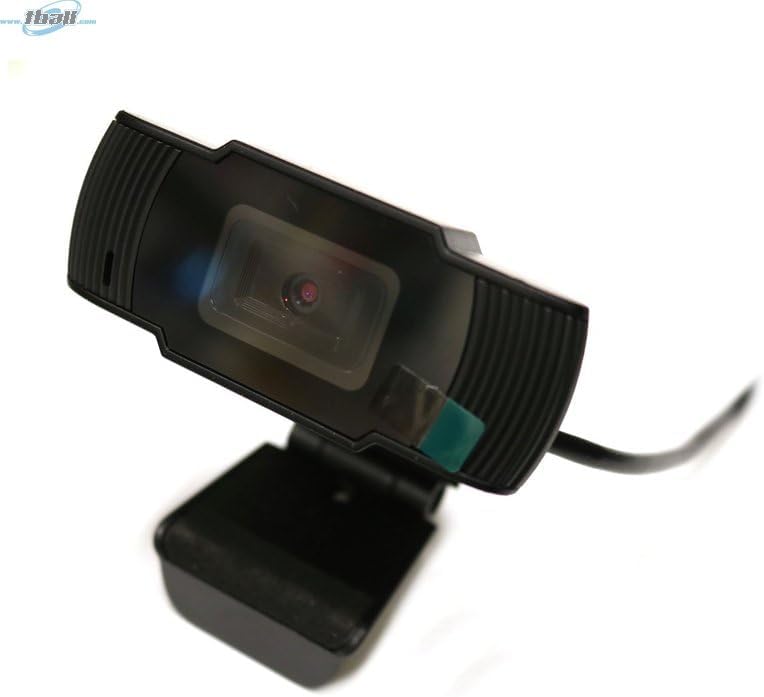
Image: The Bytech BYMCWC101BLK PC Web Camera securely mounted on top of a computer monitor, demonstrating its adjustable clip design.
4. Instruções de operação
Once installed, the Bytech BYMCWC101BLK PC Web Camera can be used with various applications:
- Videoconferência: Select the Bytech webcam as your video input device within your preferred video conferencing software (e.g., Zoom, Skype, Google Meet).
- Transmissão: For live streaming platforms, configure the webcam as your primary video source in your streaming software (e.g., OBS Studio).
- Gravação: Utilize o aplicativo de câmera integrado do seu computador ou um software de terceiros para gravar vídeos.
- Desempenho com pouca luz: O webcam features BSI CMOS photo sensor technology and is designed to perform effectively in low-light conditions, providing clear video even with limited ambient lighting.
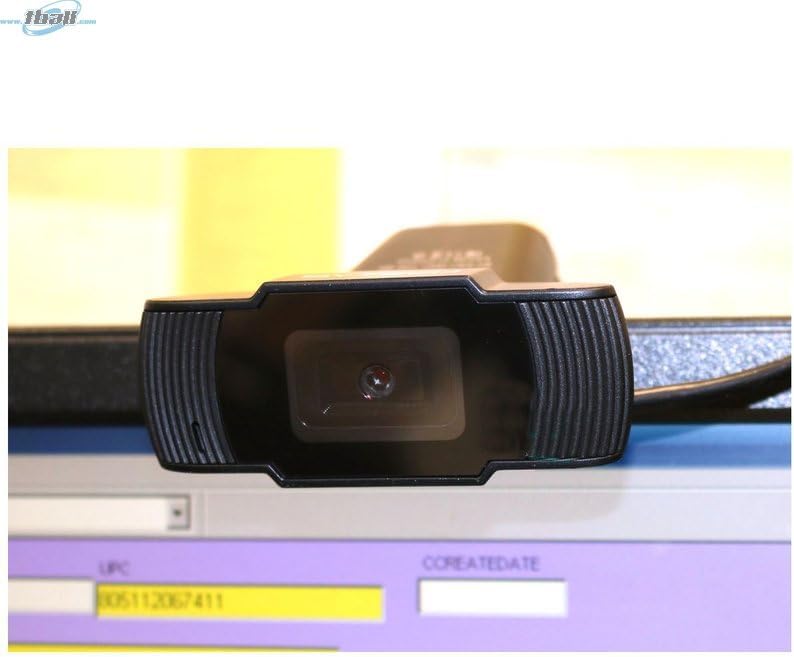
Imagem: Um close-up view of the Bytech BYMCWC101BLK PC Web Camera's lens, highlighting its design and integrated privacy cover (if applicable, otherwise just lens).
5. Manutenção
To ensure optimal performance and extend the lifespan of your webcâmera:
- Limpeza: Gently wipe the lens with a soft, lint-free cloth. Avoid using harsh chemicals or abrasive materials.
- Armazenar: Quando não estiver em uso, armazene o webcam in a clean, dry environment away from direct sunlight and extreme temperatures.
- Cuidados com os cabos: Não dobre ou amasse o cabo USB em excesso.
6. Solução De Problemas
Se você encontrar problemas com seu webPara obter informações sobre a câmera, consulte os seguintes problemas comuns e suas soluções:
- Sem imagem/vídeo:
- Certifique-se de que o cabo USB esteja firmemente conectado a ambas as portas. webcâmera e seu computador.
- Tente conectar o webcam em uma porta USB diferente.
- Reinicie o seu computador.
- Check your application settings to ensure the Bytech webcam is selected as the video input device.
- Má qualidade de vídeo:
- Garanta iluminação adequada no seu ambiente.
- Limpe o webLimpe a lente da câmera com um pano macio.
- Check your application's video settings for resolution and frame rate.
- Microphone Not Working (if applicable):
- Verifique se o webcam's microphone is selected as the audio input device in your computer's sound settings and within your application.
- Ensure the microphone is not muted in your system or application.
7. Especificações
| Recurso | Detalhe |
|---|---|
| Nome do modelo | BYMCWC101BLK |
| Marca | Bytech |
| Tecnologia de Conectividade | USB |
| Tecnologia de sensor fotográfico | BSI CMOS |
| Formato de captura de vídeo | MP4 |
| Recurso especial | Pouca luz |
| Cor | Preto |
| Peso do item | 4.9 onças |
| Dimensões da embalagem | 7.76 x 4.65 x 2.44 polegadas |
8. Garantia e Suporte
For warranty information or technical support, please refer to the documentation included with your purchase or contact your retailer. Keep your proof of purchase for warranty claims.


