1. Introdução e maisview
This manual provides essential information for the safe and efficient operation of your OMTech 50W Fiber Laser Engraver with Rotary Axis. This machine is designed for precise marking and etching on various materials, including metals and certain plastics. Please read this manual thoroughly before initial use and retain it for future reference.

Image 1.1: The OMTech 50W Fiber Laser Engraver system, including the laser head, control unit, and rotary axis.
The OMTech 50W Fiber Laser Engraver features a durable solid-state laser source with an average service life exceeding 100,000 hours. Its high-speed galvanometric system ensures rapid scanning and engraving, capable of marking at speeds up to 10,000 mm/s. The compact F-theta field lens provides a 7.9x7.9 inch (200x200 mm) workbed with less than 1% distortion, ensuring high precision for detailed designs.
2. Informações de segurança
Operating a laser engraver requires strict adherence to safety protocols to prevent injury. This device is a Class 2 laser product (0.874 mW output power). Always prioritize safety.
- Proteção para os olhos: Always wear the provided protective eyewear when the laser is in operation. Never look directly into the laser beam or at reflections.
- Parada de emergência: Familiarize yourself with the location and function of the emergency stop button. In case of any malfunction or hazard, immediately press this button to cut power to the laser.
- Área de trabalho: Ensure the work area is clear of flammable materials. Do not operate the laser near explosive gases or vapors.
- Ventilação: Ensure adequate ventilation to dissipate fumes and particles generated during engraving.
- Uso não autorizado: Use the access key to prevent unauthorized operation of the machine.

Image 2.1: The control panel with clearly marked emergency stop button, key switch, and laser activation button for safe operation.
3. Conteúdo da embalagem
Ao desembalar, verifique se todos os componentes estão presentes e sem danos. Caso algum item esteja faltando ou danificado, entre em contato com o suporte ao cliente imediatamente.
- Fiber Laser Engraver Unit (Laser Head and Column)
- Unidade de controle
- Acessório de eixo rotativo
- Óculos de proteção
- Cabo de energia
- USB Drive with EzCad2 Software
- Cabo USB
- Focusing Ruler/Gauge
- Manual do usuário (este documento)
4. Instruções de configuração
Follow these steps to set up your OMTech Fiber Laser Engraver:
- Desembalagem: Carefully remove all components from the packaging. Retain packaging for potential future transport or service.
- Colocação: Place the laser engraver unit and control unit on a stable, level surface in a well-ventilated area.
- Conexões: Connect the laser head to the control unit using the provided cables. Connect the power cable to the control unit and a grounded power outlet. Connect the control unit to your computer via the USB cable.
- Instalação do software: Insert the provided USB drive into your computer. Install the EzCad2 software. Ensure your operating system meets the software requirements.
- Eixo rotativo (opcional): If using the rotary axis, connect it to the 4-pin port on the control unit.

Image 4.1: The height adjustment knob for convenient manual focusing of the laser head.
5. Instruções de operação
Esta seção descreve os passos básicos para operar sua gravadora a laser.
5.1. Focalizando o laser
Accurate focusing is crucial for optimal engraving results.
- Place your material on the workbed.
- Activate the red dot pointer (usually via software or a dedicated button).
- Adjust the height of the laser head using the manual focus knob until the two red dots from the pointer converge into a single, sharp dot on the material surface.
- The red dot guidance also provides an outline or pattern preview on the workpiece, aiding in precise positioning.

Image 5.1: Red dot guidance system showing outline and pattern preview on a workpiece for precise alignment.
5.2. Using EzCad2 Software
The EzCad2 software is used to create and control your engraving projects. The device is also compatible with LightBurn software.
- Launch EzCad2 on your computer.
- Import or create your design. The software supports various image formats.
- Adjust laser parameters such as power, speed, frequency, and number of passes according to your material and desired effect.
- Use o préview function to verify the engraving area and pattern.
- Ensure protective eyewear is worn, then initiate the engraving process.

Image 5.2: EzCad2 software interface on a computer, demonstrating design capabilities and LightBurn compatibility.
5.3. Rotary Axis Operation
The included rotary axis allows for engraving on curved or cylindrical surfaces.
- Attach the rotary axis to the laser engraver unit and connect it to the control unit.
- Secure the cylindrical object (e.g., ring, bracelet, cup) firmly in the rotary chuck.
- Adjust the height and position of the rotary axis and laser head to ensure proper focus and alignment with the object.
- Configure the rotary axis settings within the EzCad2 software for cylindrical engraving.
- Proceed with engraving as described in Section 5.2.

Imagem 5.3: Examples of cylindrical objects being engraved using the rotary axis, demonstrating its capability for curved surfaces.
6. Manutenção
A manutenção regular garante a longevidade e o desempenho ideal da sua gravadora a laser.
- Limpeza: Regularly clean the workbed and surrounding areas to remove debris and dust. Use a soft, lint-free cloth.
- Cuidados com as Lentes: The F-theta scanning lens is a critical component. Clean it gently with lens cleaning solution and a specialized lens cloth only when necessary, following manufacturer guidelines. Avoid touching the lens surface with bare hands.
- Inspeção de cabos: Inspecione periodicamente todos os cabos para verificar sinais de desgaste ou danos. Substitua imediatamente qualquer cabo danificado.
- Atualizações de software: Keep your EzCad2 or LightBurn software updated to the latest version for improved performance and features.
7. Solução De Problemas
Esta seção aborda problemas comuns que você pode encontrar.
- Sem saída de laser:
- Ensure the machine is powered on and the key switch is in the 'ON' position.
- Check if the emergency stop button is disengaged.
- Verifique se todos os cabos estão conectados com segurança.
- Confirm the laser is enabled in the software.
- Qualidade de gravação ruim:
- Check laser focus. Re-focus the laser as described in Section 5.1.
- Adjust laser parameters (power, speed, frequency) for the specific material.
- Ensure the material surface is clean and free of obstructions.
- Inspect the lens for dirt or damage.
- Software Not Connecting:
- Ensure the USB cable is properly connected to both the control unit and the computer.
- Restart both the laser engraver and the computer.
- Verifique os drivers de dispositivo no seu computador.
If you encounter issues not covered here or require further assistance, please contact OMTech customer support.
8. Especificações
| Recurso | Especificação |
|---|---|
| Número do modelo | FMM-5RW2U1 |
| Potência do laser | 50 W |
| Tipo de laser | Solid-State Fiber Laser |
| Área de trabalho | 7.9" x 7.9" (200 x 200 mm) |
| Velocidade de gravação | Até 10,000 mm/s |
| Precisão na gravação | 0.01 milímetros |
| Laser Source Service Life | Mais de 100,000 horas |
| Compatibilidade de software | EzCad2 (included), LightBurn (compatible) |
| Eixo Rotativo | Incluído |
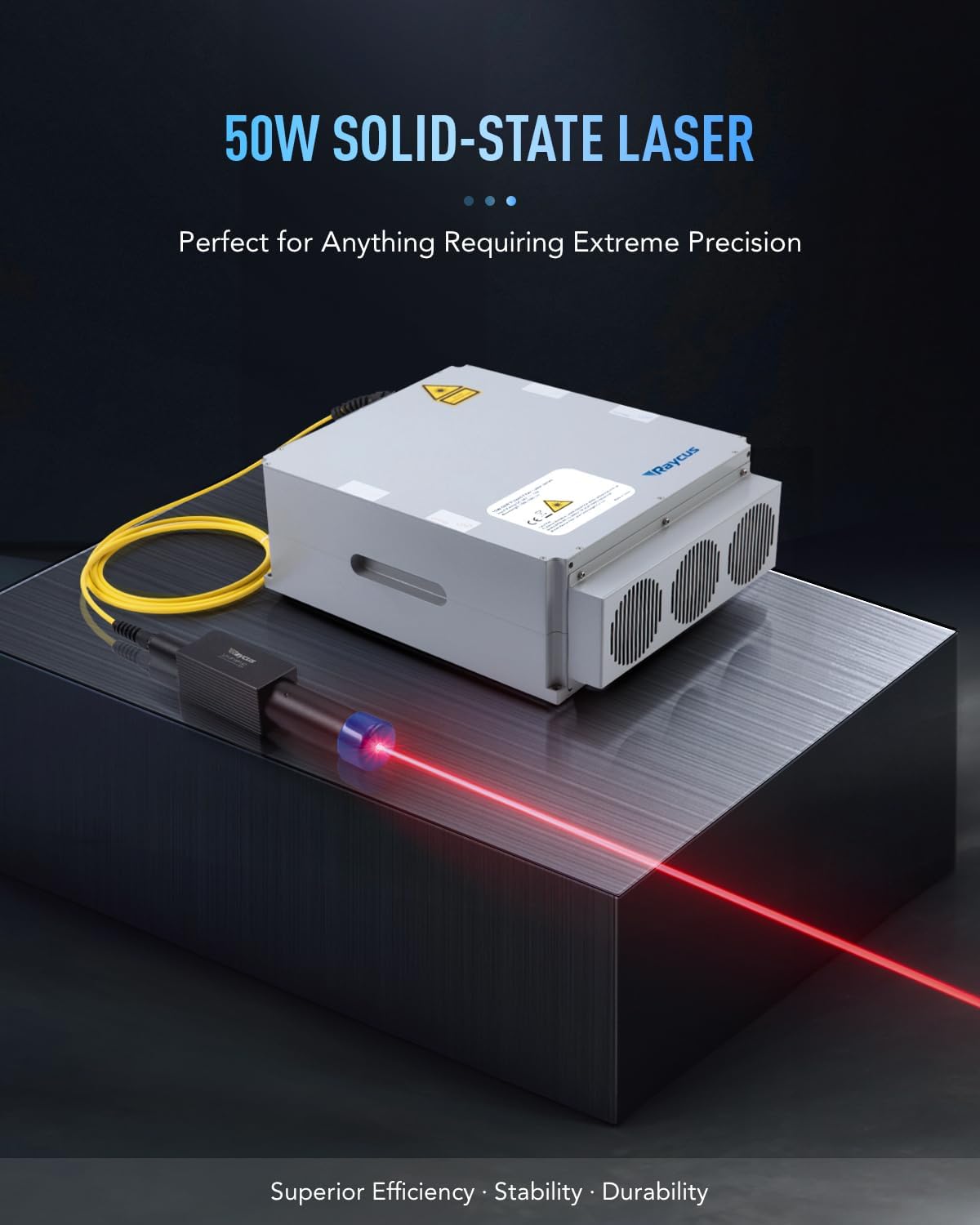
Image 8.1: The 50W solid-state fiber laser source, a key component of the engraver.

Image 8.2: Visual representation of the 7.9" x 7.9" work area and material capacity.
9. Garantia e Suporte
OMTech provides customer support for their products. For warranty information, technical assistance, or service inquiries, please contact OMTech directly.
- Telefone: +1 (949) 438-4949
- Suporte por e-mail: SUPORTE@OMTECHLASER.COM
- Email Tech Support: SUPORTE TÉCNICO@OMTLASER.COM

Image 9.1: OMTech customer support contact details for assistance.


