
Introdução
This manual provides comprehensive instructions for the setup, operation, maintenance, and troubleshooting of your Avision AD340G Compact High Speed Duplex Document Scanner. Please read this manual thoroughly before using the scanner to ensure proper and safe operation.
Informações de segurança
Observe the following safety precautions to prevent injury and damage to the scanner:
- Utilize apenas o adaptador de energia fornecido com o scanner.
- Não exponha o scanner à água ou umidade excessiva.
- Coloque o scanner em uma superfície estável e nivelada.
- Mantenha o scanner longe da luz solar direta e de fontes de calor.
- Unplug the scanner before cleaning or if it will not be used for an extended period.
Conteúdo da embalagem
Verifique se todos os itens estão presentes na embalagem:
- Avision AD340G Document Scanner
- Adaptador de energia
- Cabo USB
- Guia de início rápido
- CD do software (ou instruções de download)
Produto acimaview
Familiarize yourself with the main components of the Avision AD340G scanner.
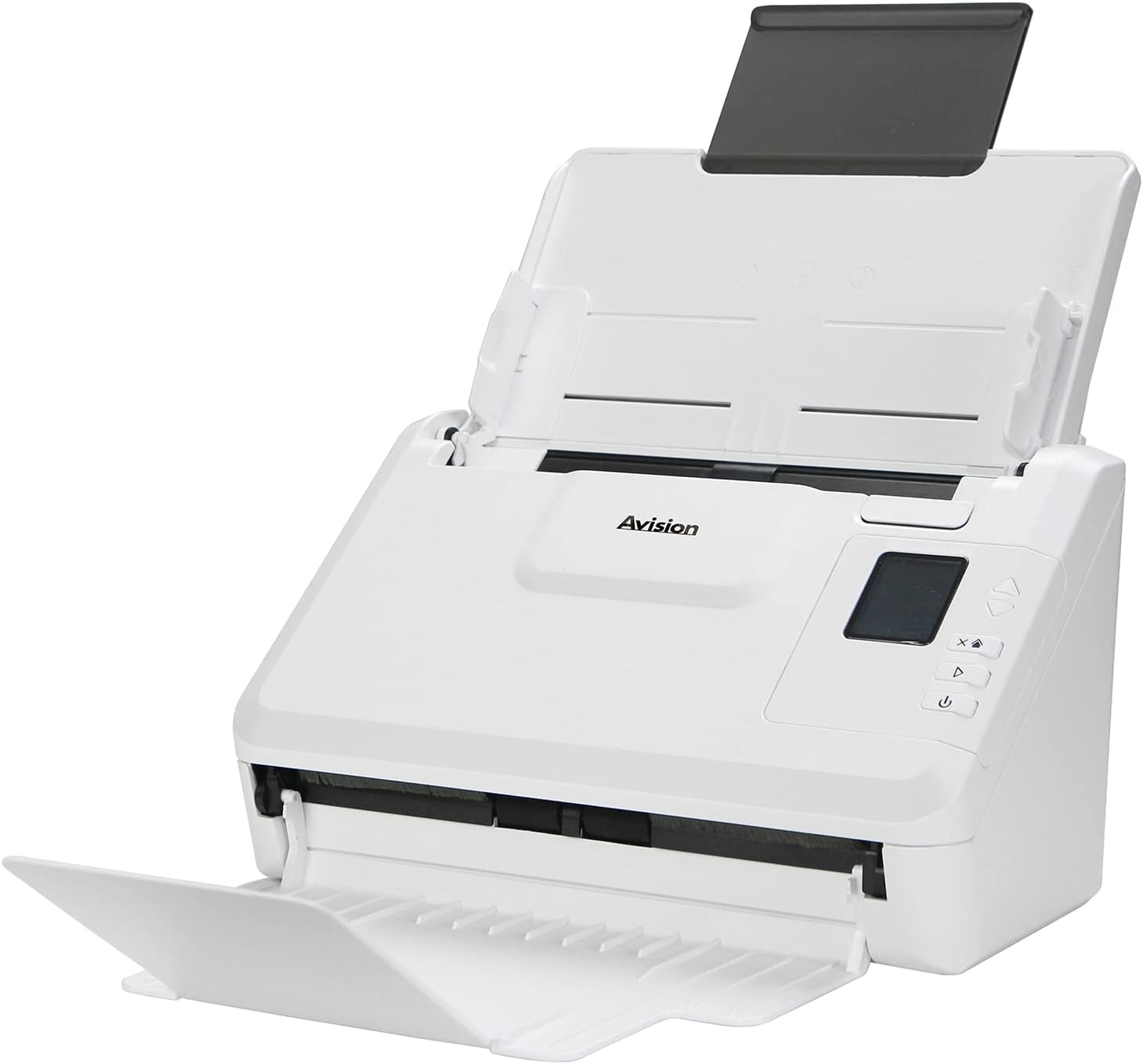
Imagem: The Avision AD340G scanner shown with its input and output trays extended, ready for document feeding. This view highlights the compact design and accessible paper path.
- Document Feeder Tray: Where documents are loaded for scanning.
- Bandeja de saída: Where scanned documents are ejected.
- Painel de controle: Buttons and display for scanner operation.
- Porta USB: Para conectar a um computador.
- Porta de alimentação: Para conectar o adaptador de energia.
Configurar
1. Configuração física
- Desembale o scanner: Retire cuidadosamente o scanner e todos os acessórios da embalagem.
- Place the Scanner: Position the scanner on a flat, stable surface with adequate space for the input and output trays.
- Conecte a energia:
- Connect the power adapter to the scanner's power port.
- Conecte o adaptador de energia a uma tomada elétrica.
- Conectar ao computador:
- Connect one end of the USB cable to the scanner's USB port.
- Conecte a outra extremidade do cabo USB a uma porta USB disponível no seu computador.
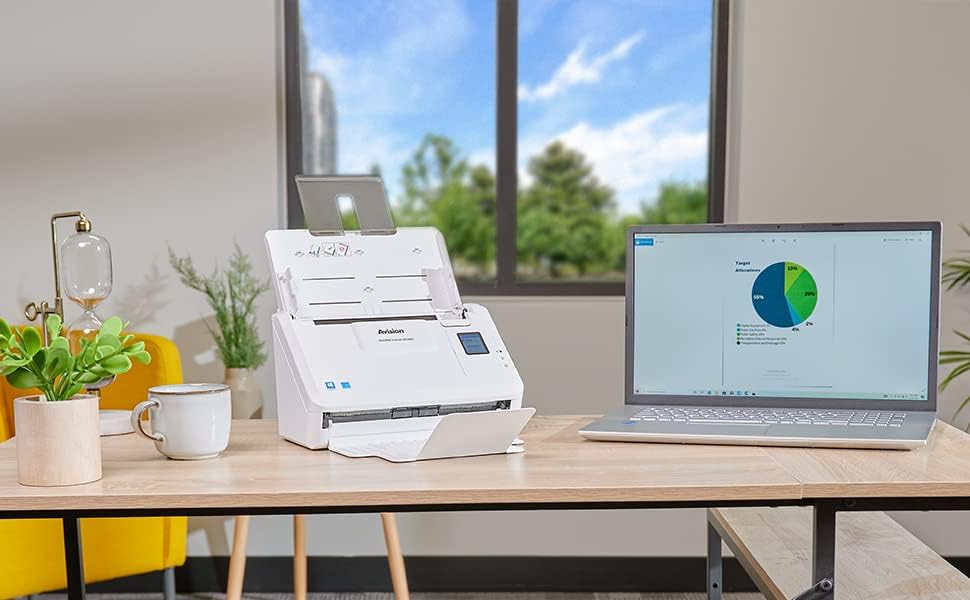
Imagem: The Avision AD340G scanner set up on a desk next to a laptop, illustrating a typical connected environment. This shows the scanner's compact footprint when in use.
2. Instalação de software
Install the necessary drivers and scanning software from the provided CD or by downloading them from the official Avision website.
- Insert the software CD into your computer's CD/DVD drive, or navigate to the Avision support website to download the latest drivers and utilities for the AD340G model.
- Follow the on-screen instructions to complete the installation. This typically includes installing the TWAIN/ISIS drivers and the Avision scanning utility software.
- Reinicie o computador se solicitado.
Operando o Scanner
1. Carregando documentos
- Open the document feeder tray and extend the output tray.
- Ajuste as guias de papel para que correspondam à largura dos seus documentos.
- Place the documents face-down in the input tray, ensuring they are neatly stacked and aligned. The scanner supports up to 50 sheets.

Imagem: A hand carefully placing a stack of documents into the input tray of the Avision AD340G scanner, demonstrating the correct loading procedure.
2. Scanning Procedure
- Ligue o scanner pressionando o botão liga/desliga.
- Launch the Avision scanning software on your computer.
- Select your desired scanning profile (e.g., color, grayscale, black & white, resolution). The AD340G supports duplex scanning (both sides simultaneously).
- Click the "Scan" button in the software or press the scan button on the scanner's control panel.
- The scanner will feed and process the documents. Once scanning is complete, the images will appear in the software.
- Review the scanned images, make any necessary adjustments (e.g., rotate, crop), and save them to your desired location and format (e.g., PDF, JPEG, TIFF).
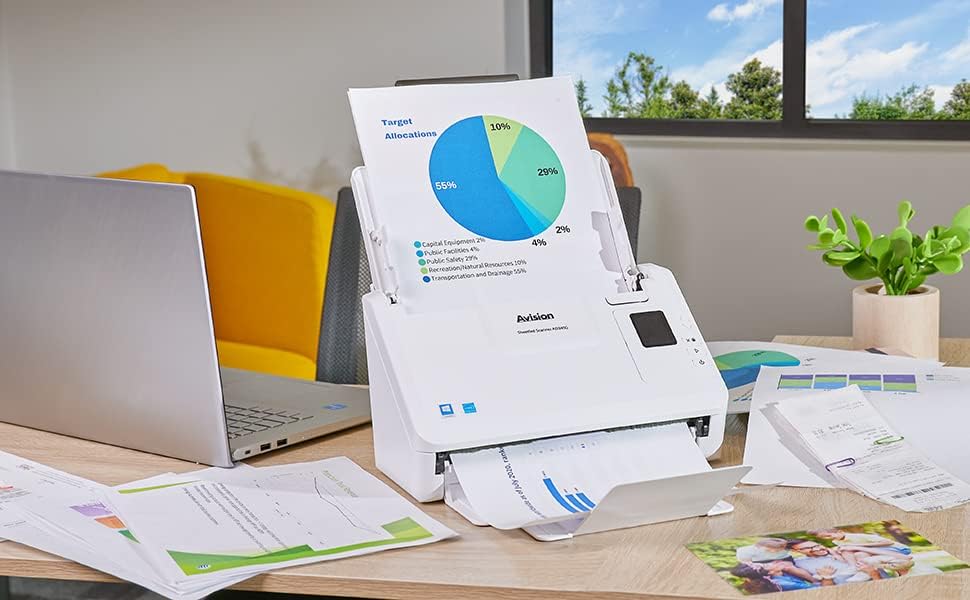
Imagem: The Avision AD340G scanner in operation, feeding a document with a pie chart. This illustrates the scanner's ability to handle various document types efficiently.
Manutenção
Limpando o Scanner
Regular cleaning ensures optimal performance and extends the life of your scanner.
- Desligue e desconecte: Always turn off the scanner and disconnect the power adapter and USB cable before cleaning.
- Exterior limpo: Wipe the exterior of the scanner with a soft, lint-free cloth lightly dampEnxágue com água ou um detergente suave e não abrasivo.
- Clean Interior (Rollers and Glass):
- Open the scanner cover to access the rollers and glass scanning surfaces.
- Gently wipe the feed rollers with a clean, lint-free cloth. If necessary, use a small amount of isopropyl alcohol on the cloth for stubborn residue.
- Clean the glass scanning strips with a soft cloth and glass cleaner (non-ammonia based).
- Allow all components to dry completely before closing the cover and reconnecting power.
Solução de problemas
| Problema | Possível causa | Solução |
|---|---|---|
| O scanner não liga. | Cabo de alimentação desconectado; problema na tomada. | Verifique se o cabo de alimentação está firmemente conectado. Tente usar outra tomada. |
| Documents jam frequently. | Misaligned paper guides; worn rollers; dirty rollers. | Adjust paper guides. Clean the feed rollers. If problem persists, rollers may need replacement. |
| As imagens digitalizadas estão desfocadas ou apresentam linhas. | Dirty scanning glass; incorrect resolution settings. | Clean the scanning glass. Adjust scanning resolution in the software. |
| Scanner not detected by computer. | USB cable disconnected; driver not installed or corrupted. | Check USB cable connection. Reinstall scanner drivers. Try a different USB port. |
Especificações
Key technical specifications for the Avision AD340G Document Scanner:
- Modelo: AD340G
- Tipo de Scanner: ADF Duplex Document Scanner
- Conectividade: USB
- Resolução: 600 dpi (Óptico)
- Velocidade de digitalização: 40 ppm (pages per minute) / 80 ipm (images per minute)
- Profundidade de cor: 48 bits input / 24 bits output
- Capacidade de folha padrão: 50 folhas
- Tecnologia de Sensor Óptico: CIS (sensor de imagem de contato)
- Dimensões do produto: 11 x 6.1 x 6.5 polegadas
- Peso do item: 8 libras
- Requisitos mínimos do sistema: Windows XP/7/8/10
Garantia e Suporte
For warranty information, technical support, or service inquiries, please refer to the warranty card included with your product or visit the official Avision webAs informações de contato para suporte ao cliente geralmente podem ser encontradas no site do fabricante. website.
Avision Official Website: www.avision.com


